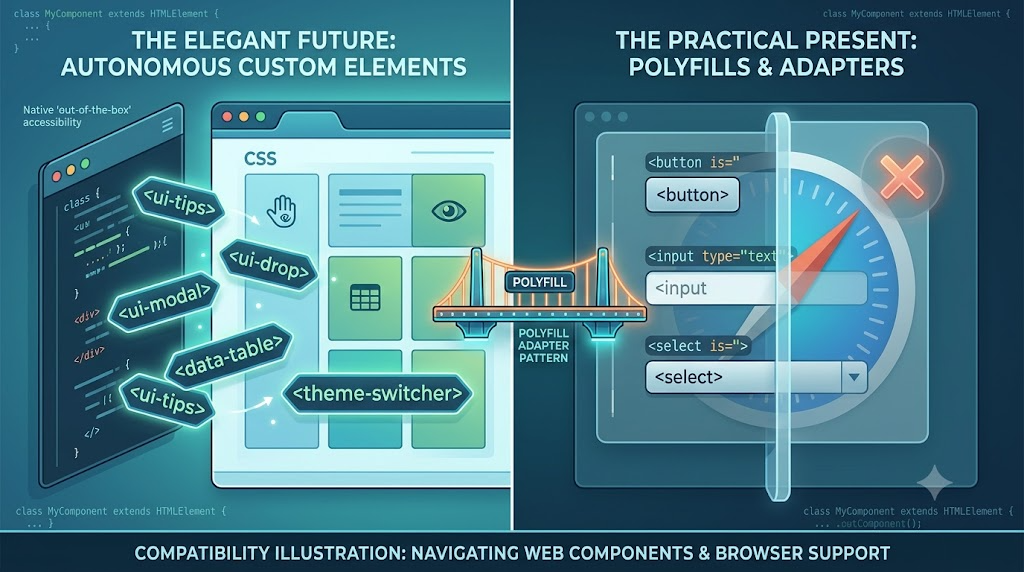
Based on Zhang Xinxu’s discussion of Safari’s Web Components limitations, with practical implementation examples from the demo code.
Safari supports autonomous custom elements, but it still does not support customized built-in elements. That small distinction has a big impact when you are building UI components that should extend native HTML behavior.
In practice, this means Safari is fine with elements like:
<ui-tips></ui-tips>
<ui-drop></ui-drop>
But it does not natively support this more elegant pattern:
<button is="ui-action"></button>
<input is="ui-color">
<select is="ui-select"></select>
That matters because customized built-in elements let us enhance native controls without throwing away their built-in semantics, accessibility, and behavior.
Autonomous Custom Elements Work in Safari
The safer Web Components pattern is the autonomous custom element: a fully custom tag name extending HTMLElement.
Here is the demo’s simplified version:
class UiTips extends HTMLElement {
  connectedCallback() {
    this.textContent = 'Autonomous custom element upgraded successfully.';
  }
}

customElements.define('ui-tips', UiTips);
This works in Safari because the browser only needs to upgrade a custom tag such as <ui-tips>.
<ui-tips></ui-tips>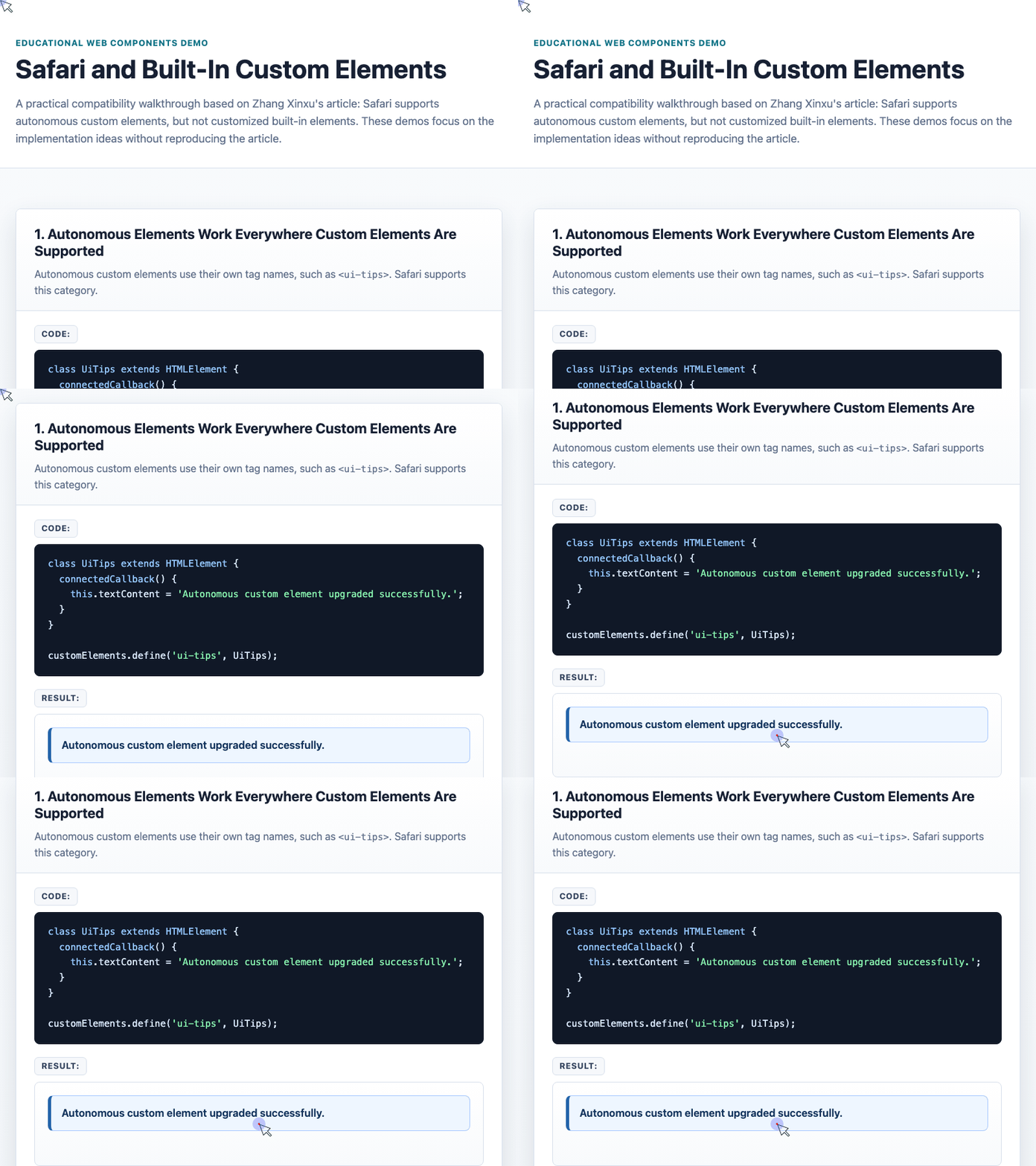
🎮 Try it live: Open the interactive demo to experience this yourself.
This is reliable, but it is not always ideal. For form controls, tables, buttons, and other semantic HTML elements, replacing native tags with custom tags can make the markup less natural.
Customized Built-In Elements Are the Cleaner Pattern
Customized built-in elements let a component extend a real native element. For example, a button component can still be a real <button>:
class UiAction extends HTMLButtonElement {
  connectedCallback() {
    this.addEventListener('click', () => {
      this.textContent = 'Native button behavior preserved';
    });
  }
}

customElements.define('ui-action', UiAction, {
  extends: 'button'
});
The HTML stays semantic:
<button is="ui-action" type="button">
  Click customized built-in button
</button>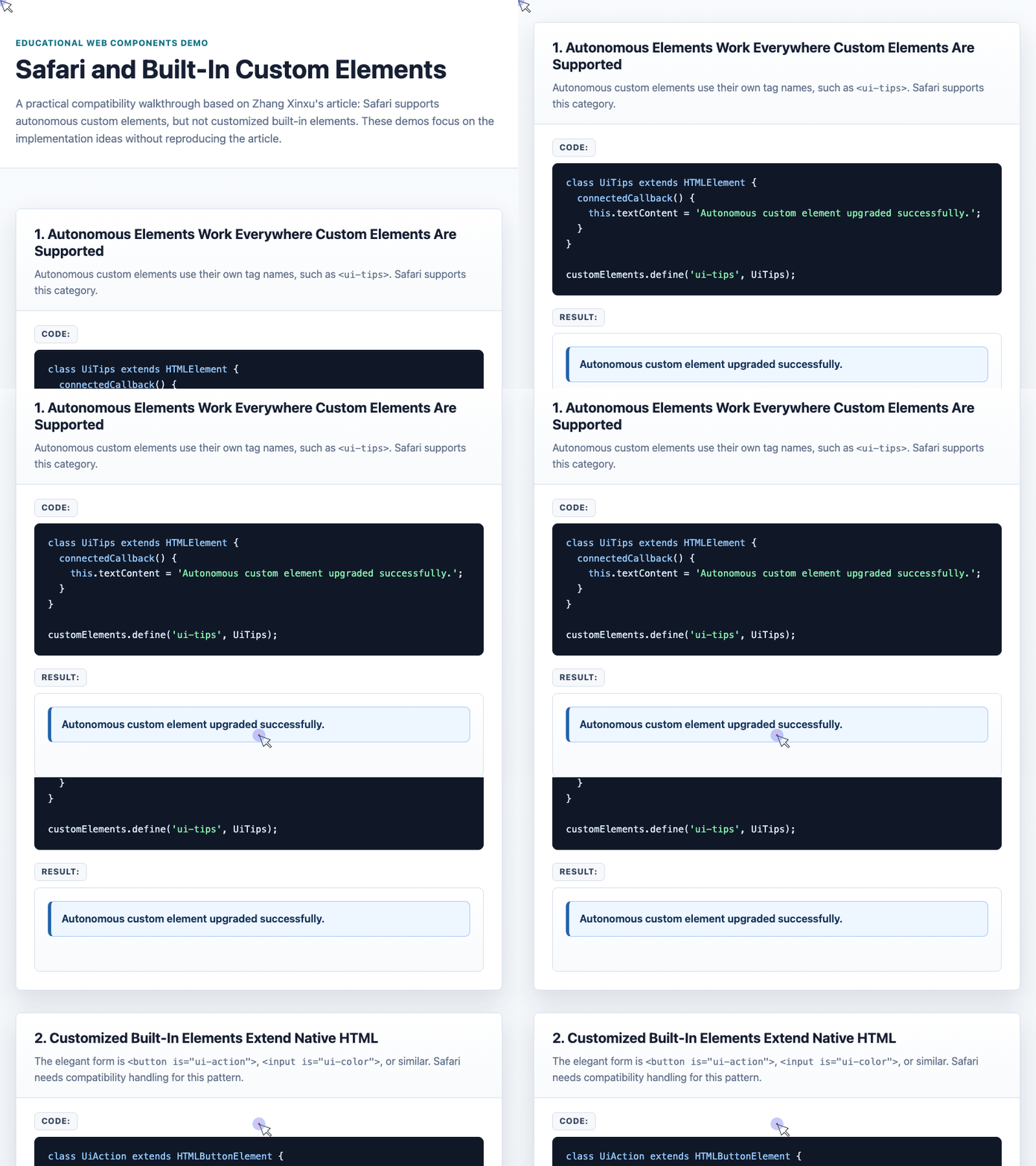
🎮 Try it live: Open the interactive demo to experience this yourself.
This is the version many component authors would prefer. The problem is that Safari does not upgrade this element natively, so production code needs compatibility handling.
Detect the Feature, Not the Browser
A common mistake is to detect Safari directly. That is brittle because browser behavior changes over time.
A better approach is feature detection: define a tiny customized built-in element, create it, and check whether it was upgraded.
function detectBuiltInSupport() {
  let isSupportBuiltIn = false;

  try {
    if (!customElements.get('any-class-demo')) {
      class AnyClass extends HTMLBRElement {
        constructor() {
          super();
          this.someMethod = true;
        }
      }

      customElements.define('any-class-demo', AnyClass, {
        extends: 'br'
      });
    }

    isSupportBuiltIn = document.createElement('br', {
      is: 'any-class-demo'
    }).someMethod === true;
  } catch (error) {
    isSupportBuiltIn = false;
  }

  return isSupportBuiltIn;
}
If the created <br> exposes someMethod, the browser supports customized built-in elements. If not, you can load a polyfill or switch to a compatibility path.
Load a Polyfill Only When Needed
For Safari, Zhang Xinxu points to the @webreflection/custom-elements-builtin polyfill as the practical solution. The important part is not simply loading a Safari-specific script. The better pattern is:
const supportMessage = isSupportBuiltIn
  ? 'Use customized built-in elements directly.'
  : 'Load a built-in custom elements polyfill before components.';

document.querySelector('#compatMessage').textContent = supportMessage;
That keeps the decision tied to platform capability instead of browser identity.
Watch Out for Initialization Timing
After adding a polyfill, the component may work visually, but there is another practical issue: timing.
In browsers with native support, a customized built-in element may be ready when your business code calls its methods. In Safari with a polyfill, the upgrade can happen later.
The safer pattern is to dispatch a custom event from connectedCallback, then call component methods only after that event fires.
class ReadyPanel extends HTMLElement {
  connectedCallback() {
    this.innerHTML =
      '<strong>ReadyPanel</strong><p>Waiting for method call.</p>';

    this.dispatchEvent(new CustomEvent('connected', {
      detail: { type: 'ready-panel' }
    }));
  }

  someMethod() {
    this.querySelector('p').textContent =
      'someMethod() ran after initialization.';
  }
}

customElements.define('ready-panel', ReadyPanel);

document.querySelector('ready-panel')
  .addEventListener('connected', function() {
    this.someMethod();
  });
🎮 Try it live: Open the interactive demo to experience this yourself.
This pattern gives business code a reliable hook. Instead of assuming the component is ready, it waits for the component itself to announce that it has finished connecting.
The Practical Strategy
For production Web Components that rely on customized built-in elements, the compatibility strategy is straightforward:
- Use customized built-in elements where they preserve native HTML semantics.
- Detect support with a real feature test.
- Load a polyfill only when the browser lacks support.
- Avoid calling component methods too early.
- Dispatch a custom lifecycle event such as
connectedwhen initialization is complete.
Safari’s limitation is inconvenient, but it does not have to force a full rewrite into autonomous custom elements. With feature detection, a targeted polyfill, and a reliable initialization event, customized built-in components can still be used in a maintainable way.
Try It Yourself
Want to see these concepts in action? I’ve created an interactive demo where you can experiment with the code and see real-time results.
Explore more demos from my previous articles in the Demo Gallery.
Happy coding!