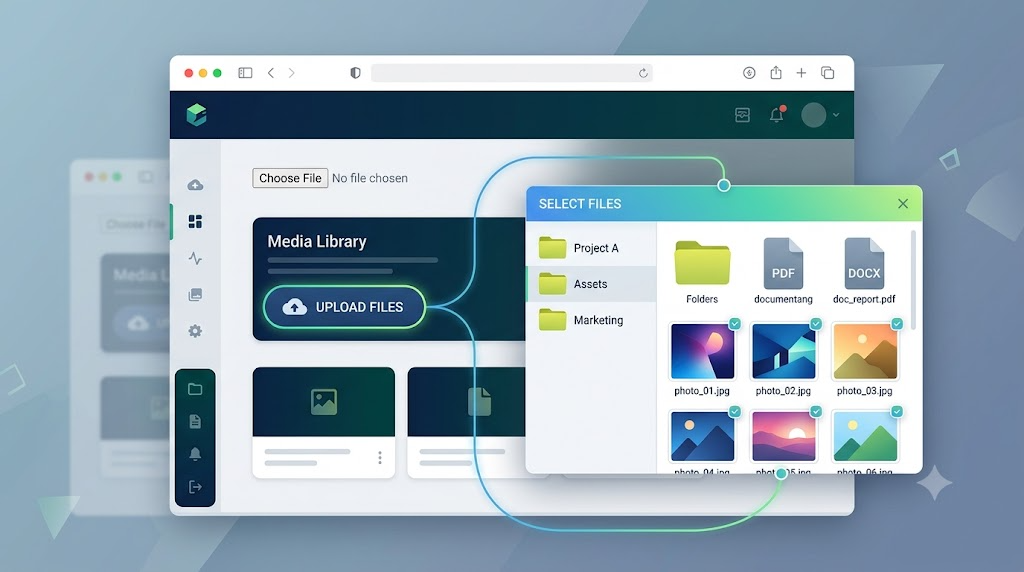
For a long time, file uploads on the web have meant one thing: an <input> element with type="file".
<input type="file">
It is simple, reliable, and still very capable. You can use accept to limit selectable file types, multiple to allow more than one file, and browser-specific features such as directory or camera capture in supported environments.
But there is one obvious problem: the native file input is difficult to style well.
You can hide the input and use a <label> as a custom button, but that approach can feel indirect. Modern browsers now offer another option: the File System Access API, which lets you trigger file and directory pickers from ordinary JavaScript.
The Classic Approach: Hide the Input, Style the Label
Before looking at the newer API, it is worth remembering the traditional pattern. A hidden file input still gives you broad browser support, while the label gives you a customizable trigger.
<label for="classicUpload" class="button-label">Choose images</label>
<input id="classicUpload" type="file" accept="image/*" multiple hidden>
<div id="classicOutput"></div>

<script>
const classicUpload = document.getElementById('classicUpload');
const classicOutput = document.getElementById('classicOutput');

classicUpload.addEventListener('change', function () {
    const files = Array.from(classicUpload.files);

    classicOutput.textContent = files.length
        ? files.map(file => `${file.name} - ${file.type || 'unknown type'}`).join('\n')
        : 'No files selected.';
});
</script>
This is still a strong baseline. It works in more browsers than the newer API and is easy to progressively enhance.
Opening a File Picker from an Ordinary Button
The File System Access API makes the interaction more direct. Instead of relying on a hidden input, you can call window.showOpenFilePicker() from a user gesture, such as a button click.
<button id="openFileButton">Select a file</button>
<div id="openFileOutput"></div>

<script>
const openFileButton = document.getElementById('openFileButton');
const openFileOutput = document.getElementById('openFileOutput');

openFileButton.addEventListener('click', async function () {
    if (!('showOpenFilePicker' in window)) {
        openFileOutput.textContent = 'showOpenFilePicker is not supported in this browser.';
        return;
    }

    try {
        const handles = await window.showOpenFilePicker();
        const file = await handles[0].getFile();

        openFileOutput.textContent = `Selected: ${file.name}\nSize: ${file.size} bytes`;
    } catch (error) {
        openFileOutput.textContent = error.name === 'AbortError'
            ? 'Picker canceled.'
            : error.message;
    }
});
</script>
The important detail is that showOpenFilePicker() returns file handles, not files directly. You call getFile() on a handle to access the selected File object.
Filtering File Types and Previewing Multiple Images
The API becomes more useful when you pass options. You can restrict the picker to images and allow multiple files.
<button id="imagePickerButton">Select images</button>
<div id="imagePickerOutput" class="preview-grid"></div>

<script>
const imagePickerButton = document.getElementById('imagePickerButton');
const imagePickerOutput = document.getElementById('imagePickerOutput');

imagePickerButton.addEventListener('click', async function () {
    imagePickerOutput.replaceChildren();

    const handles = await window.showOpenFilePicker({
        types: [{
            description: 'Images',
            accept: {
                'image/*': ['.png', '.gif', '.jpeg', '.jpg', '.webp']
            }
        }],
        multiple: true
    });

    for (const fileHandle of handles) {
        const file = await fileHandle.getFile();
        const src = URL.createObjectURL(file);

        const card = document.createElement('figure');
        card.className = 'preview-card';
        card.innerHTML = `<img src="${src}" alt="${file.name}">
            <figcaption>${file.name}</figcaption>`;

        imagePickerOutput.append(card);
    }
});
</script>
This is the core pattern: request handles, convert each handle to a File, create a temporary object URL, and render the preview.
Selecting a Folder
The same family of APIs also includes showDirectoryPicker(), which lets users choose a folder instead of individual files.
const directoryHandle = await window.showDirectoryPicker();

const entries = [];

for await (const [name, handle] of directoryHandle.entries()) {
    entries.push(`${handle.kind}: ${name}`);
    if (entries.length === 10) break;
}
This gives you a directory handle, then lets you iterate through the folder entries. It is useful for workflows such as batch imports, local project tools, media managers, and browser-based editors.
Use Progressive Enhancement in Real Projects
The catch is browser support. The File System Access API is modern and powerful, but it is not universally available. Safari support, in particular, remains a practical concern for production apps.
That means the best real-world approach is usually progressive enhancement:
async function pickImages() {
    if ('showOpenFilePicker' in window) {
        const handles = await window.showOpenFilePicker({
            types: [{
                description: 'Images',
                accept: {
                    'image/*': ['.png', '.gif', '.jpeg', '.jpg', '.webp']
                }
            }],
            multiple: true
        });

        return Promise.all(handles.map(handle => handle.getFile()));
    }

    return new Promise(function (resolve) {
        const input = document.createElement('input');
        input.type = 'file';
        input.accept = 'image/png,image/gif,image/jpeg,image/webp';
        input.multiple = true;

        input.addEventListener('change', function () {
            resolve(Array.from(input.files));
            input.remove();
        }, { once: true });

        document.body.append(input);
        input.click();
    });
}
This wrapper gives modern browsers the cleaner API while preserving a working fallback for browsers that still need the traditional file input.
Runtime Restrictions
There are a few important restrictions to remember:
The File System Access API requires a secure context, which usually means HTTPS. localhost is allowed for local development.
The picker must be triggered by user activation, such as a click. You cannot open it arbitrarily when the page loads.
It is also restricted in some embedded contexts, especially iframes, because exposing local file access from embedded pages has obvious security risks.
Final Thoughts
The classic <input type="file"> is not going away. It is stable, compatible, and still the right default for many apps.
But showOpenFilePicker() and showDirectoryPicker() make file selection feel much more natural in modern web applications. You can trigger selection from any button, use async/await, inspect file handles, preview local files, and build richer import workflows.
For production, wrap the new API with an input-based fallback. That gives users the best available experience without abandoning browser compatibility.
Try It Yourself
Want to see these concepts in action? I’ve created an interactive demo where you can experiment with the code and see real-time results.
Explore more demos from my previous articles in the Demo Gallery.
Happy coding!