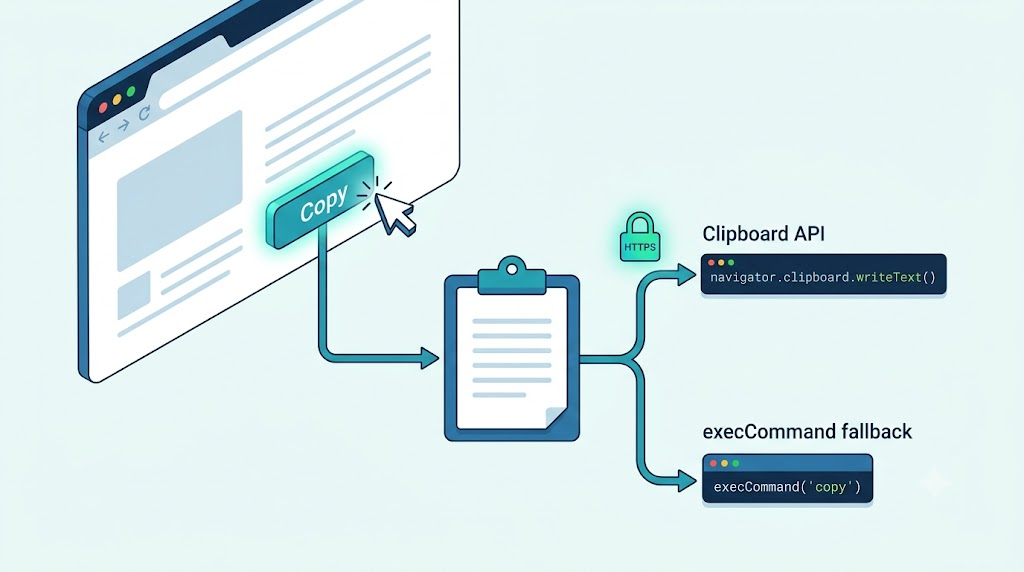
Copying text to the clipboard looks like a tiny feature until you need it to work reliably across browsers, old enterprise environments, local demos, and modern HTTPS applications.
For years, the classic solution was document.execCommand('copy'). Today, the recommended approach is the asynchronous Clipboard API, especially navigator.clipboard.writeText(). But because clipboard behavior depends on browser support, secure contexts, and user gestures, the most practical implementation is often a small wrapper that uses the modern API first and falls back when needed.
Why execCommand() Still Shows Up
The old approach works by selecting text on the page and asking the browser to copy the current selection:
function copyWithExecCommand(text) {
  var textarea = document.createElement('textarea');
  document.body.appendChild(textarea);

  textarea.style.position = 'fixed';
  textarea.style.clip = 'rect(0 0 0 0)';
  textarea.style.top = '10px';

  textarea.value = text;
  textarea.select();

  var copied = document.execCommand('copy', true);
  document.body.removeChild(textarea);

  return copied;
}
The important detail is that execCommand('copy') needs selected content. That is why the demo creates a temporary <textarea>, inserts the text, selects it, copies it, and then removes the element.
Using position: fixed helps avoid a subtle UX problem: if the temporary textarea is outside the visible page area, selecting it may cause the browser to scroll unexpectedly.
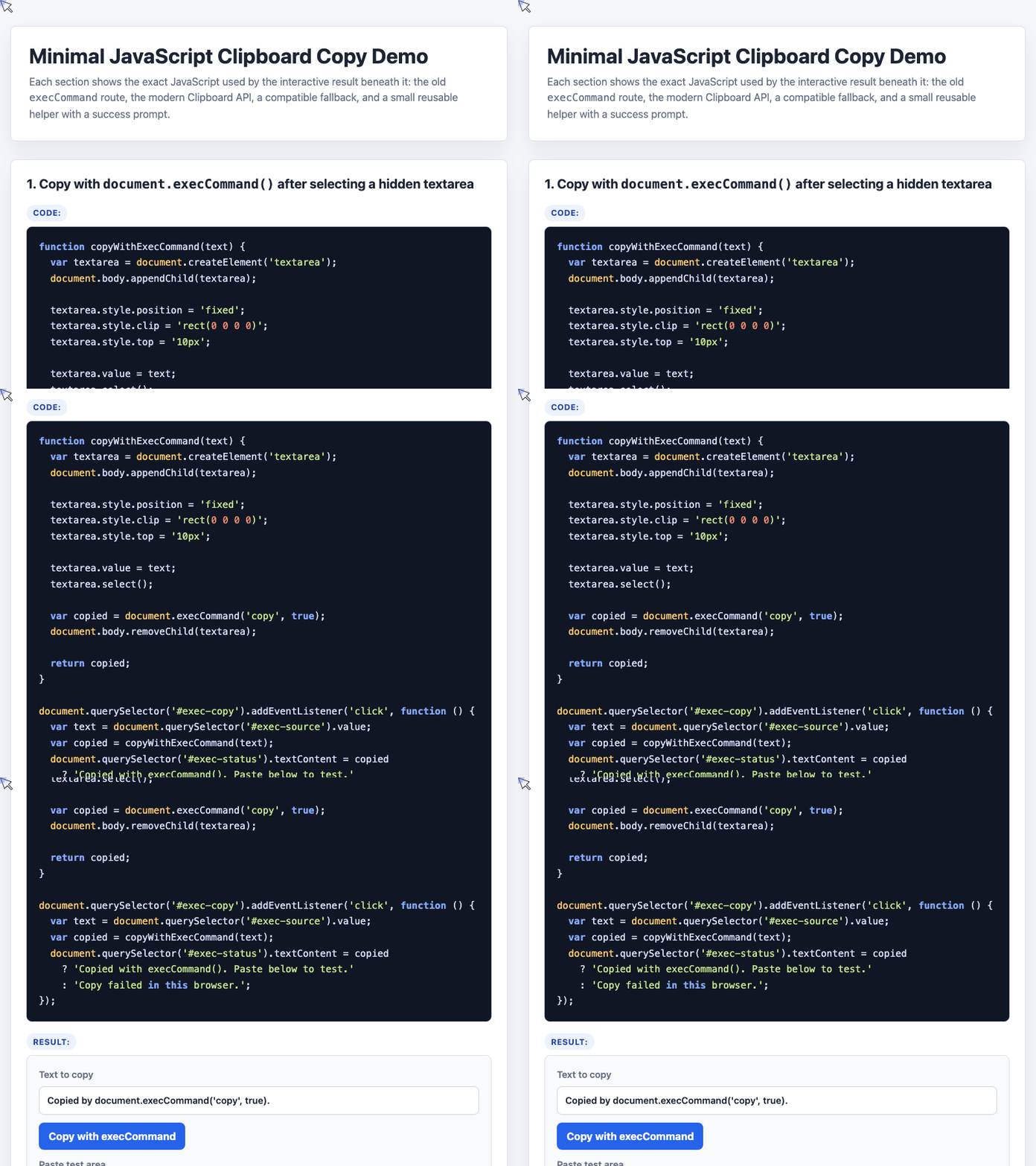
🎮 Try it live: Open the interactive demo to experience this yourself.
The Modern Clipboard API
The cleaner option is the Clipboard API:
function copyWithClipboardAPI(text) {
  if (navigator.clipboard) {
    return navigator.clipboard.writeText(text);
  }

  return Promise.reject(new Error('Clipboard API is unavailable.'));
}

document.querySelector('#api-copy').addEventListener('click', function () {
  var text = document.querySelector('#api-source').value;

  copyWithClipboardAPI(text)
    .then(function () {
      document.querySelector('#api-status').textContent =
        'Copied with navigator.clipboard.writeText().';
    })
    .catch(function (error) {
      document.querySelector('#api-status').textContent = error.message;
    });
});
This version is easier to reason about because writeText() returns a Promise. It does not block the main thread like a synchronous copy operation can.
There are still constraints: modern clipboard access is designed around browser security. According to MDN, the Clipboard API is preferred over deprecated execCommand() clipboard access, and writing generally requires a secure context plus transient user activation, such as a click.
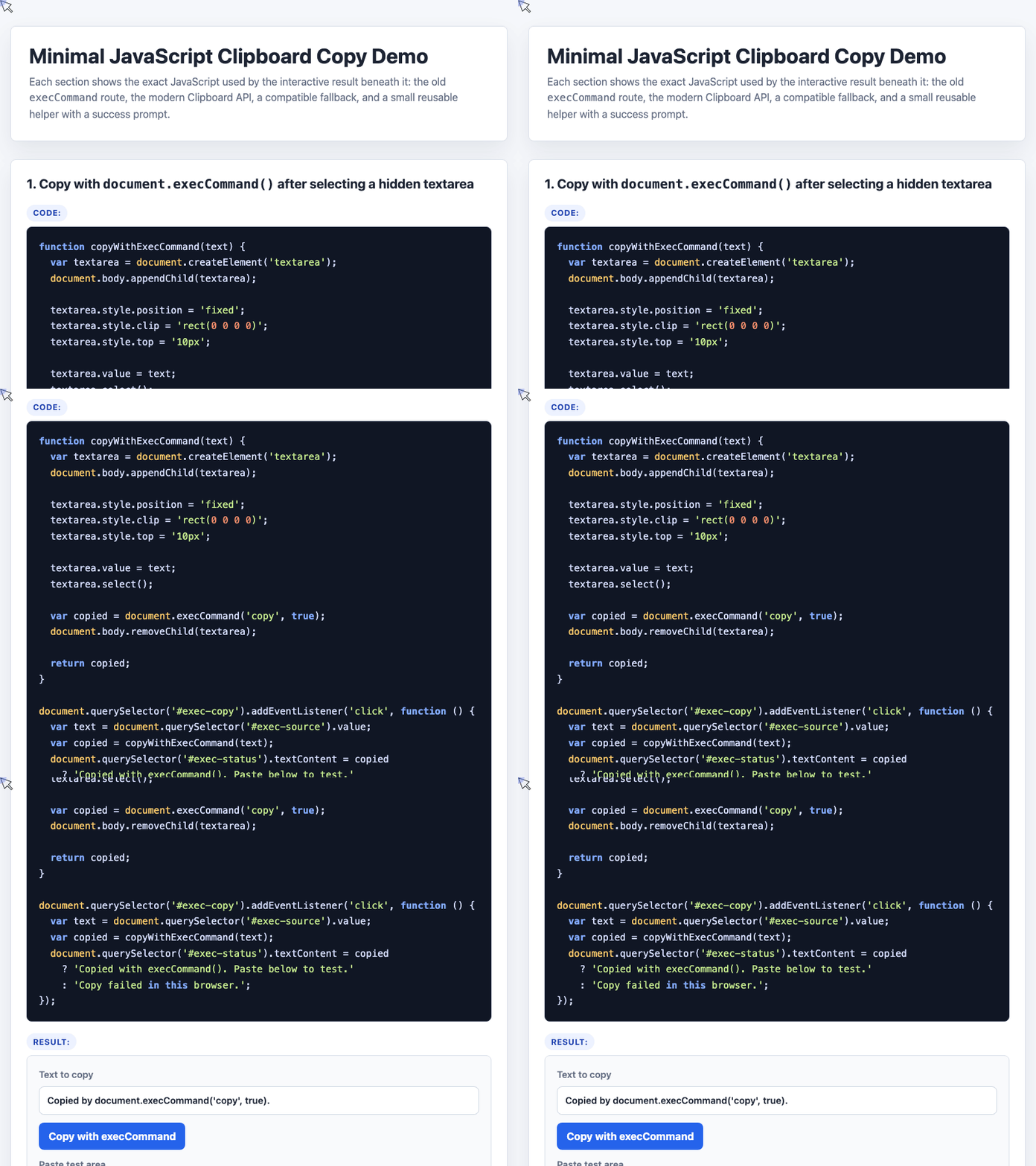
🎮 Try it live: Open the interactive demo to experience this yourself.
A Practical Compatibility Wrapper
For real projects, the best minimal solution is usually: try navigator.clipboard.writeText() first, then fall back to execCommand().
function copyToClipboard(text) {
  if (navigator.clipboard) {
    return navigator.clipboard.writeText(text).then(function () {
      return 'Clipboard API';
    });
  }

  var textarea = document.createElement('textarea');
  document.body.appendChild(textarea);

  textarea.style.position = 'fixed';
  textarea.style.clip = 'rect(0 0 0 0)';
  textarea.style.top = '10px';

  textarea.value = text;
  textarea.select();

  var copied = document.execCommand('copy', true);
  document.body.removeChild(textarea);

  return copied
    ? Promise.resolve('execCommand fallback')
    : Promise.reject(new Error('Copy failed.'));
}
This wrapper gives the rest of your application one consistent interface: pass text in, get a Promise back. The calling code does not need to care which copy mechanism was used.
document.querySelector('#fallback-copy').addEventListener('click', function () {
  var text = document.querySelector('#fallback-source').value;

  copyToClipboard(text)
    .then(function (method) {
      document.querySelector('#fallback-status').textContent =
        'Copied with ' + method + '.';
    })
    .catch(function (error) {
      document.querySelector('#fallback-status').textContent = error.message;
    });
});
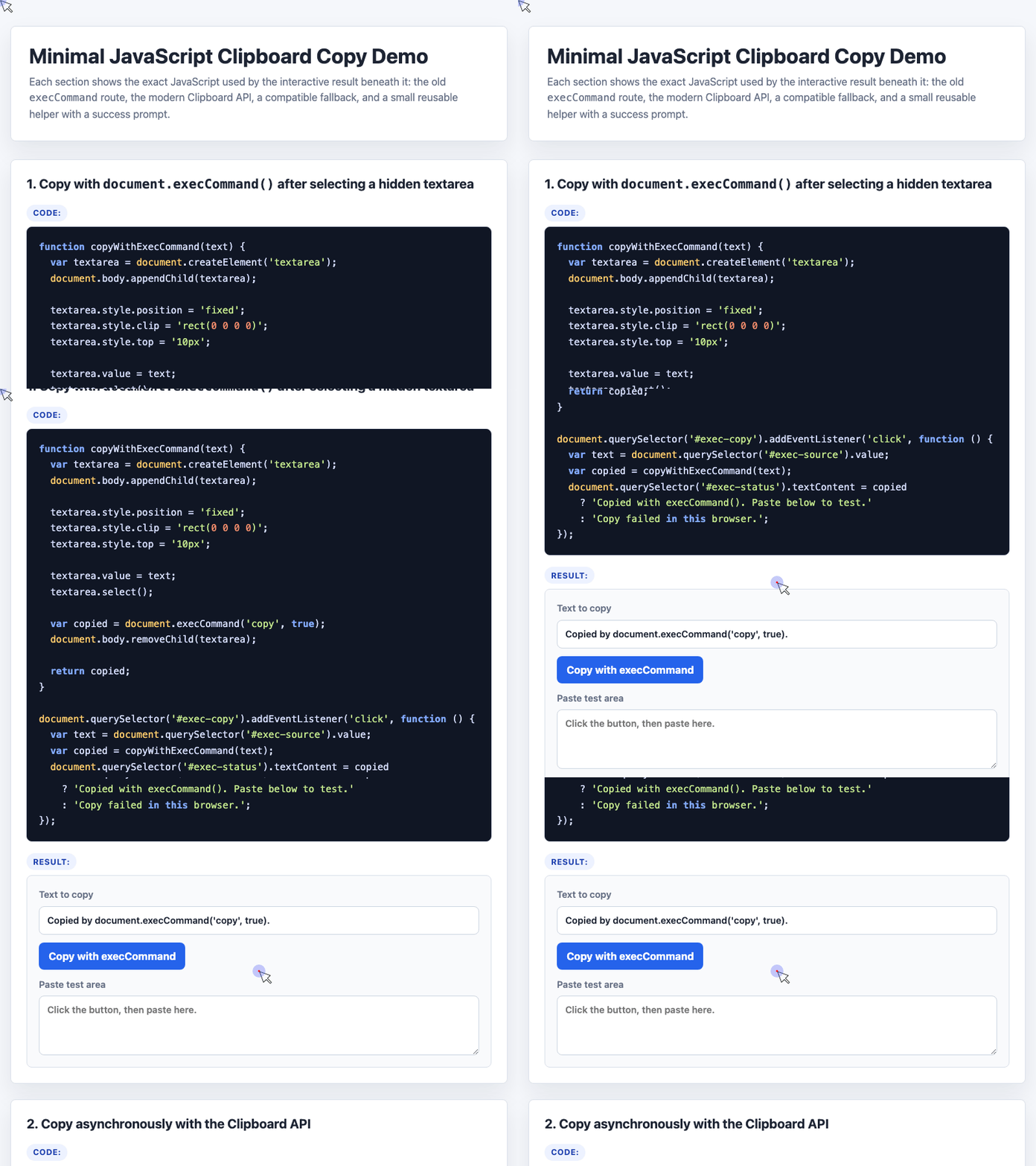
🎮 Try it live: Open the interactive demo to experience this yourself.
Turning It Into a Reusable Helper
A nice enhancement is to let the helper copy either a string, an input value, or normal DOM text:
function getCopyContent(content) {
  if (typeof content === 'string') {
    return content;
  }

  if (content && 'value' in content) {
    return content.value;
  }

  return content ? content.textContent : '';
}

function copyText(button, content) {
  if (typeof button === 'string' && content === undefined) {
    return copyToClipboard(button);
  }

  var text = getCopyContent(content);

  return copyToClipboard(text).then(function () {
    showCopyPrompt(button);
  });
}
With this small abstraction, the same API can support multiple usage patterns:
copyText(this, 'Direct string copied by copyText(button, content).');
copyText(this, document.querySelector('#helper-input'));
copyText(this, document.querySelector('#helper-block'));
This is especially useful for documentation pages, admin tools, campaign pages, token-copy buttons, invite links, and lightweight demos.
Adding a Success Prompt
A copy action should usually provide feedback. The demo creates a small toast above the button:
function showCopyPrompt(button) {
  var toast = document.createElement('span');
  toast.className = 'copy-toast';
  toast.textContent = 'Copied';

  button.parentElement.appendChild(toast);

  requestAnimationFrame(function () {
    toast.classList.add('is-visible');
  });

  setTimeout(function () {
    toast.classList.remove('is-visible');
    setTimeout(function () {
      toast.remove();
    }, 200);
  }, 1200);
}
This keeps the UI lightweight while confirming that the action completed. For production apps, you may also want to expose the status through an aria-live region for accessibility.
When to Use a Library
If you only need to copy plain text, a small helper like this is often enough.
If your project needs more advanced behavior, such as declarative bindings, cut support, or more polished cross-browser handling, a library like clipboard.js can still be useful. The tradeoff is simple: a few lines of custom JavaScript for minimal control, or a dependency for a broader feature set.
Final Thoughts
The modern recommendation is clear: prefer the Clipboard API where available. But in practical frontend work, a fallback still has value, especially for demos, legacy browsers, and environments where support is uneven.
A good clipboard helper should be small, asynchronous from the caller’s perspective, safe against scroll jumps, and capable of giving users immediate visual feedback.
References: MDN on the Clipboard API and document.execCommand().
Try It Yourself
Want to see these concepts in action? I’ve created an interactive demo where you can experiment with the code and see real-time results.
Explore more demos from my previous articles in the Demo Gallery.
Happy coding!