
In the browser, user interaction and JavaScript assignment are not treated the same way.
When a user types, pastes, or drops text into an <input>, the browser fires an input event. When that input later loses focus and its value has changed, the browser fires a change event.
But when JavaScript assigns the value directly:
input.value = 'zhangxinxu';no input event fires, and no change event fires.
That behavior is intentional. Setting a DOM property is just a property assignment. The browser updates the value, but it does not assume that programmatic changes should behave like user interaction.
Still, in real applications, you may want assignment to trigger the same downstream logic as a user-driven change. Let’s look at how to do that cleanly.
The Native Behavior
Here is a minimal example showing the default browser behavior. Typing into the input logs events, but clicking the assignment button only changes the value silently.
const input = document.querySelector('#native-input');
const log = document.querySelector('#native-log');

input.addEventListener('input', () => {
  log.textContent += '\ninput event: ' + input.value;
});

input.addEventListener('change', () => {
  log.textContent += '\nchange event: ' + input.value;
});

document.querySelector('#native-assign').addEventListener('click', () => {
  input.value = '张鑫旭';
  log.textContent += '\nassigned input.value directly: no input/change event';
});
This is the baseline problem: the value changes, but event-driven code does not run.
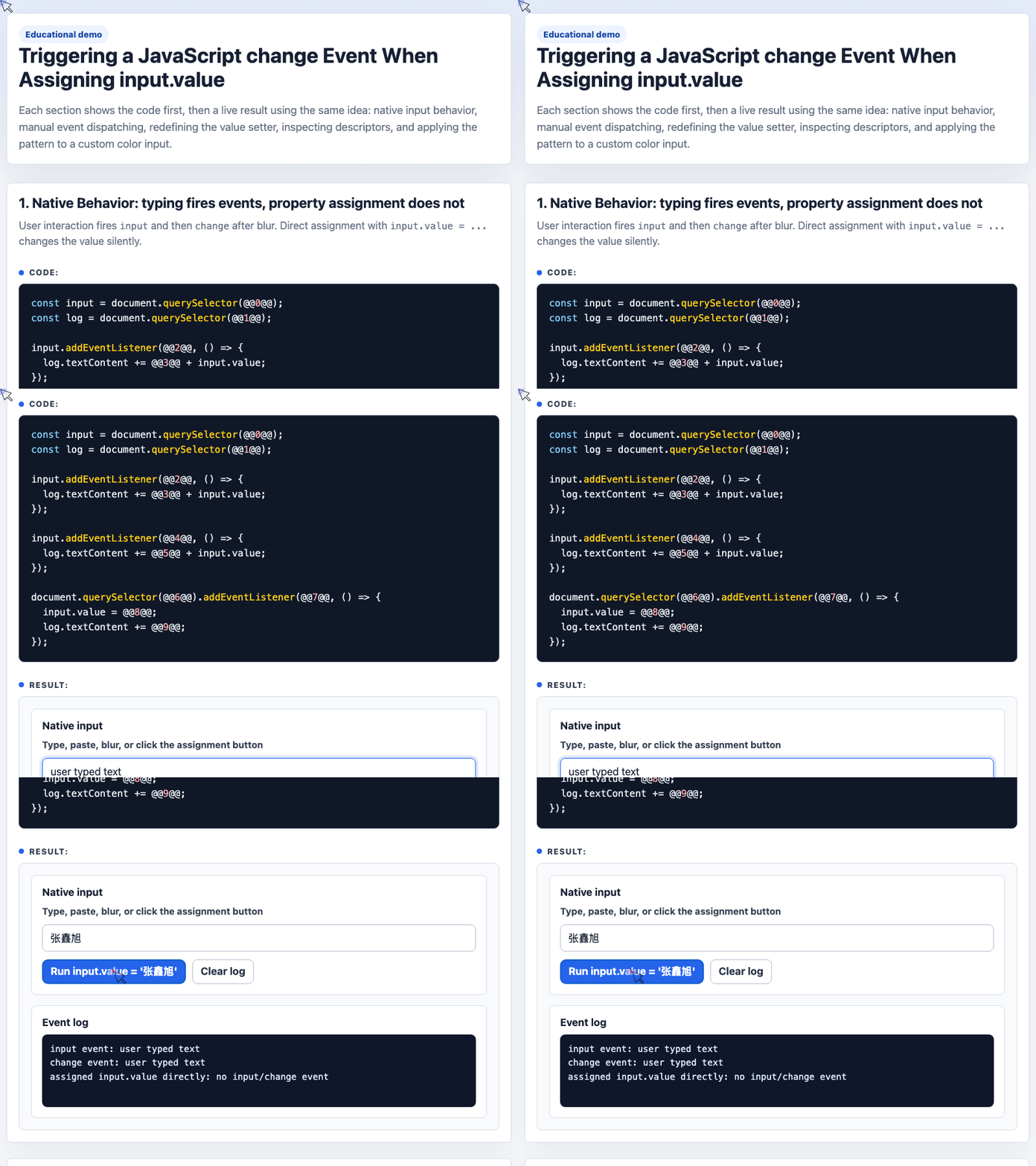
🎮 Try it live: Open the interactive demo to experience this yourself.
The Direct Fix: Manually Dispatch change
The most explicit solution is to assign the value, then dispatch a change event yourself.
const input = document.querySelector('#manual-input');
const result = document.querySelector('#manual-result');

input.addEventListener('change', function () {
  result.textContent += this.value + ' ';
});

document.querySelector('#manual-run').addEventListener('click', () => {
  input.value = 'zhangxinxu';
  input.dispatchEvent(new CustomEvent('change'));
});
This works, and it is easy to reason about. The downside is that every place assigning input.value must remember to also dispatch the event.
For a small script, that may be fine. For a larger UI, it becomes repetitive and easy to forget.
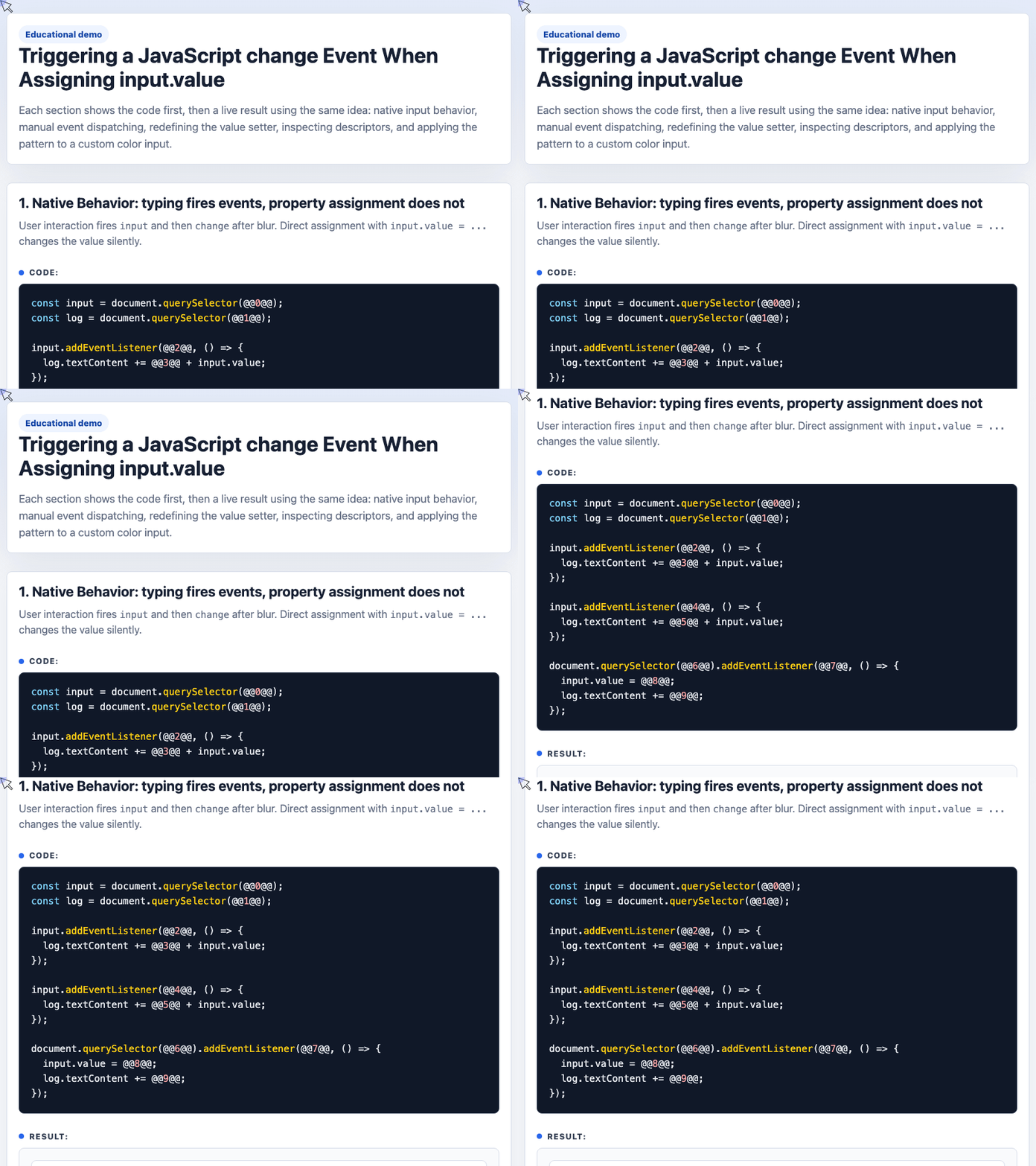
🎮 Try it live: Open the interactive demo to experience this yourself.
A Cleaner Approach: Redefine the value Setter
JavaScript lets us inspect and redefine property behavior through property descriptors.
The native value property for input elements already has a getter and setter on HTMLInputElement.prototype. We can capture those native accessors, call the original setter, and then dispatch change when the value actually changed.
Here is the focused version from the demo:
const input = document.querySelector('#patched-input');
const result = document.querySelector('#patched-result');

const props = Object.getOwnPropertyDescriptor(
  HTMLInputElement.prototype,
  'value'
);

Object.defineProperty(input, 'value', {
  ...props,
  set(value) {
    const oldValue = props.get.call(this);
    props.set.call(this, value);

    if (oldValue !== value) {
      this.dispatchEvent(new CustomEvent('change', { bubbles: true }));
    }
  }
});

input.addEventListener('change', function () {
  result.textContent += this.value;
});

document.querySelector('#patched-run').addEventListener('click', () => {
  input.value = 'zhangxinxu';
});
There are a few important details here.
First, the code keeps the browser’s native behavior by calling:
props.set.call(this, value);Second, it reads the previous value through the native getter:
const oldValue = props.get.call(this);Third, it dispatches the event from this, not from a hard-coded variable. That makes the setter reusable and avoids accidentally dispatching from the wrong element.
Finally, this demo defines the custom property on a single input instance. That is safer than redefining HTMLInputElement.prototype.value globally, which would affect every input on the page.
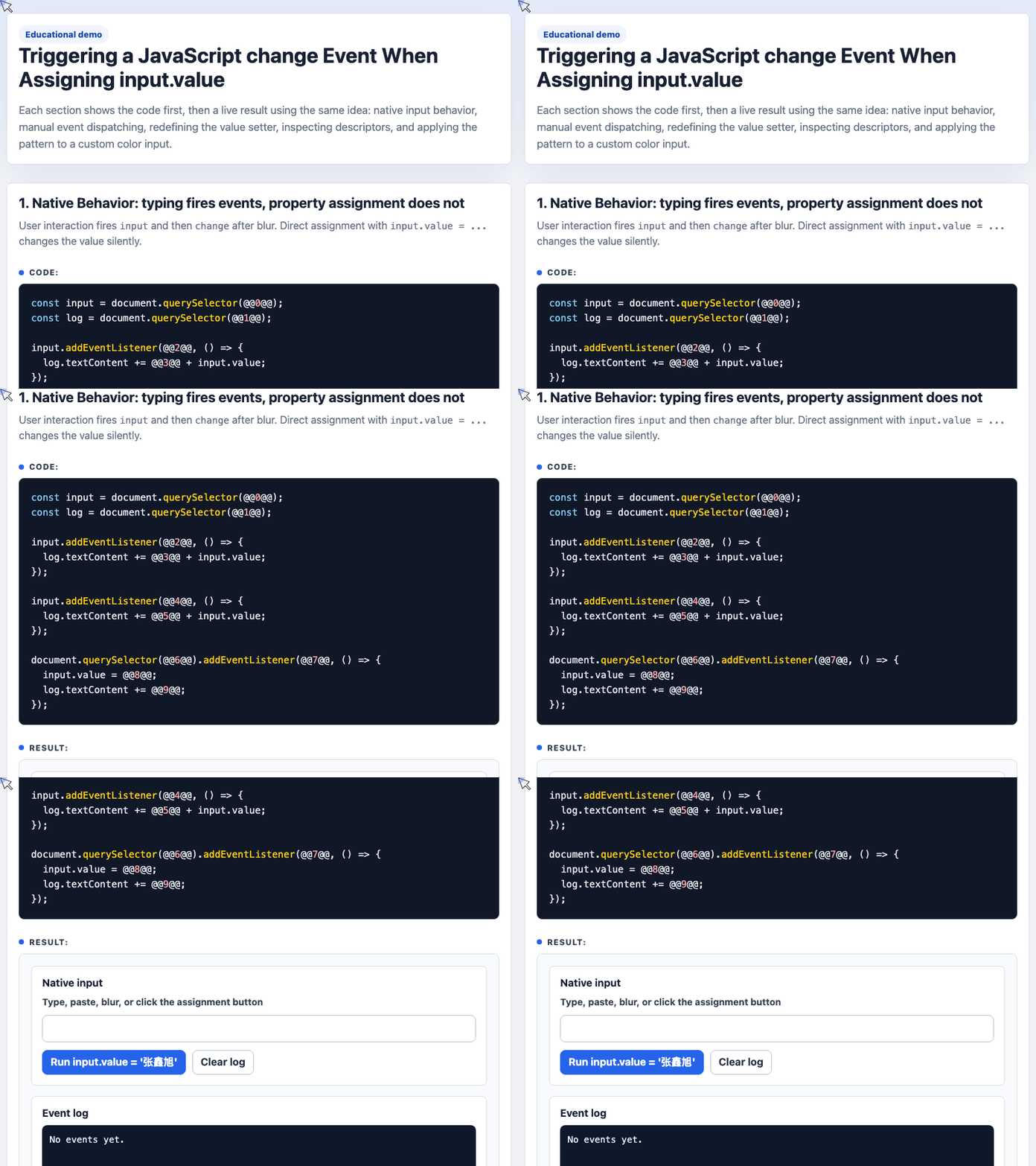
🎮 Try it live: Open the interactive demo to experience this yourself.
What getOwnPropertyDescriptor() Is Doing
Object.getOwnPropertyDescriptor() returns the descriptor for a property directly defined on an object.
For HTMLInputElement.prototype.value, the descriptor includes native accessor functions:
const props = Object.getOwnPropertyDescriptor(
  HTMLInputElement.prototype,
  'value'
);

const details = {
  get: typeof props.get,
  set: typeof props.set,
  enumerable: props.enumerable,
  configurable: props.configurable,
  writable: props.writable
};
A descriptor can describe either a data property or an accessor property.
A data property may have value and writable.
An accessor property may have get and set.
The input’s value property is an accessor property, which is why we can wrap the native getter and setter instead of replacing the browser’s behavior from scratch.
Beyond change: Syncing Custom UI
This same pattern is useful beyond events.
Imagine a custom color input that accepts eight-digit hex colors such as #RRGGBBAA, where the final two characters represent alpha transparency. Native color inputs do not handle that format directly, so a custom UI may need to update its preview whenever value is assigned.
The pattern is the same:
- Save the native input
valuedescriptor. - Redefine
valueon the custom input class. - Call the native setter.
- Sync the UI.
- Dispatch
changeif needed.
class ColorOpacityInput extends HTMLInputElement {
  connectedCallback() {
    this.uiMatch();
  }

  uiMatch() {
    const match = /^#([\da-f]{2})([\da-f]{2})([\da-f]{2})([\da-f]{2})$/i
      .exec(this.value);

    if (!match) return;

    const [r, g, b, a] = match
      .slice(1)
      .map(hex => parseInt(hex, 16));

    document.querySelector('#color-fill').style.background =
      `rgba(${r}, ${g}, ${b}, ${(a / 255).toFixed(2)})`;
  }
}

customElements.define('color-opacity', ColorOpacityInput, {
  extends: 'input'
});
The custom element turns #EB46467D into an RGBA preview. Assigning the value is no longer just data storage; it also becomes a rendering trigger.
A Note on Proxy
A Proxy can also intercept assignments, but it works differently.
Instead of redefining the input’s native property, you wrap the input in another object and assign through that wrapper:
const proxy = new Proxy(input, {
  set(target, property, value) {
    target[property] = value;

    if (property === 'value') {
      target.dispatchEvent(new CustomEvent('change', { bubbles: true }));
    }

    return true;
  }
});
That can be useful when you control all assignments and can enforce proxy.value = .... But it will not catch direct writes to input.value.
Conclusion
Directly assigning input.value does not fire input or change events. If you need event-driven logic to run after programmatic updates, you have three practical options:
Use manual dispatchEvent() when assignments are rare.
Wrap the native value setter with Object.getOwnPropertyDescriptor() and Object.defineProperty() when you want assignment itself to trigger behavior.
Use a Proxy when you can require all writes to go through a wrapper object.
For most DOM work, the safest version is the instance-level defineProperty approach: it preserves native browser behavior, keeps the change localized, and makes direct assignment behave the way your component expects.
Try It Yourself
Want to see these concepts in action? I’ve created an interactive demo where you can experiment with the code and see real-time results.
Explore more demos from my previous articles in the Demo Gallery.
Happy coding!