Front-end video generation sounds simple until audio enters the picture.
If all you need is visual recording, the browser already gives you several options. canvas.captureStream() can turn Canvas frames into a video stream. Chrome and Android can generate WebM from image sequences. Libraries like whammy.js and RecordRTC make simple recording workflows easier.
But these approaches are usually recording-oriented. They are good at capturing what is already happening on the screen or in a media stream. They are much less comfortable when the requirement is:
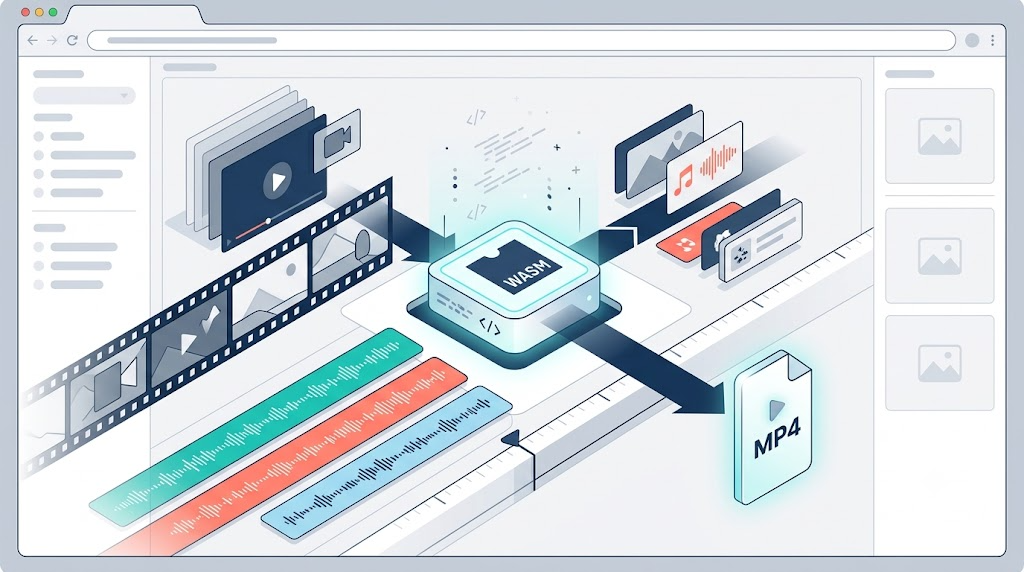
I have one video file, several separate audio files, and I need to place those audio clips at exact timestamps, mix them together, and export a shareable MP4.
That was the real requirement.
The goal was not to record a page. The goal was to generate a real video, entirely in the browser, with multiple audio clips composited into a single output.
That is where ffmpeg.wasm becomes interesting.
Why Browser Recording Was Not Enough
The browser can create video-like output in several ways.
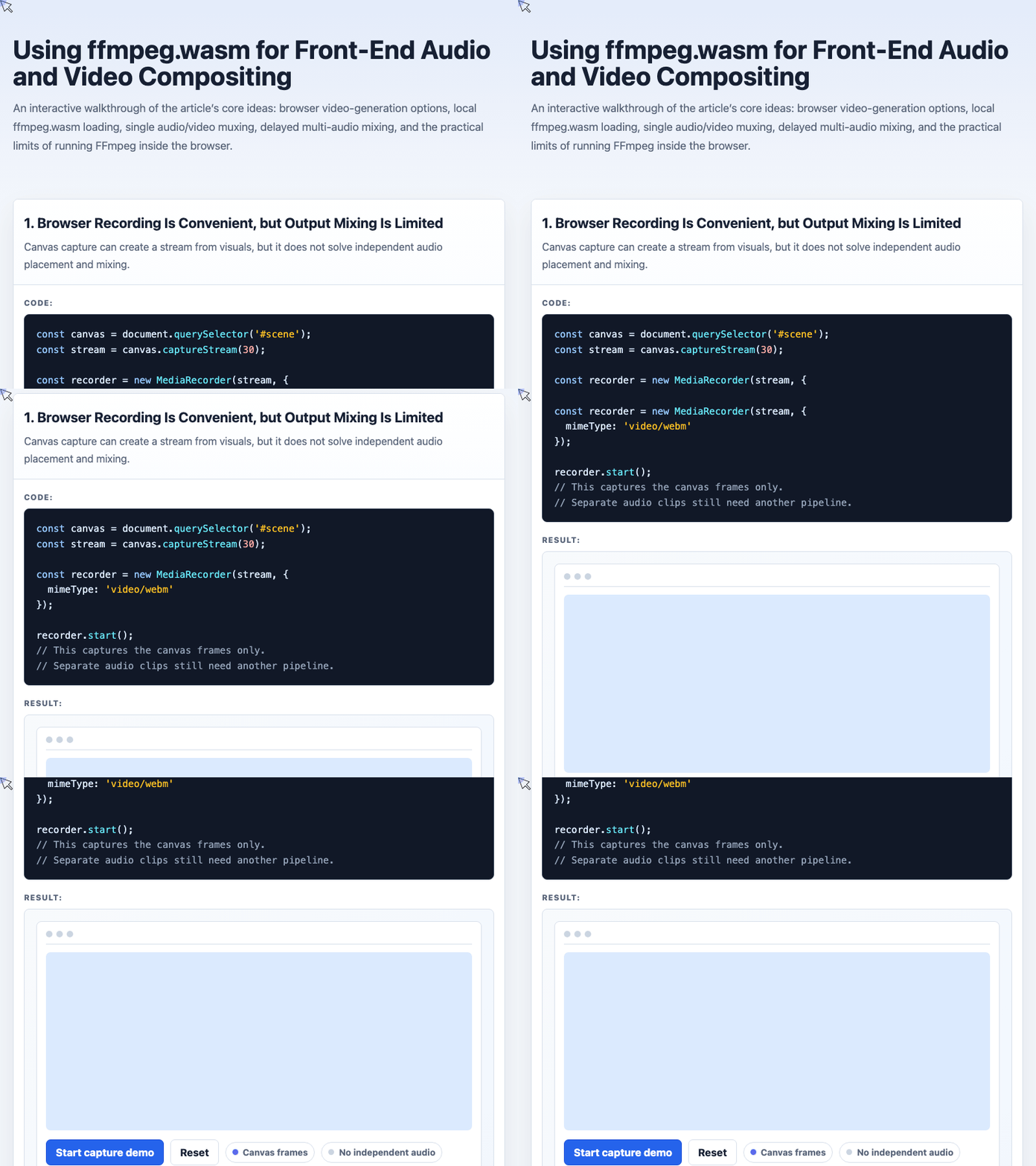
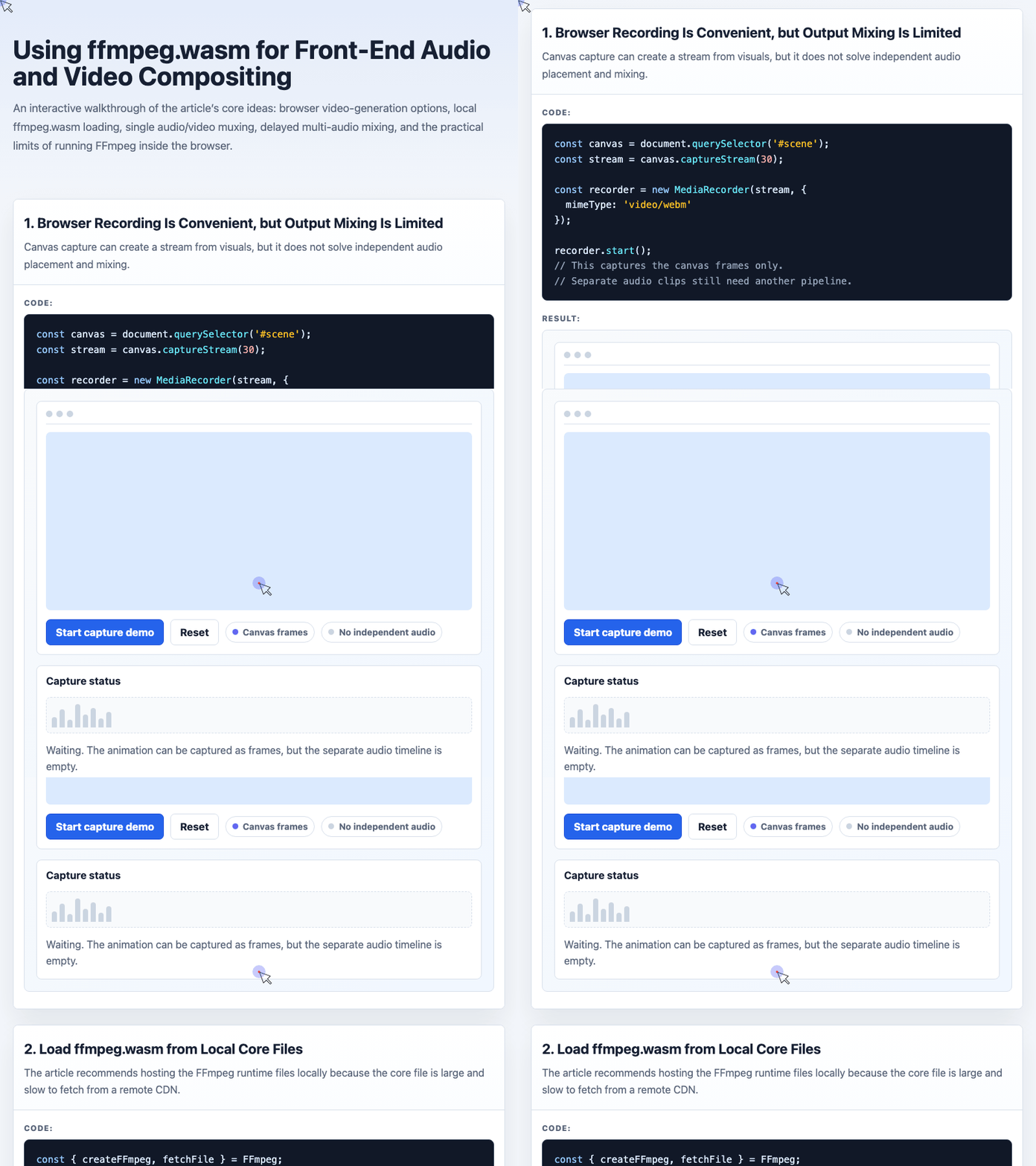
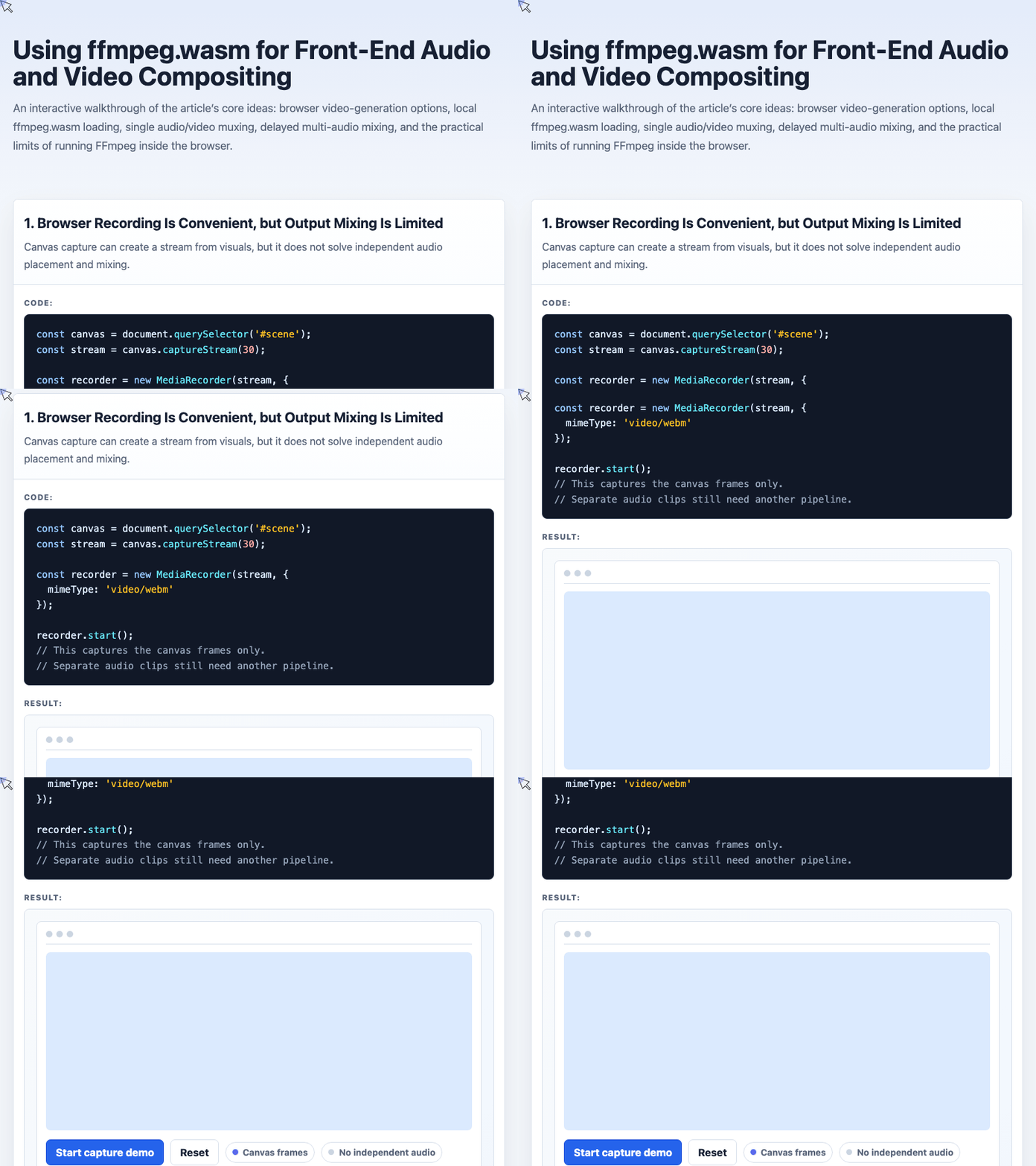
For example, Canvas can be captured as a stream:
const canvas = document.querySelector('#scene');
const stream = canvas.captureStream(30);

const recorder = new MediaRecorder(stream, {
  mimeType: 'video/webm'
});

recorder.start();
// This captures the canvas frames only.
// Separate audio clips still need another pipeline.
This is convenient for animations, visual demos, and screen-like recordings. The problem is that it does not solve precise audio placement.
If you need to say “play this MP3 at 2 seconds, another at 10 seconds, another at 15 seconds, and then export everything as one MP4,” MediaRecorder is no longer the cleanest tool. You are now dealing with timeline composition, stream mapping, audio encoding, and mixing.
🎮 Try it live: Open the interactive demo to experience this yourself.
That is why I turned to FFmpeg.
What ffmpeg.wasm Gives You
FFmpeg is one of the most powerful audio and video processing tools in software. It can mux, encode, decode, trim, filter, mix, delay, resample, and transform media in countless ways.
ffmpeg.wasm brings FFmpeg into the browser through WebAssembly.
In theory, usage looks like a normal JavaScript library:
<script src="https://unpkg.com/@ffmpeg/ffmpeg@0.9.5/dist/ffmpeg.min.js"></script>
<script>
  const { createFFmpeg } = FFmpeg;
</script>
In practice, the first challenge is loading.
The ffmpeg.min.js file is only the entry point. It also loads the FFmpeg core files, including a large .wasm binary. In my case, I downloaded the runtime files locally:
ffmpeg.min.js
ffmpeg-core.js
ffmpeg-core.worker.js
ffmpeg-core.wasm
The browser-side setup then points ffmpeg.wasm to the local core file:
const { createFFmpeg, fetchFile } = FFmpeg;

const ffmpeg = createFFmpeg({
  corePath: './ffmpeg-core.js',
  log: true
});

await ffmpeg.load();
This is the first practical lesson: treat FFmpeg loading as a real part of the product experience. The runtime is large, initialization takes time, and users should not be left staring at a frozen interface.
🎮 Try it live: Open the interactive demo to experience this yourself.
Compositing One Silent Video with One Audio File
The simplest useful case is adding one audio file to one silent video.
Suppose we have:
bj.mp4: a silent background videorecord.mp3: an audio fileoutput.mp4: the final exported video
The FFmpeg command maps the original video stream and the new audio stream into one MP4:
await ffmpeg.run(
  '-i', 'bj.mp4',
  '-i', 'record.mp3',
  '-c:v', 'copy',
  '-c:a', 'aac',
  '-map', '0:v:0',
  '-map', '1:a:0',
  'output.mp4'
);

const data = ffmpeg.FS('readFile', 'output.mp4');
const video = document.getElementById('player');

video.src = URL.createObjectURL(
  new Blob([data.buffer], { type: 'video/mp4' })
);
A few important things are happening here.
-i bj.mp4 is the first input, so its video stream is referenced as 0:v:0.
-i record.mp3 is the second input, so its audio stream is referenced as 1:a:0.
-c:v copy avoids re-encoding the video. This is faster and preserves the original video quality.
-c:a aac encodes the audio into a format suitable for MP4 output.
This works well for a single audio track. But the real challenge is multiple audio clips at different timestamps.
🎮 Try it live: Open the interactive demo to experience this yourself.
The Key Idea: filter_complex, adelay, and amix
To place audio clips at exact positions, we need FFmpeg filters.
The two critical filters are:
adelay: delays an audio stream by a given number of milliseconds.
amix: mixes multiple audio streams into one final stream.
The mental model is simple:
- Load the video.
- Load each audio file.
- Delay each audio file to its intended start time.
- Mix all delayed audio streams into one output audio stream.
- Map the original video and mixed audio into the final MP4.
Here is a concise version using two audio clips:
const filter =
  '[1]adelay=2000|2000[aout1];' +
  '[2]adelay=10000|10000[aout2];' +
  '[aout1][aout2]amix=2[aout]';

await ffmpeg.run(
  '-i', 'video.mp4',
  '-i', 'voice-1.mp3',
  '-i', 'voice-2.mp3',
  '-filter_complex', filter,
  '-map', '0:v:0',
  '-map', '[aout]',
  'output.mp4'
);
The labels in square brackets are the core of the workflow.
[1] means the first audio input after the video. It is delayed by 2000 milliseconds and labeled [aout1].
[2] is delayed by 10000 milliseconds and labeled [aout2].
Then [aout1][aout2]amix=2[aout] mixes those two delayed streams into one final audio stream called [aout].
Finally, the output maps:
0:v:0for the original video[aout]for the mixed audio
Compositing Four Audio Clips Into One Video
The same pattern scales to more audio files.
In the working demo, four MP3 clips are placed at 2s, 10s, 15s, and 20s:
await ffmpeg.run(
  '-i', 'zhangxinxu.mp4',
  '-i', '1.mp3',
  '-i', '2.mp3',
  '-i', '3.mp3',
  '-i', '4.mp3',
  '-filter_complex',
  '[1]adelay=2000|2000[aout1];' +
  '[2]adelay=10000|10000[aout2];' +
  '[3]adelay=15000|15000[aout3];' +
  '[4]adelay=20000|20000[aout4];' +
  '[aout1][aout2][aout3][aout4]amix=4[aout]',
  '-c:v', 'copy',
  '-c:a', 'aac',
  '-map', '0:v:0',
  '-map', '[aout]',
  'output.mp4'
);
This is the most important snippet in the whole implementation.
Each audio file becomes a delayed stream. Those delayed streams are mixed into [aout]. The original video is copied directly, and the mixed audio is encoded as AAC.
Once the output is generated, it can be read from the in-memory FFmpeg filesystem and shown in a normal <video> element.
🎮 Try it live: Open the interactive demo to experience this yourself.
Practical Limits of ffmpeg.wasm
ffmpeg.wasm is powerful, but it is not lightweight.
The core file is large. Even compressed, it can still be several megabytes. Unlike video, this JavaScript and WebAssembly runtime cannot be meaningfully “played while downloading.” The feature is unavailable until the runtime is downloaded and initialized.
There is also a memory problem. Some devices cannot allocate enough WebAssembly memory for FFmpeg workloads. A simple compatibility probe can help detect obvious failures before users start a heavy export:
if (!window.WebAssembly) {
  throw new Error('WebAssembly is not available');
}

try {
  new WebAssembly.Memory({ initial: 256 });
  console.log('Enough memory for this demo');
} catch (error) {
  console.error('WebAssembly.Memory(): could not allocate memory');
}
This does not guarantee that every FFmpeg operation will succeed, but it gives you a better failure path than letting the export crash halfway through.
When This Approach Makes Sense
Using ffmpeg.wasm for front-end video compositing makes sense when:
- You want processing to happen locally in the browser.
- You want to avoid uploading raw media to a server.
- The feature is for internal tools, power users, or controlled environments.
- You can tolerate a large initial runtime download.
- You can provide clear loading, progress, and failure states.
It is less suitable when:
- The feature must work for every casual user.
- Users are on low-end or memory-constrained devices.
- Startup latency must be near-instant.
- You need predictable large-scale reliability across unknown browsers.
Final Thoughts
The breakthrough was understanding filter_complex.
Once adelay and amix clicked, multi-audio video compositing became much less mysterious. The browser could load media files, write them into FFmpeg’s virtual filesystem, run a real FFmpeg command, and export a finished MP4 without sending anything to a backend.
That is impressive.
But it is also expensive in runtime size, startup time, and memory requirements. For now, ffmpeg.wasm is best treated as a powerful tool for selected users, internal workflows, or advanced browser-based editors.
It can absolutely generate real videos on the front end. Just do not pretend it is a small dependency.
Try It Yourself
Want to see these concepts in action? I’ve created an interactive demo where you can experiment with the code and see real-time results.
Explore more demos from my previous articles in the Demo Gallery.
Happy coding!