Understand playback, loading, buffering, and the events that keep an audio interface in sync.
Adapted from the original article by zhangxinxu, with technical clarifications and practical excerpts from the supplied demo.
Adding audio to a webpage takes one HTML element. Building a reliable player requires understanding what happens after someone presses Play.
When is the audio ready? What happens if playback is blocked? How do you distinguish a paused track from one that is buffering?
The <audio> element provides properties, methods, and events for answering these questions. Most of these APIs also apply to <video>.
One detail about the companion demo: it demonstrates custom event dispatch and interface updates, rather than audio playback. We’ll use three excerpts to explore event-driven UI techniques that are useful when building a custom player.
1. Start with the Audio Element
For a basic player, use <audio src="audiofile.mp3" controls></audio>.
The src attribute identifies the media file, and controls asks the browser to display its built-in player.
You can also supply multiple formats using nested <source> elements. Each source can declare a MIME type, allowing the browser to skip formats it knows it cannot play.
For example, a source entry might be written as <source src="audiofile.mp3" type="audio/mpeg">.
The type attribute belongs on <source>, not <audio>. It describes the candidate resource and helps the browser select an appropriate source. MDN’s source element reference
Start with native controls when they meet your needs. Their appearance varies across browsers, but they provide a useful baseline before you build a custom interface.
2. Understand the HTML Attributes
The main audio attributes control resource selection, presentation, and initial playback behavior.
| Attribute | Purpose |
|---|---|
src | Specifies the media resource URL. |
controls | Displays the browser’s playback controls. |
autoplay | Requests automatic playback, subject to browser policy. |
loop | Restarts playback when the track reaches its end. |
muted | Sets the initial muted state. |
preload | Suggests how much media to load before playback. |
controls, autoplay, loop, and muted are Boolean attributes: their presence enables them. Writing autoplay="false" still includes the attribute; remove it to disable the request.
Autoplay Is a Request
Adding autoplay does not guarantee that audible playback will begin.
Browsers restrict automatic playback according to their policies and the user’s interaction with a site. Chrome, for example, considers factors including user interaction and, on desktop, media engagement. Muted autoplay receives different treatment from audible playback. Chrome’s autoplay policy
For a predictable experience, provide an explicit Play control and handle playback failures.
Looping and Muting
You can change these settings through JavaScript:
audio.loop = trueenables repeated playback.audio.muted = truesilences the audio.audio.muted = falserestores its unmuted state.
Looping is useful for repeating clips or ambient sound, provided the interface gives listeners a clear way to stop playback.
Preload Balances Readiness and Bandwidth
The preload attribute accepts three main values:
| Value | Intended behavior |
|---|---|
none | Avoid preloading the media. |
metadata | Fetch information such as duration. |
auto | Allow broader preloading, potentially including the entire file. |
Preload is a hint, not a download guarantee. The browser decides how much data to fetch. Choose a value based on how likely playback is and how much data the page contains. HTML Standard: loading media resources
Practical Example: Create a Visible Event Interface
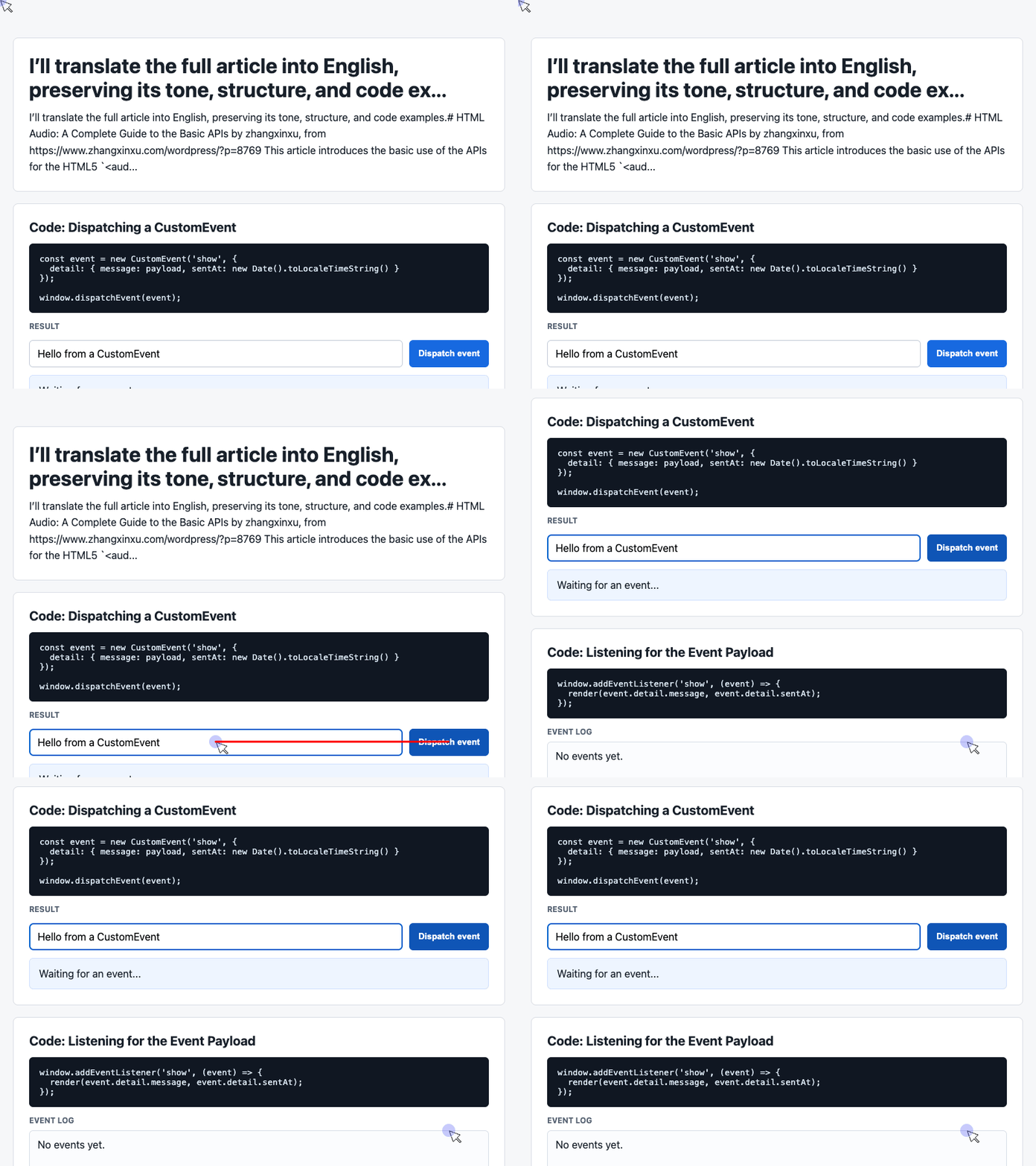
Custom controls need places to display status and feedback. This HTML, extracted from the supplied demo, provides an input, a dispatch button, a status card, and an event log.
Use it with the demo’s existing stylesheet to reproduce the styled interface.
<div class="controls">
  <input id="payload" value="Hello from a CustomEvent">
  <button id="dispatch">Dispatch event</button>
</div>

<div class="event-card" id="latest">Waiting for an event...</div>
<div class="log" id="event-log">No events yet.</div>
🎮 Try it live: Open the interactive demo to experience this yourself.
The IDs provide stable targets for JavaScript. The interface is initially static; the next two examples add behavior.
In an audio player, comparable display areas could show “Loading,” “Playing,” or “Playback failed.” This excerpt itself does not create an audio player.
3. Read and Change Playback Properties
Once you have an audio element, select it explicitly—for example, with const audio = document.querySelector('audio').
Its properties expose the current playback state.
currentTime: Read or Change the Position
audio.currentTime returns the playback position in seconds.
Assigning a value requests a seek. For example, audio.currentTime = 5 moves playback to the five-second mark when that position is available.
This property powers progress indicators, skip buttons, and chapter navigation.
duration: Find the Track Length
audio.duration reports the media duration in seconds.
Before duration information becomes available, it can be NaN. For an unbounded stream, it can be Infinity. Check Number.isFinite(audio.duration) before calculating a percentage. HTML Standard: media offsets
A custom player can display a placeholder until it has a usable duration.
volume and muted: Separate Controls
audio.volume represents the volume setting on a scale from 0 to 1. Setting audio.volume = 0.5 selects a 50% volume level.
Muting is separate. If the volume is 0.5, setting audio.muted = true silences playback without changing that stored volume value. Unmuting can therefore restore the previous level. HTML Standard: media volume and muting
playbackRate: Change the Speed
audio.playbackRate = 1.5 requests playback at one and a half times the normal speed.
A value of 1 is normal speed; 0.5 is half speed. Supported extremes and audio behavior vary across browsers, so test the speed options you expose. MDN’s playbackRate reference
paused: Read the Pause State
audio.paused is read-only. It is initially true and becomes true again when playback is paused.
It does not describe every reason audio might be silent. Muting, buffering, and playback position are separate parts of the media state.
4. Control Playback with JavaScript Methods
play(): Handle the Promise
Calling audio.play() requests playback and returns a Promise.
That Promise resolves when playback starts. It can reject if playback is disallowed or cannot begin, so the interface should handle failure rather than immediately assume success.
Calling pause() while a playback request is still pending can also interrupt that request and cause rejection. A fixed timeout does not reliably solve the race. When an operation depends on playback having started, sequence it after the Promise resolves. Chrome’s explanation of interrupted play requests
pause(): Pause Without Resetting
audio.pause() pauses playback while preserving the current position.
There is no built-in stop() method. For an ordinary file, a Stop control can call audio.pause() and then set audio.currentTime = 0.
canPlayType(): Check Format Support
Calling audio.canPlayType('audio/mpeg') returns one of three strings:
"probably": the browser expects to support the type."maybe": playback might be supported."": the browser reports no support.
A nonempty result is useful for source selection, but it does not guarantee that a particular file will load and decode successfully.
load(): Restart Resource Selection
audio.load() resets the element and starts selecting and loading its media resource again. It is useful after changing nested <source> entries.
It can abort ongoing operations, including pending playback requests. The amount subsequently fetched still depends on preload behavior and browser decisions. MDN’s load method reference
Practical Example: Dispatch a Custom UI Event
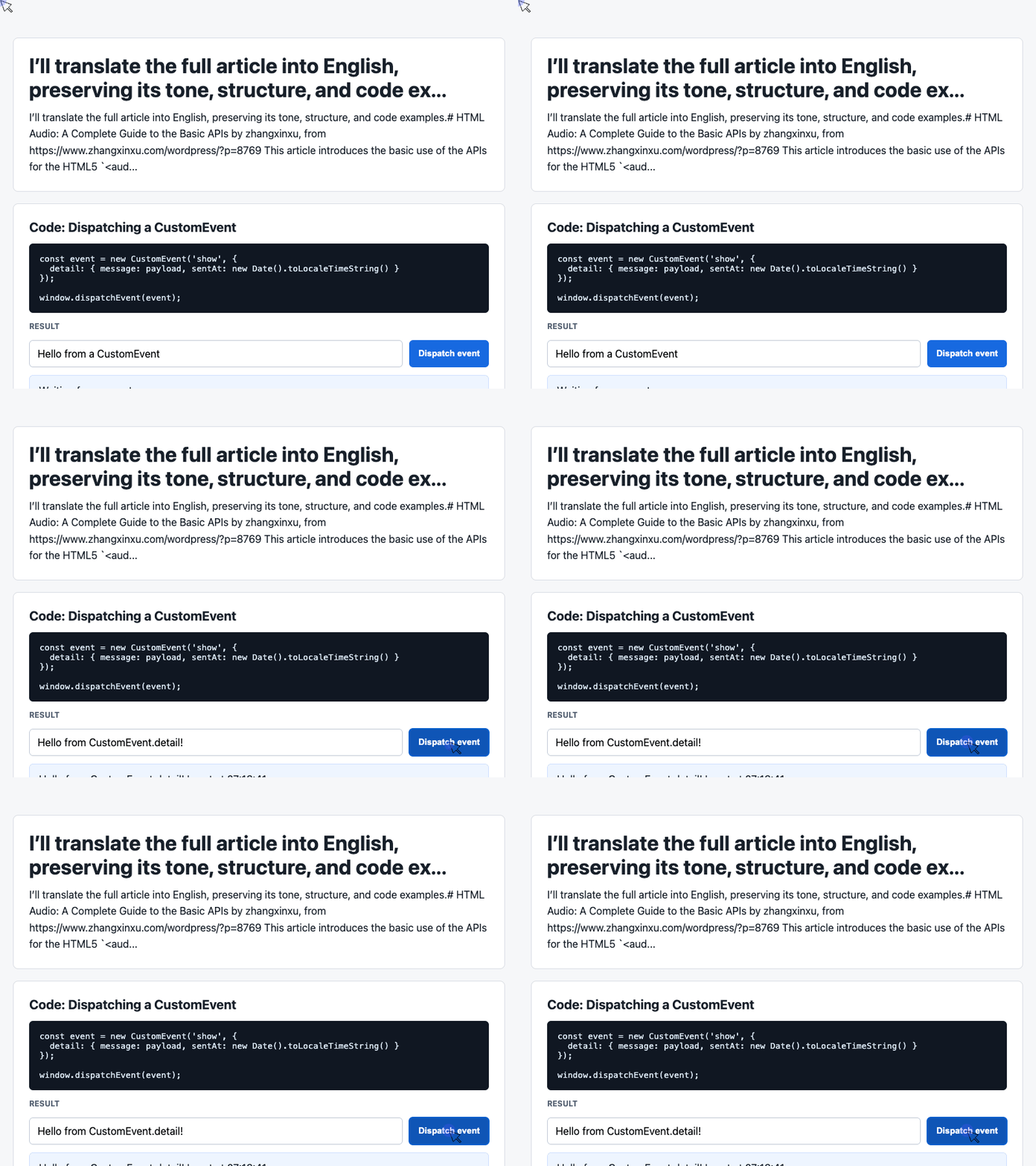
The supplied demo separates the button click from the code that renders its result. This excerpt reads the input and sends a custom show event containing a message and timestamp.
Place this script after the demo markup. The screenshot represents the completed demo, including the listener introduced later.
const input = document.querySelector('#payload');

document.querySelector('#dispatch').addEventListener('click', () => {
  const message = input.value.trim() || 'Default CustomEvent payload';

  const event = new CustomEvent('show', {
    detail: { message, sentAt: new Date().toLocaleTimeString() }
  });

  window.dispatchEvent(event);
});
🎮 Try it live: Open the interactive demo to experience this yourself.
CustomEvent.detail carries application-defined data. The click handler produces that data without directly updating the card or log.
The event name show is specific to this demo. Dispatching it does not start audio playback or create the trusted user interaction required by browser playback policies.
5. Follow the Media Loading Lifecycle
Media loading exposes several milestones. Each answers a different question about the resource.
| Event | What it tells you |
|---|---|
loadstart | The browser has begun loading the resource. |
durationchange | The reported duration has changed. |
loadedmetadata | Metadata, such as duration and track information, is available. |
loadeddata | Media data at the current playback position is available for the first time. |
progress | The browser is fetching media data. |
canplay | Enough data is available to begin or resume playback. |
canplaythrough | The browser estimates that playback can continue to the end without buffering. |
loadedmetadata and loadeddata are distinct. The latter does not merely mean that the first byte has arrived; it concerns media data at the current playback position. MDN’s loadeddata event reference
A useful conceptual progression is resource selection, metadata availability, playable data, and sufficient buffering. Avoid implementing the interface as a rigid checklist: events such as progress can recur, and readiness can change.
Loading Interruptions Need Different Responses
Several events describe interrupted or suspended loading:
| Event | Meaning |
|---|---|
suspend | The browser has intentionally stopped fetching data for now. |
abort | Loading was aborted without a media error. |
error | Resource loading or playback encountered an error. |
emptied | The media element has returned to an empty state, such as during reinitialization. |
stalled | The browser is trying to fetch data but is not receiving it as expected. |
A suspend event does not automatically mean something is broken. The browser may simply have buffered enough.
Likewise, canplaythrough is an estimate. Network conditions can change after it fires.
6. Keep the Interface in Sync with Playback Events
Loading and playback are related, but they are separate parts of the player’s state.
| Event | Typical interface response |
|---|---|
play | Reflect that the element has left its paused state. |
playing | Show active playback and clear a buffering indicator. |
waiting | Show a temporary buffering state. |
pause | Show the paused state. |
timeupdate | Refresh elapsed time and playback progress. |
ended | Show completion or advance to another track. |
volumechange | Update volume and mute controls. |
ratechange | Update the displayed playback speed. |
The distinction between play and playing matters. Leaving the paused state does not necessarily mean media is already advancing. playing fires when playback starts or resumes after a delay; waiting signals a temporary lack of data. MDN’s playing event reference, waiting event reference
timeupdate Is Not a Precise Timer
Use timeupdate to refresh progress displays, but do not assume it fires exactly every 250 milliseconds. Its frequency varies with system load and event-handler cost. Read the current audio.currentTime value on each update. MDN’s timeupdate event reference
Practical Example: Render Event Data and Recent History
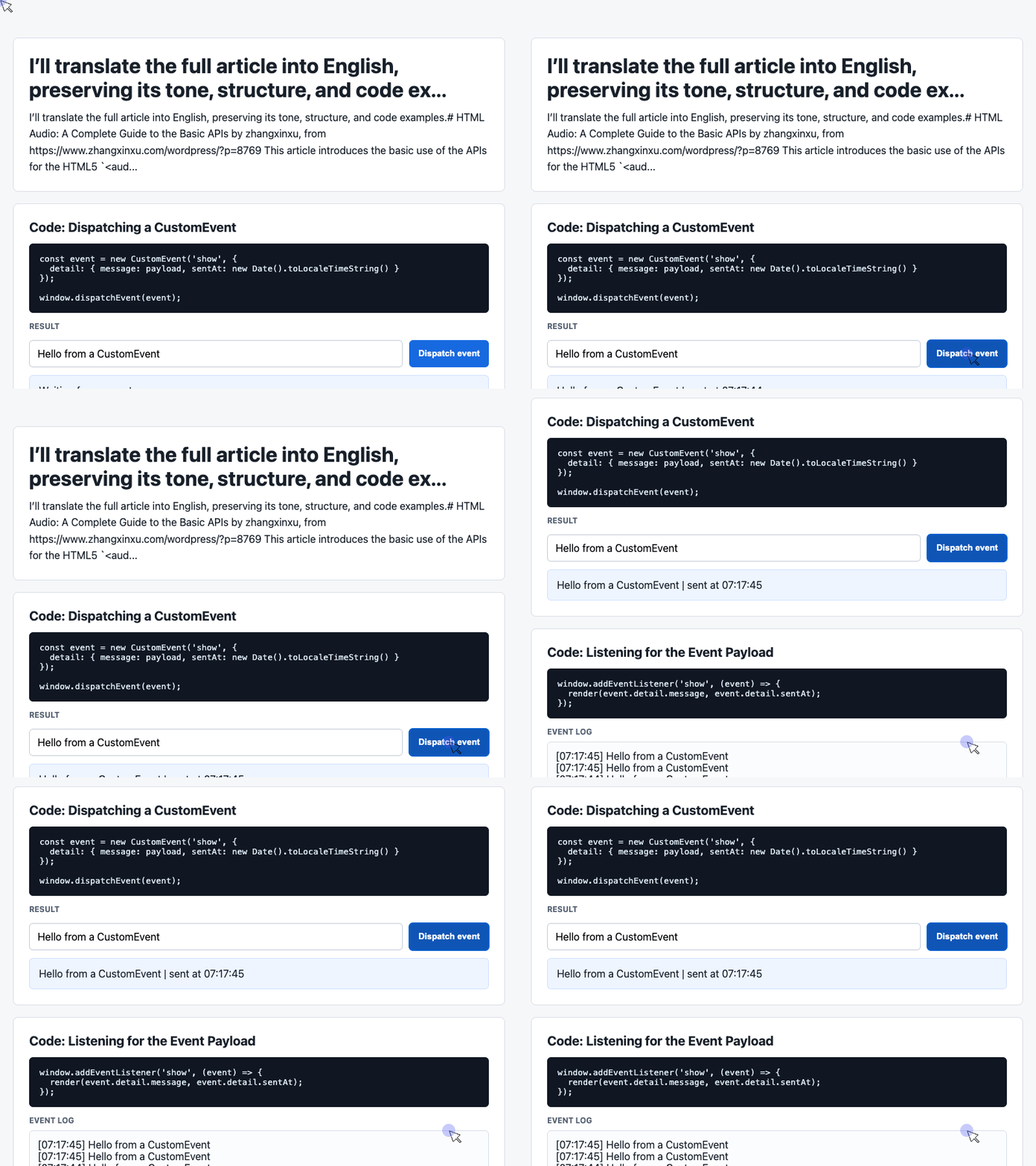
This final excerpt completes the supplied demo. It listens for show, updates the latest-message card, and displays the six most recent entries.
Run it after the markup, alongside the dispatch code.
const latest = document.querySelector('#latest');
const log = document.querySelector('#event-log');
const history = [];

window.addEventListener('show', (event) => {
  const detail = event.detail || {};

  latest.textContent = detail.message + ' | sent at ' + detail.sentAt;
  history.unshift('[' + detail.sentAt + '] ' + detail.message);
  log.textContent = history.slice(0, 6).join('\n');
});
🎮 Try it live: Open the interactive demo to experience this yourself.
The listener handles presentation independently of the button. Using textContent displays the message as text, while the demo stylesheet’s white-space: pre-wrap preserves the log’s line breaks.
Notice that slice(0, 6) limits the visible entries; it does not limit the stored array.
For an actual audio player, attach listeners to the audio element and read its properties. Native media events such as timeupdate do not provide the demo’s custom detail.message payload.
7. Understand Buffering and Seeking
A progress bar can represent several different things:
- Playback position: where the listener is now.
- Buffered ranges: which parts are already available locally.
- Seekable ranges: which positions the browser can seek to.
Confusing these values can make a player display misleading progress.
buffered: What Has Been Loaded
audio.buffered returns a TimeRanges object describing buffered portions of the media.
It may contain no ranges, one continuous range, or several separate ranges. To inspect it, use:
audio.buffered.lengthaudio.buffered.start(index)audio.buffered.end(index)
Check the length before accessing a range.
seekable: Where Playback Can Move
audio.seekable also returns TimeRanges, but describes the positions available for seeking.
Seekable content is not necessarily already buffered. A browser may be able to request another part of a resource when the listener jumps forward. MDN’s seekable property reference
seeking and seeked: Track Position Changes
seeking indicates that a seek operation has started. seeked indicates that it has completed.
These events concern changing playback position—not ordinary network requests. They can help a custom interface explain the brief delay between dragging a slider and resuming playback. HTML Standard: media event summary
8. Build Around the Player’s Actual State
A dependable audio interface stays aligned with the media element.
Use HTML attributes for initial configuration, properties to inspect or change state, methods to request actions, and events to update the interface as those actions take effect.
The companion demo makes that event-driven structure visible: one handler produces an event, another renders its data, and a log records what happened. When applying the pattern to audio, let the media element’s events and playback Promise tell you what actually occurred.
Start with native controls, add custom behavior where it serves the listener, and make every loading, playback, and error state understandable.
Try It Yourself
Want to see these concepts in action? I’ve created an interactive demo where you can experiment with the code and see real-time results.
Explore more demos from my previous articles in the Demo Gallery.
Happy coding!