Let the browser handle snapping, then use JavaScript to keep your interface in sync.
Adapted from zhangxinxu’s original article, published April 20, 2019, and updated June 12, 2025. Browser-support information has been refreshed for this edition.
A swipeable character gallery sounds straightforward: drag horizontally, release, and let the next character settle into place.
CSS Scroll Snap handles that movement with remarkably little configuration. But add one requirement—highlight the selected character after scrolling finishes—and two questions emerge:
- When has scrolling actually stopped?
- Which element has settled into position?
Modern browsers provide better answers than the timers developers relied on in 2019. Here’s how to combine native scrolling, position detection, and a simple event-driven interface.
Let CSS Handle the Snapping
Scroll snapping starts with two declarations.
On the scrolling container, scroll-snap-type: x mandatory enables mandatory horizontal snapping. On each child, scroll-snap-align: center defines its center as the alignment point.
For a character gallery, give the container horizontal overflow and arrange its children in a single row. A flex container with display: flex and children using flex: 0 0 100% creates panels that each occupy the container’s width.
The browser then handles the scrolling and final alignment. A fast swipe can still pass several panels; mandatory snapping does not mean every gesture advances exactly one item.
The alignment keywords are start, center, and end. Choose the one that matches your layout and use the same alignment reference when identifying the selected item. MDN documents the supported alignment values.
Detect the End of Scrolling
Releasing a finger does not necessarily end scrolling. Momentum can continue moving the content, and the browser may still need to complete its snap adjustment.
The native scrollend event accounts for that distinction: it fires when the gesture has finished and the scroll position has no pending updates. See the event’s completion semantics on MDN.
The original article’s Safari exception is now outdated. Safari added support in version 26.2, released in December 2025. Older browsers still justify feature detection. WebKit’s release announcement.
Before native support, a common workaround was to reset a timeout whenever a scroll event fired. Once events stopped arriving for a short interval, the application assumed scrolling had finished.
That remains a useful fallback, with a limitation: a quiet interval is an estimate of completion. A pause during a gesture or before further movement can trigger the callback early. The original article’s observed delay of roughly 350 milliseconds was specific to its testing, not a timing guarantee applications should depend on.
Find and Highlight the Settled Panel
For a centered gallery, compare each panel’s center with the center of the visible scrolling area. The closest panel is the current selection.
The following adaptation of the original article combines that geometry check with native scrollend detection and a debounce fallback. It assumes an existing .characters container with full-width panels, no transforms, and no custom scroll padding or scroll margins. Run it after the gallery markup exists.
const container = document.querySelector('.characters');
const items = [...container.children];

function highlightCurrent() {
  const bounds = container.getBoundingClientRect();
  const center =
    bounds.left + container.clientLeft + container.clientWidth / 2;

  let selected = null;
  let smallestDistance = Infinity;

  for (const item of items) {
    const rect = item.getBoundingClientRect();
    const distance = Math.abs(rect.left + rect.width / 2 - center);

    if (distance < smallestDistance) {
      selected = item;
      smallestDistance = distance;
    }
  }

  for (const item of items) {
    item.style.filter = item === selected ? 'grayscale(0)' : 'grayscale(1)';
  }
}

if ('onscrollend' in container) {
  container.addEventListener('scrollend', highlightCurrent);
} else {
  let timer;
  container.addEventListener('scroll', () => {
    clearTimeout(timer);
    timer = setTimeout(highlightCurrent, 150);
  });
}

highlightCurrent();
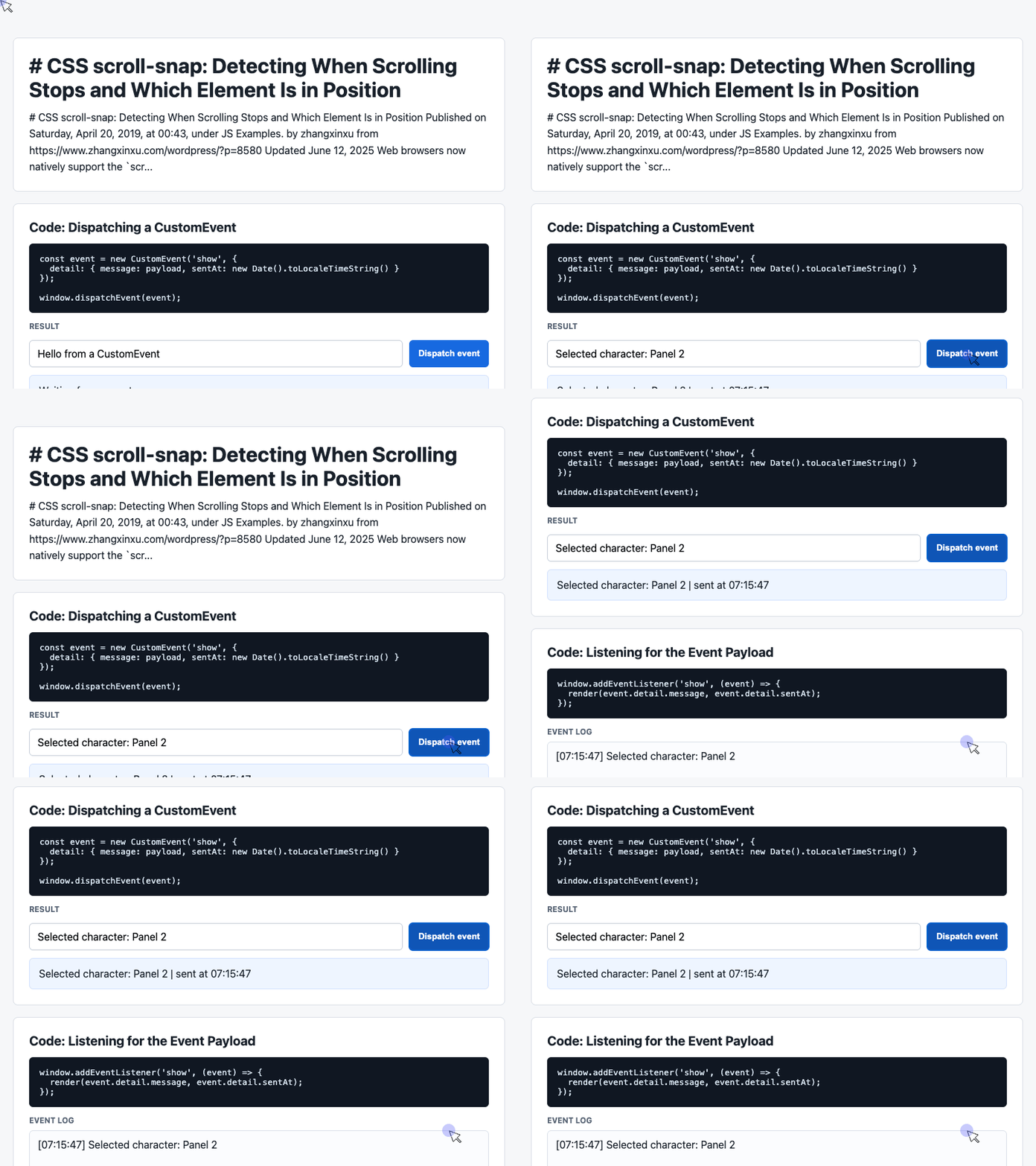
🎮 Try it live: Open the interactive demo to experience this yourself.
The function reads panel positions before changing their appearance. It also runs once at initialization, so the gallery has a highlighted selection before the first swipe.
Choosing the nearest center avoids depending on exact pixel equality. It is a selection rule for this simple layout, however, rather than proof that snapping has finished. On the fallback path, the 150-millisecond timeout can still select a panel prematurely.
If you introduce asymmetric scroll padding, scroll margins, or transformed panels, adjust the geometry to match the actual snap alignment area.
What About Native Snap Events?
The scrollsnapchange event can identify a newly selected snap target directly. It fires before the corresponding scrollend event, but its browser availability remains more limited. It also concerns changes in the selected snap target, so it is not a replacement for every scroll-completion callback. MDN’s snap-event documentation.
For broadly usable code, keep support for these events separate: native scroll completion and native snap-target reporting are different capabilities.
Use Events to Connect Selection With the Interface
Once a gallery knows its selected item, it may need to update a caption, navigation indicator, or activity log.
The supplied companion demo illustrates this communication pattern through CustomEvent. It is a button-driven event demo, not a scroll-snap implementation. Its next two excerpts show how to send data and update a visible interface; connecting them to gallery selection would be an additional integration step.
Send a Payload
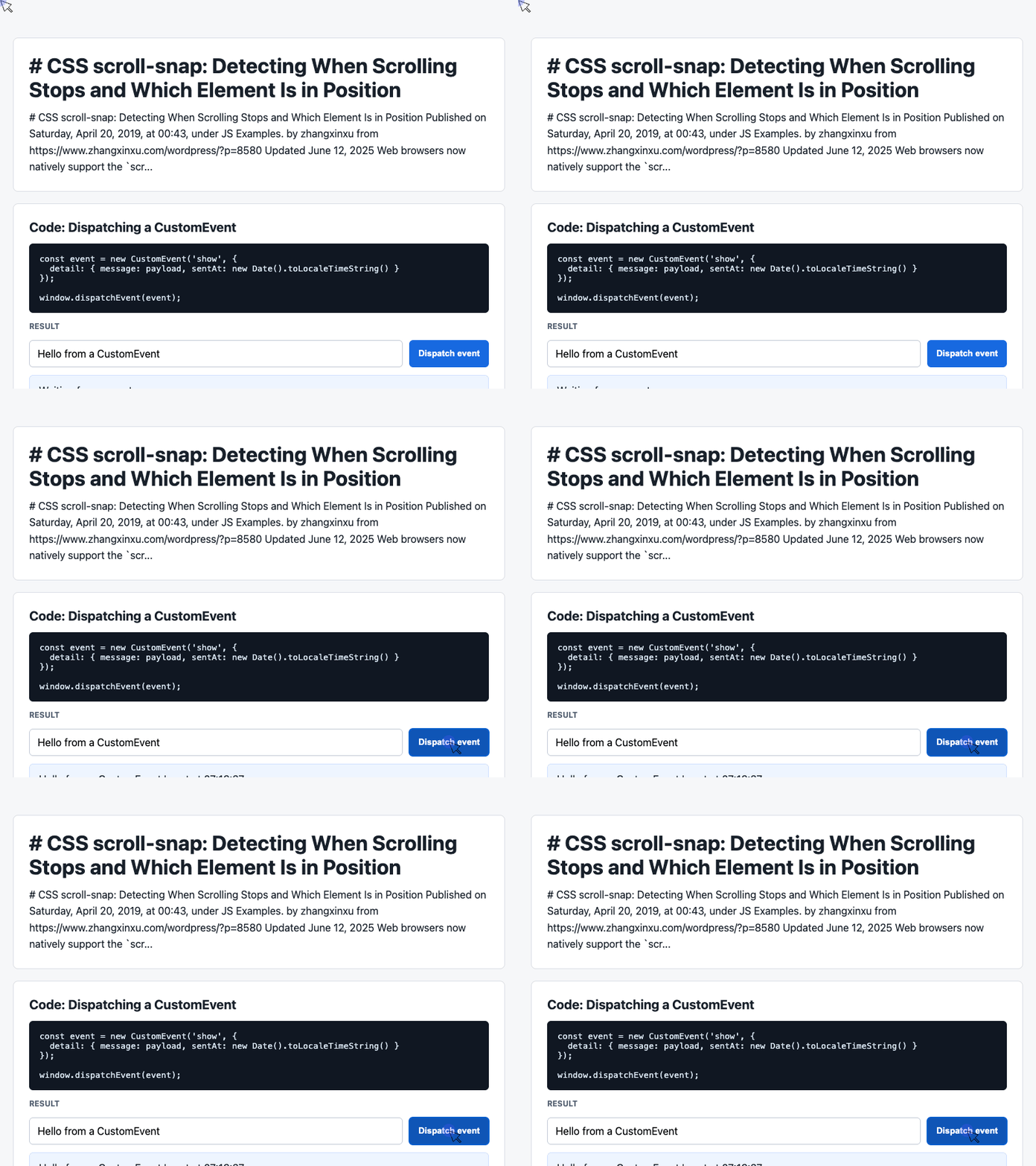
This excerpt comes from the demo’s executable script. Clicking the button reads the input and dispatches a custom show event containing a message and timestamp.
const input = document.querySelector('#payload');

document.querySelector('#dispatch').addEventListener('click', () => {
  const message = input.value.trim() || 'Default CustomEvent payload';
  const event = new CustomEvent('show', {
    detail: { message, sentAt: new Date().toLocaleTimeString() }
  });

  window.dispatchEvent(event);
});
🎮 Try it live: Open the interactive demo to experience this yourself.
The payload lives in detail. The button handler creates the event; the listener below produces the visible result shown in the screenshot.
For a gallery, the same pattern could carry a selected character’s identifier and panel index. A descriptive event name such as characterchange would make that purpose clearer.
Render the Event Data
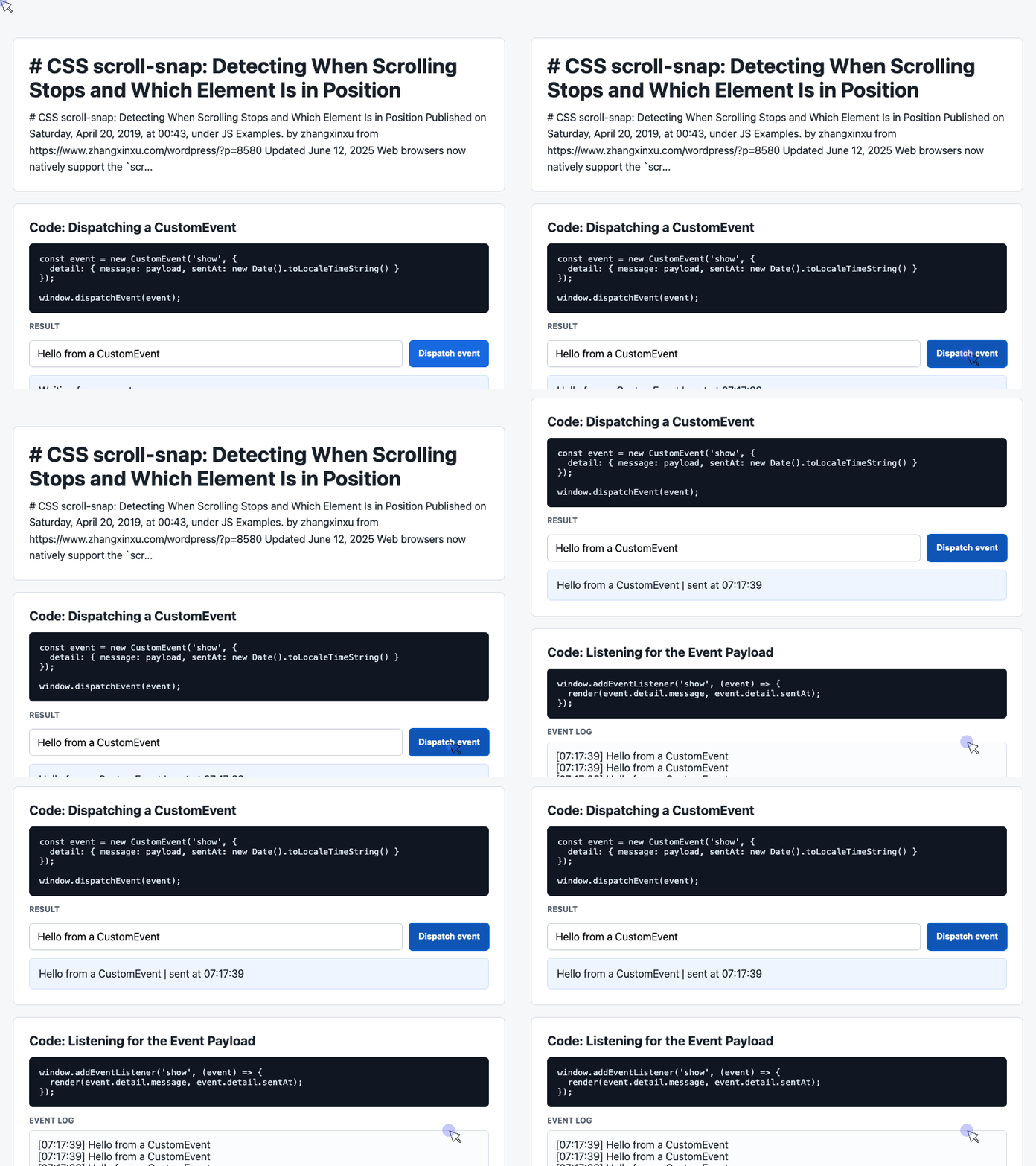
The demo’s receiving code updates the latest-message card and prepends an entry to its event history.
const latest = document.querySelector('#latest');
const log = document.querySelector('#event-log');
const history = [];

window.addEventListener('show', (event) => {
  const detail = event.detail || {};
  latest.textContent = detail.message + ' | sent at ' + detail.sentAt;
  history.unshift('[' + detail.sentAt + '] ' + detail.message);
  log.textContent = history.slice(0, 6).join('\n');
});
🎮 Try it live: Open the interactive demo to experience this yourself.
Using textContent displays the message as text. The demo’s white-space: pre-wrap styling preserves the line breaks in the log.
The interface shows only six entries, although the underlying history array continues growing. A long-running application should also limit stored history when older entries have no purpose.
Applied to the gallery, this pattern lets selection detection notify other interface components without putting every update inside the scrolling callback.
Build Around Native Behavior
CSS Scroll Snap removes much of the movement logic that once required a carousel library. JavaScript can focus on the application’s state: identifying the settled panel, highlighting it, and updating related content.
Use scrollend where available, treat timer fallbacks as approximate, and test the gestures your users actually perform. Fast swipes, interrupted movement, keyboard navigation, and container resizing are especially useful checks.
A gallery should remain usable even when a browser lacks an enhancement. Start with accessible, scrollable content, then add snapping and selection feedback as supported capabilities.
Try It Yourself
Want to see these concepts in action? I’ve created an interactive demo where you can experiment with the code and see real-time results.
Explore more demos from my previous articles in the Demo Gallery.
Happy coding!