
Turn abrupt jumps into gentle transitions—and give your interfaces a little personality.
Adapted from zhangxinxu’s original article, with updated technical notes and excerpts from the supplied companion demo.
Original republication notice: Personal websites may reproduce the article with its author, source, and links retained. Websites may aggregate excerpts. For commercial use, contact the original author.
From “Whoosh!” to a Gentle Glide
Spend enough time exploring accessibility, SVG, and Canvas, and you can miss a few useful developments elsewhere in the browser.
Learning deeply has its rewards. Occasionally, though, you have to return to the field and gather the ears of wheat you left behind.
Native smooth scrolling is one of those useful discoveries.
Consider a familiar link: <a href="#">Back to top</a>.
Click it on a long page, and the browser can send you straight to the top. Whoosh! The journey disappears, and only the destination remains.
“Where am I? What did I just click?”
The link works. The interaction feels dry, stiff, and mechanical.
Smooth scrolling gives that movement a little breathing room. Readers can follow the transition rather than reconstruct it afterward. What previously arrived with a bang can feel more like a gentle spring breeze.
Browsers provide two useful tools for this: the CSS scroll-behavior property and JavaScript’s scrollIntoView() method.
Let CSS Set the Scrolling Behavior
The scroll-behavior property controls how a scrolling container moves when navigation or scrolling APIs change its position. Its two values are auto, the initial value, and smooth.
It does not change ordinary wheel scrolling or touch gestures. The browser also chooses the timing and easing of native smooth scrolling. MDN’s property reference explains these boundaries.
The useful rule is simple: apply the property to the container that needs to scroll.
For a page viewport, use the root <html> element. Applying the property only to <body> does not propagate it to the viewport—a detail worth updating from the original article. MDN’s viewport guidance documents this distinction.
A Practical Back-to-Top Link
On a page tall enough to scroll, place <a href="#">Back to top</a> near the bottom. Then add the following CSS.
This updates the original technique with a reduced-motion preference:
html {
  scroll-behavior: smooth;
}

@media (prefers-reduced-motion: reduce) {
  html {
    scroll-behavior: auto;
  }
}
🎮 Try it live: Open the interactive demo to experience this yourself.
The anchor supplies the destination; CSS supplies the scrolling behavior. The media query restores immediate navigation for readers who request reduced motion.
No animation loop is necessary.
The Same Idea Inside a Container
The original article explores an inventive use of scrolling: CSS-only tab switching.
One approach navigates between anchors. Another uses the browser’s tendency to reveal a focused form control, shifting content inside a constrained container.
These techniques already provide the movement. Adding scroll-behavior: smooth to that container changes how the movement unfolds.
The original .box combines overflow: hidden with smooth scrolling. That combination is meaningful: hidden overflow can still be scrolled programmatically, even though it provides no scrolling interface. overflow: clip behaves differently and prevents scrolling. The CSS Overflow specification defines the distinction.
The declaration does not create a tab system by itself. It adds polish to an existing mechanism that scrolls between panels.
Let JavaScript Choose the Destination
CSS establishes a scrolling preference. JavaScript can identify the element that should become visible.
For an existing element, the central call is target.scrollIntoView({ behavior: "smooth" });.
The browser then scrolls the relevant ancestor containers to bring that element into view.
The original article offers a quick console experiment: scroll until the first link is off-screen, then run document.links[0].scrollIntoView({ behavior: "smooth" });. This assumes the page contains at least one link.
Besides behavior, the options include block and inline, which control alignment along the block and inline axes. For example, block: "center" requests that the target be centered along the block axis. MDN’s scrollIntoView() documentation describes the available options.
Let CSS and JavaScript Work Together
If the relevant scrolling containers already use scroll-behavior: smooth, a plain target.scrollIntoView() can use that CSS setting.
The default auto behavior consults the scrolling container’s computed behavior. An explicit behavior: "smooth" requests smooth movement directly. The CSSOM View scrolling algorithm defines this relationship.
That gives you a useful implementation choice: let CSS manage the motion preference, while JavaScript chooses the destination.
When setting smooth behavior explicitly in JavaScript, account for reduced-motion preferences there as well.
Companion Demo: From a Click to Visible Feedback
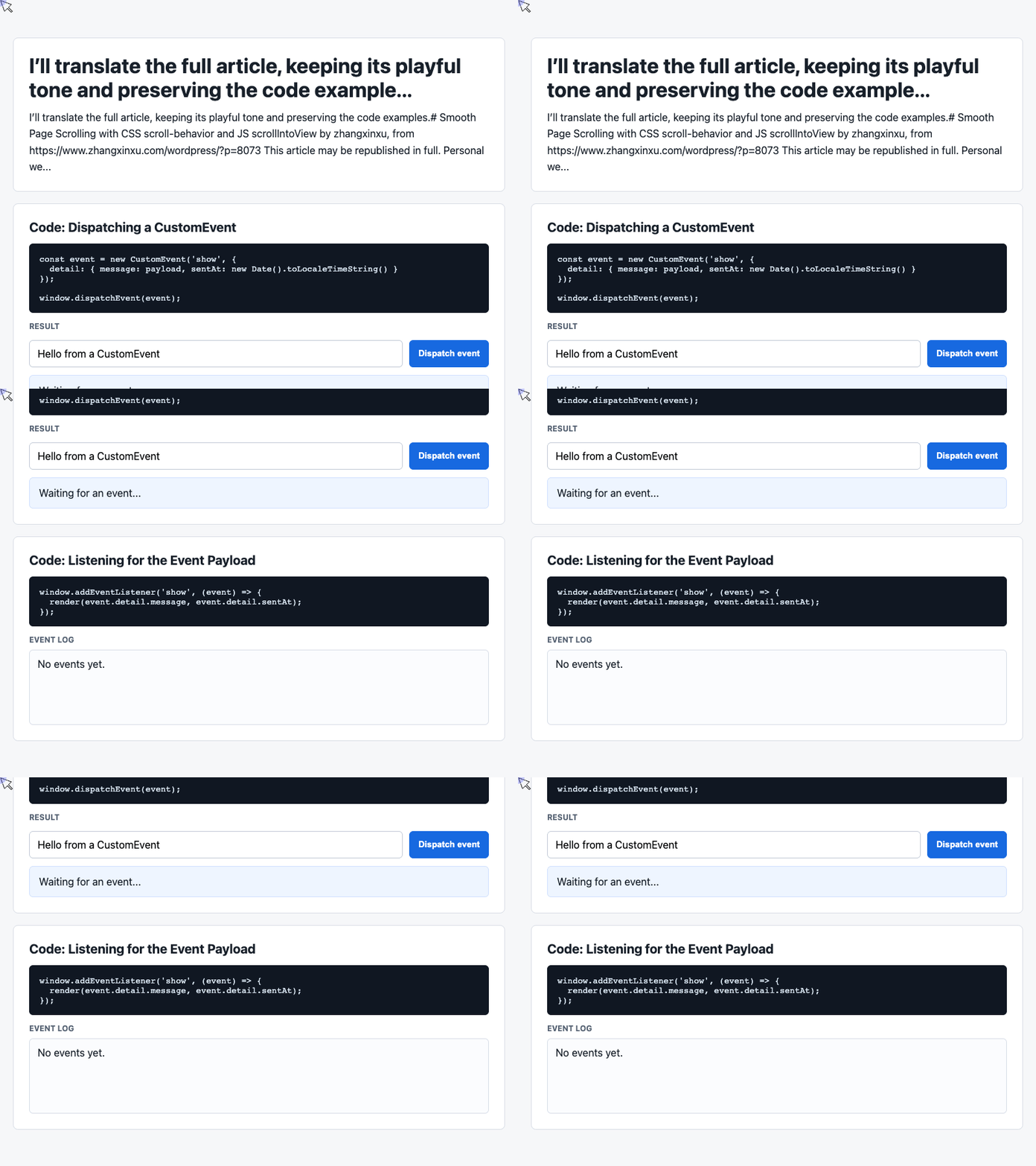
The supplied working demo demonstrates CustomEvent dispatch and rendering. It contains no scroll-behavior declaration or scrollIntoView() call.
Its examples are still useful for understanding how an interface connects an action to visible feedback. The next two excerpts come directly from that demo and work together with its existing markup: #payload, #dispatch, #latest, and #event-log.
Dispatch an Event with a Payload
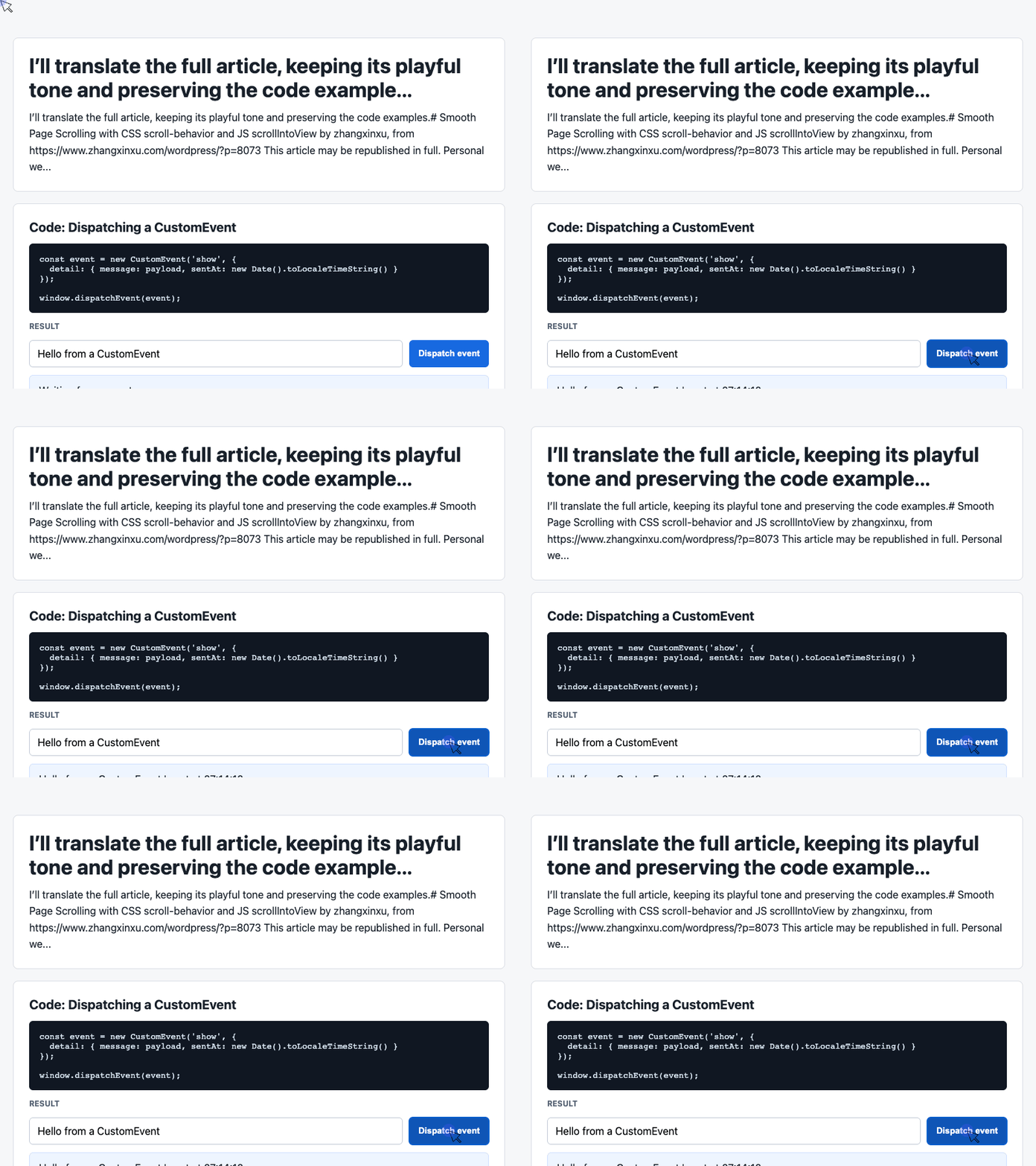
The first excerpt registers the button’s click handler. It reads the input, substitutes a default message when necessary, and dispatches an event containing the message and a timestamp.
const input = document.querySelector('#payload');

document.querySelector('#dispatch').addEventListener('click', () => {
  const message = input.value.trim() || 'Default CustomEvent payload';
  const event = new CustomEvent('show', {
    detail: { message, sentAt: new Date().toLocaleTimeString() }
  });
  window.dispatchEvent(event);
});
🎮 Try it live: Open the interactive demo to experience this yourself.
The custom data travels in event.detail. The event name, show, connects this producer to the listener in the next excerpt. The DOM Standard’s CustomEvent definition specifies how that payload is carried.
Dispatching the event does not render the card itself. In the complete demo, the listener performs that update.
Render the Message and Recent History
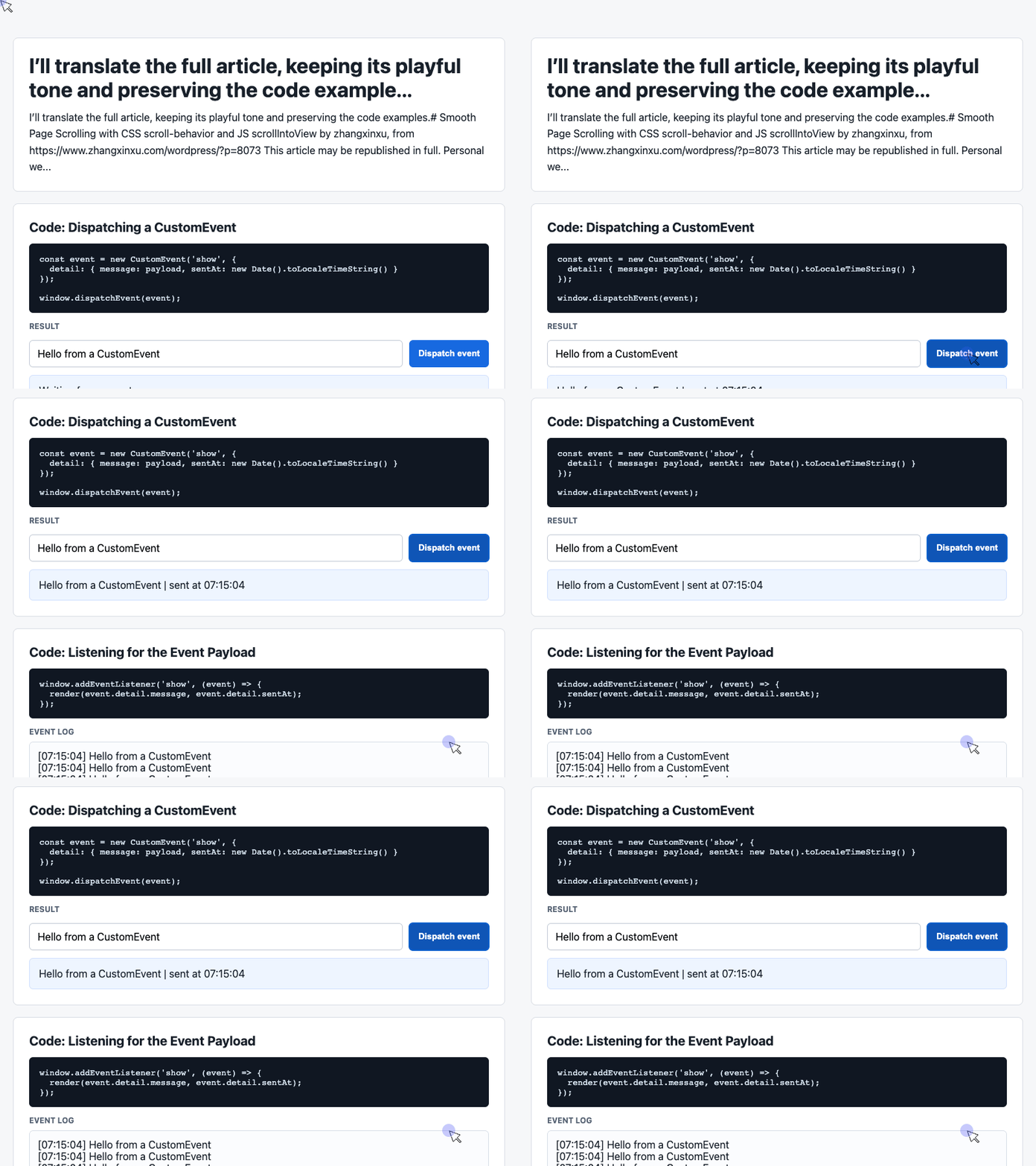
The second excerpt receives the event and turns its payload into visible text.
It updates the latest-message card, adds the message to the beginning of the history array, and displays the six most recent entries.
const latest = document.querySelector('#latest');
const log = document.querySelector('#event-log');
const history = [];

window.addEventListener('show', (event) => {
  const detail = event.detail || {};
  latest.textContent = detail.message + ' | sent at ' + detail.sentAt;
  history.unshift('[' + detail.sentAt + '] ' + detail.message);
  log.textContent = history.slice(0, 6).join('\n');
});
🎮 Try it live: Open the interactive demo to experience this yourself.
The card displays the newest event, while the log provides context. Notice that slice(0, 6) limits the displayed entries; the underlying history array continues to grow.
Using textContent renders the message as text. The demo’s white-space: pre-wrap styling preserves the newline-separated log entries.
This arrangement could support a scrolling extension: after updating the card, a listener could call latest.scrollIntoView(). That would be an additional feature; the supplied demo currently stops at rendering the feedback.
What About Older Browsers?
The original article also includes a JavaScript fallback built with requestAnimationFrame().
Its easing idea is compact: calculate the remaining distance, then move one-fifth of that distance on each frame. The expression scrollTop = scrollTop + distance / 5 produces large steps initially and progressively smaller steps near the destination.
Once the remaining distance falls below one pixel, the function sets the final position. Calling scrollSmoothTo(0) returns the page to the top.
The article also mentions jQuery’s animate() as another way to animate scrollTop.
These approaches explain how smooth scrolling can be implemented manually. For a project that requires a fallback, enable it according to the browsers and API options the project must support. Detecting a CSS property alone does not verify every JavaScript scrolling option.
Native behavior is a useful starting point because it leaves animation timing to the browser.
A Little Motion, a Little Character
A functional interface can still feel abrupt. Sometimes a single CSS declaration supplies the finishing touch.
Use scroll-behavior to establish the scrolling preference. Use scrollIntoView() when code needs to choose an element. Give readers who prefer reduced motion an immediate route to the same destination.
The effect should help people follow the page—and perhaps bring that gentle spring breeze along for the ride.
An article without personality is like a machine without a soul. And if the page still needs a mascot after all this polishing?
Perhaps a horse.
Try It Yourself
Want to see these concepts in action? I’ve created an interactive demo where you can experiment with the code and see real-time results.
Explore more demos from my previous articles in the Demo Gallery.
Happy coding!