
Small formatting fixes can make everyday forms feel much more thoughtful.
Based on the original article by zhangxinxu, with an additional walkthrough of the supplied event demo.
Full republication of the original article requires written permission, with the author’s name and source retained. The original JavaScript example is MIT-licensed; preserve its attribution.
1. Problems with the Current Experience
Pasting should save time. Yet forms often turn it into another editing task.
Consider configuring a DNS record. You copy an address from a webpage, accidentally include a leading space, and paste it into a field. The form rejects it. Now you have to find and delete an almost invisible character.
Phone numbers create a similar problem. A résumé might display a number as 138-0013-8000 because that format is easier to read. Paste it into a field that expects eleven uninterrupted digits, and the form reports an error.
The intended information is already there. A small amount of predictable cleanup could spare the user another round of editing.
These details shape how a product feels. When a form accepts familiar formatting and handles it gracefully, users can concentrate on their task.
2. Processing Text During a Paste Event
JavaScript can intercept a user’s paste action, read the incoming text, transform it, and insert the result.
This uses the Clipboard Event API, through a paste event and its clipboardData property. It is separate from the asynchronous navigator.clipboard API. Once a handler cancels the default paste with preventDefault(), it must insert the replacement content itself. Clipboard API specification
A useful distinction: this approach changes what enters the field. It leaves the system clipboard unchanged.
Example 1: Normalize the Incoming Text
The original handler attempts cleanup only when the field is empty, contains only whitespace, or has all its content selected. That restriction helps avoid replacing an existing value when someone is editing just part of it.
The following excerpt contains its normalization logic. It runs inside the original paste listener, after the availability and replacement checks; clipboardData has already been obtained from the event or the original legacy fallback.
/**
 * Improve the paste experience in form input fields.
 * Source: https://www.zhangxinxu.com/wordpress/?p=8003
 * Author: zhangxinxu
 */
event.preventDefault();
event.stopPropagation();

var type = this.getAttribute('type') || this.type;
var paste = clipboardData.getData('text') || '';

if (type != 'password') {
    paste = paste.trim();
}

if (type == 'email') {
    paste = paste.replace('#', '@');
} else if (type == 'tel') {
    paste = paste.replace(/^\+86/, '');

    if (paste.match(/\d/) && paste.match(/\d/g).length == 11) {
        paste = paste.replace(/\D/g, '');
    }
}

this.value = paste;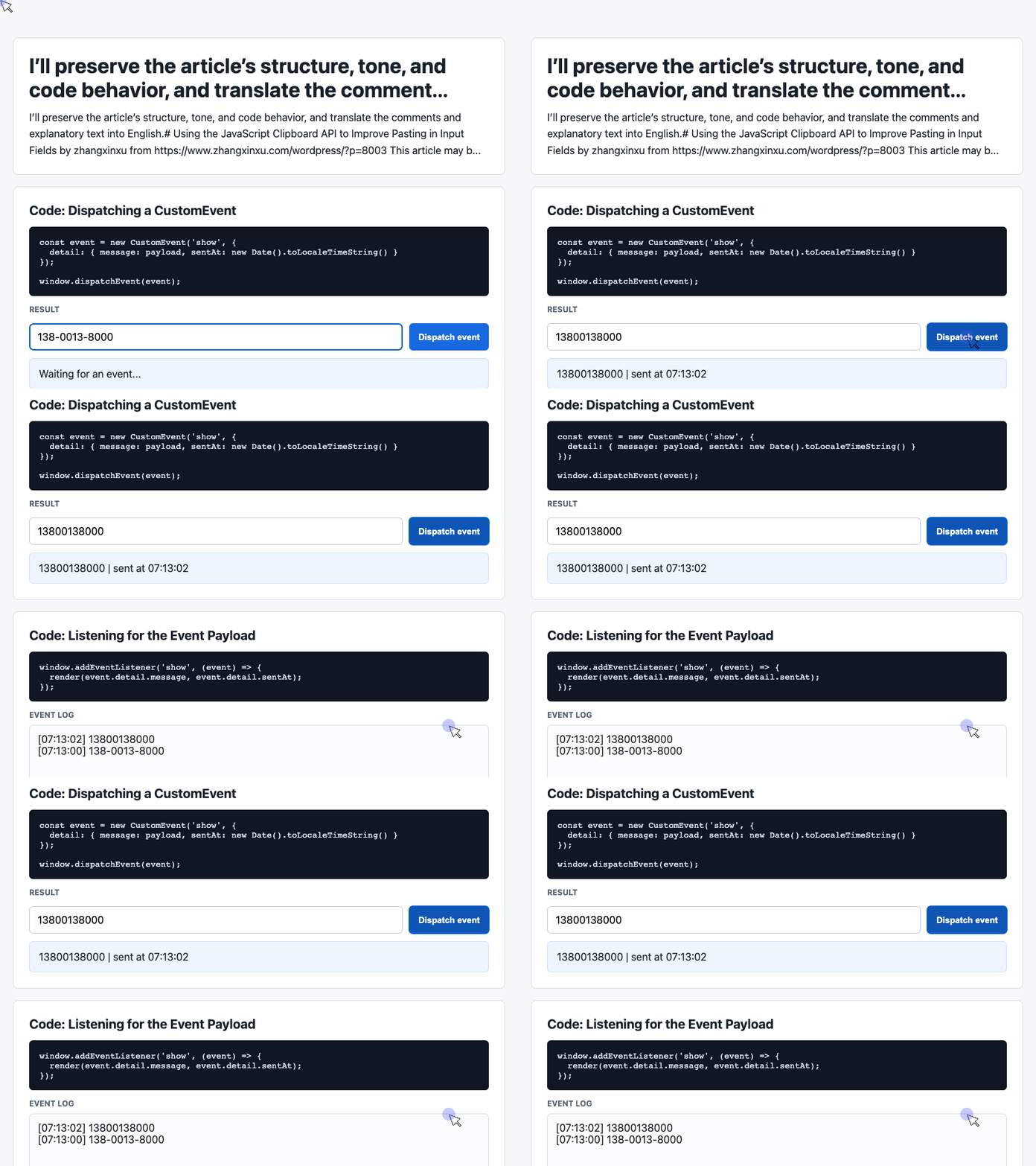
🎮 Try it live: Open the interactive demo to experience this yourself.
The transformations are deliberately small:
- Whitespace: trim the beginning and end, except for password fields.
- Email: replace the first
#with@, accommodating addresses written that way to discourage automated collection. - Telephone: remove a leading
+86, then remove nondigit characters if exactly eleven digits remain.
The telephone rule targets the Chinese phone-number scenario in the original example. Counting eleven digits does not establish that a number is valid, and this rule should be adapted for other numbering systems.
There are also integration details to consider. The original select-all check needs care because selectionStart is unavailable for some input types, including email. Assigning .value programmatically also does not automatically fire an input event, so applications that depend on one need an explicit update path. Selection support, input event behavior
Making the Interaction Visible with Custom Events
The supplied working demo illustrates a related technique: sending a message through CustomEvent and displaying it in the interface.
That demo does not access the clipboard or normalize pasted text. Its button dispatches an application event. It provides a useful companion example of how an interface can receive data and show feedback.
The next two excerpts come directly from its executable JavaScript and work together with its existing HTML elements.
Example 2: Dispatch a Message and Timestamp
The button handler reads the input, trims surrounding whitespace, and supplies a default message when the result is empty. It then packages the message and timestamp in detail.
With the listener in the next example installed, clicking the button updates the result card.
const input = document.querySelector('#payload');

document.querySelector('#dispatch').addEventListener('click', () => {
  const message = input.value.trim() || 'Default CustomEvent payload';
  const event = new CustomEvent('show', {
    detail: { message, sentAt: new Date().toLocaleTimeString() }
  });

  window.dispatchEvent(event);
});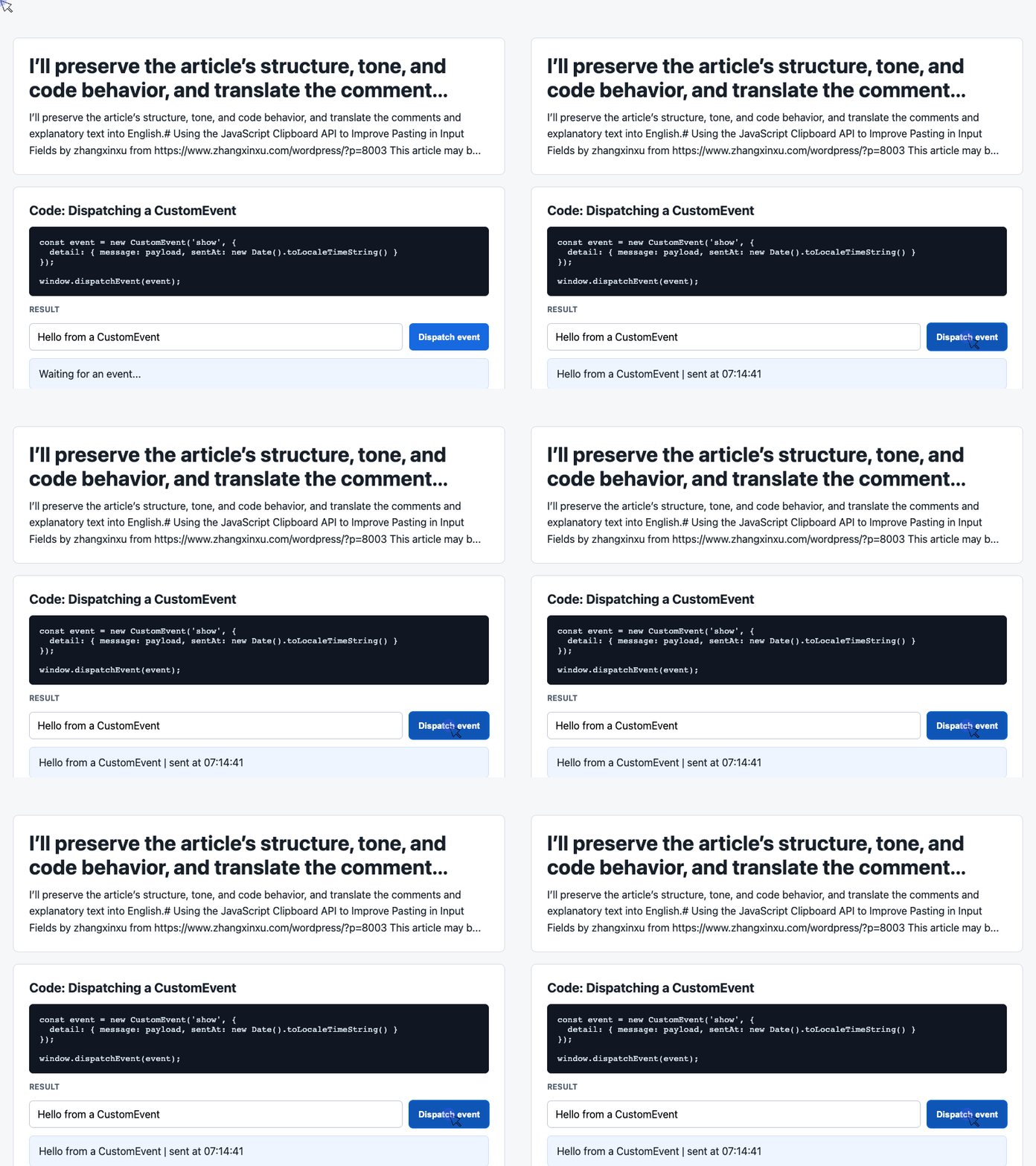
🎮 Try it live: Open the interactive demo to experience this yourself.
The event’s name is show; its payload contains message and sentAt. A listener retrieves those values through event.detail. CustomEvent detail documentation
This gives the button handler a focused responsibility: collect the data and announce it. The rendering logic lives in the listener.
Example 3: Render the Message and Recent Activity
The listener updates the latest-message card and adds a timestamped entry to the beginning of an array. It displays the six most recent entries in the log.
These selectors refer to the supplied demo’s existing result elements.
const latest = document.querySelector('#latest');
const log = document.querySelector('#event-log');
const history = [];

window.addEventListener('show', (event) => {
  const detail = event.detail || {};

  latest.textContent = detail.message + ' | sent at ' + detail.sentAt;
  history.unshift('[' + detail.sentAt + '] ' + detail.message);
  log.textContent = history.slice(0, 6).join('\n');
});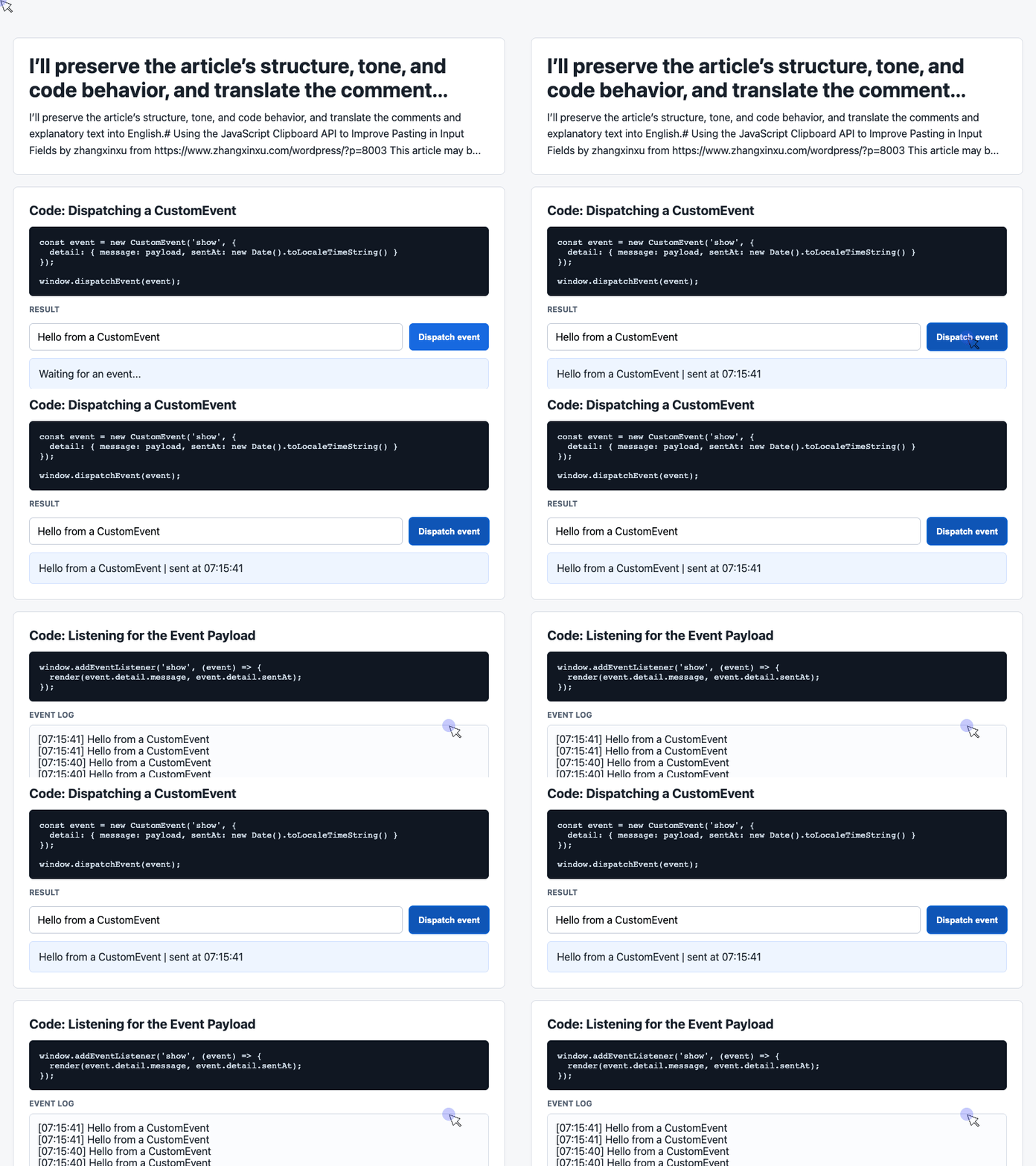
🎮 Try it live: Open the interactive demo to experience this yourself.
Each click updates the card and the visible log through the same listener. The display is limited to six entries, although the underlying array continues to grow.
Calling dispatchEvent() invokes the registered listeners synchronously. In this demo, the listener updates the DOM before that call returns. dispatchEvent documentation
A similar feedback pattern could be added to a form after normalization. Connecting it to the paste handler would be an additional implementation step.
Added September 30, 2018: Improving Drag-and-Drop Input
The original article also extends the idea to text dragged into a telephone field.
Its drop handler reads text from event.dataTransfer. If the destination is empty and the text contains exactly eleven digits, it prevents the default drop, removes nondigit characters, inserts the result, and selects the field’s contents.
The interaction follows the same practical principle: accept a familiar presentation of the data and convert it into the format the field expects.
Keep those transformations narrow. Spaces and hyphens may be expendable in this telephone example, while punctuation can be essential in other kinds of input.
3. A Few Final Words About Copying and the Clipboard
Clipboard events also let a page customize copying.
The original article demonstrates a copy handler that reads the selected text, appends a copyright notice, and writes the combined result using clipboardData.setData('text/plain', ...). Canceling the default copy action makes that replacement data take effect. Clipboard API specification
That capability deserves restraint. Appending extra text changes what a reader receives when they paste elsewhere. A dedicated “Copy with attribution” action can make the behavior easier to understand.
The original author closes with a generous request to fellow developers: use the code, and retain its source and copyright information.
The same spirit applies to form design. A user should be able to copy a readable phone number, paste it, and continue working. A few careful lines of JavaScript can make that ordinary moment feel effortless.
Try It Yourself
Want to see these concepts in action? I’ve created an interactive demo where you can experiment with the code and see real-time results.
Explore more demos from my previous articles in the Demo Gallery.
Happy coding!