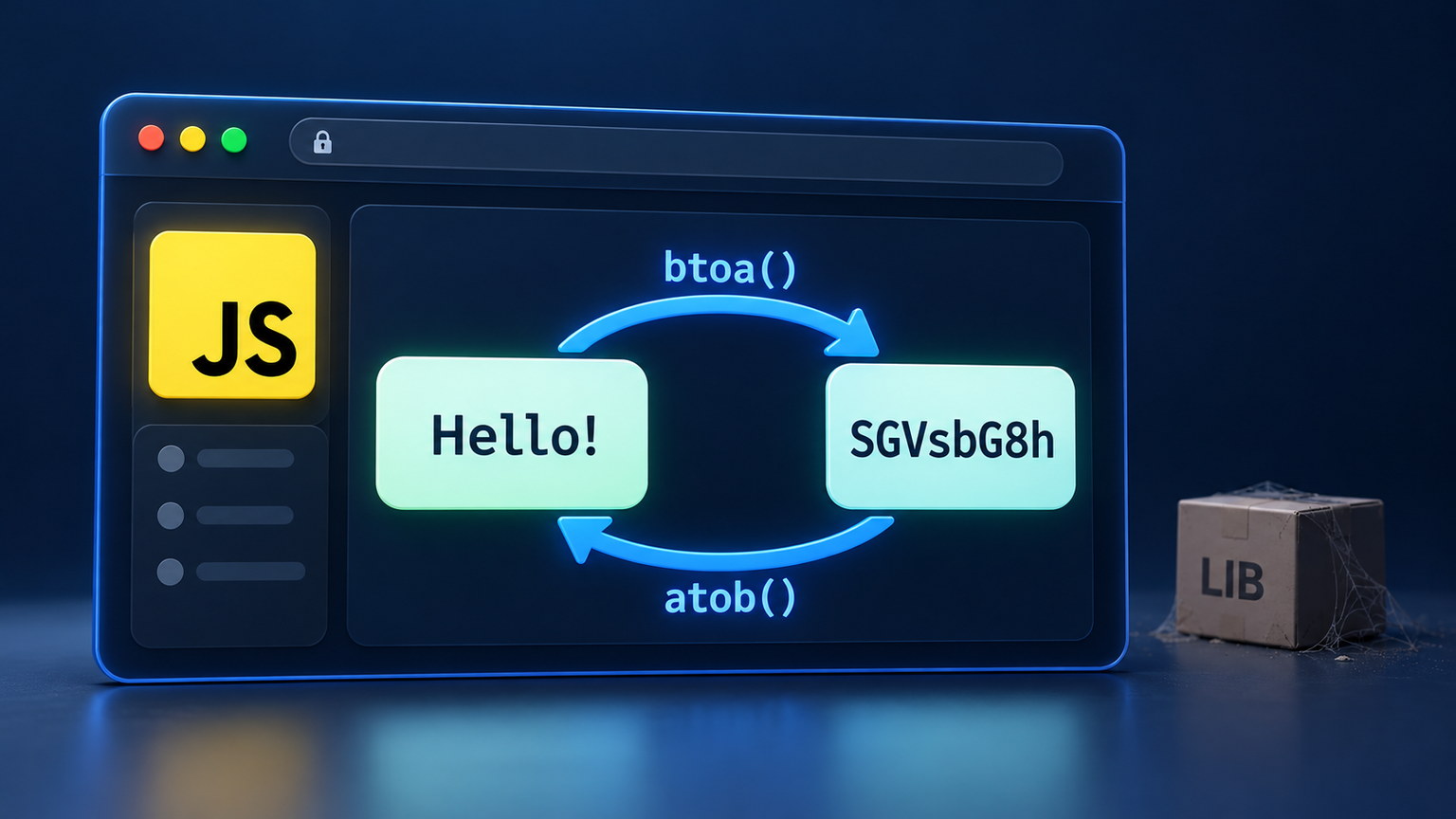
The browser already had the tools. I just hadn’t checked the toolbox.
By zhangxinxu · Original article
Adapted for Medium, with technical clarifications and companion examples from the supplied demo. The original author requires written permission for full republication, with author and source attribution retained.
A Working Solution Can Still Be a Poor Tool Choice
Poor technology choices often begin with gaps in our technical knowledge.
A few months ago, I needed to convert HTML text to Base64 on the front end. Without a second thought, I went looking for an open-source base64.js library.
It was easy enough. Include the JavaScript file, call Base64.encode('zhangxinxu'), and get emhhbmd4aW54dQ==. To reverse the process, call Base64.decode('emhhbmd4aW54dQ==').
The data was correct. Everything worked. I was even rather pleased with myself.
Then I discovered—damn it—that browsers had supported Base64 encoding and decoding for years.
All that searching, downloading, and API learning had earned me an extra JavaScript file I didn’t need. My little victory suddenly looked less impressive.
The lesson stung: knowing more about the platform can change which tools you choose.
Meet btoa() and atob()
Browsers provide two native methods:
btoa()converts a binary string into Base64 text.atob()converts Base64 text back into a binary string.
Here, a binary string means a JavaScript string whose character values each represent one byte. That distinction becomes important when we reach Chinese text and emoji. These methods are also available in worker environments. HTML Standard
For the original article’s ASCII example, the entire round trip takes just two native calls. Run these in your browser’s developer console:
window.btoa('zhangxinxu');
// Returns: 'emhhbmd4aW54dQ=='

window.atob('emhhbmd4aW54dQ==');
// Returns: 'zhangxinxu'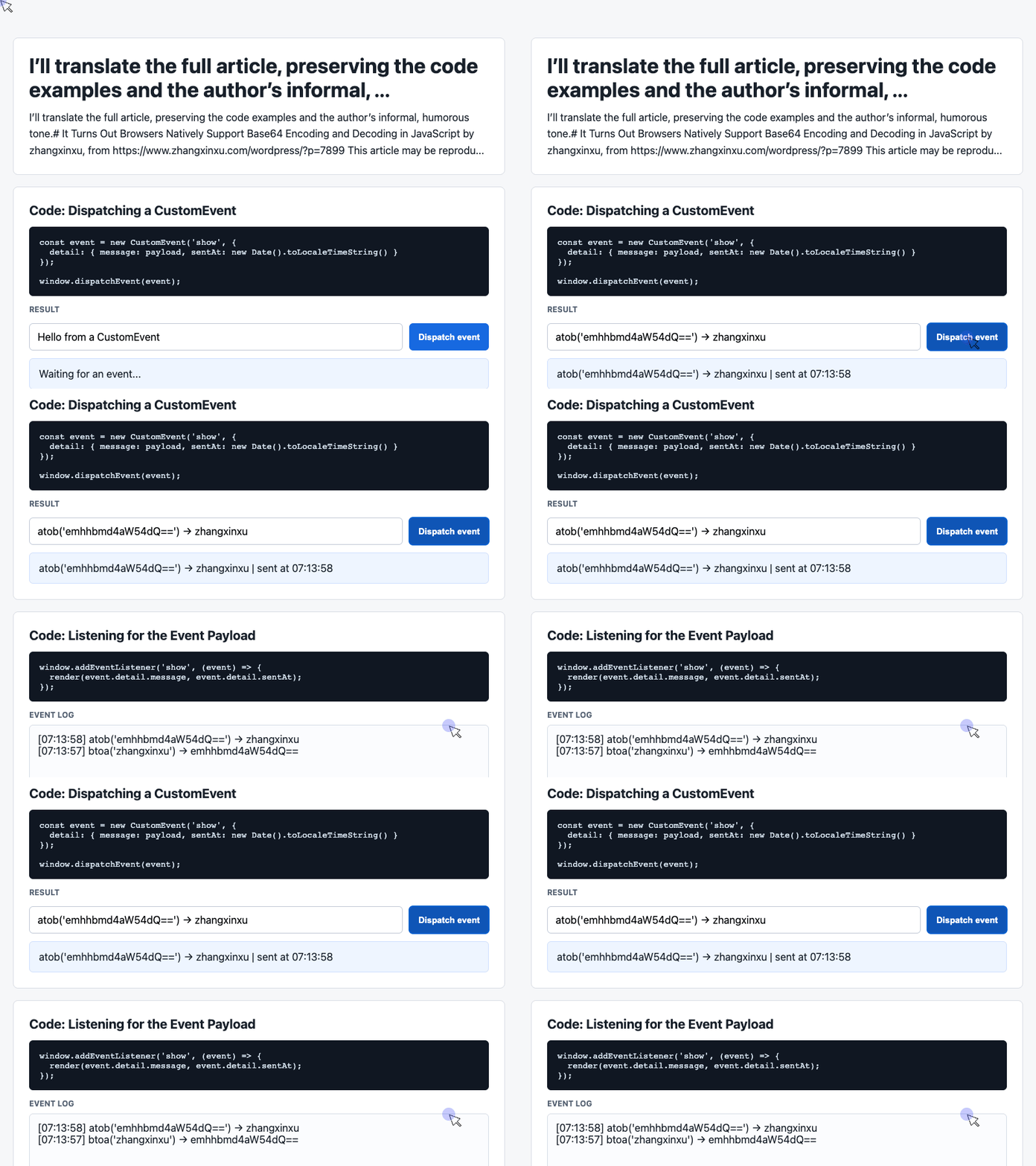
🎮 Try it live: Open the interactive demo to experience this yourself.
Exactly the same result as the library. No additional script required.
In a browser window, you can use window.btoa() and window.atob(). In workers, the corresponding calls are available through self.
Remembering Those Peculiar Names
At first glance, atob looks like a word someone typed while reaching for their coffee.
Think of it as “A to B.” Does the B stand for Base64?
Congratulations! You guessed wrong.
A useful mnemonic is binary to ASCII for btoa(), and ASCII to binary for atob(). Base64 is the ASCII representation in that pairing.
My original, considerably less dignified memory trick involved calling ordinary characters “low B”—a Chinese slang joke about being uncool. It works as a joke. For understanding the API, remember the bytes.
Also, atob() returns decoded bytes represented as a string. Those bytes are only readable text when interpreted using the appropriate character encoding. MDN: atob()
The Unicode Catch: Chinese Text Needs Another Step
The original article received an update on August 9, 2018, after someone tried encoding Chinese text and encountered this error:
The string to be encoded contains characters outside of the Latin1 range
The problem is that btoa() expects byte values. JavaScript strings can contain characters that cannot fit into a single byte.
For arbitrary Unicode text, first convert the text into UTF-8 bytes, then Base64-encode those bytes. When decoding, reverse those steps. TextEncoder and TextDecoder provide the text-to-byte and byte-to-text conversions. MDN: Unicode strings and btoa()
One solution suggested in the original discussion was btoa(encodeURIComponent(text)), paired with decodeURIComponent(atob(encoded)).
That pair can round-trip the text, but notice what it actually encodes: the percent-escaped representation produced by encodeURIComponent(). Its Base64 output differs from Base64 of the original text’s UTF-8 bytes.
That distinction matters when another application or service expects conventional UTF-8 Base64.
The original article also mentioned btoa(unescape(encodeURIComponent(str))). Keep that one in its historical context: unescape() is deprecated. MDN: unescape()
A tiny API can still have a rather substantial footnote.
A Historical Detour: Supporting IE8 and IE9
When the original article was written, supporting IE9 was still a practical concern for many desktop projects.
The approach was straightforward: load a polyfill for browsers that lacked native atob() and btoa() support.
The article used Internet Explorer conditional comments, wrapping a reference to ./base64-polyfill.js between <!--[if IE]> and <![endif]-->.
In the intended legacy browser modes, IE9 and earlier would process that conditional section. Modern browsers would treat it as a comment. IE10 and later had also dropped support for those conditional comments.
The result was a neat compatibility arrangement: older IE received the missing functionality, while browsers with native support avoided the extra download.
This belongs to the article’s 2018 browser landscape. The lasting engineering idea is broader: match compatibility code to the browsers your project actually supports.
Files Have Their Own Native Route: FileReader
Text is only part of the story.
What if you want Base64 for an SVG, a small image, a font, or a text file?
The browser already has a tool for that, too: FileReader.readAsDataURL().
The workflow is simple. Create a FileReader, register its onload handler, and call reader.readAsDataURL(file). When reading finishes successfully, reader.result—also available as e.target.result in the handler—contains the complete Data URL. MDN: readAsDataURL()
A Data URL Contains More Than Base64
For a plain-text file containing exactly zhangxinxu, a result with the text/plain media type would look like:
data:text/plain;base64,emhhbmd4aW54dQ==
There are two parts to recognize: the metadata prefix, ending at the comma, and the Base64 payload after it. An API expecting raw Base64 generally needs the payload rather than the complete Data URL. MDN: Data URL results
Look at the payload: it matches btoa('zhangxinxu').
Of course it does. If identical bytes produced different results, I’d start wondering what I had broken.
The original article built a small drag-and-drop utility around this workflow. Drop a file onto the page, read it, and display its Data URL.
I used that approach for SVGs, small images, and WOFF fonts. Drag, drop, copy. A pleasant amount of effort.
The prefix can include the file’s media type, but that metadata should not be mistaken for proof that the browser has inspected and verified the file’s contents.
Companion Demo: Send a Value to the Interface
The supplied working demo demonstrates CustomEvent. It passes a message from an input field to a result card and an event log.
That makes it useful companion UI wiring for a conversion tool. The two excerpts below come from that demo; they transport and display a string. Base64 conversion would be a separate step.
For a quick experiment, paste emhhbmd4aW54dQ== into the demo’s input. You can watch the encoded value travel through the interface unchanged.
Publish the Input as an Event
The demo’s click handler reads the input, supplies a fallback for an empty value, and attaches a local timestamp.
Its custom payload goes in detail, which is where CustomEvent makes application data available to listeners. MDN: CustomEvent.detail
With the supplied page and its listener in place, this extracted handler drives the Dispatch event button:
const input = document.querySelector('#payload');

document.querySelector('#dispatch').addEventListener('click', () => {
  const message = input.value.trim() || 'Default CustomEvent payload';
  const event = new CustomEvent('show', {
    detail: { message, sentAt: new Date().toLocaleTimeString() }
  });
  window.dispatchEvent(event);
});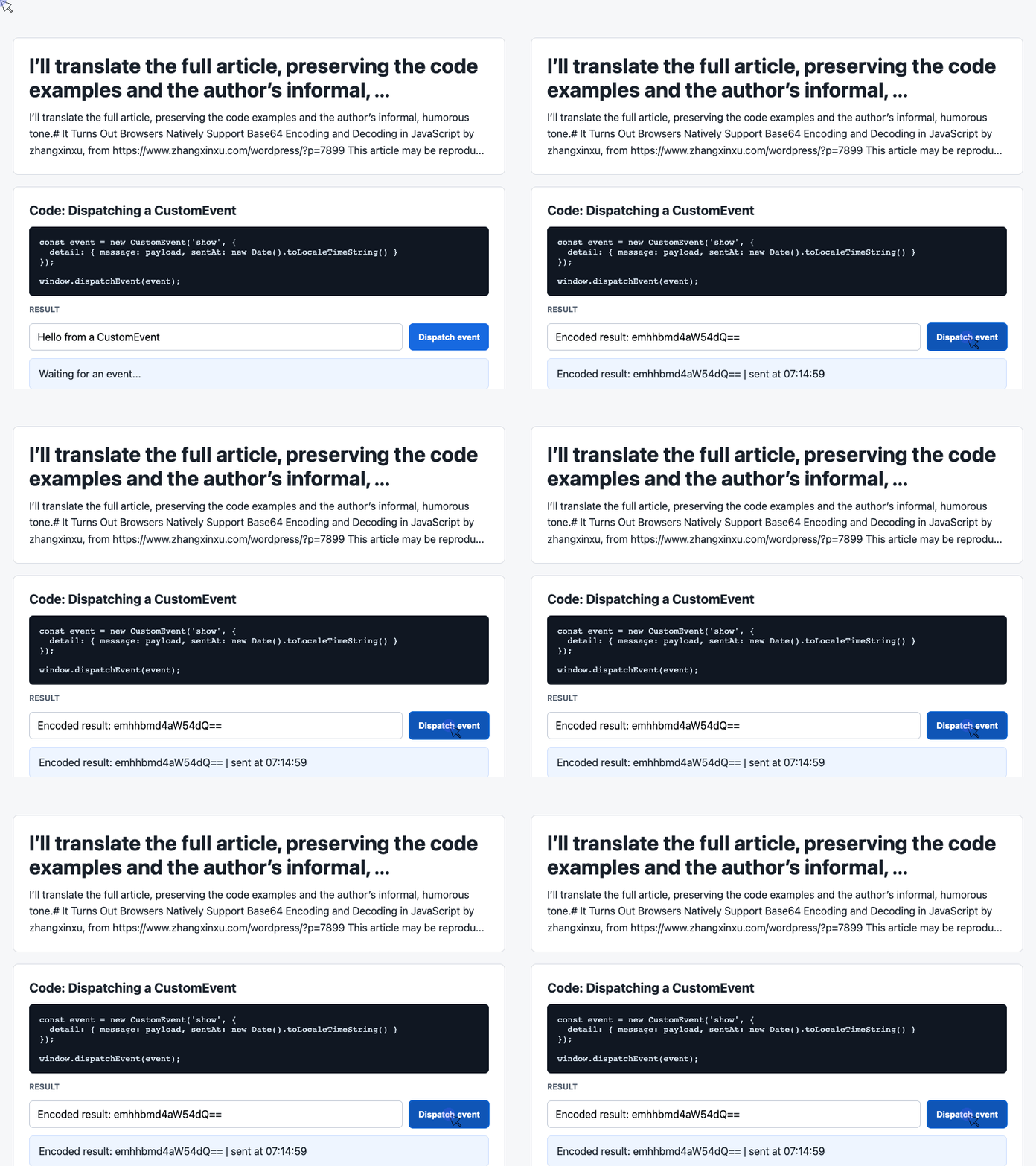
🎮 Try it live: Open the interactive demo to experience this yourself.
The handler publishes a message without directly updating the result card.
In a Base64 tool, you could place a completed encoding or decoding result in detail.message. The supplied handler currently sends the input text as entered.
Display the Payload and Keep a Short Log
The receiving side listens for the same event name: show.
This second excerpt updates the latest-result card and prepends each message to the history. Both handlers should be installed before you click the button.
const latest = document.querySelector('#latest');
const log = document.querySelector('#event-log');
const history = [];

window.addEventListener('show', (event) => {
  const detail = event.detail || {};
  latest.textContent = detail.message + ' | sent at ' + detail.sentAt;
  history.unshift('[' + detail.sentAt + '] ' + detail.message);
  log.textContent = history.slice(0, 6).join('\n');
});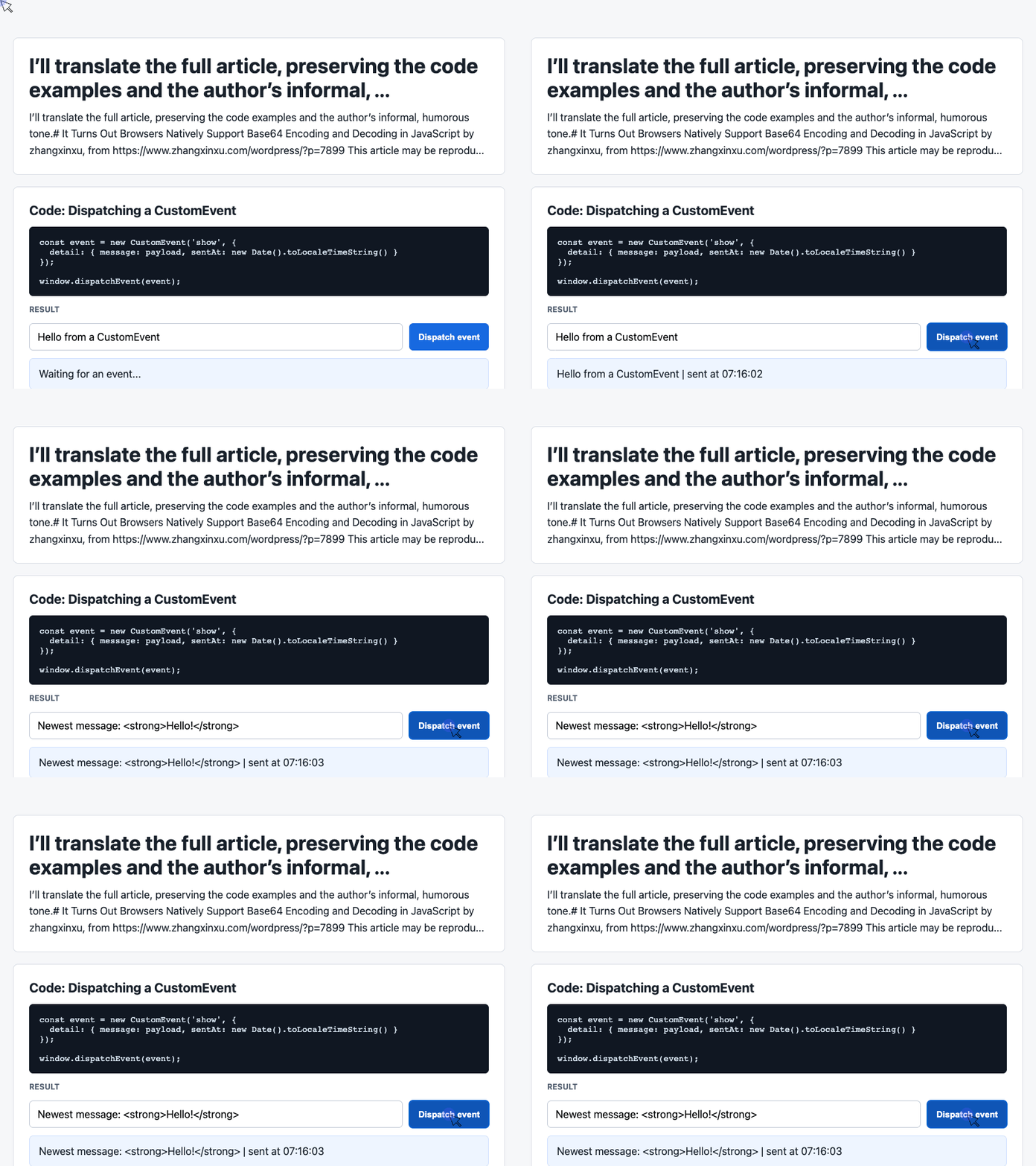
🎮 Try it live: Open the interactive demo to experience this yourself.
The log displays the six newest entries, although the array continues to retain earlier messages.
Using textContent also suits the original HTML-encoding use case: markup in a message appears as literal text in the result, rather than being interpreted as HTML.
You now have two small pieces of interface behavior: one publishes a value, and the other displays it. They can support a Base64 utility without becoming part of the encoding logic itself.
One Last Detour—and One Terrible Joke
The original 2018 article ended with a thoroughly nontechnical observation: the Northern Hemisphere was having an extraordinarily hot summer.
Reports described heat inside the Arctic Circle, unusually high temperatures in Siberia, a heat wave in Japan, and farmland in Denmark turning from green to scorched brown. People were also talking about severe heat and dried-up reservoirs in northeastern China.
My mind promptly wandered to Midea and Gree. Hot weather, more air conditioners, perhaps stronger quarterly reports—apparently even an article about Base64 could take an unexpected trip through the stock market.
But the browser discovery was the more useful thought to keep: before hunting for another library, check what the platform already provides.
Finally, that technically sophisticated “low B” joke:
A little bee flew into a patch of flowers. It flew higher and higher, then called down to the bee below:
“You low bee!”
[Facepalm.]
Try It Yourself
Want to see these concepts in action? I’ve created an interactive demo where you can experiment with the code and see real-time results.
Explore more demos from my previous articles in the Demo Gallery.
Happy coding!