
Understanding static imports, dynamic imports, and the browser rules that make them work.
Adapted from zhangxinxu’s original article, with updated technical notes and a practical companion demo.
Why Native Modules Deserve a Little Celebration
There is something satisfying about importing a JavaScript function directly into a browser page. One file exports a capability. Another imports it. The browser connects the pieces.
For a developer who spends most of their time on the web, that feels personal. Node.js gaining a useful feature is like hearing that a friend in another city received a promotion: wonderful news. Browsers gaining that feature brings the celebration much closer to home.
Native modules give us a standard way to organize JavaScript around explicit dependencies. We can divide an application into smaller files, expose the functions other files need, and choose when to load optional features.
There are two ways to import a module:
- Static
importdeclares a dependency at the top level of a module. - Dynamic
import()loads a module when execution reaches the expression.
Compatibility update: The original article described these features during their early browser rollout. Native modules are now supported across modern browsers, and MDN lists dynamic import() as widely available since January 2020. The original version numbers should be read as historical context. JavaScript modules, dynamic import compatibility.
Static Imports: Start With a Small, Visible Result
The easiest way to understand a module is to give it one obvious job.
Let’s make a paragraph turn red.
The module exports a function named pColor. An entry module imports that function and calls it. The page loads the entry module with <script type="module" src="./main.mjs"></script>.
That attribute tells the browser to process the script as an ECMAScript module.
The following example comes from the original article. Save the two labeled sections as separate files, and include a <p> element in the page.
// firstBlood.mjs
export function pColor(color) {
  const p = document.querySelector('p');
  p.style.color = color;
}

// main.mjs
import { pColor } from './firstBlood.mjs';

pColor('red');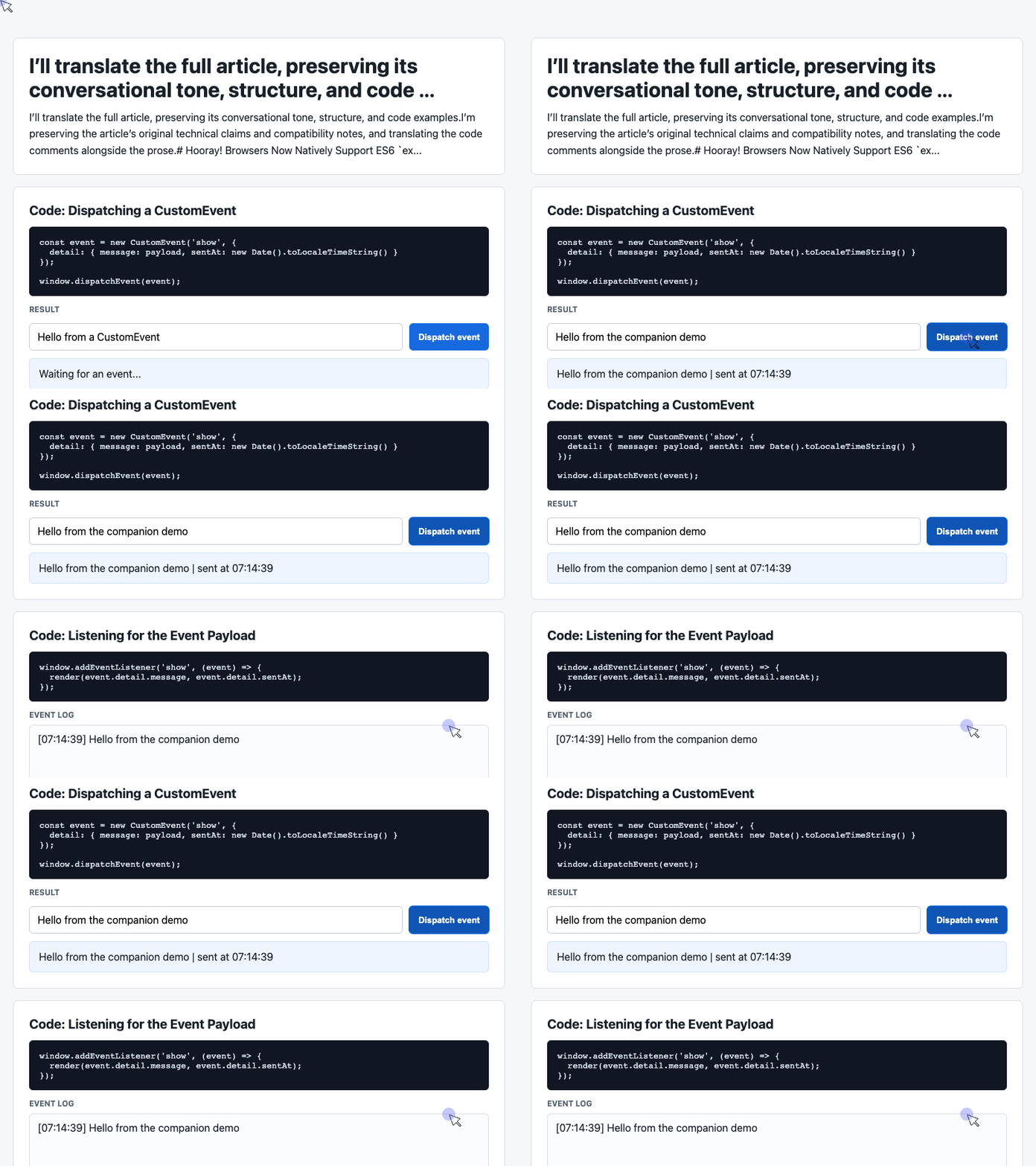
🎮 Try it live: Open the interactive demo to experience this yourself.
The exported function remains ordinary JavaScript. The module syntax determines which file provides it and which file consumes it.
Named Exports and Default Exports
A module can export functions, constants, classes, and other declarations.
A named export is imported by its exported name, as in import { pColor } from './firstBlood.mjs'.
A default export provides one value under the special name default. The importing file can choose a local name for it. A namespace import, such as import * as effects from './doubleKill.mjs', collects the exports into a module namespace object. Its default export is available as effects.default.
In the original article’s second demonstration, one exported function applies scaleY(-1) while another changes the text color. Calling both produces red, vertically flipped text.
The visual trick is simple. The useful lesson is that a module can expose several related capabilities through a clear interface.
Do Module Files Have to End in .mjs?
Browsers can load JavaScript modules from either .js or .mjs files. The .mjs extension makes their purpose explicit, but correct loading also depends on the script context and the server’s response.
Technical update: Node.js also supports .js modules, including through a nearby package.json containing "type": "module". The original article’s .mjs-only description no longer applies. Node.js module configuration.
Loading Rules That Explain Most Module Surprises
Module syntax is straightforward. Loading behavior deserves a closer look.
Paths Must Resolve to Module URLs
Explicit paths such as ./utilities.mjs, ../utilities.mjs, and /scripts/utilities.mjs work in browser imports. Absolute URLs work too, subject to cross-origin requirements.
A bare specifier, such as 'utilities', needs a resolution rule.
Technical update: Browsers can resolve bare specifiers through import maps. Without a suitable mapping, the browser cannot automatically look up an npm-style package name. Import maps.
Modules Are Deferred by Default
A normal parser-inserted module script fetches its dependencies while HTML parsing continues. Evaluation waits until parsing finishes.
Inline module scripts receive this deferred behavior too. Traditional inline scripts do not become deferred simply because someone adds a defer attribute.
The distinction between downloading and executing matters:
| Script form | Typical behavior during page parsing |
|---|---|
| Classic external script without attributes | Parsing pauses while it loads and executes |
Classic external script with defer | Fetches alongside parsing; executes afterward |
Module script without async | Fetches its dependency graph alongside parsing; evaluates afterward |
Module script with async | Evaluates when its dependency graph is ready |
Deferred downloads can overlap and finish in different orders. Execution scheduling is a separate concern. The HTML standard describes these loading modes explicitly. Script processing rules.
Adding async to a module script changes its scheduling. It can evaluate as soon as its dependencies are ready, so independent async entry scripts should not depend on document order.
A Module’s Top-Level Code Runs Once
Within the same page’s module environment, repeatedly importing the same resolved JavaScript module URL does not repeatedly evaluate its top-level code.
That makes shared initialization easier to reason about.
It does not mean an exported function can run only once. You can call pColor('red') whenever you need it. The once-only behavior applies to evaluating the module itself.
Modules also run in strict mode automatically, and their top-level declarations stay within module scope unless explicitly exposed.
The Server Must Send a JavaScript MIME Type
A file can contain perfectly valid JavaScript and still fail to load as a module.
The browser checks its response MIME type. Serve JavaScript modules with an appropriate type, preferably text/javascript, rather than a generic download type such as application/octet-stream.
When a module refuses to load, inspect the Network panel. Check the requested URL, response status, and Content-Type header. A missing resource that returns an HTML error page can produce a misleading-looking MIME error. Module MIME requirements.
Cross-Origin Modules, Credentials, and Legacy Browsers
Cross-origin module loading requires CORS permission from the server hosting the module. A classic script URL that works across origins may therefore fail when loaded as a module.
For a public module served without credentials, a response can allow access with Access-Control-Allow-Origin: *.
Credentials require more care.
Technical update: Module requests use a same-origin credentials mode by default. They can send credentials to the same origin; cross-origin credentials require explicit configuration.
| Module script configuration | Credentials mode |
|---|---|
No crossorigin attribute | Same-origin |
crossorigin="anonymous" or an empty attribute | Same-origin |
crossorigin="use-credentials" | Include, subject to browser policies |
The script’s crossorigin setting controls credentials for module loading. HTML script specification, crossorigin values.
For credentialed cross-origin requests, the server must allow the requesting origin explicitly and return Access-Control-Allow-Credentials: true. A wildcard allowed origin is insufficient. Credentialed CORS requests.
For legacy support, the traditional pattern pairs a module entry with a classic fallback: <script type="module" src="module.mjs"></script> followed by <script nomodule src="fallback.js"></script>.
Browsers implementing the module/nomodule pattern execute the appropriate entry. If older browsers are part of your support requirements, test those actual targets rather than assuming every historical implementation behaves identically.
Dynamic Imports: Load a Feature When Someone Needs It
Static imports describe dependencies up front. Dynamic imports let the application request a module during execution.
For example, inside an async event handler, const module = await import('./doubleKill.mjs') loads the module and gives you its exports. You can then call module.default() and module.pColor('red').
Although import() resembles a function call, it is special JavaScript syntax. You cannot assign import itself to a variable or invoke it through call().
Dynamic imports return promises and can also be used inside ordinary browser scripts. Loading failures reject the promise, so an interaction that imports a feature should provide an error state. Dynamic import behavior.
A Tab Interface Makes the Benefit Concrete
Imagine three tabs, each associated with a different module.
When someone selects a tab, the application reads its module identifier, imports the corresponding file, and calls an exported method such as loadPageInto(main).
The initial page can load without requesting every optional tab feature.
A complete implementation should also handle repeated clicks, loading feedback, and overlapping requests. If a user selects two tabs quickly, a slower response from the first selection should not overwrite the newer selection.
Dynamic loading gives us control over timing. The interface still needs to manage what happens while it waits.
A Practical Companion: Connecting UI Behavior With Events
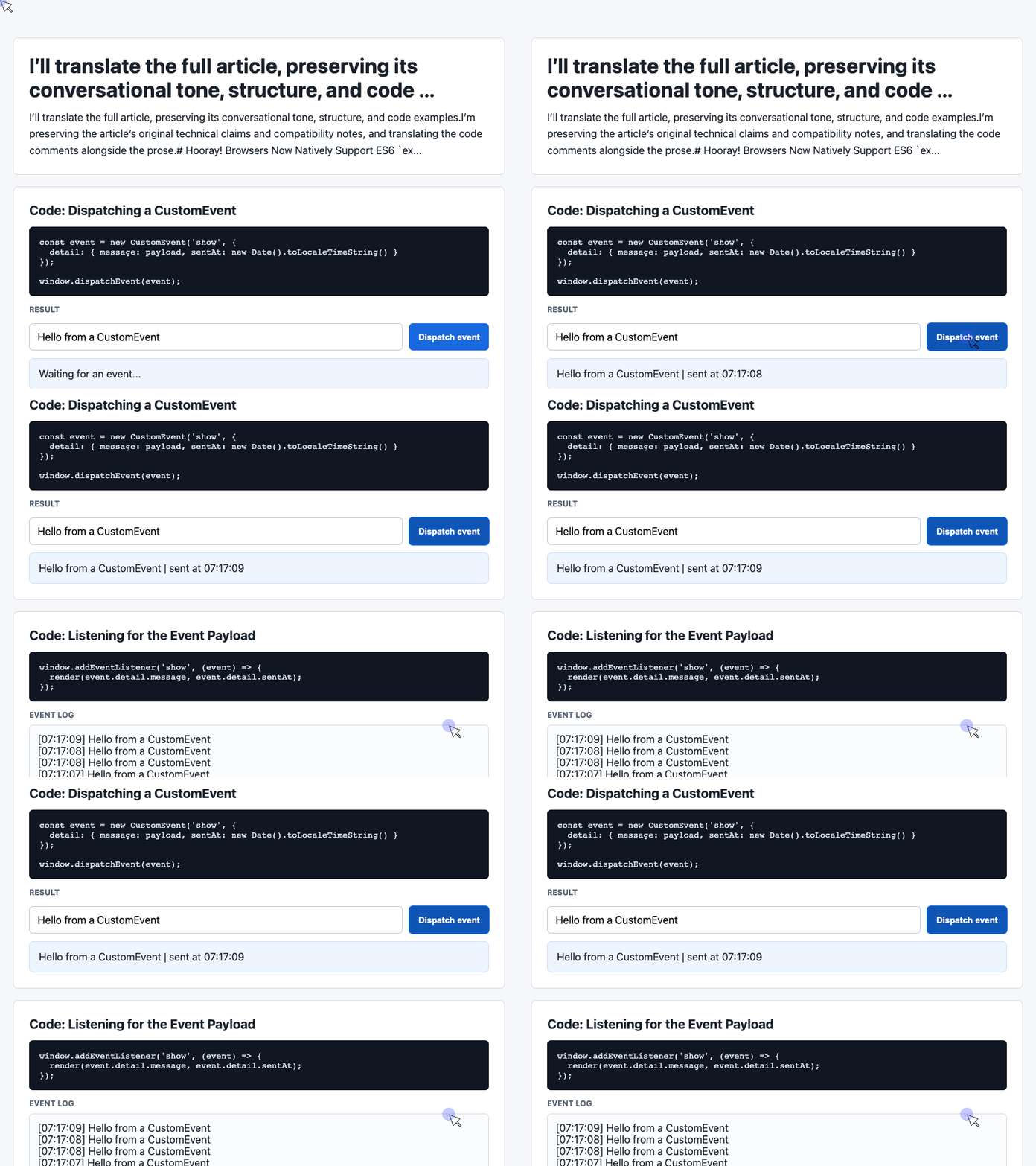
The supplied working demo illustrates another browser capability: CustomEvent.
It contains an input, a “Dispatch event” button, a latest-message card, and an event log. Its implementation uses an ordinary script; it does not currently use import or export.
It is a useful companion because it shows responsibilities we could later place in separate modules:
- A producer reads input and dispatches a message.
- A consumer receives that message and updates the interface.
Imports connect code dependencies. Events carry notifications while the application runs.
Dispatch a Message From the Button
The following excerpt comes directly from the supplied demo. It uses the existing #payload input and #dispatch button.
In the complete demo, the listener shown next supplies the visible response.
const input = document.querySelector('#payload');

document.querySelector('#dispatch').addEventListener('click', () => {
  const message = input.value.trim() || 'Default CustomEvent payload';
  const event = new CustomEvent('show', {
    detail: { message, sentAt: new Date().toLocaleTimeString() }
  });
  window.dispatchEvent(event);
});
The handler trims the input and substitutes a default message when the result is empty.
CustomEvent carries the application data in its detail property. Here, the payload contains a message and a display timestamp. Both producer and consumer agree on the event name, 'show', and the payload’s shape. CustomEvent.
Receive the Payload and Render the Result
This second demo excerpt selects the output elements, registers the listener, and updates both the latest-message card and the history display.
Place these snippets after the demo’s HTML elements, as in the supplied implementation, so the selectors can find their targets.
const latest = document.querySelector('#latest');
const log = document.querySelector('#event-log');
const history = [];

window.addEventListener('show', (event) => {
  const detail = event.detail || {};
  latest.textContent = detail.message + ' | sent at ' + detail.sentAt;
  history.unshift('[' + detail.sentAt + '] ' + detail.message);
  log.textContent = history.slice(0, 6).join('\n');
});
🎮 Try it live: Open the interactive demo to experience this yourself.
The newest entry goes to the beginning of the array through unshift(). The interface displays the first six entries, separated by line breaks.
That display limit does not cap the array itself: history continues growing. A longer-running application could also limit retained history.
Using textContent renders the message as text. Input containing HTML characters therefore appears as text in the output.
There is also a timing detail worth remembering: dispatchEvent() invokes registered listeners synchronously. The UI updates in this listener occur before the dispatch call returns. Register the listener before the user can trigger an event. Event dispatch timing.
How This Could Become a Module-Based Feature
A later refactor could put event production in sender.mjs and rendering in viewer.mjs, with an entry module initializing both.
If the viewer became optional, the application could import it dynamically before enabling the associated interaction. Its listener would need to be installed before dispatching any event it must receive.
That would be a new adaptation of the demo. The supplied implementation already provides the behavior; modules would organize how that behavior is loaded and initialized.
Keep the Technical Detail—and the Personality
The original author joked that this article took a month to write: from July 30 to August 2. Technically, it crossed a month boundary.
That small joke captures something valuable about technical writing. Precision does not require removing every trace of the person explaining the idea.
Browser modules deserve careful explanations of paths, execution timing, MIME types, and CORS. They also deserve a little enthusiasm. Being able to export a function, import it elsewhere, and let the browser handle the dependency is still a pleasing thing.
Start with the red paragraph. Follow the dependency. Then build something worth clicking.
Try It Yourself
Want to see these concepts in action? I’ve created an interactive demo where you can experiment with the code and see real-time results.
Explore more demos from my previous articles in the Demo Gallery.
Happy coding!