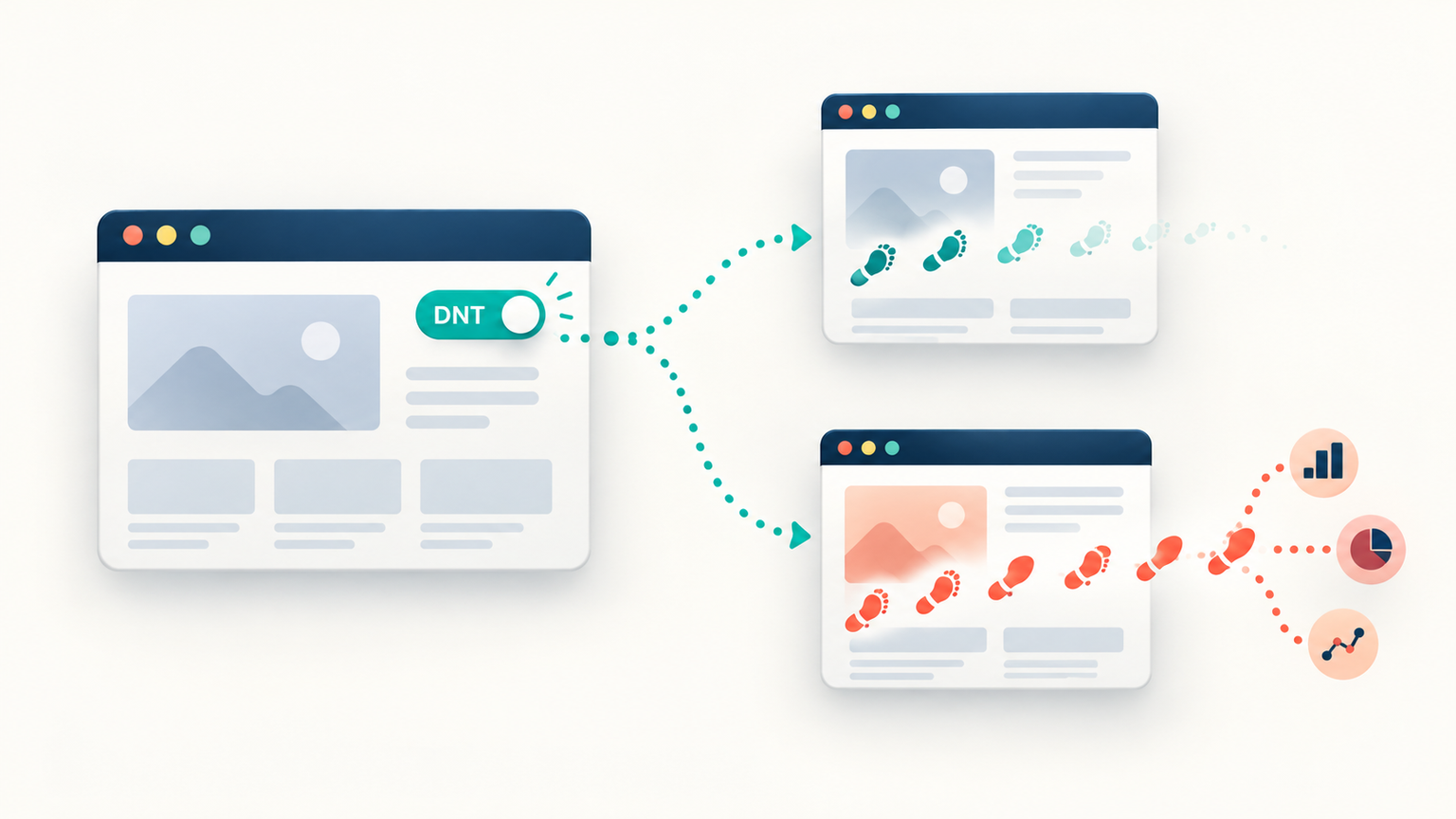
What a browser privacy signal communicates—and how developers can turn user preferences into meaningful product behavior.
By zhangxinxu, adapted from the original article, with updated technical context and examples from the accompanying demo.
The original author permits full reproduction with written permission and attribution. Excerpts should link back to the source.
Technical update: Do Not Track is now a legacy feature. MDN marks
navigator.doNotTrackas deprecated and nonstandard. The browser settings and compatibility details below provide historical context rather than current implementation guidance. MDN documentation
1. What Does “Do Not Track” Actually Mean?
The name sounds reassuring. Enable Do Not Track, and websites should stop recording your activity.
That expectation is understandable. But DNT communicates a preference; it does not automatically block cookies, disable analytics, or prevent a website from collecting information.
It also differs from private browsing. Private browsing changes how the browser handles aspects of a browsing session, such as locally retained history and session data. DNT tells websites that the user would prefer not to be tracked.
Historically, that preference could reach a website through an HTTP request header—DNT: 1—and through a JavaScript property. The server and front-end code could read the signal and decide how to respond. MDN’s DNT header reference
The limitation was built into that arrangement: communicating a choice did not guarantee that a website would respect it.
2. Why DNT Received So Little Attention
DNT appeared in mainstream browsers during the early 2010s. By the time the original article was written, the feature had existed for years, yet many front-end developers had barely encountered it.
Why would a privacy feature remain so obscure?
Its usefulness depended on cooperation. Browsers could expose the preference, but websites had to change their behavior voluntarily. Without that response, enabling the setting might make little practical difference.
That weakness helps explain DNT’s eventual decline. MDN now describes the specification as discontinued and identifies its reliance on voluntary compliance as a central problem. MDN documentation
The original article expressed particular frustration with privacy practices in China’s internet industry. Beneath that criticism was a broader product question: when a company promises convenience, does it still leave room for users to decline?
A feature can be useful to many people and unwelcome to others. Respecting that difference is part of building a good product.
3. Understanding the Browser Setting
In the Chrome interface described by the original article, users could find DNT under Settings → Advanced, then enable “Send a ‘Do Not Track’ request with your browsing traffic.”
Treat that path as a historical reference; browser interfaces and available settings change.
The accompanying warning explained that websites could interpret the request differently. Some might reduce personalized advertising. Others might continue collecting browsing information for security, recommendations, reporting, or other purposes.
In plain language, the browser was saying:
We can tell websites what you want. We cannot guarantee what they will do with that information.
Imagine searching for a sensitive product and then seeing related advertisements follow you across unrelated websites. A privacy preference matters only if the systems responsible for that targeting respond to it.
This is why the distinction between sending a signal and changing data collection matters so much.
4. What Front-End Developers Could Read
Historically, browsers exposed DNT through several different properties.
The original article documented this compatibility snapshot:
| Browser at the time | API property | Value when DNT was not enabled | Value when DNT was enabled |
|---|---|---|---|
| IE9/IE10 | navigator.msDoNotTrack | '0' | '1' |
| IE11 | window.doNotTrack | null | '1' |
| Chrome | navigator.doNotTrack | null | '1' |
| Firefox | navigator.doNotTrack | 'unspecified' | '1' |
The useful common value was the string '1'.
The article combined those properties in one legacy expression: var isDoNotTrack = (navigator.msDoNotTrack || window.doNotTrack || navigator.doNotTrack) == '1';
When the expression returned true, the application had detected a request not to track. A false result merely meant that this check had not detected that request. An absent signal should not be interpreted as permission to collect data.
Make the Preference Visible in the Product
Consider a search-history feature.
A product team might see saved searches as an obvious convenience. A user might see the same list as an unwanted record of private interests.
A privacy-aware interface could replace the list with a message such as:
You’ve asked not to be tracked, so we won’t save new searches to your history.
That message must describe actual behavior. Hiding a history panel while continuing to save searches would leave the underlying privacy problem untouched.
The implementation has to reach the places where collection occurs: browser storage, analytics initialization, API requests, and server-side persistence.
A Clear button offers a way to remove information later. Users may also want the choice to prevent that information from being recorded in the first place.
Remember the Server
DNT was also an HTTP header, so responding to it was never exclusively a front-end responsibility. A server could inspect the preference before recording or processing activity. MDN’s DNT header reference
The original discussion also included a reader’s report about DNT interacting with redirects and cross-origin requests in older Mobile Safari versions. That belongs to the article’s historical debugging context; it should not be generalized into a rule that DNT always triggers a CORS preflight.
5. A Practical Demo: Passing Messages to the Interface
The accompanying demo implements custom browser events, rather than DNT detection.
It provides an input, a button, a result card, and an event log. That makes it useful for demonstrating how an application can communicate a state change to its interface.
A privacy-aware application could reuse this event pattern after determining the appropriate behavior. Connecting it to privacy preferences and stopping collection would require additional implementation.
The following three excerpts come from the working demo. They use its existing stylesheet, with the JavaScript placed after the HTML.
Example 1: Create the Controls and Output Areas
First, give users a place to enter a message and see the result:
<div class="controls">
  <input id="payload" value="Hello from a CustomEvent">
  <button id="dispatch">Dispatch event</button>
</div>

<div class="event-card" id="latest">
  Waiting for an event...
</div>

<div class="log" id="event-log">No events yet.</div>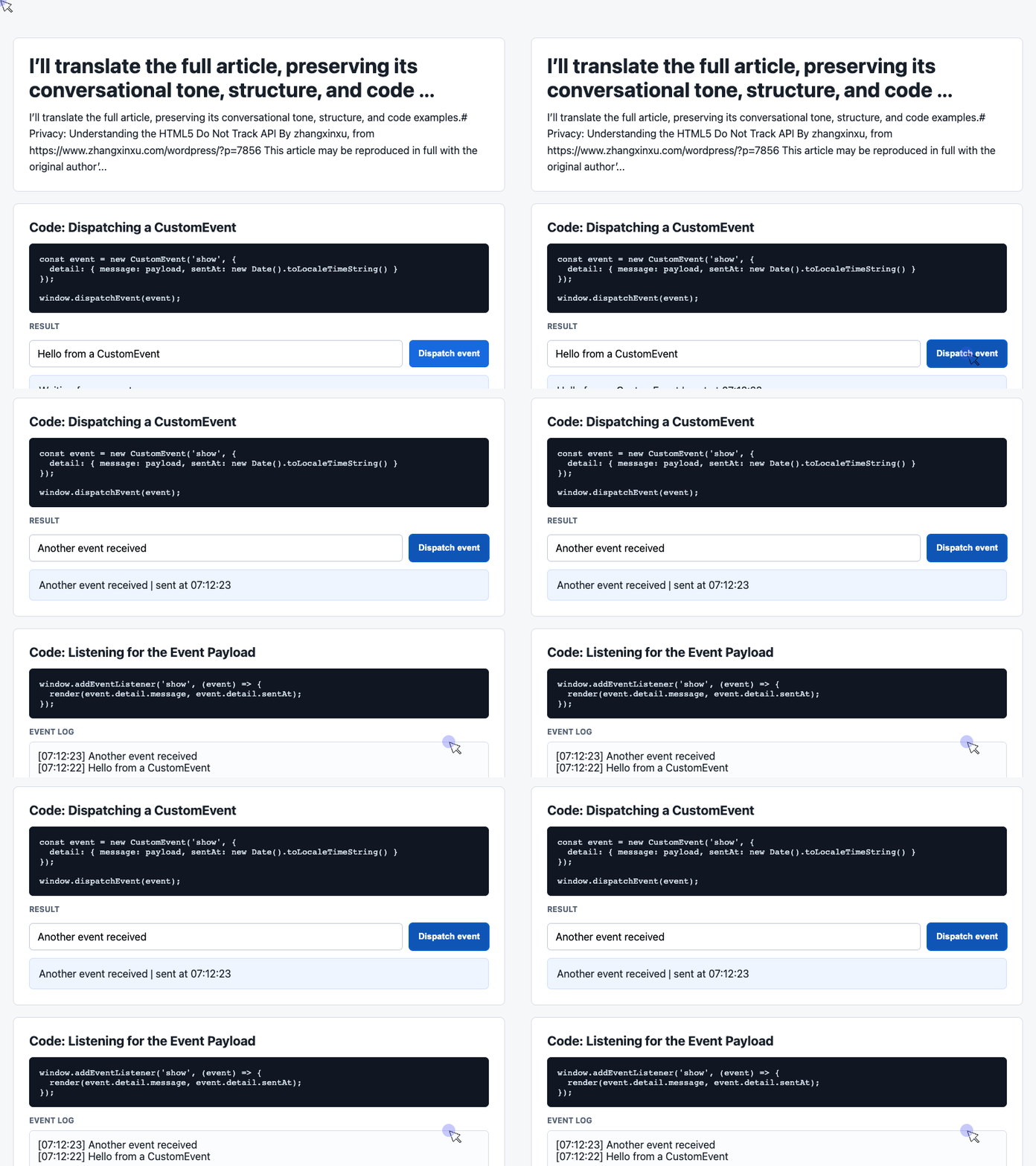
🎮 Try it live: Open the interactive demo to experience this yourself.
The element IDs connect the markup to the JavaScript. The result card displays the latest message, while the log displays recent messages.
These elements provide feedback. Their presence alone does not change how an application collects or stores information.
Example 2: Dispatch a Message With CustomEvent
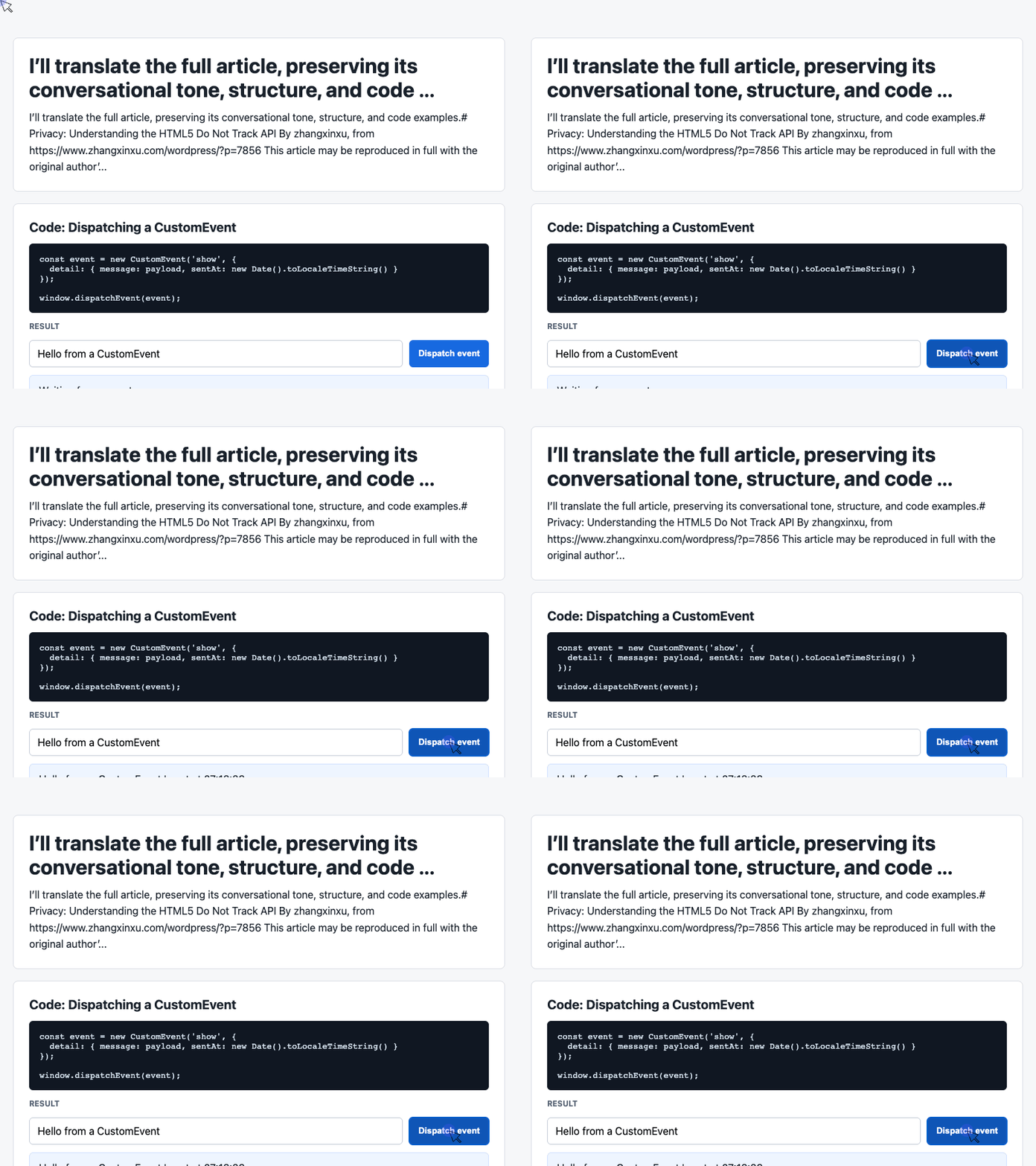
Next, the click handler reads the input and attaches a message and timestamp to a custom event.
CustomEvent carries application-defined information through its detail property. Listeners can retrieve that information when the event is dispatched. MDN’s CustomEvent constructor reference
With the listener in the next example installed, this handler drives the visible update:
const input = document.querySelector('#payload');

document.querySelector('#dispatch').addEventListener('click', () => {
  const message = input.value.trim() || 'Default CustomEvent payload';

  const event = new CustomEvent('show', {
    detail: {
      message,
      sentAt: new Date().toLocaleTimeString()
    }
  });

  window.dispatchEvent(event);
});
🎮 Try it live: Open the interactive demo to experience this yourself.
The fallback message handles empty input. The timestamp lets readers see when the event was created.
The handler sends an event to listeners on window; it contains no network request. In this demo, 'show' is simply the event name chosen by the application.
For a privacy interface, a similar event could announce that the application’s privacy state has changed. The collection controls would still need to enforce that state.
Example 3: Receive the Event and Update the Page
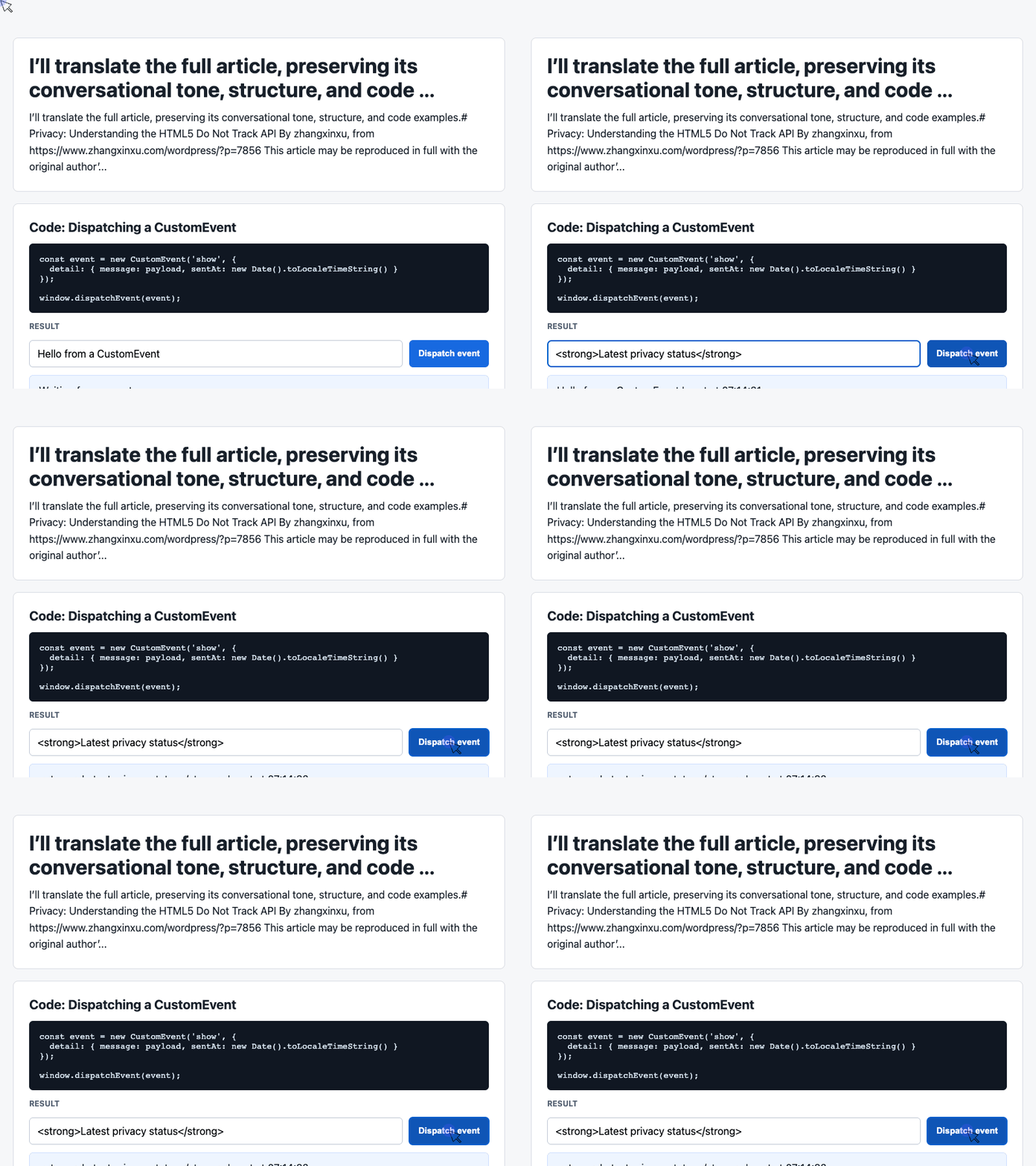
The listener reads the payload, updates the result card, and places the newest message at the top of the log:
const latest = document.querySelector('#latest');
const log = document.querySelector('#event-log');
const history = [];

window.addEventListener('show', (event) => {
  const detail = event.detail || {};

  latest.textContent =
    detail.message + ' | sent at ' + detail.sentAt;

  history.unshift('[' + detail.sentAt + '] ' + detail.message);
  log.textContent = history.slice(0, 6).join('\n');
});
🎮 Try it live: Open the interactive demo to experience this yourself.
Using textContent displays the message as text rather than interpreting it as HTML.
There is also a useful distinction in the final two lines: the interface displays six entries, but the history array continues retaining messages in memory for the lifetime of the page. Limiting what is visible does not limit what is retained.
That observation connects directly to the search-history example. To honor a decision not to save activity, change the recording behavior itself.
6. Firefox: Tracking Protection Is a Different Mechanism
The original article highlighted Firefox because it offered tracking protection in addition to a DNT preference.
Those features address different parts of the problem.
DNT communicates a request. Tracking protection can actively restrict recognized tracking mechanisms.
Firefox’s current Enhanced Tracking Protection blocks categories of trackers and scripts, with behavior depending on the selected protection mode. Its shield panel lets users inspect protection activity and manage exceptions for individual sites. Mozilla’s Enhanced Tracking Protection guide
The older Firefox options described in the original article—including DNT choices associated with private windows—should be understood in that historical setting.
Firefox removed its DNT setting starting with version 135. Mozilla now directs users seeking to communicate a privacy preference toward Global Privacy Control. Mozilla’s DNT update
Privacy Is Part of the User Experience
DNT’s limitations do not diminish the product question at the heart of the original article: does the application respect what the user has chosen?
Front-end developers help answer that question through defaults, interface messages, analytics integration, and decisions about what gets recorded. Those choices deserve the same attention as layout, responsiveness, and performance.
This is a useful topic to bring to a team meeting. Start with one familiar feature—search history, recommendations, or activity logs—and trace what happens when a user asks for more privacy.
The strongest reassurance is a clear explanation backed by product behavior that fulfills it.
Try It Yourself
Want to see these concepts in action? I’ve created an interactive demo where you can experiment with the code and see real-time results.
Explore more demos from my previous articles in the Demo Gallery.
Happy coding!