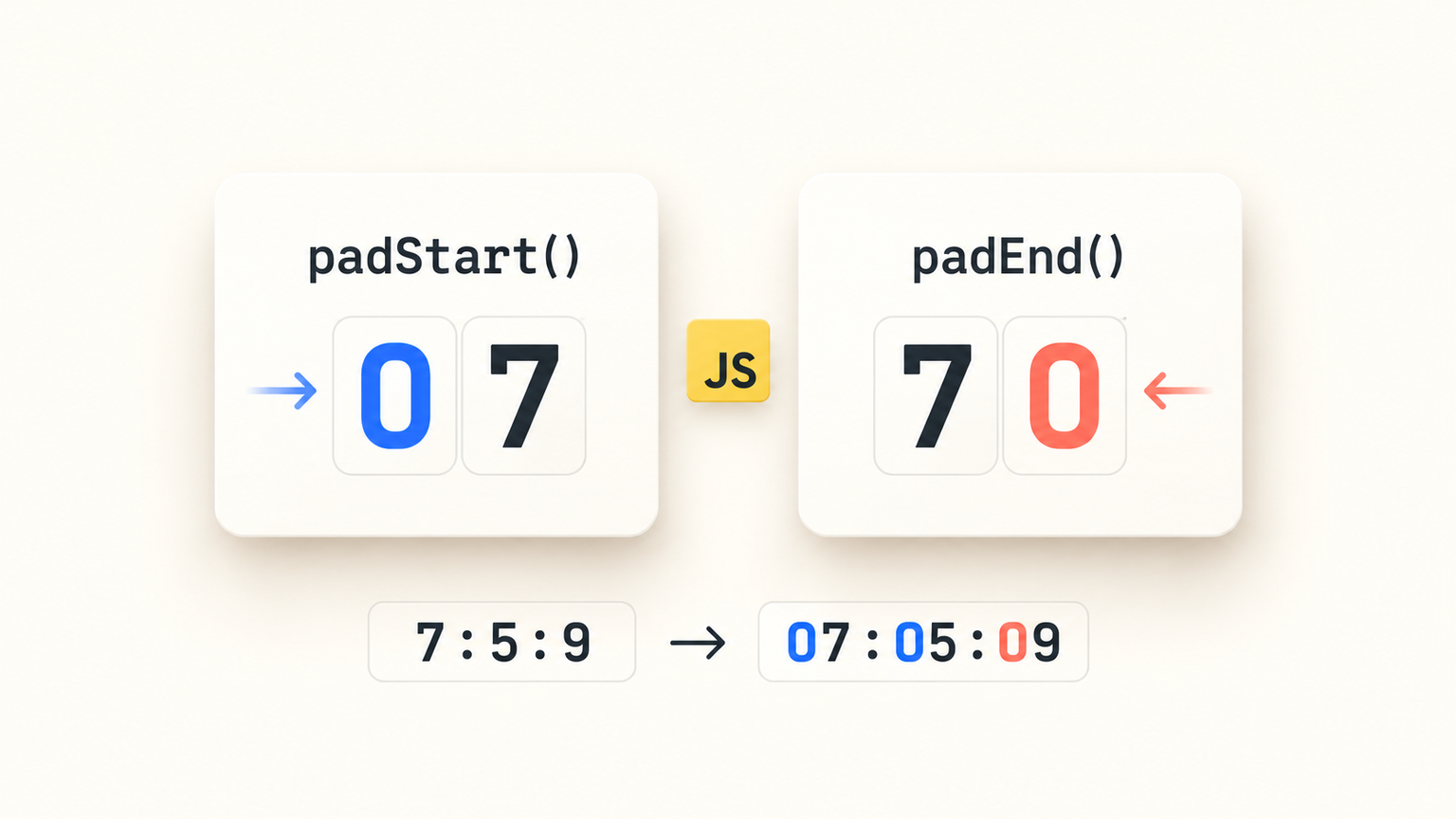
Format dates, build consistent timestamps, and make text output easier to read.
Adapted from zhangxinxu’s original article, published July 24, 2018. Technical details and examples have been updated.
A month returned by JavaScript might be 7, but a date display usually needs 07. A clock has the same problem: 7:5:9 is readable, yet 07:05:09 is much easier to scan.
These small formatting tasks once required conditional statements or custom helper functions. JavaScript’s padStart() and padEnd() make them straightforward.
Both methods became part of the language in ES2017. TC39’s finished proposals records string padding in that edition.
1. How String Padding Works
Both methods add padding until a string reaches a specified length. The difference is where they put it:
| Method | Adds padding | Example | Result |
|---|---|---|---|
padStart() | Before the original string | '7'.padStart(2, '0') | '07' |
padEnd() | After the original string | '7'.padEnd(2, '0') | '70' |
Their syntax follows the same pattern: string.padStart(targetLength, padString) and string.padEnd(targetLength, padString).
The first argument specifies the total desired length, including the original string. It does not specify how many characters to add.
The second argument supplies the padding. When omitted, it defaults to an ordinary space.
Padding can contain multiple characters. JavaScript repeats that pattern and uses only as much as necessary. For example, '7'.padStart(4, 'ab') produces 'aba7'.
Neither method shortens the original string. If it is already long enough, it is returned unchanged. An empty padding string also leaves the value unchanged. Both methods return strings without modifying the original value. These rules follow the ECMAScript padding algorithm.
2. Use padStart() for Dates and Times
Leading zeros are one of the most useful applications of padStart().
For a month, the essential expression is String(date.getMonth() + 1).padStart(2, '0'). The addition accounts for JavaScript’s zero-based month numbering; String() converts the number before calling the string method.
The same approach works for hours, minutes, and seconds.
The supplied demo already generates event timestamps with new Date().toLocaleTimeString(). The following helper adapts that timestamp formatting to produce a consistent local, 24-hour clock:
function formatTime(date) {
  return [date.getHours(), date.getMinutes(), date.getSeconds()]
    .map(part => String(part).padStart(2, '0'))
    .join(':');
}

console.log(formatTime(new Date(2018, 6, 23, 7, 5, 9)));
// "07:05:09"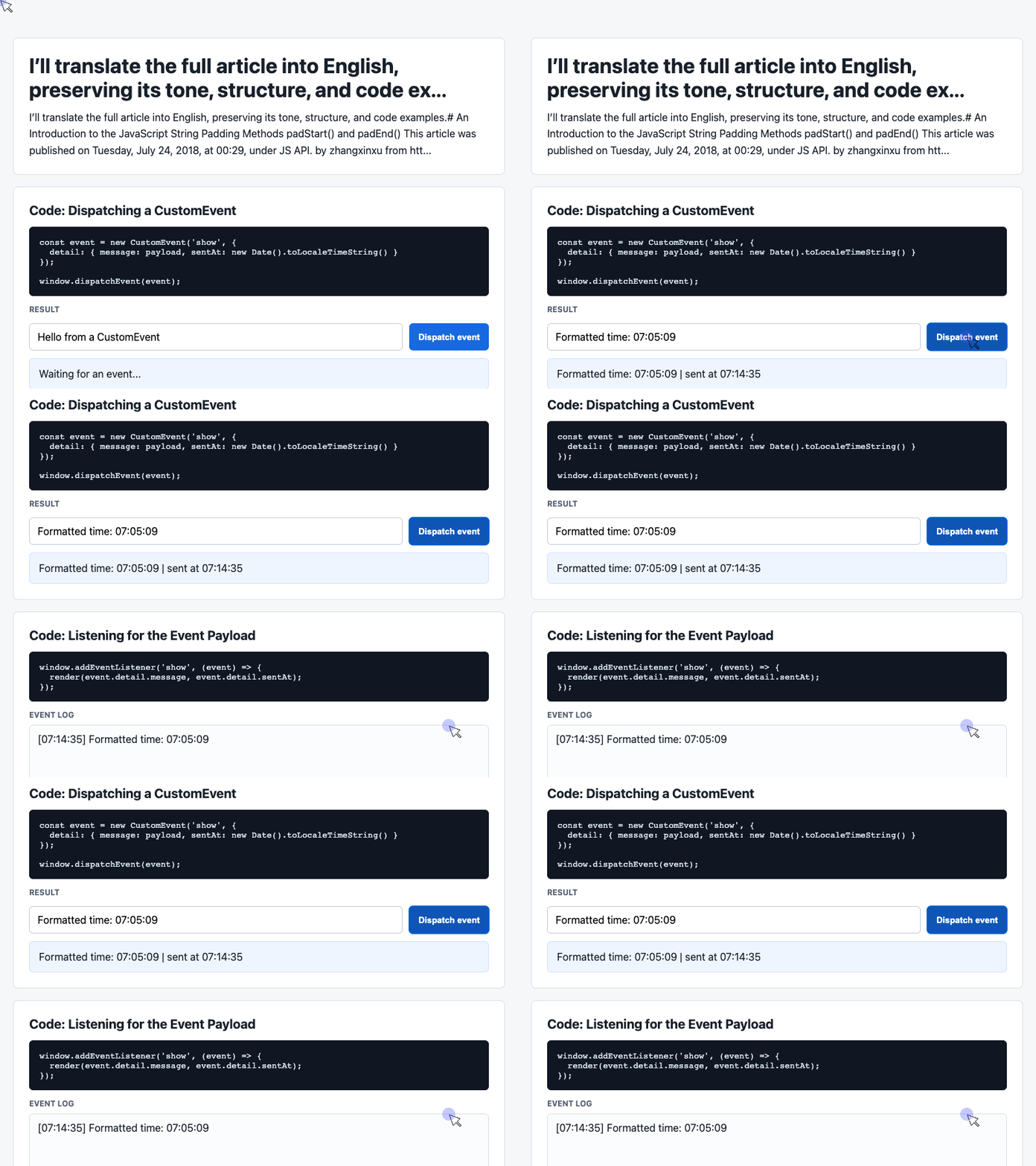
🎮 Try it live: Open the interactive demo to experience this yourself.
Each component becomes a string, receives a leading zero when necessary, and joins the others with a colon. Two-digit values remain unchanged.
This helper deliberately chooses a specific format. When you want a clock that follows the reader’s locale preferences, the demo’s original locale-based formatting serves a different purpose.
3. Bring Padding Into the Interactive Demo
The supplied demo demonstrates CustomEvent: a button dispatches a message, and a listener updates a result card and event log. Its original script does not use either padding method.
We can adapt that working flow to demonstrate both:
- Use
padStart()to format the event time. - Use
padEnd()to create consistent message columns in the log.
Keep the demo’s HTML, CSS, and existing input, latest, log, and history declarations. Add the formatTime() helper above, then replace the original click handler and event listener with the following excerpts.
Dispatch a Message With a Formatted Time
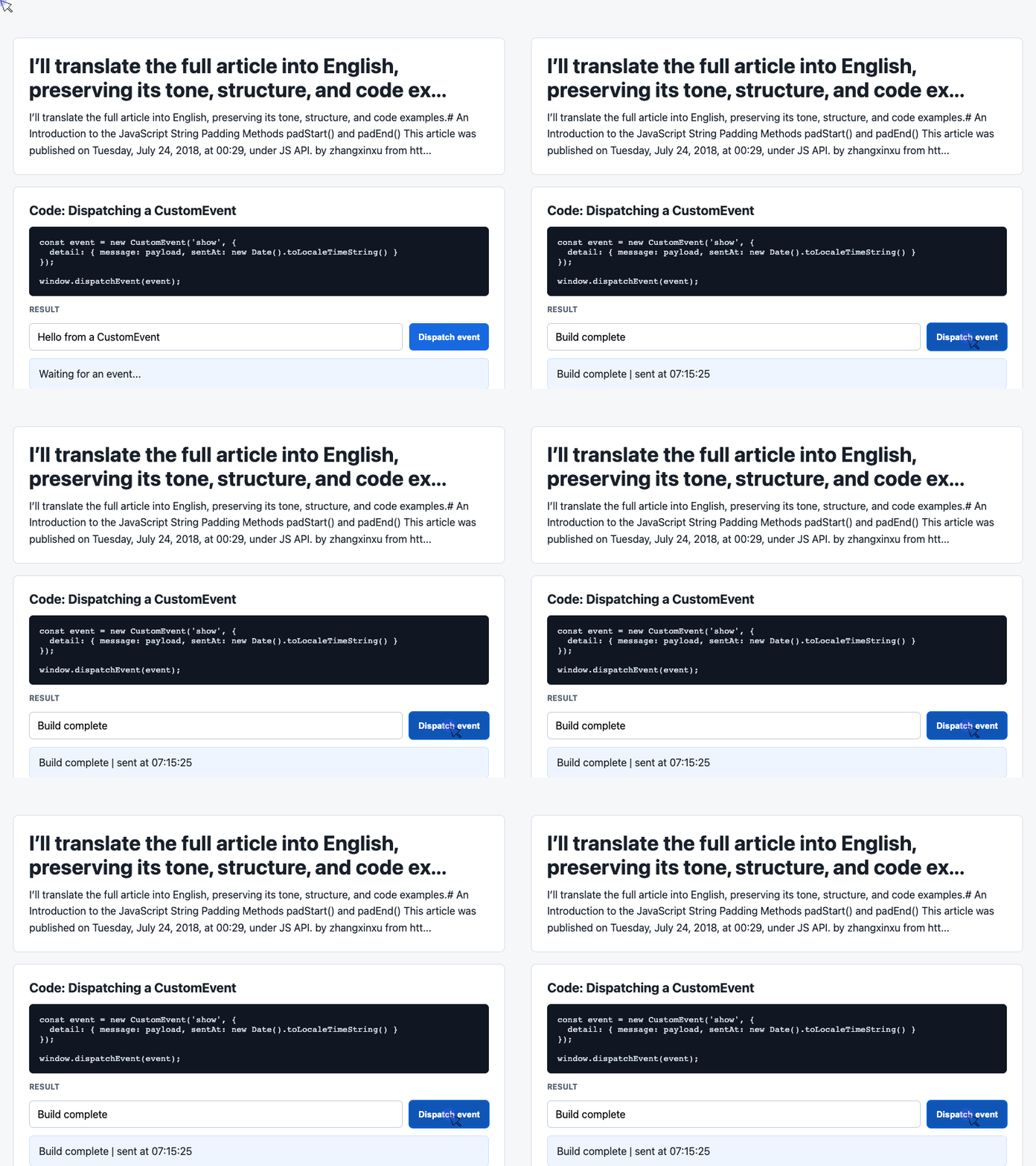
This excerpt preserves the demo’s input handling and event dispatch. The timestamp now calls formatTime() instead of toLocaleTimeString():
document.querySelector('#dispatch').addEventListener('click', () => {
  const message = input.value.trim() || 'Default CustomEvent payload';

  const event = new CustomEvent('show', {
    detail: {
      message,
      sentAt: formatTime(new Date())
    }
  });

  window.dispatchEvent(event);
});
🎮 Try it live: Open the interactive demo to experience this yourself.
The event carries the message and formatted time in its detail object. That object is how a CustomEvent passes application data to its listeners. MDN’s CustomEvent documentation describes this payload mechanism.
Once the listener below is installed, clicking Dispatch event updates the visible card and log.
Use padEnd() to Format the Event Log
While padStart() is useful for leading zeros, padEnd() works well for labels and plain-text columns.
For example, 'Ready'.padEnd(10, '.') produces 'Ready.....'. The dots make the added padding visible.
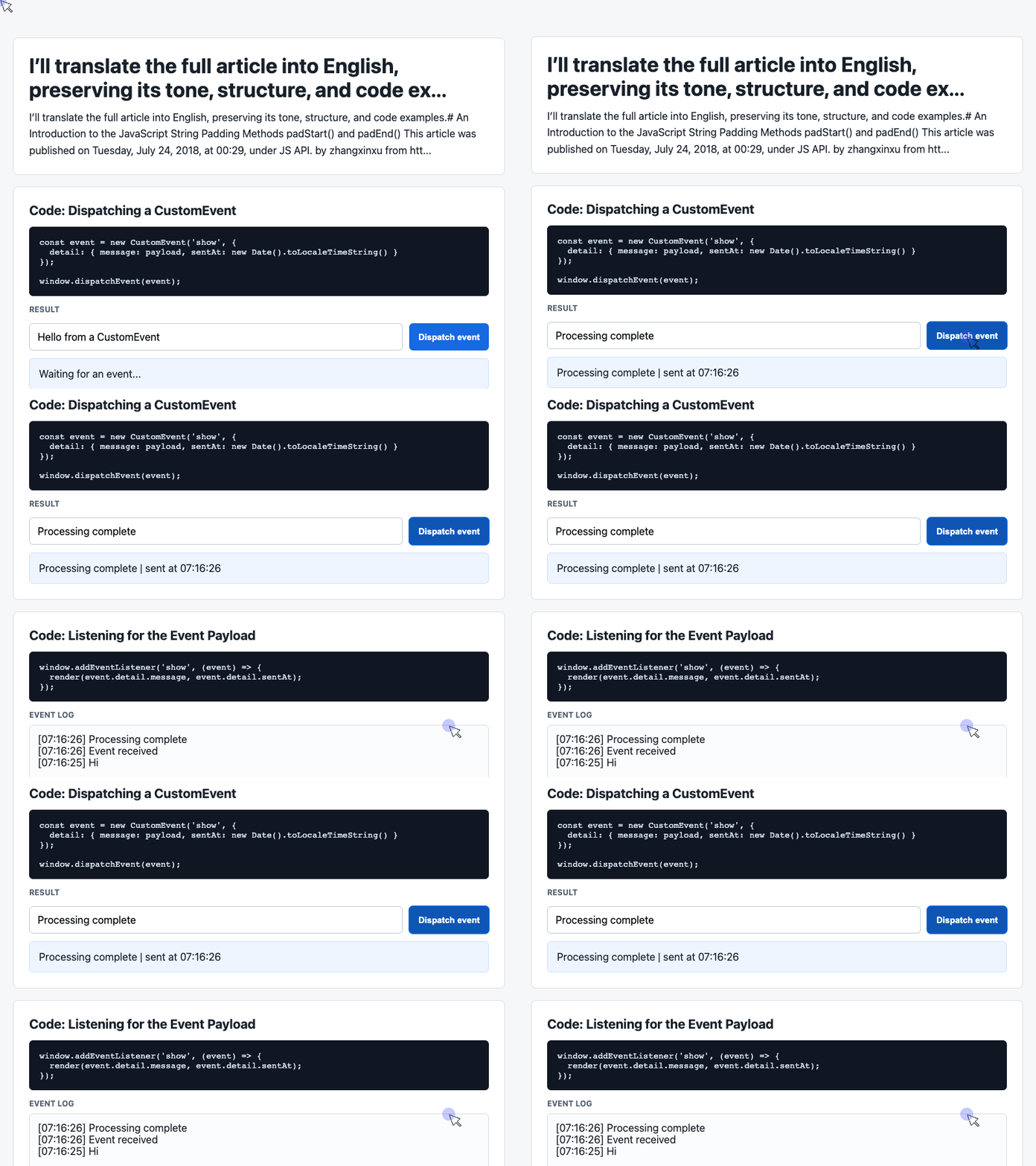
This adapted listener keeps the demo’s rendering behavior and adds a message column with a minimum length of 32:
window.addEventListener('show', (event) => {
  const { message, sentAt } = event.detail;

  latest.textContent = message + ' | sent at ' + sentAt;
  history.unshift(message.padEnd(32, '.') + ' ' + sentAt);
  log.textContent = history.slice(0, 6).join('\n');
});
🎮 Try it live: Open the interactive demo to experience this yourself.
For short messages, the trailing dots position timestamps in the same text column. The demo’s white-space: pre-wrap preserves line breaks; use a monospace font on .log so equal string lengths also align visually.
A message longer than 32 characters remains intact and pushes its timestamp farther right. Padding establishes a minimum length—it does not truncate text. The padEnd() reference documents that behavior.
4. Understand Argument Conversion
These methods accept more than their names might suggest.
A numeric string such as '5' can serve as the target length because JavaScript converts it to a number. Omitting the target length effectively requests no padding.
Padding values also undergo string conversion. For example, 'x'.padEnd(6, false) produces 'xfalse', while an empty array converts to an empty string and adds nothing.
That flexibility can be convenient, but explicit arguments make application code easier to understand. Prefer a clear number for the target length and a string for the padding. Conversion can also throw for certain values, so permissiveness should not replace validation.
5. Compatibility and Practical Limits
Both methods are widely available in modern browsers. For projects supporting older environments, check the compatibility information for padStart() and padEnd().
If a polyfill is necessary, load a maintained implementation before code that uses the methods. The original article’s handwritten polyfill uses targetLength >> 0, which applies signed 32-bit conversion and does not match the specification’s length handling.
Two other limits deserve attention.
Padding does not establish timestamp units. Appending zeros until a timestamp reaches 13 digits is not a reliable general conversion. If an API explicitly returns seconds, convert to milliseconds with Number(timestamp) * 1000. Confirm the unit from the API contract.
String length is not visual width. Padding counts UTF-16 code units, so emoji and other complex characters may not behave like single visible characters. Even ordinary letters have different widths in proportional fonts. Use CSS layout for interface alignment.
For dates, event timestamps, identifiers, and simple text output, these methods remove a surprising amount of repetitive code. Choose the side, choose the minimum length, and make the padding explicit.
Try It Yourself
Want to see these concepts in action? I’ve created an interactive demo where you can experiment with the code and see real-time results.
Explore more demos from my previous articles in the Demo Gallery.
Happy coding!