
How clipping, gestures, and careful animation turn an open page into a floating control.
By zhangxinxu
Adapted from the original article, with an added walkthrough of the supplied CustomEvent demo.
A useful interaction often solves a small, familiar frustration: you’re halfway through an article, switch away to reply to a message, and then have to find your place again.
WeChat’s floating window makes that interruption easier to manage. An article collapses into a small floating button. Tap the button, and the page returns. Drag it into a dismissal area, and it disappears.
The underlying web techniques are approachable. The challenge is coordinating them so the interaction feels natural.
Start With the Interaction
The floating window combines several behaviors:
- The page follows a rightward gesture.
- Releasing the gesture collapses the page into a floating button.
- Tapping the button restores the page.
- Dragging the button reveals a dismissal target.
- Releasing over that target dismisses the window.
Each behavior is relatively small. Together, they create a continuous experience in which the reader understands where the page went and how to retrieve it.
That continuity is the central design requirement. The floating button should feel like the same page in a smaller form.
The Core Effect: Animate the Visible Region
The key to the original prototype is CSS clip-path.
A clipping shape determines which part of an element remains visible. For example, clip-path: circle(48px at 90% 50%); reveals a circular region with a 48-pixel radius, centered near the element’s right edge.
To create the floating-window effect, start with a circle large enough to reveal the entire page. Then reduce its radius until the visible region matches the floating button.
Restoring the page reverses that process.
This animation changes the page’s visible boundary. The page’s movement must be coordinated separately so that the clipping region and the floating button meet convincingly.
Keep the Coordinate Systems Aligned
The geometry becomes more interesting while the page follows the user’s finger.
The floating button has a position on the screen, while the clipping center belongs to the moving page. Those coordinates must agree throughout the transition.
For a page moved only by translation, the relationship is straightforward: subtract the page’s current screen position from the button’s screen position to obtain the clipping center within the page.
The starting radius must also reach the page corner farthest from that center. Otherwise, part of the page will already be clipped before the collapse begins.
Zhang later observed that WeChat appeared to use an ellipse rather than a circle. CSS supports that shape with syntax such as clip-path: ellipse(48px 64px at 90% 50%);.
An ellipse gives the horizontal and vertical radii independent control. A circle remains a useful starting point for understanding the effect.
Use the Supplied Demo to Understand Event Flow
The supplied companion code demonstrates a different part of interface development: communication through CustomEvent.
Its interface contains a text input, a dispatch button, a status card, and an event log. It provides an observable example of an interaction triggering a response. Implementing the floating window itself still requires gesture handling, clipping geometry, animation, and dismissal behavior.
That separation is useful. A gesture handler can announce an interaction, while another part of the application decides how the interface should respond.
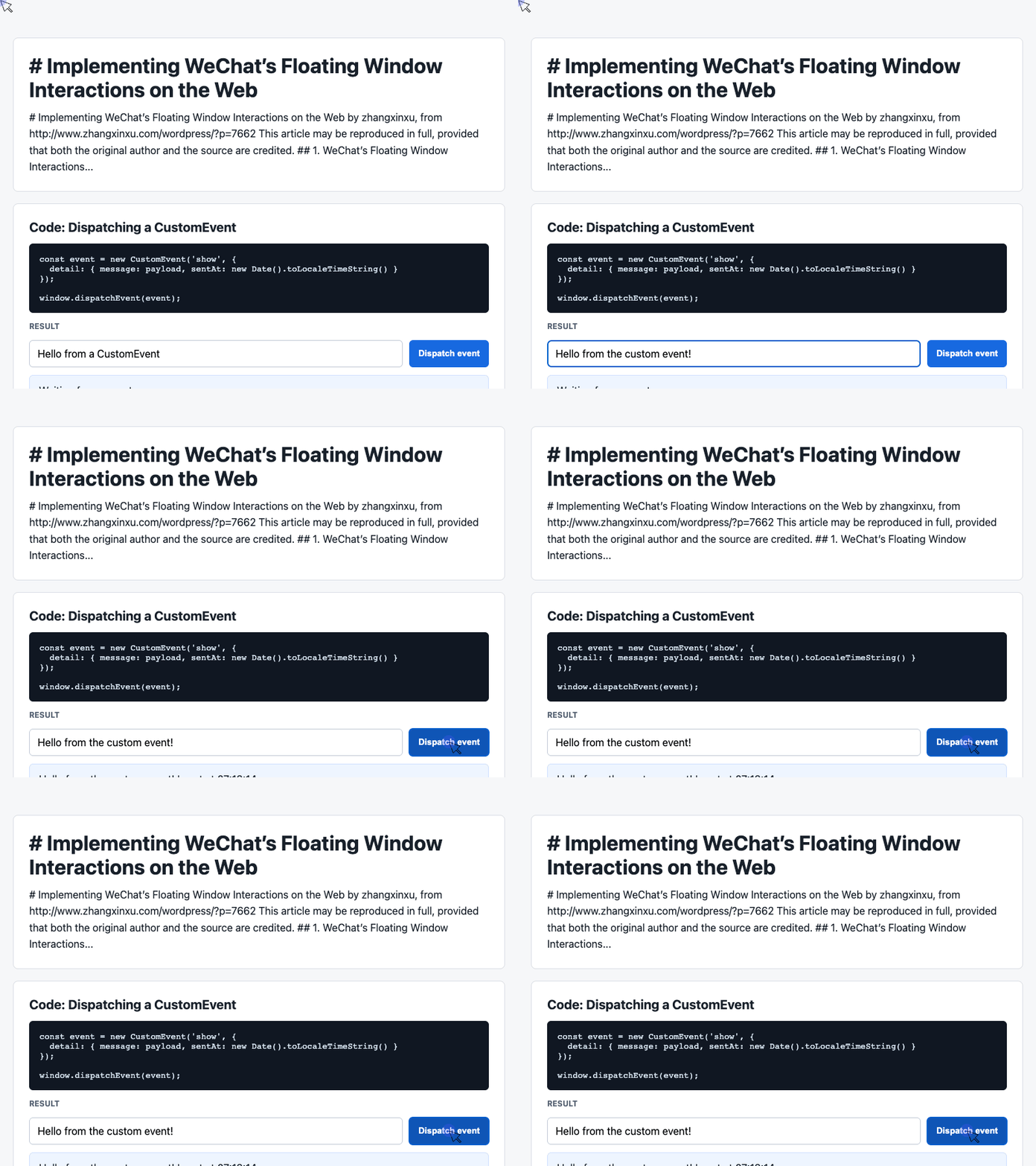
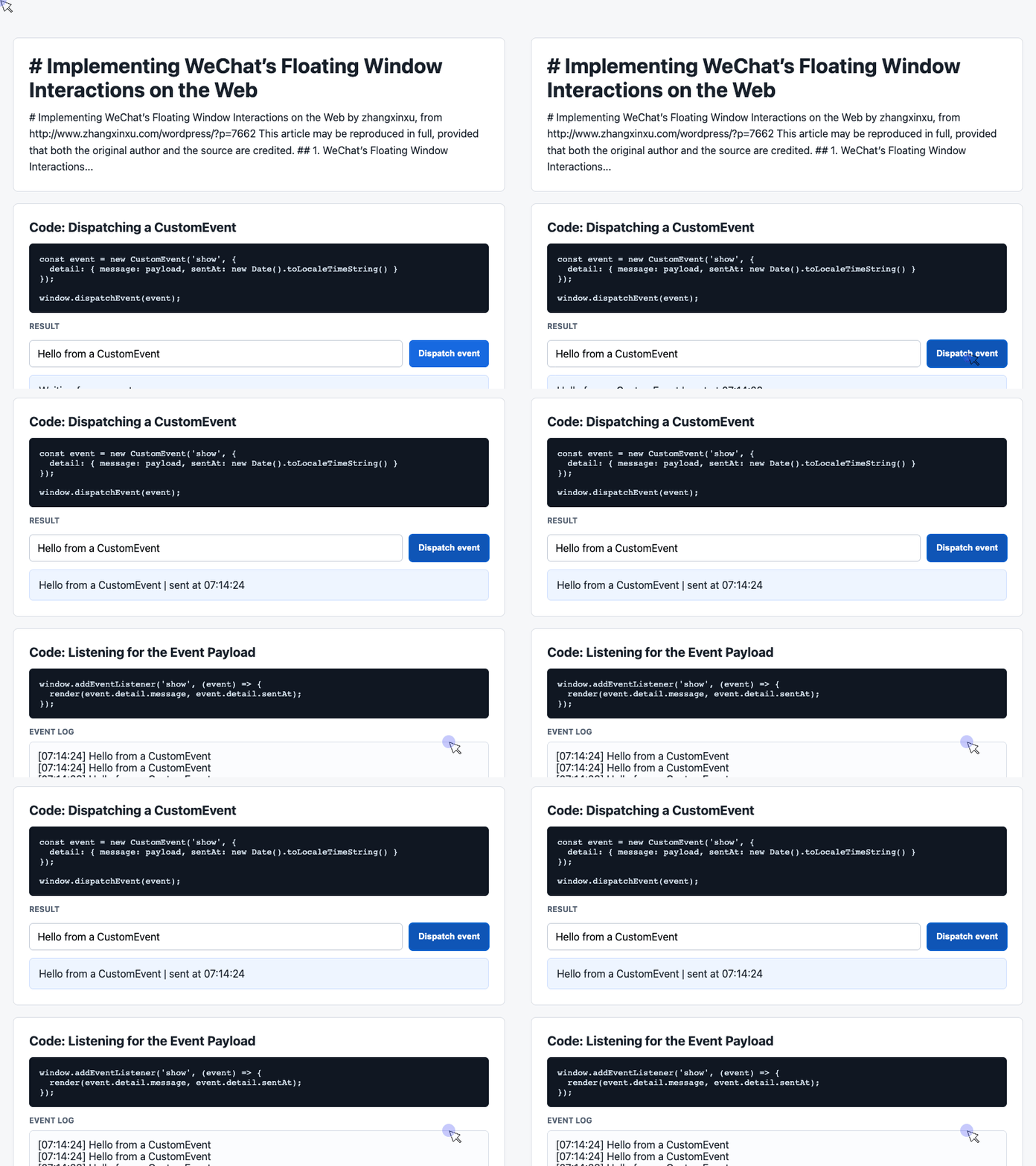
The following two examples are extracted from the supplied demo. They use its existing HTML elements, and the screenshots represent the complete page with both snippets connected.
1. Dispatch an Event With a Payload
The first snippet reads the input and sends its value through a custom event named show.
The payload also includes a timestamp, making it easy to see when each interaction occurred.
const input = document.querySelector('#payload');

document.querySelector('#dispatch').addEventListener('click', () => {
  const message = input.value.trim() || 'Default CustomEvent payload';
  const event = new CustomEvent('show', {
    detail: { message, sentAt: new Date().toLocaleTimeString() }
  });
  window.dispatchEvent(event);
});
🎮 Try it live: Open the interactive demo to experience this yourself.
The detail property carries the application data. Trimming the input and providing a fallback ensures that an empty field still produces a useful demonstration.
The event name show has no built-in visual behavior. The listener determines what happens when the event arrives. In a floating-window implementation, a completed gesture could become the trigger for a similar event.
2. Receive the Event and Update the Interface
The second snippet listens for show, updates the latest-message card, and adds an entry to the visible log.
The DOM references connect the listener to the elements already present in the demo.
const latest = document.querySelector('#latest');
const log = document.querySelector('#event-log');
const history = [];

window.addEventListener('show', (event) => {
  const detail = event.detail || {};
  latest.textContent = detail.message + ' | sent at ' + detail.sentAt;
  history.unshift('[' + detail.sentAt + '] ' + detail.message);
  log.textContent = history.slice(0, 6).join('\n');
});
🎮 Try it live: Open the interactive demo to experience this yourself.
Using textContent displays the message as plain text. unshift() places new entries first, and slice(0, 6) limits the visible log to the six newest events. The underlying array continues to retain earlier entries.
For an animation prototype, this kind of visible feedback can help confirm that interactions occur in the intended order before adding moving geometry.
Complete the Dragging and Dismissal Behavior
Once collapsing and restoring work, the floating control needs its own interaction rules.
Dragging and Edge Snapping
The button should follow the pointer during dragging and settle against a screen edge after release. Position limits should keep it reachable.
The original article points to the open-source Inertia component as an example of draggable controls with momentum and edge snapping.
Another detail deserves attention: a drag should not accidentally become a tap when the pointer is released. The interaction needs to distinguish a deliberate click from movement.
Dismissal Feedback
The dismissal target should appear when dragging begins. Entering that target should change its appearance so the user understands what releasing will do.
The release position determines the outcome:
- Inside the target: dismiss the floating window.
- Outside the target: retain the window and settle the button into position.
The feedback should arrive before the action completes. Users need to understand the consequence while they can still change their minds.
The Final Details Take Real Work
Zhang’s original clipping prototype took about an hour to build. Making the interaction feel production-ready would require additional time.
Two details explain why.
Grayscale and Gray Produce Different Results
A grayscale filter removes color while preserving differences in brightness. Text, photographs, and backgrounds remain visually distinct.
A gray overlay animated toward full opacity gradually brings the entire page toward a uniform gray surface. That produces a different transition as the page becomes a compact control.
Both approaches change the page’s appearance, but only careful observation reveals which one matches the intended effect.
The Backing Layer Shapes the Reveal
When a clipped page expands, the area outside its current boundary remains visible.
In the original account, WeChat used a dark backing layer during this transition. Without that layer, the underlying interface shows through around the expanding shape.
The clipping animation may be correct while the overall result still feels incomplete. The surrounding layers are part of the animation.
Build for Continuity
A convincing floating window coordinates position, clipping radius, color, opacity, background layers, and gesture state.
The supplied CustomEvent demo makes the trigger-and-response relationship easy to inspect. The clipping technique explains how a page can visually collapse into a control. Dragging, snapping, and dismissal complete the interaction.
The quality comes from making those pieces behave as one continuous action.
When that work succeeds, readers rarely notice the implementation. They simply feel that their article is still there, waiting exactly where they left it.
Try It Yourself
Want to see these concepts in action? I’ve created an interactive demo where you can experiment with the code and see real-time results.
Explore more demos from my previous articles in the Demo Gallery.
Happy coding!