Use canvas and Canny edge detection to find the outlines hiding inside your images.
Adapted from an article by zhangxinxu. Read the original article, which permits full republication with credit to the author and source.
A photograph contains a lot of information: colors, textures, shadows, and that suspicious object you forgot to move out of the background.
A line drawing strips much of that away. What remains is a collection of boundaries that can make a portrait, landscape, or illustration look surprisingly like comic artwork.
JavaScript can help us find those boundaries directly in the browser.
From Photograph to Line Art
The effect works on both photographs and flat illustrations, although the results depend on the source. A clear subject against a simple background usually produces more readable outlines than a photograph packed with tiny details.
Think of the result as a starting point for line art. Edge detection finds changes in the image; it does not understand which lines an artist would choose to draw.
The original article uses jsfeat, a JavaScript computer-vision library with built-in image-processing functions.
The basic workflow is straightforward:
- Draw the source image onto a canvas.
- Read its pixel data.
- Convert those pixels to grayscale.
- Blur the image to reduce noise.
- Detect edges with Canny.
- Render the edge data back onto the canvas.
That last step turns a matrix of numbers into something we can actually admire.
What Canny Edge Detection Does
Developed by John F. Canny in 1986, the Canny edge detector identifies boundaries through several processing stages.
For this implementation, three operations are especially useful to understand:
- Grayscale conversion reduces the image to intensity values.
- Gaussian blur smooths small variations that might otherwise become distracting edges.
- Canny edge detection identifies strong boundaries and retains weaker candidates connected to them.
The goal is to preserve meaningful contours while reducing the visual noise around them.
Canny uses two thresholds. The higher threshold identifies strong edges, while the lower threshold helps determine which weaker edges can remain connected to them.
Lower settings can reveal more detail, including unwanted texture. Higher settings generally produce a sparser result. There is no universal setting that makes every photograph look like a finished manga panel. Naturally, the interesting part still requires a little experimentation.
The Core Image-Processing Code
Load jsfeat-min.js before running the processing code. Once the source image has loaded and the canvas context and dimensions are ready, the original article’s processing sequence looks like this:
context.drawImage(img, 0, 0, width, height);
var imageData = context.getImageData(0, 0, width, height);

var img_u8 = new jsfeat.matrix_t(
  width,
  height,
  jsfeat.U8C1_t
);

jsfeat.imgproc.grayscale(
  imageData.data, width, height, img_u8
);

jsfeat.imgproc.gaussian_blur(img_u8, img_u8, 6, 0);
jsfeat.imgproc.canny(img_u8, img_u8, 20, 50);
🎮 Try it live: Open the interactive demo to experience this yourself.
The canvas supplies the original pixel data. The img_u8 matrix stores the single-channel image used during processing and, ultimately, the detected edges.
This excerpt stops at the edge matrix. A complete converter must still map those values into canvas pixel data and call putImageData() to display them. Rendering also determines whether the result appears as light edges on a dark background or the desired black lines on white.
That distinction matters: detecting edges and displaying a finished line drawing are separate steps.
A Convenient Wrapper: fnCannyEdge()
The original article describes a helper named fnCannyEdge() that wraps the conversion work.
Its interface is fnCannyEdge(source, canvas, options):
| Parameter | Purpose |
|---|---|
source | The source <img> or <video> element |
canvas | The canvas receiving the rendered result |
options | Optional processing settings |
The documented options are:
| Option | Default | Purpose |
|---|---|---|
blur_radius | 2 | Controls the wrapper’s blur radius |
low_threshold | 20 | Sets the lower edge threshold |
high_threshold | 50 | Sets the higher edge threshold |
With the complete helper available, the basic invocation becomes fnCannyEdge(img, canvas).
The original wrapper also limits processing dimensions to a maximum of 512 × 512 pixels. That keeps large uploaded photographs manageable for the demo. A production implementation can choose its own size limit according to the detail and processing time it needs.
The supplied companion HTML does not include this wrapper or the image-processing pipeline. It demonstrates custom events and interface feedback. Those are useful supporting pieces, so let’s examine them without confusing event handling with image conversion.
Giving the Interface a Way to Communicate
An interactive converter needs controls and feedback. A user selects an image, requests processing, and expects the interface to show what happened.
The supplied demo illustrates one mechanism for that communication: a CustomEvent carrying data in its detail property.
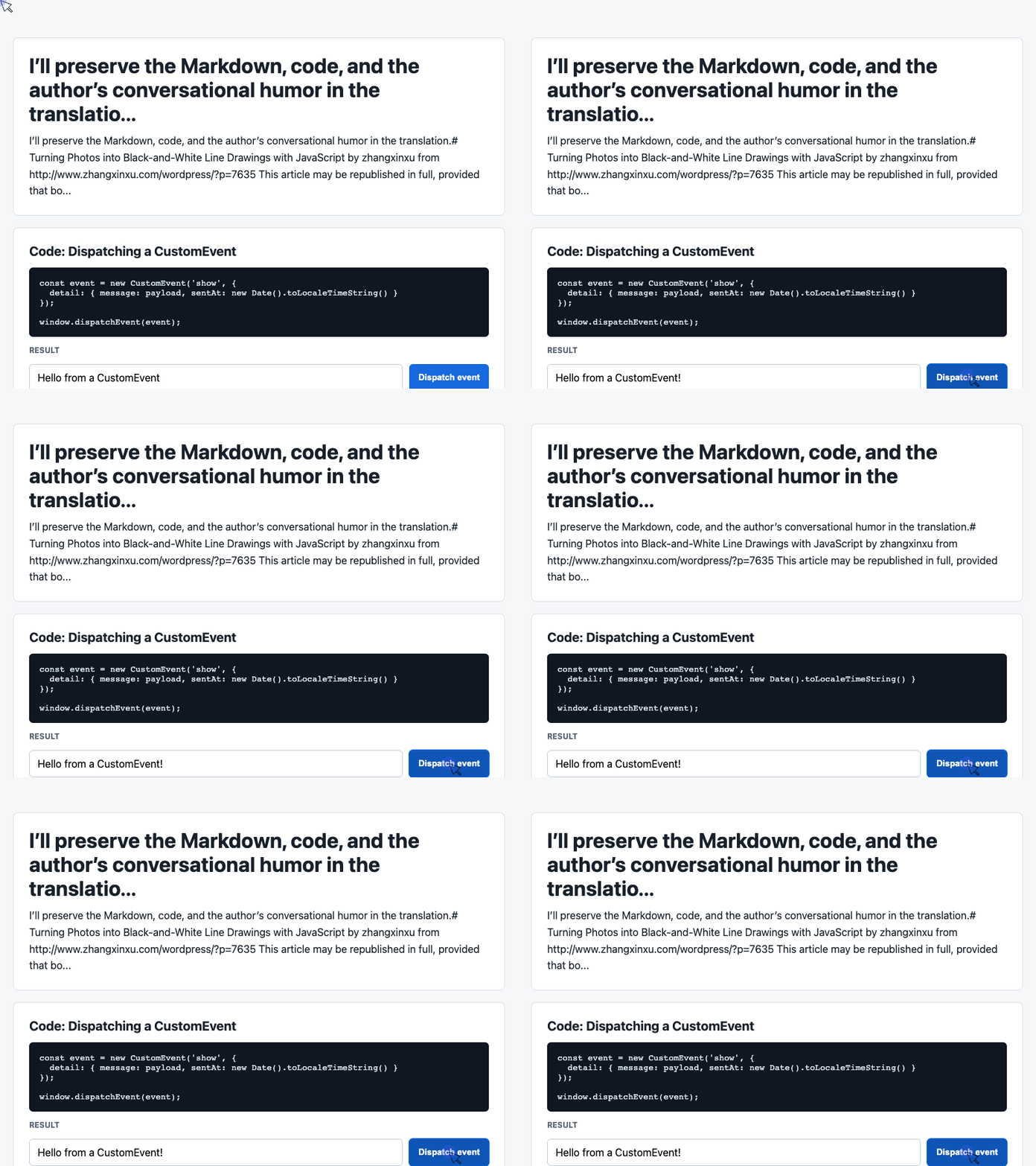
Its actual interface contains a message input, a dispatch button, a result card, and an event log. The following two examples are extracted from that demo.
Dispatch an Event with a Payload
The demo reads the input when the user clicks the button. It then packages the message and timestamp into a show event:
const input = document.querySelector('#payload');

document.querySelector('#dispatch').addEventListener('click', () => {
  const message = input.value.trim() || 'Default CustomEvent payload';

  const event = new CustomEvent('show', {
    detail: { message, sentAt: new Date().toLocaleTimeString() }
  });

  window.dispatchEvent(event);
});
🎮 Try it live: Open the interactive demo to experience this yourself.
The fallback message handles empty input. The detail object carries the useful data, and window.dispatchEvent() delivers the event to listeners registered on window.
Dispatching the event does not perform image processing or update the page by itself. The next piece handles the visible response.
For a converter, a similar pattern could report processing completion. Connecting that event to fnCannyEdge() would require additional integration code.
Listen and Show the Result
The demo’s listener reads the event payload, updates the latest-message card, and maintains a short history:
const latest = document.querySelector('#latest');
const log = document.querySelector('#event-log');
const history = [];

window.addEventListener('show', (event) => {
  const detail = event.detail || {};

  latest.textContent = detail.message + ' | sent at ' + detail.sentAt;

  history.unshift('[' + detail.sentAt + '] ' + detail.message);
  log.textContent = history.slice(0, 6).join('\n');
});
🎮 Try it live: Open the interactive demo to experience this yourself.
Using textContent displays the message as plain text. Calling unshift() puts the newest entry first, and slice(0, 6) limits the visible log to six entries.
The underlying history array continues growing, so a long-running application might also cap the stored entries.
Together, these snippets demonstrate a useful division of responsibilities: one part of the interface announces an event, and another decides how to display it. The converter would still need its own image selection, canvas rendering, and processing logic.
What Could You Make with This?
Once a photograph becomes a set of outlines, several possibilities appear.
Hand-Drawn Interface Experiments
You could rasterize interface elements, detect their edges, and explore a sketch-like visual style.
The result will not automatically reproduce the irregular strokes of a human drawing, but it can provide an interesting starting point for further styling.
Comic Backgrounds
Take a landscape photograph, extract its contours, and use the result as a reference or background foundation.
Mountains, buildings, and street scenes are particularly tempting. Find a suitable photograph and—bam!—the outlines are there.
Your manga deadline may still be in trouble, but at least the mountain has stopped being the problem.
Progressive Image Previews
A line drawing could serve as a temporary preview while a full photograph loads.
Whether this improves the experience depends on the encoded preview size, processing cost, and visual result. It is an experiment worth measuring rather than assuming.
Illustrations for Stories
If you have written a story but cannot draw, your own photographs can become the raw material for a consistent illustration style.
The results may need cleanup, but a collection of simple outlines can communicate a scene surprisingly well.
And who knows? The visual style you arrived at through necessity might become the thing readers remember.
A Few Lines Can Go a Long Way
The essential technique is approachable: read pixels with canvas, simplify the image, detect its edges, and render the result.
The interesting work comes from choosing the right source image, tuning the processing settings, and deciding which details deserve to survive.
As for all those possible applications, consider them a small outbreak of the original author’s “I can’t finish an article without rambling about something random” condition.
Give it a photograph and see what lines emerge.
Thanks for reading!
Try It Yourself
Want to see these concepts in action? I’ve created an interactive demo where you can experiment with the code and see real-time results.
Explore more demos from my previous articles in the Demo Gallery.
Happy coding!