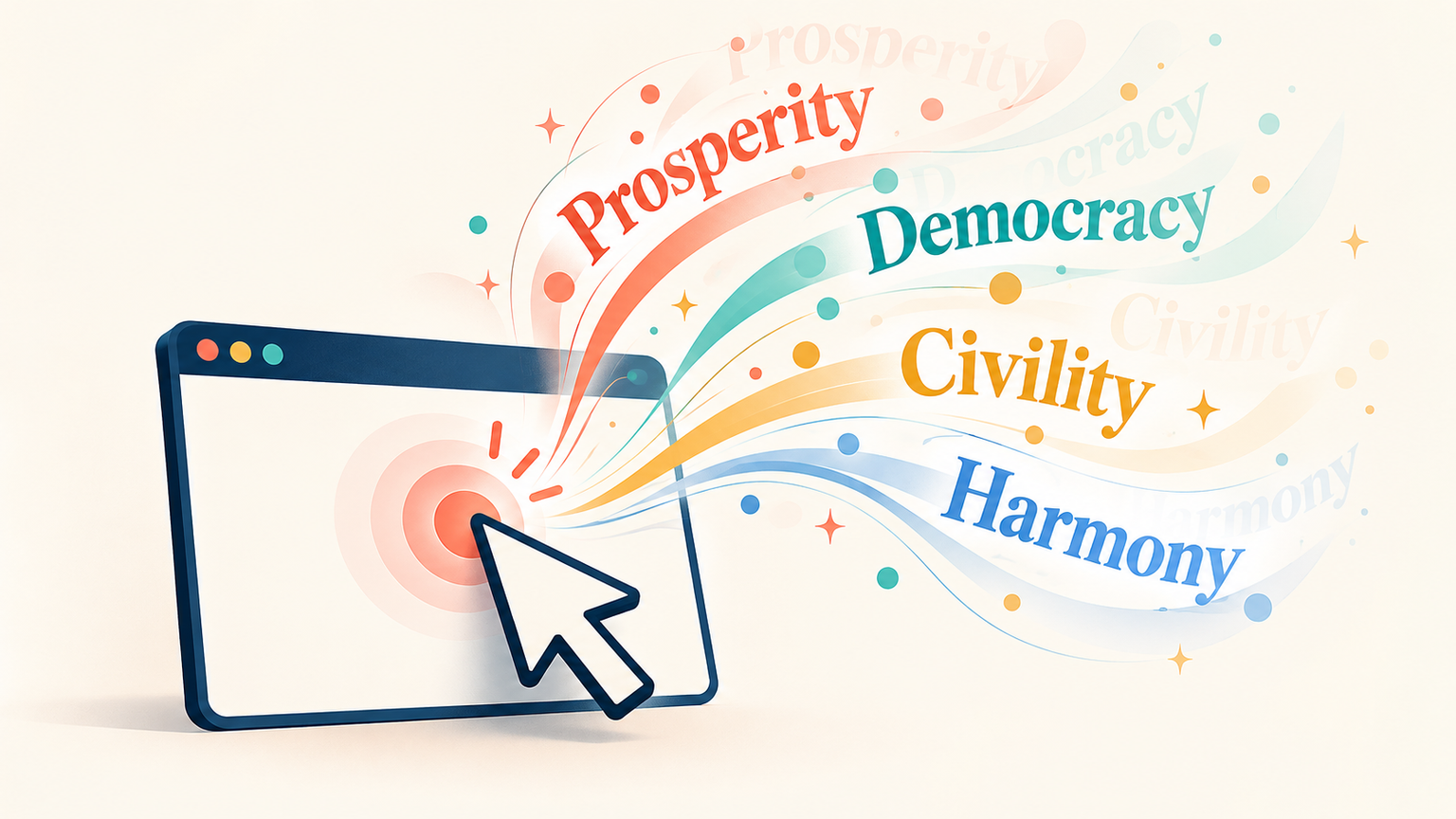
A little CSS animation and a click handler can turn an ordinary interaction into a playful detail.
Adapted from zhangxinxu’s original article, with credit to the original author.
Click anywhere on a page, and a word such as “Prosperity” or “Democracy” appears above the pointer, floats upward, and fades away. Click again, and the next word appears.
The effect has a simple lifecycle: create an element, position it, animate it, and remove it. Understanding that sequence gives you a useful pattern for other temporary interface effects, too.
How the Animation Works
Each click creates a temporary <span> containing the next word in an array. JavaScript places the span near the pointer, while CSS handles its movement and opacity.
When the animation finishes, an animationend listener removes the element from the document.
Keeping those responsibilities separate makes the implementation easy to adjust. JavaScript decides what appears and where; CSS decides how it moves.
Build the Floating Text Effect
The following compact adaptation of the original implementation cycles through four words. Add this fragment before your page’s closing </body> tag.
It uses fixed positioning with clientX and clientY, so both the element’s position and the click coordinates refer to the viewport.
<style>
.text-popup {
  position: fixed;
  z-index: 99;
  color: red;
  white-space: nowrap;
  user-select: none;
  pointer-events: none;
  animation: textPopup 1s;
}
@keyframes textPopup {
  0%, 100% { opacity: 0; }
  5% { opacity: 1; }
  100% { transform: translateY(-50px); }
}
</style>

<script>
const words = ['Prosperity', 'Democracy', 'Civility', 'Harmony'];
let index = 0;

document.addEventListener('click', (event) => {
  const text = document.createElement('span');
  text.className = 'text-popup';
  text.textContent = words[index++ % words.length];
  document.body.appendChild(text);

  text.style.left = `${event.clientX - text.clientWidth / 2}px`;
  text.style.top = `${event.clientY - text.clientHeight}px`;

  text.addEventListener('animationend', () => text.remove(), {
    once: true
  });
});
</script>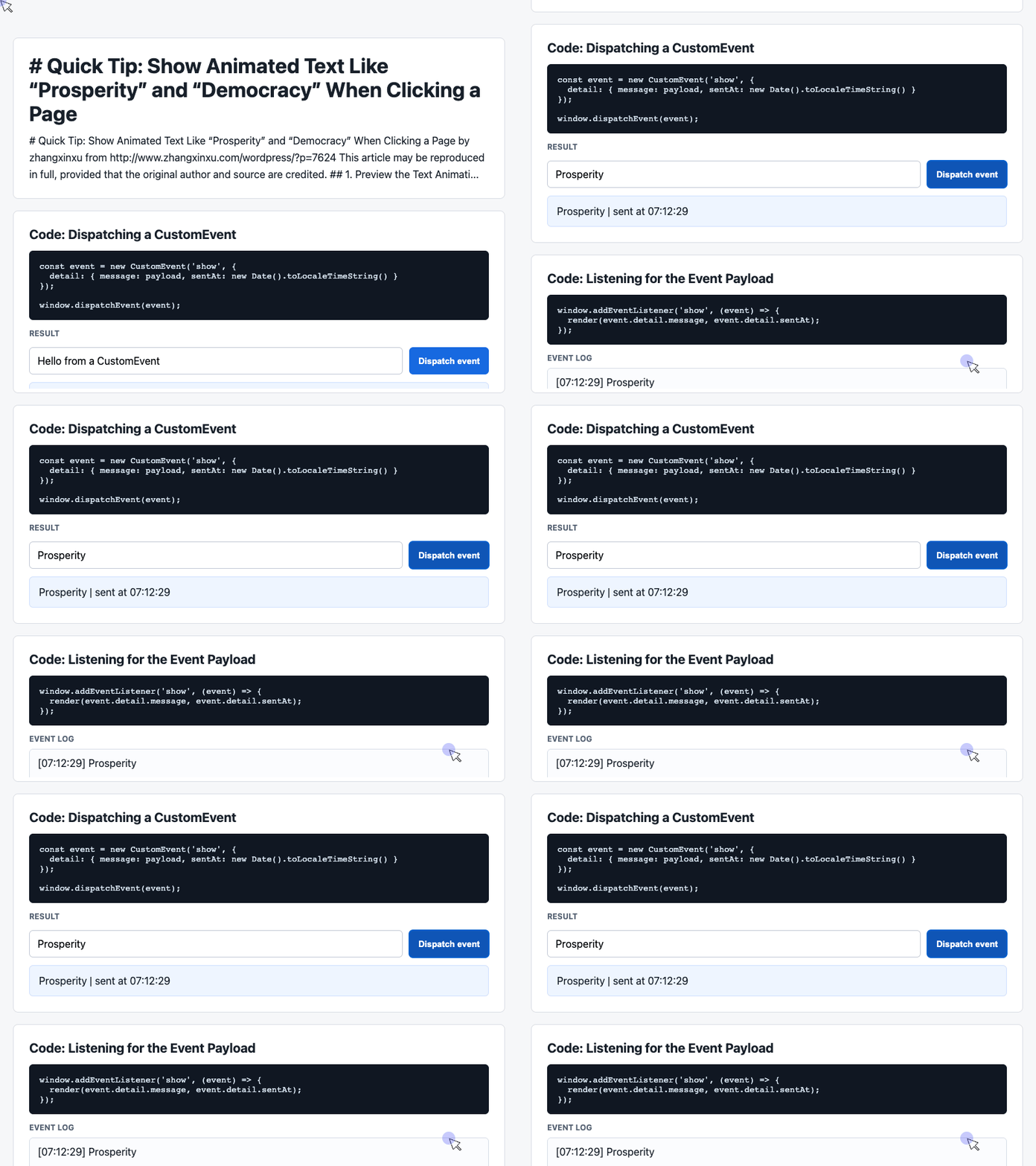
🎮 Try it live: Open the interactive demo to experience this yourself.
The modulo expression, index++ % words.length, returns to the beginning of the array after the last word. Using textContent inserts each message as plain text.
The span must enter the document before its dimensions are measured. Subtracting half its width centers it horizontally; subtracting its height places it above the click.
Finally, pointer-events: none lets subsequent clicks pass through the floating text, and the animation listener cleans up the element afterward.
The original implementation uses pageX and pageY with absolute positioning. The key principle is the same: match your coordinate system to your positioning method.
Explore the Event Flow with CustomEvent
The companion demo illustrates another useful part of this pattern: sending a message through an event.
Its visible behavior differs from the floating-text effect. It updates a message card and an event log; it does not create animated spans. That makes it a useful way to inspect the information moving between a click handler and a rendering handler.
The next two examples are excerpts from that working demo and run together. Its HTML supplies an input named #payload, a button named #dispatch, a result card named #latest, and a log named #event-log.
Send a Message from the Button
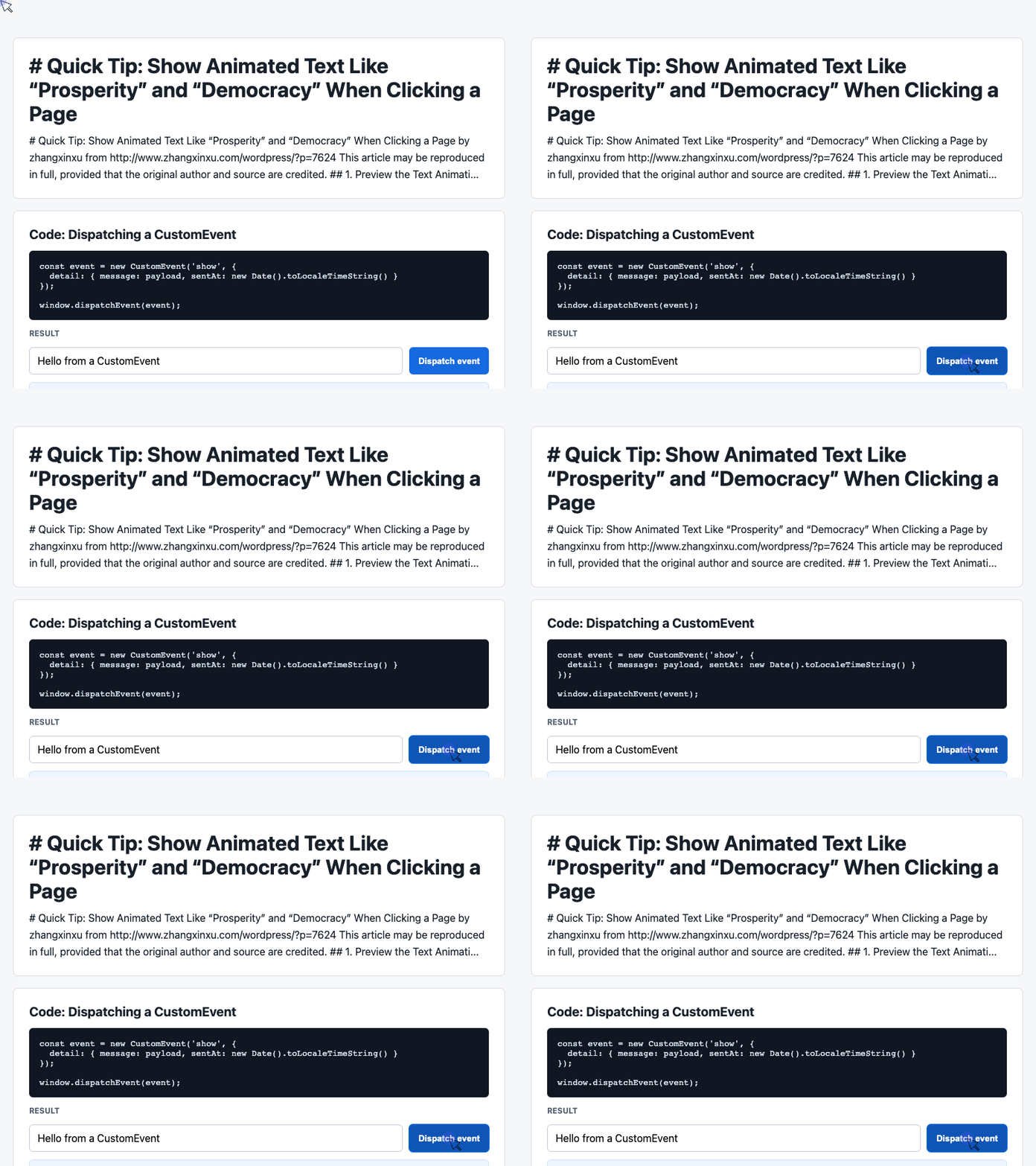
The button handler reads the input, supplies a fallback for empty text, and dispatches a custom event named show. The event’s detail property carries the message and timestamp.
const input = document.querySelector('#payload');

document.querySelector('#dispatch').addEventListener('click', () => {
  const message = input.value.trim() || 'Default CustomEvent payload';
  const event = new CustomEvent('show', {
    detail: { message, sentAt: new Date().toLocaleTimeString() }
  });
  window.dispatchEvent(event);
});
🎮 Try it live: Open the interactive demo to experience this yourself.
Dispatching the event does not produce a visible result by itself. The screenshot shows the completed demo, where the listener below receives the event and updates the interface.
This separates the action that sends a message from the code that decides how to display it.
Receive the Payload and Update the Interface
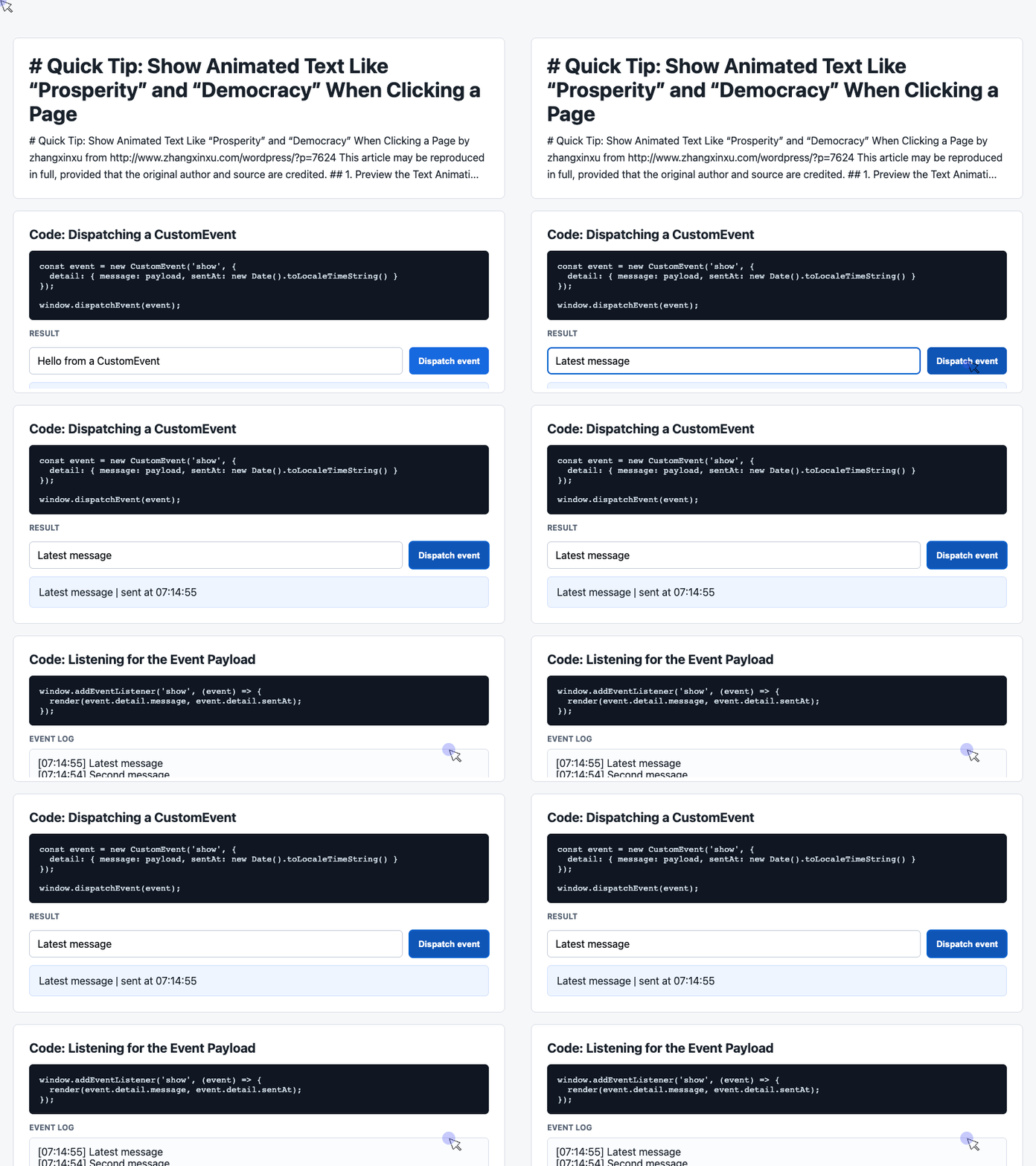
The receiving handler reads event.detail, updates the latest-message card, and adds an entry to the log.
These declarations and the listener come directly from the companion demo:
const latest = document.querySelector('#latest');
const log = document.querySelector('#event-log');
const history = [];

window.addEventListener('show', (event) => {
  const detail = event.detail || {};
  latest.textContent = detail.message + ' | sent at ' + detail.sentAt;
  history.unshift('[' + detail.sentAt + '] ' + detail.message);
  log.textContent = history.slice(0, 6).join('\n');
});
🎮 Try it live: Open the interactive demo to experience this yourself.
Using unshift() places the newest entry first. The slice(0, 6) call limits the displayed log to six entries, although the underlying array continues to grow.
To connect this event pattern to floating text, the listener would need to create an animated span instead of—or alongside—updating the card. It would also need click coordinates in the payload to position that span.
Make the Effect Your Own
For the floating-text version, replace the words array with short messages that fit your site. Change .text-popup to adjust the color, font, or animation duration, and change translateY(-50px) to control how far the text travels.
You can also attach the click listener to a specific interactive area when the effect belongs in one part of the page.
A small feature like this is a useful exercise in event handling, coordinates, CSS keyframes, and DOM cleanup. It is also a reminder that a few understandable lines of code can create an interaction people immediately notice.
Try It Yourself
Want to see these concepts in action? I’ve created an interactive demo where you can experiment with the code and see real-time results.
Explore more demos from my previous articles in the Demo Gallery.
Happy coding!