A few DOM elements, some CSS, and a little geometry are enough to connect the dots.
By zhangxinxu
Originally published on May 25, 2018, at 02:01, under JS Examples.
Read the original article.
Original republication notice: Full republication requires the author’s written permission, with the author’s name and source retained. Excerpts may be shared with a link to the original.
A simple line chart doesn’t always need a charting framework. If you already have points positioned on a page, connecting them takes surprisingly little JavaScript.
The browser handles the rendering. Your code calculates two things for each segment: its length and its rotation.
Let’s walk through that approach, then explore two snippets from the supplied companion demo that show how custom events can coordinate interface updates.
Start with Points, Then Connect Them
Think of a basic line chart as a collection of markers. Each marker has a position, and every marker except the last connects to the next one.
The connector can be an ordinary HTML element. Give it a visible border, stretch it to the required length, and rotate it toward the next point.
No SVG or canvas is required for this technique.
Calculate the segment’s length
For endpoints at (x1, y1) and (x2, y2), the horizontal distance is x2 - x1, and the vertical distance is y2 - y1.
The Pythagorean theorem gives us the segment’s length:
length = √((x2 − x1)² + (y2 − y1)²)
Calculate its rotation
The original implementation calculates the angle with Math.atan((y2 - y1) / (x2 - x1)).
That returns radians, which CSS accepts directly through the rad unit. There is no need to convert the result to degrees.
Give the line a reliable anchor
The fixed styling belongs in CSS. The original example uses position: absolute and border-top: 2px solid green for each i[line] connector.
The essential rotation setting is transform-origin: left center. It makes the segment rotate around its starting edge.
Positioning still matters: each marker needs to establish a positioning context, and the connector’s starting position must match the coordinate convention used by the JavaScript. Setting the transform origin alone does not place the line on the marker.
Example 1: Connect Neighboring Points
The original function loops through the markers, creates a connector when necessary, and measures each pair of neighboring points. Its comments are condensed here:
var fnLineChart = function (eleDots) {
    [].slice.call(eleDots).forEach(function (ele, index) {
        var eleNext = eleDots[index + 1];
        if (!eleNext) { return; }

        var eleLine = ele.querySelector('i');
        if (!eleLine) {
            eleLine = document.createElement('i');
            eleLine.setAttribute('line', '');
            ele.appendChild(eleLine);
        }

        var boundThis = ele.getBoundingClientRect();
        var boundNext = eleNext.getBoundingClientRect();
        var x1 = boundThis.left, y1 = boundThis.top;
        var x2 = boundNext.left, y2 = boundNext.top;

        var distance = Math.sqrt(
            (x2 - x1) * (x2 - x1) +
            (y2 - y1) * (y2 - y1)
        );
        var radius = Math.atan((y2 - y1) / (x2 - x1));

        eleLine.style.width = distance + 'px';
        eleLine.style.msTransform = 'rotate(' + radius + 'rad)';
        eleLine.style.transform = 'rotate(' + radius + 'rad)';
    });
};
🎮 Try it live: Open the interactive demo to experience this yourself.
Once the markers are positioned and styled, call fnLineChart(eleDots), where eleDots contains the points in connection order.
The function reuses existing connectors, so calling it again updates their lengths and angles.
A few details help explain the boundaries of this original implementation:
- Point order matters. The
Math.atan()calculation assumes the points progress from left to right. For arbitrary directions and vertical segments, useMath.atan2(y2 - y1, x2 - x1). - Bounding rectangles describe box edges. The function reads each marker’s top-left corner. To calculate marker centers, add half the width and height to those coordinates and anchor the connector accordingly.
- Browser coordinates increase downward. A positive vertical difference points down the screen and produces a clockwise rotation.
- Measurements reflect the current layout. Recalculate after resizing, repositioning points, or changing content that affects their positions.
For a small chart, that is a manageable amount of logic: position the markers, style their connectors, and measure the segments.
Coordinate Interface Updates with Custom Events
A chart often sits beside controls, status messages, and other interface elements. Custom events provide one way for those pieces to communicate.
The supplied companion demo demonstrates this event mechanism. It updates a message card and a timestamped log; it does not render the line chart.
Its workflow is straightforward:
- Read a message from an input.
- Dispatch an event containing that message.
- Let a listener update the interface.
Example 2: Dispatch a Message with CustomEvent
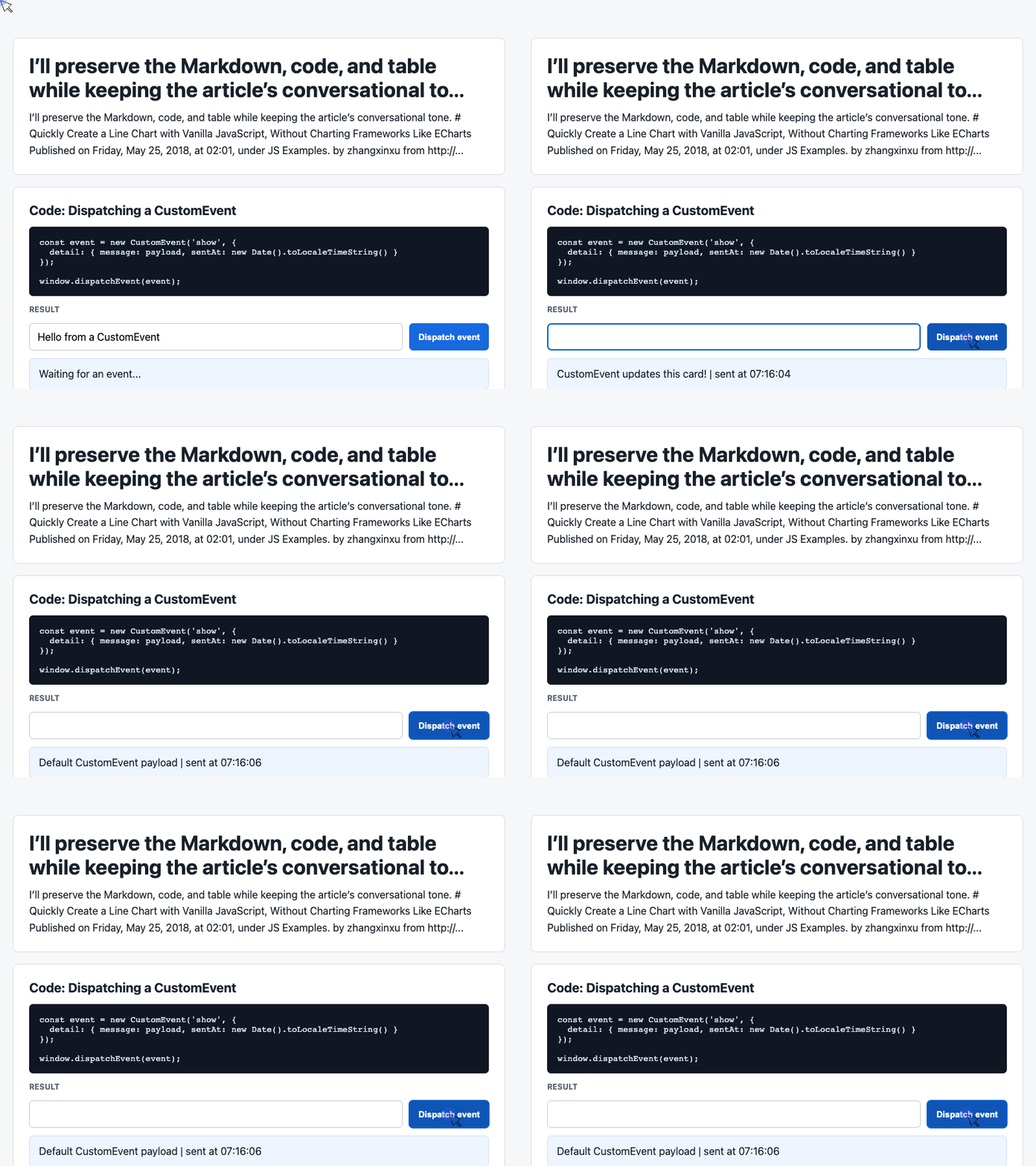
This handler comes from the supplied demo. Clicking the button reads the input and attaches the message and current time to the event’s detail property.
The page must contain an input with the ID payload and a button with the ID dispatch.
const input = document.querySelector('#payload');

document.querySelector('#dispatch').addEventListener('click', () => {
  const message = input.value.trim() || 'Default CustomEvent payload';

  const event = new CustomEvent('show', {
    detail: {
      message,
      sentAt: new Date().toLocaleTimeString()
    }
  });

  window.dispatchEvent(event);
});
🎮 Try it live: Open the interactive demo to experience this yourself.
The event carries data, but dispatching it does not render anything by itself. The listener in the next example performs the visible update.
Notice the fallback message: an empty or whitespace-only input still produces a useful payload.
Example 3: Render the Payload and Keep a Short History
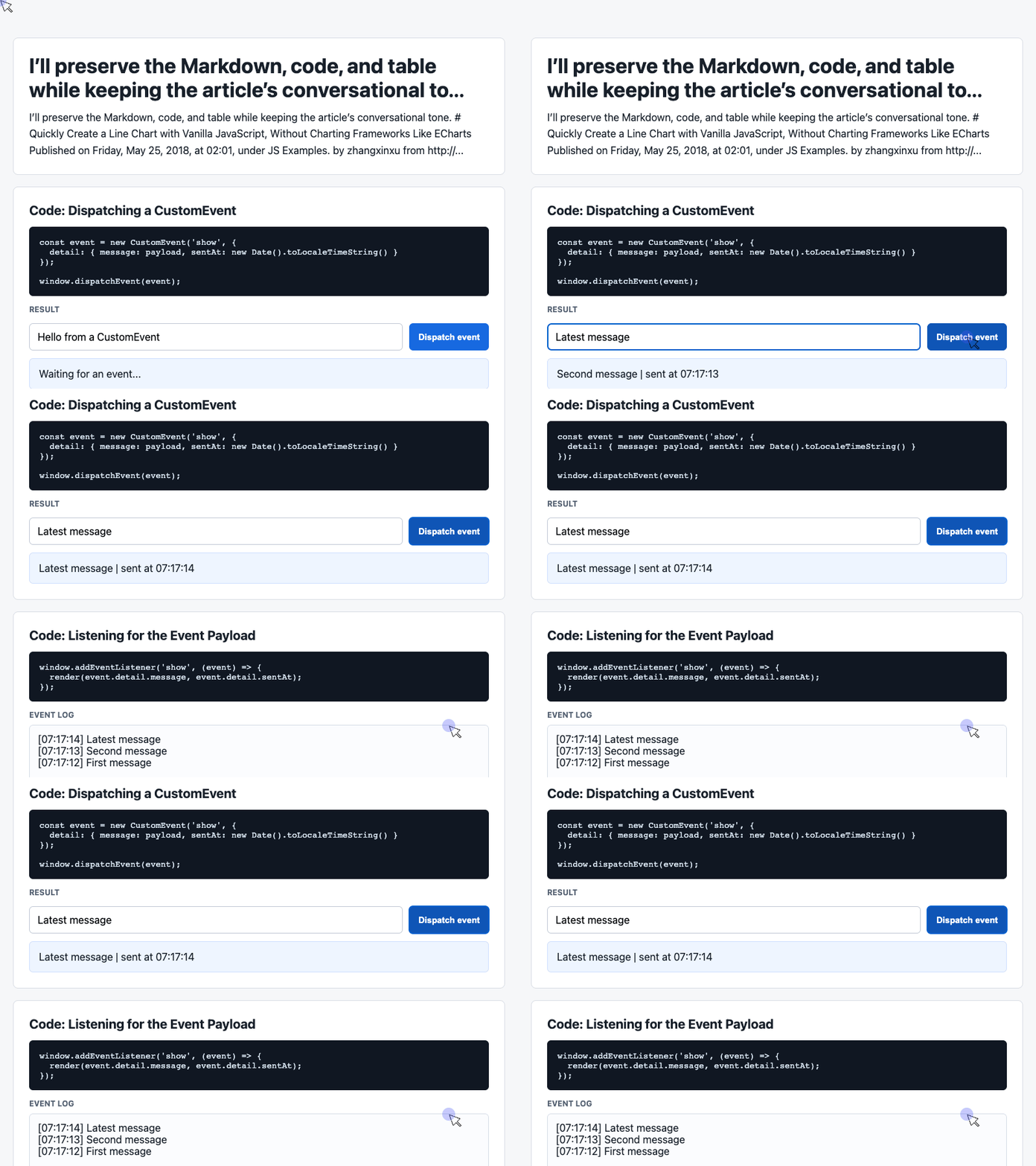
The listener reads event.detail, updates the latest-message card, and adds the message to the log.
These elements correspond to #latest and #event-log in the supplied demo:
const latest = document.querySelector('#latest');
const log = document.querySelector('#event-log');
const history = [];

window.addEventListener('show', (event) => {
  const detail = event.detail || {};

  latest.textContent =
    detail.message + ' | sent at ' + detail.sentAt;

  history.unshift('[' + detail.sentAt + '] ' + detail.message);
  log.textContent = history.slice(0, 6).join('\n');
});
🎮 Try it live: Open the interactive demo to experience this yourself.
Using unshift() places the newest entry first. The slice(0, 6) call limits the displayed log to six entries, although the underlying array continues to grow.
The demo uses textContent, so messages appear as text rather than being interpreted as HTML. Its log styling includes white-space: pre-wrap, which makes the newline-separated entries appear on separate lines.
To apply this pattern to chart updates, a chart-specific listener would receive new data, reposition the markers, and call fnLineChart() afterward. That additional wiring is separate from the supplied message demo.
When a Charting Framework Makes Sense
Drawing a few line segments by hand is a useful exercise. You get direct control over the markup and styling, and the geometry is easy to inspect.
But drawing segments is only part of building a chart. Axes, scales, legends, accessible data presentation, zooming, and large datasets can add substantial work.
A charting framework becomes useful when:
- You need several chart types or complex interactions.
- Built-in features cover much of the required behavior.
- Your team benefits from a shared charting API.
- Long-term maintenance favors an established library.
- Learning the framework is itself part of the project.
And, of course, sometimes the practical reason is simply that your team has already chosen one.
For a small, custom visualization, writing the connectors yourself can be entirely reasonable. It is also a good excuse to revisit some geometry you probably haven’t thought about since school.
The original article also mentions a related experiment, Creating a Pie Chart Loading Effect with CSS3, using traditional DOM elements without SVG or canvas.
Archived 2018 Reader Contest
The original post ended with a reader guessing contest for a signed copy of CSS World. The questions and results below are preserved as historical material; the contest has concluded.
The Questions
1. How many reviews would CSS World have in JD.com’s own store as of midnight on June 1?
A. 4400+
B. 4500+
C. 4600+
D. 4700+ or higher
2. Which company would the author visit for a sharing session the following week?
A. Tencent Shanghai
B. JD.com Shanghai
C. Baidu Shanghai
D. Bilibili
3. Which city had the author visited for the company’s team-building event the previous weekend?
A. Suzhou
B. Wuxi
C. Nanjing
D. Yangzhou
4. Would the Shanghai Composite Index rise or fall on Thursday, May 31, 2018?
A. Rise
B. Fall
C. Unchanged
Readers were asked to leave their answers in the original article’s comments and include their Weibo nickname or account name. Only their first reply counted, and entries had to arrive before midnight at the start of May 30, 2018.
The Revealed Answers
The author later announced:
- B — 4500+. That was the review-count bracket.
- B — JD.com Shanghai. The visit was for JD.com’s design-sharing event.
- D — Yangzhou. That was the team-building destination.
- A — Rise. The Shanghai Composite Index rose that day.
The correct answer sequence was B B D A.
Reader Results
| Nickname | Correct: B | Correct: B | Correct: D | Correct: A | Total Correct |
|---|---|---|---|---|---|
| 给 | D | A | C | A | 1 |
| ReoRare | D | A | C | A | 1 |
| 西夏西夏西夏 | A | D | B | B | 0 |
| 刘东奇 | D | C | B | A | 1 |
| 平凡人生rdy | A | B | A | B | 1 |
| yyhaxx | B | A | B | B | 1 |
| 2 | D | D | C | B | 0 |
| zhz0115 | D | A | B | B | 0 |
| stone凯 | D | B | D | B | 2 |
| 哈喽安德烈 | C | D | C | C | 0 |
| magicbing | B | C | C | B | 1 |
| animate | D | B | A | B | 1 |
| 二蛋 | B | A | A | A | 2 |
| 孙哥 | D | C | A | B | 0 |
| 长江长江我是黄河 | B | D | C | B | 1 |
| haorooms-前端之家 | D | D | A | A | 1 |
| abcd | D | D | C | A | 1 |
| XboxYan | D | D | A | A | 1 |
| 十二月下的猫 | B | D | A | B | 1 |
| 自由de气息 | D | D | A | A | 1 |
| 小马 | D | A | C | B | 0 |
| ree-file | B | D | A | A | 2 |
| suiyue | D | A | A | A | 1 |
| ace | D | D | D | A | 2 |
| 伍豪 | C | D | A | B | 0 |
| yiyiyiyh | D | D | B | A | 1 |
| ning00 | D | D | B | A | 1 |
| _伪木 | D | D | A | B | 0 |
| NNNaixQvQ | D | D | B | A | 1 |
| 古金 | D | A | B | A | 1 |
| sam | B | B | C | A | 3 |
| 心情 | D | D | A | A | 1 |
| jyjin | D | D | D | B | 1 |
| 辛锐 | B | A | A | B | 1 |
| RenneXV | D | D | B | A | 1 |
| 梁凤波 | B | C | D | C | 2 |
| 小H大Y | B | D | C | B | 1 |
| 树残由尔 | C | B | D | B | 2 |
| 薛将军 | B | D | D | B | 2 |
| 迷路的麋鹿丶丶丶 | B | D | C | A | 2 |
| SDXYRR | C | D | B | B | 0 |
| 不二 | C | D | A | A | 1 |
| 我希望 | B | A | D | A | 3 |
| 小小坤 | C | D | C | B | 0 |
| KoyeeLin | B | D | C | A | 2 |
The highest score was three correct answers. sam was the first reader to achieve that score and won the signed copy of CSS World. The author confirmed sam’s Weibo username as SAM_Rogers.
Congratulations, sam!
Try It Yourself
Want to see these concepts in action? I’ve created an interactive demo where you can experiment with the code and see real-time results.
Explore more demos from my previous articles in the Demo Gallery.
Happy coding!