
How WebGL brings illustrated characters to life—and how JavaScript handles the interactions around them.
Adapted from the original article by zhangxinxu, published at zhangxinxu.com.
Original reproduction notice: Full republication requires written permission from the author and must retain the author attribution and source. Excerpts may be shared with a link to the original.
A Little Character With a Lot of Personality
Move your mouse, and an anime character follows it with her eyes. Click her body, and she reacts with a gesture or a voice clip. Leave her alone, and she keeps moving, humming, or talking to herself.
The artwork looks flat, yet the character seems to have depth.
That is the appeal of Live2D. It lets an illustrated character feel responsive while preserving the visual style of the original drawing. When that character sits in the corner of a website, greeting visitors and reacting to their actions, she becomes a web mascot.
In the original article, zhangxinxu described spending an entire evening recording the mascot’s voice clips, then processing them in Adobe Audition. The experiment offered a brief taste of voice acting—and a reminder that the character’s personality comes from much more than rendering code.
The movement catches your attention. The artwork, timing, voice, and reactions make you stay.
How Live2D Creates the Illusion of Depth
The short answer to the browser technology question is WebGL. Live2D’s Cubism SDK for Web uses it to render animated models inside a web page. Live2D’s SDK overview describes the web implementation and supported environments.
But WebGL is only part of the explanation.
Live2D works with illustrated artwork whose parts can be transformed and deformed. Meshes and deformers let creators change the shape of a face, move an arm, or suggest a change in viewing angle. The official deformer documentation explains how these controls manipulate mesh vertices.
The result can suggest three-dimensional movement while retaining the appearance of a two-dimensional drawing.
The range of convincing movement depends on how the character was drawn and rigged. A carefully prepared head turn can look remarkably natural, but the available views and poses still depend on the model’s design.
For front-end developers, this introduces two connected jobs: rendering the animated character and building the interface that responds around it.
Getting a Character Onto the Page
The original article used a community wrapper around the older Cubism 2 WebGL runtime. Its integration was appealingly small: add a canvas, include a JavaScript file, and load a model.
The canvas was <canvas id="live2d" width="280" height="250"></canvas>. After including live2d.js, the wrapper initialized the character with loadlive2d("live2d", "./model.json");.
That single function call hid most of the rendering setup.
It also made the real dependency easy to overlook: the model package.
JavaScript could start the process, but it still needed the character’s model, textures, expressions, motions, and supporting files. A short initialization call did not mean that creating the character was a short job.
This distinction still matters when choosing an integration approach. A convenient wrapper can simplify the first successful render, while deeper customization depends on the capabilities it exposes.
The Real Work Lives in the Assets
In the original Cubism 2 example, model.json acted as a directory of the resources needed to display and animate the character.
Its main properties included:
| Property | Purpose |
|---|---|
model | References the compiled character model |
textures | Lists the texture images used by the character |
physics | References physics settings |
pose | References pose settings |
expressions | Lists available expression files |
layout | Supplies model placement and sizing values |
hit_areas | Names model regions used for interaction detection |
motions | Groups motion files and associated settings |
Together, these references connected the artwork to the runtime.
The original configuration grouped motions under names such as idle, tap_body, and flick_head. Those names connected the sample application’s interaction logic to the appropriate motion groups.
An idle group could contain several animations, giving the character some variety while waiting for input. A body-tap group could associate different movements with corresponding sound files.
The fade_in and fade_out settings controlled how motions transitioned. In the example, values of 2000 represented two-second blending periods, helping the character move smoothly between behaviors.
The important lesson is that the animation’s character comes largely from its assets and configuration. The renderer executes what the model makes possible.
A Note About Versions
The original walkthrough described Cubism 2 assets, including .moc and .mtn files. Its August 14, 2019 update discussed the move to Cubism 3.
These formats belong to different generations of the toolchain. Live2D states that Cubism 2.1 .moc and .mtn files cannot be used directly with Cubism 3 and later SDKs; compatible exports use formats such as .moc3 and .motion3.json. See the official format compatibility explanation.
For a new project, start with a model package and runtime designed to work together.
Adding the Interface Around the Character
A mascot’s speech bubble, notification panel, or activity log can use familiar HTML and JavaScript.
The supplied working demo illustrates this interface layer. It contains an input, a dispatch button, a message card, and an event log. It does not include a Live2D renderer or model assets, so its examples demonstrate message handling rather than character animation.
That makes it useful for understanding how an interaction can travel through an application:
User input → application event → interface update
A Live2D integration could apply the same pattern to messages emitted after a character interaction, with an additional connection to the SDK.
The following three excerpts come from the supplied executable demo. Keep its existing CSS to reproduce the appearance, and place the JavaScript after the HTML elements, as the demo does.
Example 1: Build the Message Interface
Start with the controls and the two output areas. Their IDs give the JavaScript stable references to the input, button, latest message, and log.
<div class="controls">
  <input id="payload" value="Hello from a CustomEvent">
  <button id="dispatch">Dispatch event</button>
</div>
<div class="event-card" id="latest">Waiting for an event...</div>
<div class="log" id="event-log">No events yet.</div>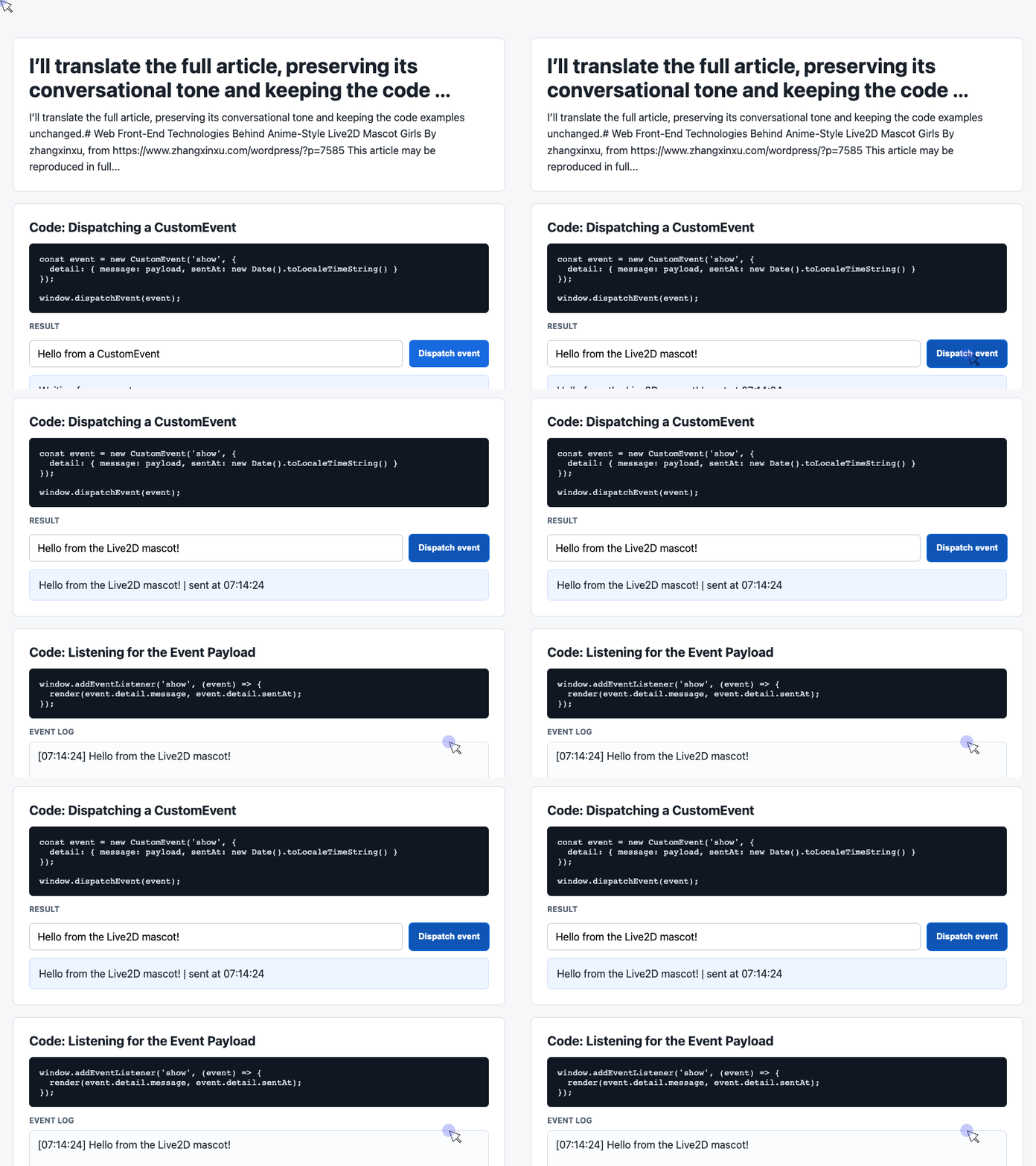
🎮 Try it live: Open the interactive demo to experience this yourself.
The interface begins with a clear waiting state. Visitors can see what they can do and where the result will appear.
The demo’s CSS arranges the controls with flexbox and lets them wrap when space becomes limited. It also gives the latest message and event log distinct visual treatments, making the current result easy to distinguish from earlier activity.
Example 2: Dispatch a Message With CustomEvent
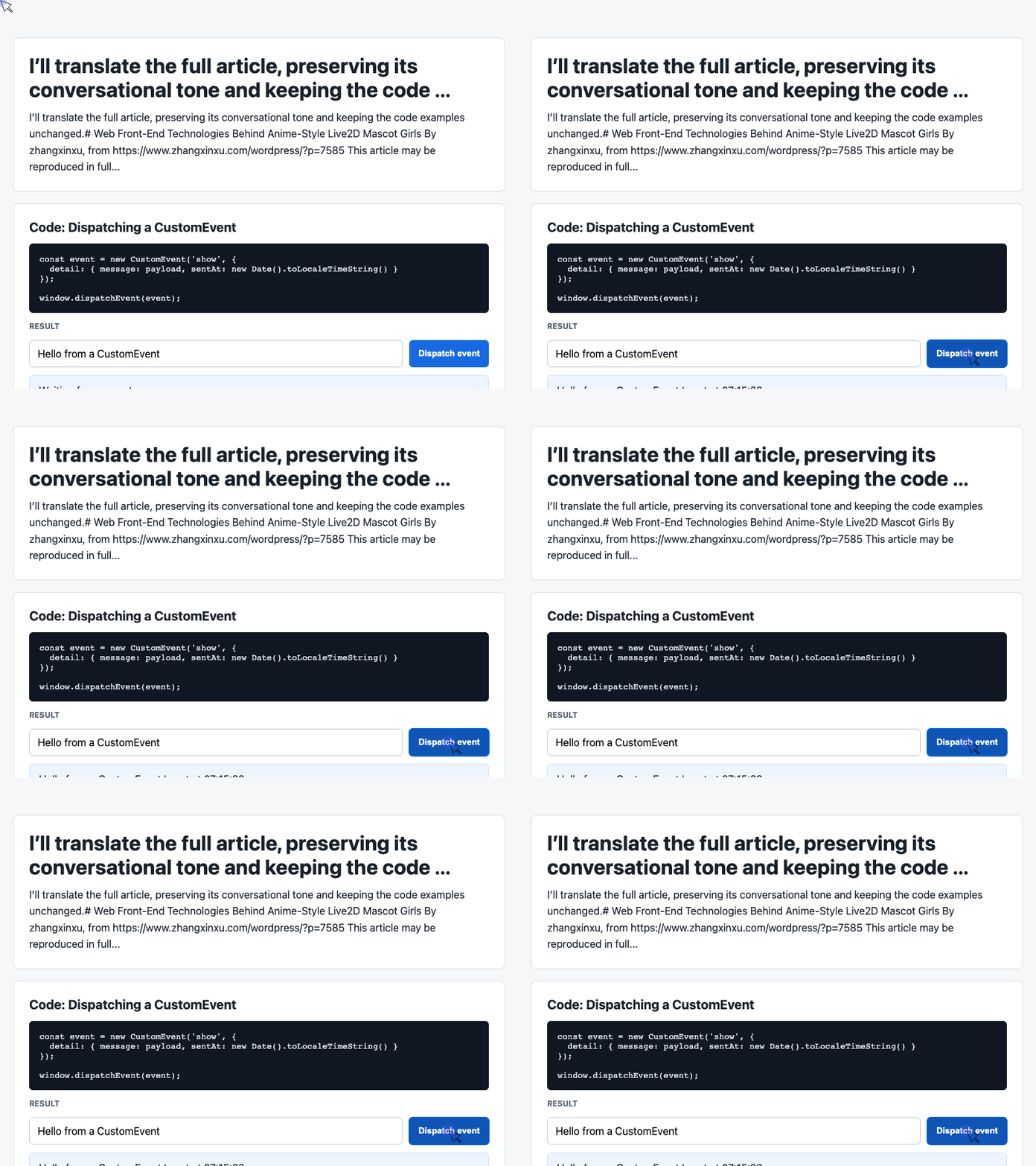
Next, connect the button to an application event. This excerpt includes the shared references used by the final example.
The click handler trims the input, supplies a fallback message when necessary, and attaches the message and a timestamp to a CustomEvent.
const input = document.querySelector('#payload');
const latest = document.querySelector('#latest');
const log = document.querySelector('#event-log');
const history = [];

document.querySelector('#dispatch').addEventListener('click', () => {
  const message = input.value.trim() || 'Default CustomEvent payload';
  const event = new CustomEvent('show', {
    detail: { message, sentAt: new Date().toLocaleTimeString() }
  });
  window.dispatchEvent(event);
});
🎮 Try it live: Open the interactive demo to experience this yourself.
The detail property carries the application data. Here, it contains message and sentAt, which the receiving code can read without consulting the input field again. This is the purpose of the CustomEvent interface.
The name show is simply the event name chosen by this demo. Dispatching it produces a visible result once the listener in the next example is also installed.
This division is useful: the button’s handler creates and sends the message, while the listener decides how to display it.
Example 3: Update the Message Card and Activity Log
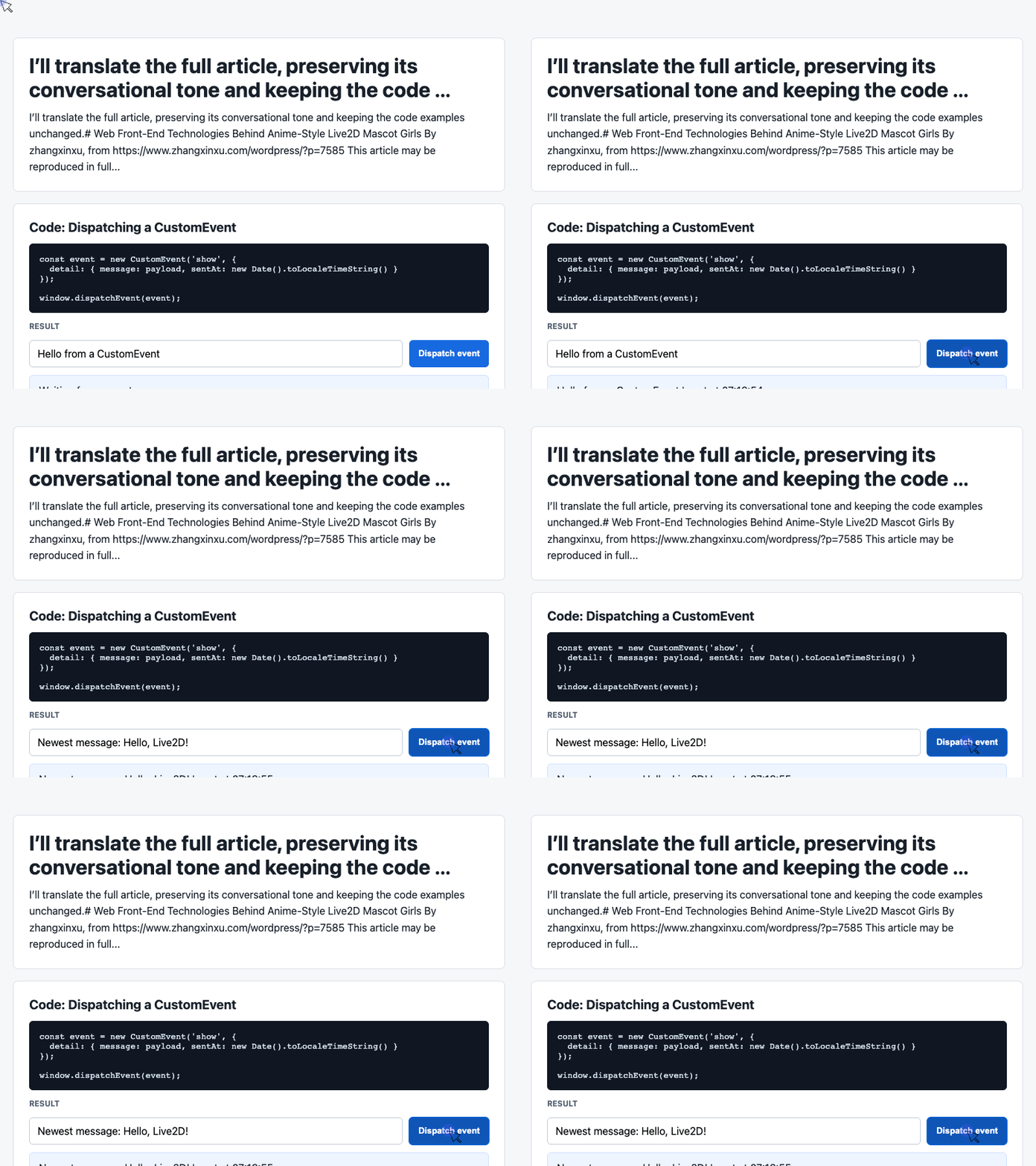
The listener reads the event payload and updates both output areas. Add it after the previous JavaScript excerpt, before interacting with the page.
window.addEventListener('show', (event) => {
  const detail = event.detail || {};
  latest.textContent = detail.message + ' | sent at ' + detail.sentAt;
  history.unshift('[' + detail.sentAt + '] ' + detail.message);
  log.textContent = history.slice(0, 6).join('\n');
});
🎮 Try it live: Open the interactive demo to experience this yourself.
The listener performs three small tasks. It replaces the latest message, inserts a new entry at the front of history, and displays the first six entries.
Using textContent displays the message as text. The log’s existing white-space: pre-wrap CSS preserves the line breaks created by join('\n').
There is also a useful implementation detail here: slice(0, 6) limits the displayed log to six entries. The underlying history array continues growing as more events arrive.
Finally, dispatchEvent() invokes registered listeners synchronously. In this example, the listener updates the DOM during dispatch; the browser displays those changes on its next rendering opportunity. MDN’s dispatchEvent documentation explains this behavior.
Connecting This Pattern to a Live2D Mascot
The next step would be to connect actual model interactions to application behavior.
For example, a character-body click could select a motion through the chosen Live2D integration and send an event containing a dialogue message. A DOM listener could then display that message above the canvas or record it in a debug panel.
That connection requires SDK-specific interaction and motion code. The supplied demo already provides the message-display portion.
This also explains an observation in the original article: the dialogue behavior in a community project’s message.js was ordinary web interaction. Its text appeared near the character, but the text display itself did not require Live2D rendering.
Treating the message interface as its own component makes it easier to experiment with dialogue, inspect events, and adjust presentation while developing the character integration.
Choosing Models and Learning Resources
The original article mentioned community projects such as EYHN/hexo-helper-live2d and galnetwen/Live2D, along with several character demonstrations.
Its broader advice remains useful: begin with an existing, compatible model package before attempting to create every asset yourself. Building attractive artwork, rigging expressions, and authoring convincing motion requires substantial creative work.
For current development, useful starting points include:
- Cubism Web Samples, the official browser sample project.
- Live2D Sample Data, for learning the editor and testing SDK integration under the accompanying terms.
- Cubism SDK documentation, for understanding runtime integration.
The original author reported a Safari problem with an older demo. For a new implementation, consult the SDK’s browser support information, which includes Safari on macOS and iOS. Live2D’s SDK overview provides the compatibility table.
The original Su Mucheng example also carried an explicit restriction: its character design and assets were copyrighted and were not to be reused on readers’ websites. A demonstration’s availability does not establish permission to reuse its artwork.
Why This Is an Interesting Front-End Experiment
The original article closed with a scene from Shanghai: crowded subway cars, cosplayers heading to a convention, and queues forming early in the morning.
Behind the playful conclusion was a practical observation. People care deeply about illustrated characters, and a little responsive movement can turn a static drawing into a memorable presence.
For a front-end developer, that makes Live2D an interesting meeting point between graphics and interface design. WebGL renders the character. Model assets define its movement. HTML, CSS, and JavaScript give those interactions a place in the page.
Start with a compatible sample model, get one interaction working, and give the character something worth saying.
Try It Yourself
Want to see these concepts in action? I’ve created an interactive demo where you can experiment with the code and see real-time results.
Explore more demos from my previous articles in the Demo Gallery.
Happy coding!