
Using mock APIs to build more realistic forms, autocomplete controls, and interactive lists.
By zhangxinxu
Originally published at zhangxinxu.com. The original author permits full republication with attribution.
This edited edition includes examples from the supplied browser demo and clarifies deployment-dependent behavior.
API management platforms such as EasyAPI, SosoAPI, and YApi help teams organize API definitions, standardize responses, and collaborate more effectively.
For individual front-end developers, their value is more immediate: they provide realistic data for interfaces before a production backend is ready.
I often build high-fidelity interactive prototypes. A convincing prototype needs more than a successful response containing a few predictable records. It needs empty results, errors, unusual content, and enough variation to reveal weaknesses in the interface.
A colleague recommended YApi, so I gave it a try. Here’s what I learned.
1. Getting Started with YApi
This walkthrough focuses on using YApi as an individual developer.
In the installation I tried, registration was straightforward, and email verification wasn’t required before getting started. Account requirements may differ between deployments.
After signing in, create a project, enter its details, choose its visibility, and add an API. You can adjust the configuration later.
Each API has several useful tabs:
| Tab | What it does |
|---|---|
| Preview | Displays the interface documentation and mock request URL. |
| Edit | Configures the request method, parameters, and response definition. |
| Run | Provides an interface for testing requests. |
| Advanced Mock | Adds parameter-based expectations and custom response scripts. |
The original setup required a Chrome extension for the Run tab, with additional network-access complications. That tab wasn’t necessary for the mocking workflow described here.
For most prototype work, Edit and Advanced Mock are the important starting points.
2. Understanding Templates and Advanced Mock
Start with response templates
In Edit, select a request method such as GET or POST, then define any request parameters. An autocomplete endpoint, for example, might accept a query parameter named key.
Next, configure the response.
YApi offers a JSON Schema editor for describing the response structure visually. I prefer working directly with the response template, so I used that approach for these experiments.
The template can contain ordinary values alongside Mock.js generation rules. Mock.js separates its syntax into two broad categories:
- Data Template Definition: rules for repetition, numeric ranges, incrementing values, and similar behavior.
- Data Placeholder Definition: placeholders such as
@id,@name,@email, and@word.
The Mock.js syntax specification explains these rules in detail.
One distinction is especially easy to miss: an array repetition rule repeats the whole template array.
Suppose the data property uses the rule "data|0-3" and contains four template objects. Those objects might include two randomly generated names, an item containing an icon, and an item containing a link.
The result can contain 0, 4, 8, or 12 items. The rule repeats the four-item array zero to three times.
That variation is useful for testing an autocomplete control. An empty dropdown, a short dropdown, and a much longer dropdown can expose different layout and interaction problems.
The original autocomplete example demonstrates this behavior in the section labeled “AJAX-based autocomplete with dynamically returned data.”
Return values from the request
Sometimes a response should include the values the user submitted.
YApi’s template substitution supports expressions such as ${query.name} for a query parameter and ${body.type} for a request-body field.
For a form submission endpoint, I defined two required POST fields: tel and code. The response returned them through ${body.tel} and ${body.code}.
I also used the numeric rule "error|0-1": 0. This generates either 0 or 1, allowing the interface to exercise both success and failure handling with roughly equal probability.
You can explore that interaction in the original form example. A successful response includes the submitted phone number, while an unsuccessful response displays an error message.
Random failures are useful during exploration. When you need to reproduce one particular failure reliably, an expectation is more convenient.
Use expectations for specific scenarios
Advanced Mock provides two main tools: Expectations and Scripts.
An expectation associates matching request parameters with a specific response. For example, a particular phone number could trigger an administrator response.
The original interactive table example uses expectations for two scenarios:
- A search containing
errorreturns an error response. - A request with
action=deletereturns an empty dataset.
The second scenario lets you inspect the interface after a bulk deletion. It simulates the resulting empty state; persistent deletion would require separate state management.
Use scripts for pagination and other logic
Scripts handle behavior that becomes awkward to express through individual expectations.
For the table example, I started with a fixture containing roughly 50 records. Each record included an ID, title, timestamp, comment count, and deletion flag.
The script then selected the records to return based on the request parameters.
The following excerpt focuses on normal pagination. It assumes the fixture array is already available as data. The explicit numeric conversion makes the pagination arithmetic clear when parameters arrive as strings.
var current = Number(params.current) || 1;
var every = Number(params.every) || 10;
var begin = (current - 1) * every;

mockJson = {
    error: 0,
    data: {
        total: data.length,
        data: data.slice(begin, begin + every)
    }
};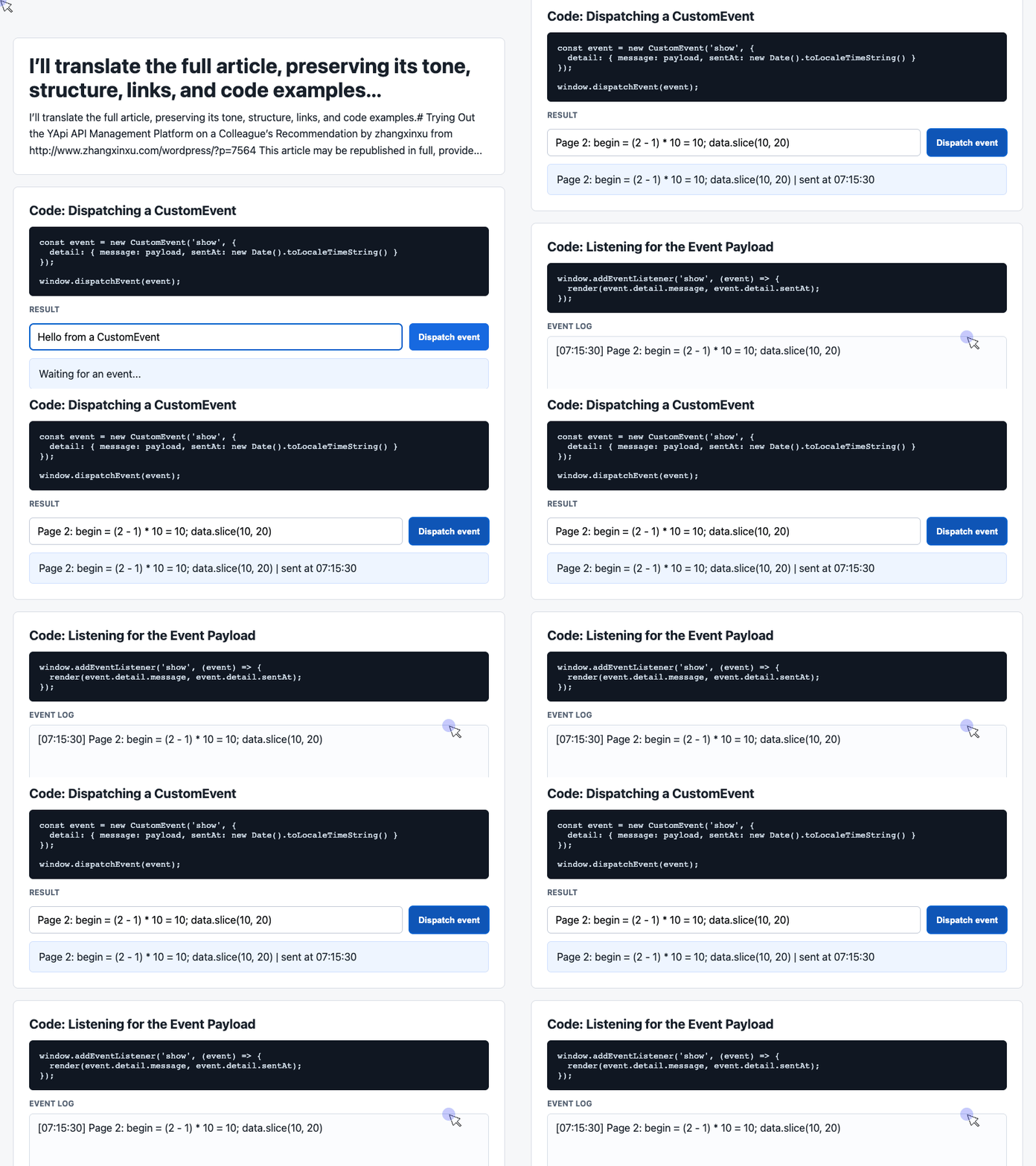
🎮 Try it live: Open the interactive demo to experience this yourself.
The response contains both the total record count and the records for the requested page. With a page size of 10, page two starts at array index 10.
In the original script, a nonempty params.key selected a random slice instead. That produced varying search-result counts for testing the interface. It was a simulation of search results, rather than title-based filtering.
The important mechanism is the assignment to mockJson: that object becomes the mock response in this scripting workflow.
Understand which rule wins
For the three mechanisms used in the original walkthrough, the priority is:
Expectations → Custom Scripts → Ordinary Templates
This explains why an expectation can override the pagination script when a request asks for an error or deletion scenario.
YApi’s repository documentation also includes a project-wide script stage, giving the fuller order:
Expectations → Interface Script → Project-wide Script → Ordinary Mock
Check the project documentation when configuring shared mock behavior.
Inspect browser interactions with a small companion demo
Once mock scenarios are defined, it helps to make the browser’s interaction data visible.
The supplied demo illustrates a small event-driven interface: enter a message, click a button, and inspect the latest message and event history. It runs locally through CustomEvent; connecting it to a YApi endpoint would require adding a network request.
Its existing markup provides four elements: the payload input, dispatch button, latest result card, and event-log container. Run the following JavaScript after those elements have loaded.
Dispatch a structured payload
The click handler reads the input and packages the message with a timestamp. This excerpt comes from the supplied demo.
const input = document.querySelector('#payload');

document.querySelector('#dispatch').addEventListener('click', () => {
  const message = input.value.trim() || 'Default CustomEvent payload';
  const event = new CustomEvent('show', {
    detail: { message, sentAt: new Date().toLocaleTimeString() }
  });

  window.dispatchEvent(event);
});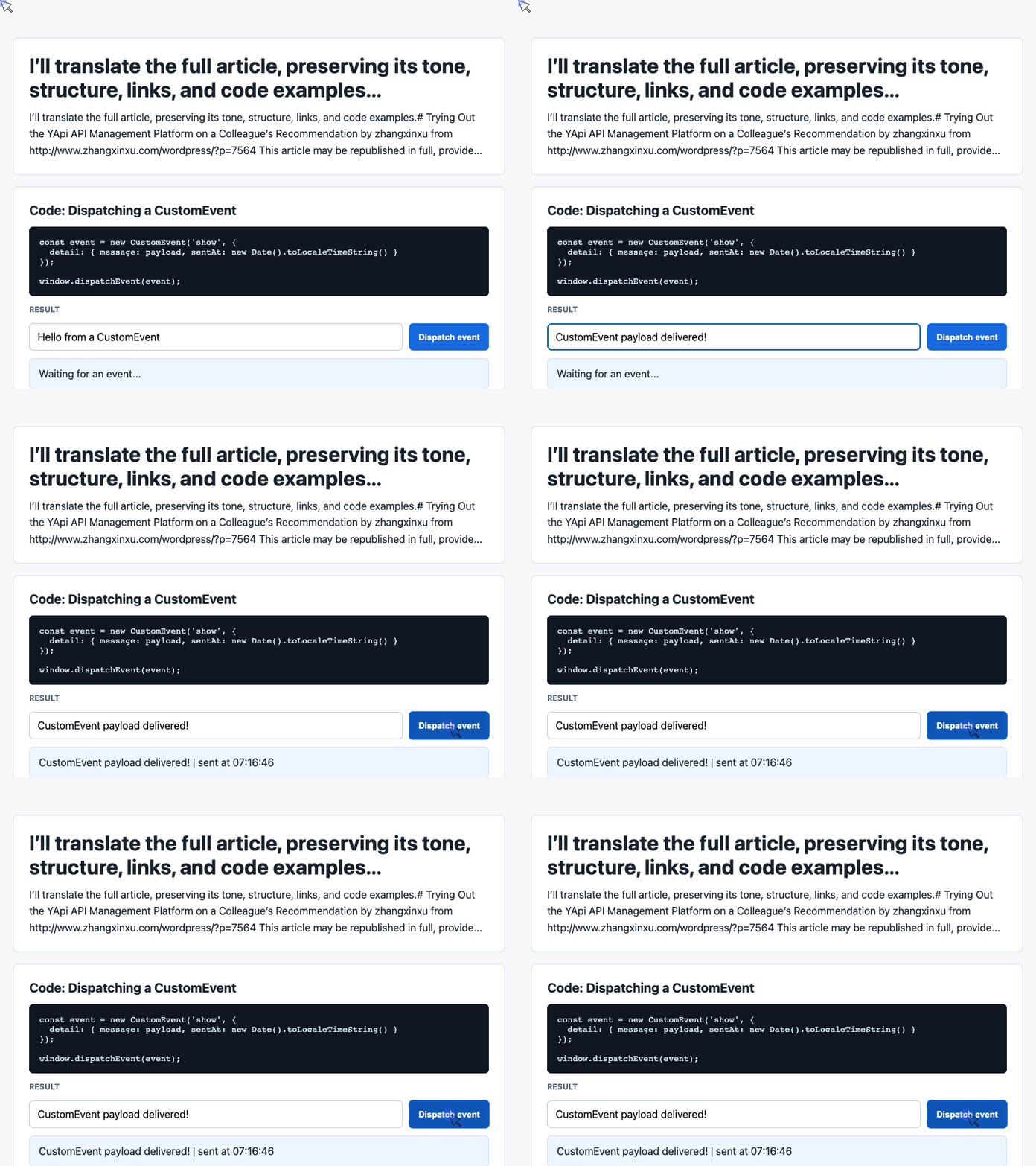
🎮 Try it live: Open the interactive demo to experience this yourself.
The detail property carries the data that listeners receive. Trimming the input and supplying a fallback also makes an empty submission easy to inspect.
With the listener below installed, each click updates the visible result immediately.
Display the latest message and recent history
The second excerpt listens for the show event, updates the result card, and displays the six most recent messages.
const latest = document.querySelector('#latest');
const log = document.querySelector('#event-log');
const history = [];

window.addEventListener('show', (event) => {
  const detail = event.detail || {};
  latest.textContent = detail.message + ' | sent at ' + detail.sentAt;
  history.unshift('[' + detail.sentAt + '] ' + detail.message);
  log.textContent = history.slice(0, 6).join('\n');
});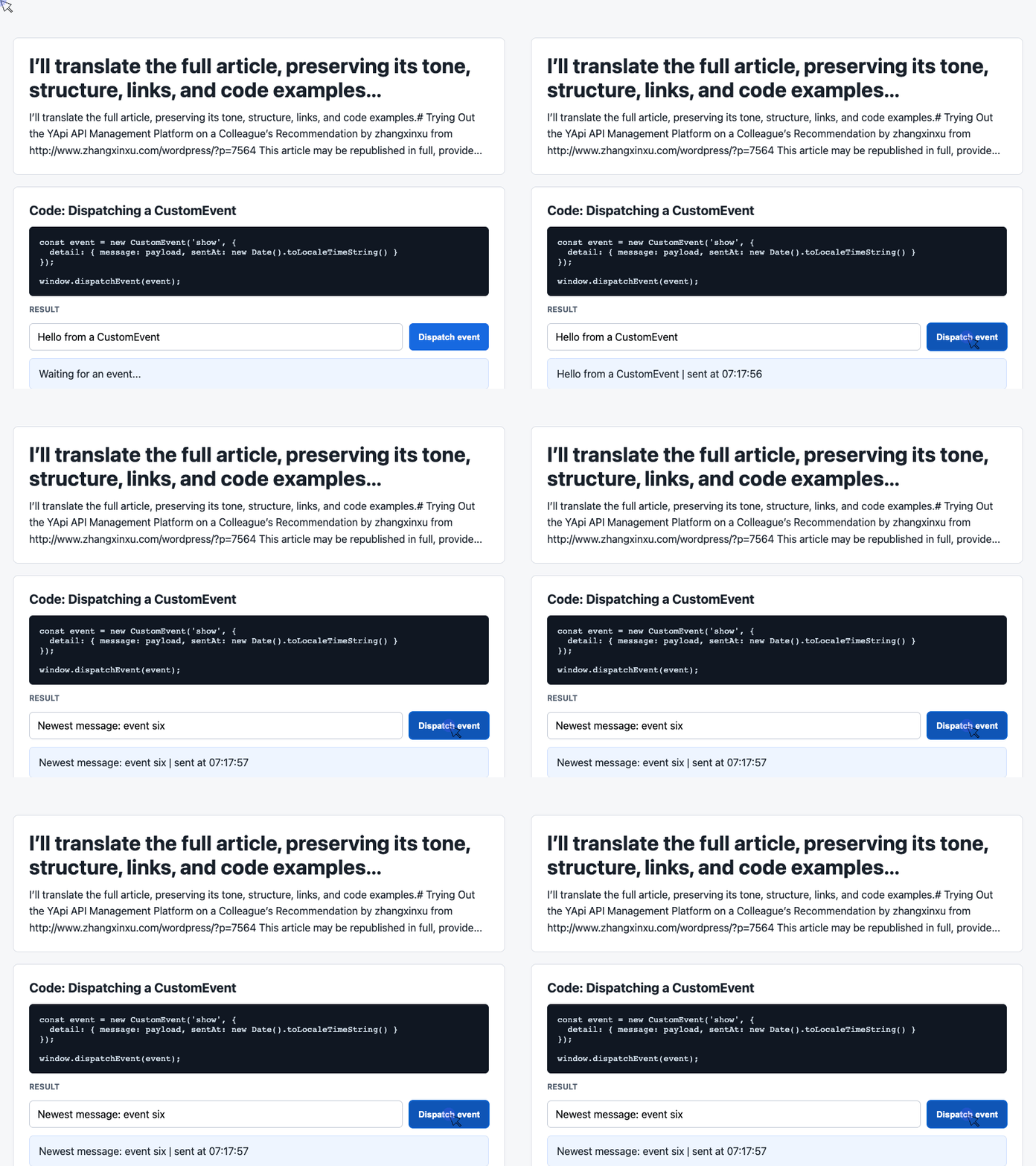
🎮 Try it live: Open the interactive demo to experience this yourself.
Using textContent displays messages as plain text. The supplied CSS preserves line breaks in the log, so each event appears on its own line.
The display is limited to six entries, although the in-memory history array continues to grow. For this small prototype, the visible history makes repeated clicks and changing payloads easy to follow.
A similar inspection panel can be useful when integrating mock responses: show what the interface received, then observe how it rendered that data.
3. Deployment Details and HTTPS
The YApi endpoint used in the original experiment was available over HTTP. That created a problem when the prototype itself used HTTPS.
Browsers generally block HTTP fetch() and XMLHttpRequest calls made from HTTPS pages because they constitute mixed content. Built-in cross-origin support does not remove that restriction. See MDN’s mixed-content documentation.
The practical requirement is an HTTPS endpoint that the browser can reach. A deployment can provide that through a TLS-enabled reverse proxy; NGINX documents HTTPS termination.
The original article also mentioned EasyAPI as a possible alternative, based on a colleague’s recommendation. I hadn’t tested that alternative myself.
Registration, extension requirements, and HTTPS availability should therefore be checked against the particular installation you plan to use.
4. Closing Thoughts
My main interest in YApi was making high-fidelity HTML prototypes behave convincingly.
Templates provide varied content. Request substitution makes form responses feel connected to user input. Expectations make specific states reproducible, while scripts support interactions such as pagination.
Together, these tools let you examine more of an interface before the production backend is ready: the empty list, the failed submission, the unusually long dropdown, and the page after a bulk action.
This walkthrough covers only a small part of YApi. For team deployment and broader API management features, consult the original documentation link and the YApi repository, which links to its documentation.
Thanks to Qunar’s Mobile Front-End Technology Center for making the tool open source—and to the colleague who suggested giving it a try.
Try It Yourself
Want to see these concepts in action? I’ve created an interactive demo where you can experiment with the code and see real-time results.
Explore more demos from my previous articles in the Demo Gallery.
Happy coding!