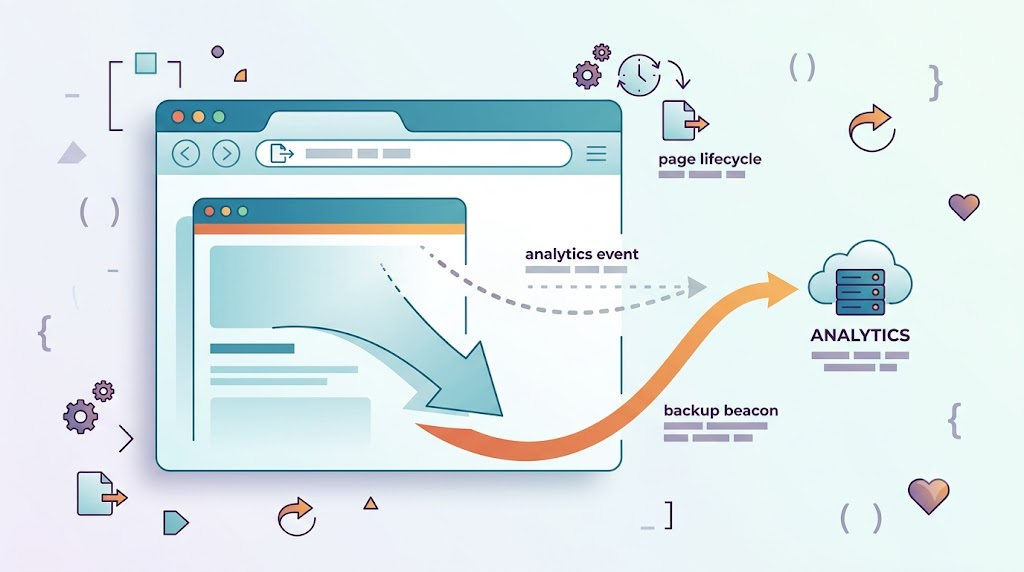
The visibilitychange event has been around for a long time. I first wrote about it back in 2012 in an article introducing the Page Visibility API. At the time, it felt like a clean, modern way to detect when a user stopped looking at a page.
More than a decade later, the API is still useful—but real-world browser behavior is messier than the compatibility tables suggest.
In production, especially when analytics, session tracking, or data reporting depends on “the moment the user leaves,” relying only on visibilitychange can create subtle bugs. Safari is the classic example.
This article starts with one practical Safari problem and uses it as a path into the broader Web page lifecycle: visibilitychange, pageshow, pagehide, beforeunload, freeze, resume, discarded pages, and safer reporting strategies.
The Safari Problem
In Safari, including both desktop Safari and iOS Safari, the visibilitychange event does not always fire.
For actions like minimizing the window, switching tabs, or hiding the current tab, visibilitychange works as expected. But when the current page navigates away because the user clicks a link on the page, Safari may not fire visibilitychange.
That is a problem because many applications use visibilitychange to report final user behavior.
For example:
const postData = JSON.stringify({ event: 'leave' });

document.addEventListener('visibilitychange', function logData() {
  if (document.visibilityState === 'hidden') {
    navigator.sendBeacon('/log', postData);
  }
});
This looks reasonable. When the page becomes hidden, the app sends data to the server using navigator.sendBeacon().
But in Safari link-navigation scenarios, the listener may never run. If your business logic depends on this final beacon, Safari users can produce missing or inconsistent analytics.
The solution is not to abandon visibilitychange, but to understand its boundary. It tells us when a page becomes visible or invisible. It does not reliably describe every way a page is being left.
For that, we need pagehide.
visibilitychange vs. pageshow and pagehide
Although the names sound related, these events describe different things.
visibilitychange answers this question:
Is the page visible to the user?
pageshow and pagehide answer a different question:
Is the page entering or leaving the browser’s active page session?
That distinction matters.
A tab switch may hide the page without leaving it. A navigation may leave the page even if the browser does not dispatch the visibility event you expected.
The following demo snippet captures the difference clearly:
function log(content) {
  result.innerHTML += content + '<br>';
}

window.addEventListener('pageshow', function () {
  log('pageshow: page shown');
});

window.addEventListener('pagehide', function () {
  log('pagehide: page hidden');
});

document.addEventListener('visibilitychange', function () {
  if (document.hidden) {
    log('visibilitychange: page hidden');
  } else {
    log('visibilitychange: page shown');
  }
});
This code logs three categories of browser behavior:
pageshowwhen the page is entered or restoredpagehidewhen the page is leftvisibilitychangewhen the page becomes visible or hidden
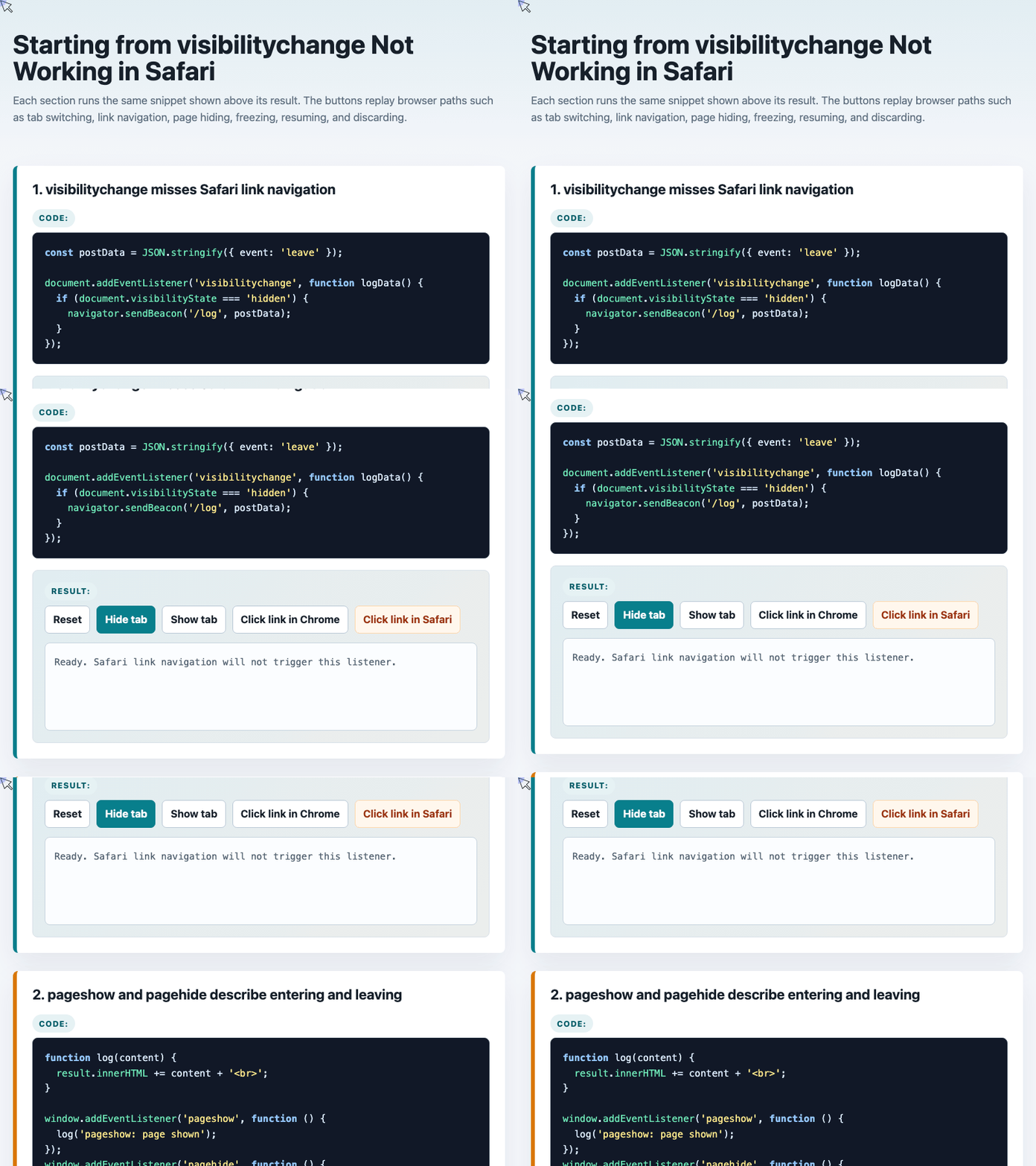
🎮 Try it live: Open the interactive demo to experience this yourself.
The key observations are:
- Page entry, including refresh, triggers
pageshow. - Tab switching usually triggers only
visibilitychange. - Back and forward navigation can involve
pagehide,visibilitychange, andpageshow. - Clicking a link to navigate away is where Safari differs:
pagehideis the safer event.
Event Targets Matter
Another small but important detail: these events are not registered on the same object.
For broad compatibility, register visibilitychange on document.
document.addEventListener('visibilitychange', function () {
  console.log('document visibilitychange');
});
Register pageshow and pagehide on window.
window.addEventListener('pageshow', function () {
  console.log('window pageshow');
});

window.addEventListener('pagehide', function () {
  console.log('window pagehide');
});
Some modern browsers support visibilitychange on window, but older Safari versions do not. So if you care about Safari behavior, avoid this pattern:
window.addEventListener('visibilitychange', function () {
  // Not recommended for older Safari versions
});
The safer rule is simple:
documentforvisibilitychangewindowforpageshowandpagehide
Why Not Use unload or beforeunload?
At this point, it is tempting to ask: why not use unload or beforeunload?
In most modern Web applications, especially on mobile, they are the wrong tools.
beforeunload is useful for one specific case: warning users before they leave a page with unsaved work.
For example:
window.addEventListener('beforeunload', function (event) {
  if (pageHasUnsavedChanges()) {
    event.preventDefault();
    event.returnValue =
      'Your content has not been saved. Are you sure you want to leave?';
  }
});
This pattern is appropriate for desktop experiences such as editors, admin panels, form builders, or document tools.
🎮 Try it live: Open the interactive demo to experience this yourself.
But it is not a reliable way to run final logic.
On mobile, users often finish with a page by switching apps and later killing the browser process. In that case, unload may never fire.
There is another important downside: unload and beforeunload can prevent browsers from putting pages into the back-forward cache, often called bfcache. That makes back and forward navigation slower and hurts user experience.
So unless you need to actively block navigation because of unsaved user input, avoid unload and avoid casual use of beforeunload.
A Practical Fix: Combine visibilitychange and pagehide
A common fix for the Safari issue is to add pagehide as a fallback.
At first, you might consider detecting Safari and only adding pagehide there:
document.addEventListener('visibilitychange', function logData() {
  if (document.visibilityState === 'hidden') {
    navigator.sendBeacon('/log', postData);
  }
});

if (/^((?!chrome|android).)*safari/i.test(navigator.userAgent)) {
  window.addEventListener('pagehide', function () {
    navigator.sendBeacon('/log', postData);
  });
}
This works today in many cases, but it is fragile.
Browser behavior changes. If Safari eventually fires visibilitychange during the same navigation path, the code above may send duplicate reports.
A safer production pattern is to listen to both events but deduplicate the report.
const postData = JSON.stringify({ event: 'leave' });
let reported = false;

function reportOnce(source) {
  if (reported) return;

  reported = true;

  navigator.sendBeacon('/log', JSON.stringify({ source }));
}

document.addEventListener('visibilitychange', function () {
  if (document.visibilityState === 'hidden') {
    reportOnce('visibilitychange');
  }
});

window.addEventListener('pagehide', function () {
  reportOnce('pagehide');
});
This approach has several advantages:
- Chrome can report from
visibilitychange. - Safari link navigation can report from
pagehide. - If both events fire, only the first one sends data.
- The code avoids browser sniffing.
🎮 Try it live: Open the interactive demo to experience this yourself.
This is the pattern I would reach for before adding Safari-specific user-agent logic.
A Better Abstraction: PageLifecycle.js
If you do not want to maintain browser-specific lifecycle logic yourself, use an existing abstraction.
GoogleChromeLabs created an open-source project called PageLifecycle.js:
<script src="./lifecycle.es5.js"></script>
<script>
  lifecycle.addEventListener('statechange', function (event) {
    console.log(
      'State change: ' + event.oldState + ' → ' + event.newState
    );
  });
</script>
Instead of thinking in terms of individual low-level browser events, this lets you think in terms of page states.
A reporting example becomes:
const postData = JSON.stringify({ event: 'leave' });

lifecycle.addEventListener('statechange', function (event) {
  if (event.oldState === 'passive' && event.newState === 'hidden') {
    navigator.sendBeacon('/log', postData);
  }
});
This code reports when the page moves from a visible-but-not-focused state into a hidden state.
That maps more closely to the product question we actually care about:
Has the user effectively left the page?
Understanding the Page Lifecycle
A Web page does not simply go from “open” to “closed.” Modern browsers manage pages through a lifecycle.
The major states are:
active
The page is visible and focused. The user is actively interacting with it.
passive
The page is visible, but it does not have focus. For example, opening DevTools can move a page into this state.
hidden
The page is no longer visible. Switching tabs, minimizing the browser, or moving away from the page can lead here.
frozen
The browser has suspended the page to save resources. JavaScript timers may stop, and background work is limited.
terminated
The page has been closed or navigated away from.
discarded
The browser has thrown away the page contents to reclaim memory. When the user returns to the tab, the page reloads.
These states explain why old assumptions about “page exit” no longer hold. A page can be hidden without being terminated. It can be frozen without being discarded. It can be discarded and then reloaded later as if the user had just opened it again.
Detecting freeze and resume
Modern browsers also expose events for frozen-page transitions.
function log(content) {
  result.innerHTML += content + '<br>';
}

document.addEventListener('freeze', function () {
  log('freeze: page frozen');
});

document.addEventListener('resume', function () {
  log('resume: page resumed');
});
These events are useful when a page needs to pause or resume work explicitly.
For example, before a page freezes, you might persist temporary state. After it resumes, you might refresh stale data, reconnect lightweight resources, or validate whether the session is still current.
This is especially useful for apps that maintain local state, active connections, or long-running UI workflows.
What Is a Discarded Page?
The discarded state exists because browsers need to manage memory.
If you use Chrome heavily, you have probably seen this behavior: you return to an old tab, and instead of instantly showing the previous page, Chrome reloads it.
That usually means the browser discarded the page.
The memory used by the page was reclaimed. When you came back, the browser had to load it again.
After Chrome 68, pages can detect this situation with document.wasDiscarded.
if (document.wasDiscarded) {
  restoreFromSavedState();
} else {
  renderNormally();
}
This gives applications a chance to recover more intelligently.
For example:
- A document editor can restore draft state.
- A dashboard can show that data is being refreshed.
- A complex design tool can recover the last active workspace.
- A form-heavy page can avoid surprising data loss.
The discarded state is a tradeoff. It saves memory, but it can damage user experience if the application is not prepared for reload recovery.
Production Recommendations
If you only remember a few things, remember these.
First, do not rely only on visibilitychange for final reporting. It is useful, but Safari navigation behavior makes it incomplete.
Second, prefer pagehide over unload for page-exit logic. pagehide works better with modern browser navigation and caching behavior.
Third, avoid beforeunload unless you truly need to warn users about unsaved changes.
Fourth, deduplicate reporting. Multiple lifecycle events may fire during the same user action, and your code should treat “leaving” as a once-only operation.
A solid baseline looks like this:
let reported = false;

function reportOnce(reason) {
  if (reported) return;
  reported = true;

  navigator.sendBeacon('/log', JSON.stringify({ reason }));
}

document.addEventListener('visibilitychange', function () {
  if (document.visibilityState === 'hidden') {
    reportOnce('visibilitychange');
  }
});

window.addEventListener('pagehide', function () {
  reportOnce('pagehide');
});
If your app has more complex requirements, consider using a lifecycle abstraction such as PageLifecycle.js instead of manually composing browser events.
Final Thoughts
The visibilitychange event is not broken. It is simply narrower than many developers assume.
It tells us when the page visibility changes. It does not fully describe whether the user is leaving, whether the page is entering bfcache, whether it is being frozen, or whether it may later be discarded.
That is why production code needs a broader mental model.
The modern Web page lifecycle includes visibility, navigation, freezing, restoration, termination, and memory-based discarding. Once you understand that lifecycle, Safari’s behavior stops looking like a random compatibility bug and starts looking like a reminder:
A page is not just visible or invisible. It is alive, paused, hidden, frozen, restored, terminated, or discarded—and our code needs to treat it that way.
Try It Yourself
Want to see these concepts in action? I’ve created an interactive demo where you can experiment with the code and see real-time results.
Explore more demos from my previous articles in the Demo Gallery.
Happy coding!