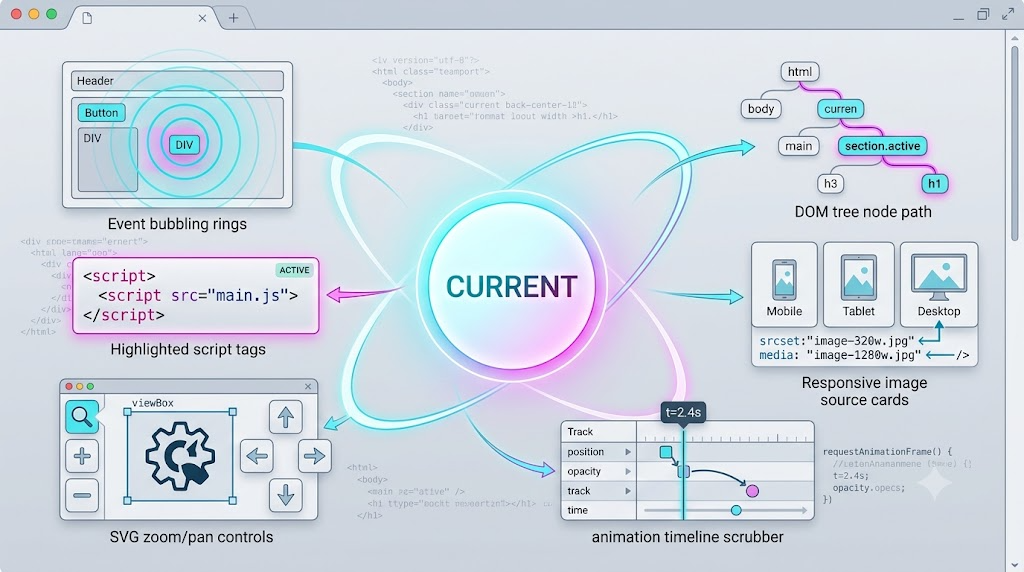
In web development, we often use familiar properties like target, src, style, or value. But scattered across browser APIs are several less obvious properties that start with current.
They are not always everyday tools, but when the right scenario appears, they can save a surprising amount of effort.
This article introduces several useful current* properties:
event.currentTargetdocument.currentScriptAnimation.currentTimeTreeWalker.currentNodeHTMLImageElement.currentSrc- SVG’s
currentScaleandcurrentTranslate
You’re welcome to share and aggregate this article, but please don’t repost it in full. Please respect copyright; the community is only so big.
1. event.currentTarget: The Element Handling the Event
Most developers are familiar with event.target. It points to the element that actually triggered the event.
event.currentTarget, however, points to the element whose event listener is currently running.
That distinction matters when events bubble from child elements to parent elements.
Here is a practical demo extracted from the sample code:
const element = document.querySelector('#current-target-link');

element.addEventListener('click', function (event) {
  event.preventDefault();

  event.target.style.border = '10px solid deeppink';
  event.currentTarget.style.border = '10px solid deepskyblue';

  document.querySelector('#current-target-output').textContent =
    `target: ${event.target.className || event.target.tagName}, ` +
    `currentTarget: ${event.currentTarget.id}, ` +
    `currentTarget === this: ${event.currentTarget === this}`;
});
When you click the inner image tile, event.target is the element you clicked. But event.currentTarget remains the outer link, because that is where the event listener was registered.
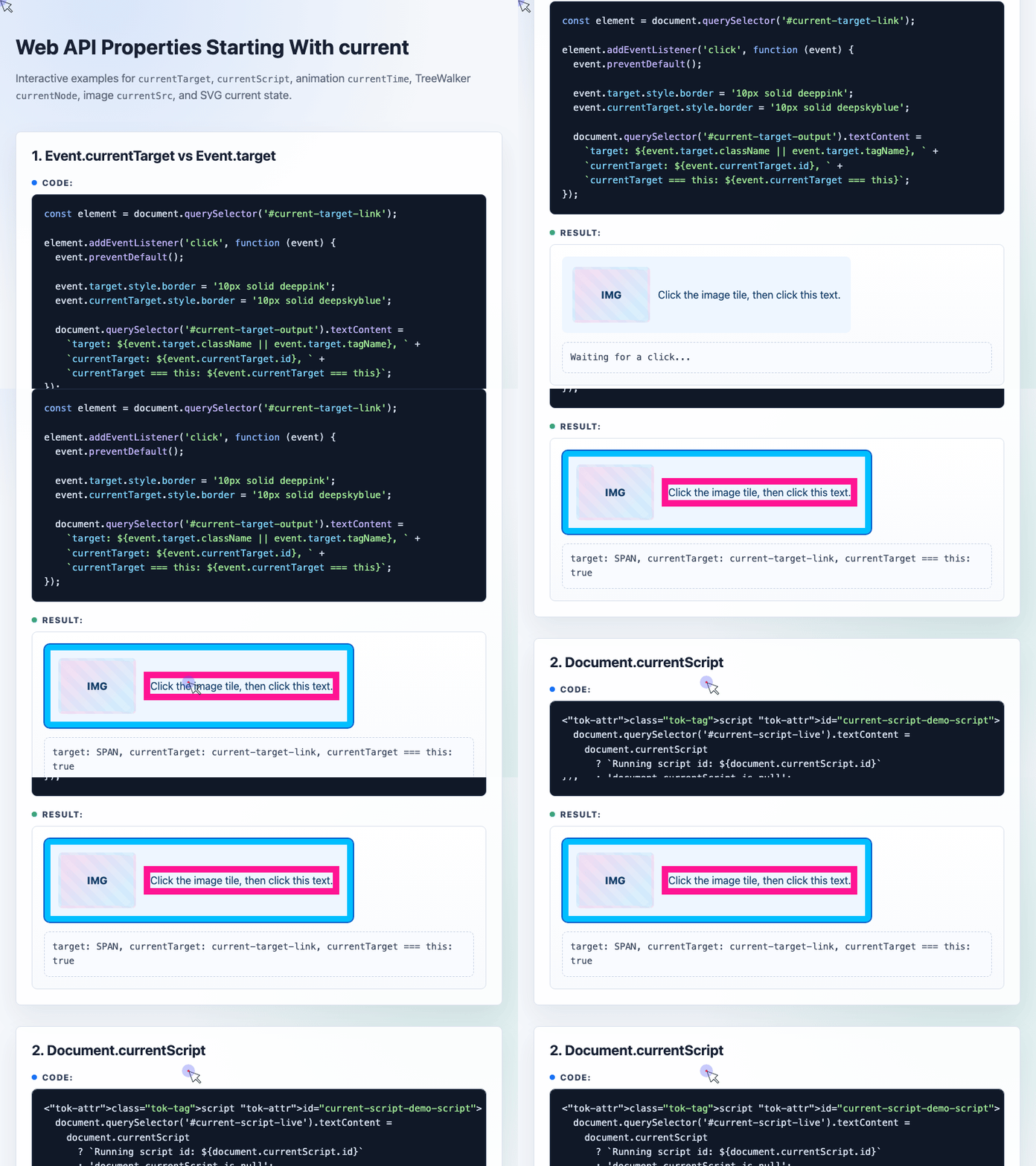
🎮 Try it live: Open the interactive demo to experience this yourself.
Inside a normal function event handler, event.currentTarget is usually equivalent to this.
button.addEventListener('click', function (event) {
  console.log(event.currentTarget === this); // true
});
But that is not always true. Arrow functions do not bind their own this, so currentTarget becomes the more reliable choice:
button.addEventListener('click', (event) => {
  console.log(event.currentTarget === this); // usually false
});
In short: use target when you care about what was clicked. Use currentTarget when you care about where the listener is attached.
2. document.currentScript: The Script Currently Being Executed
document.currentScript returns the <script> element whose code is currently running.
For example:
<script id="thatsMe">
  console.log(document.currentScript);
</script>
During execution, the browser can tell which script is responsible for the current code.
This can be useful when a shared script file is embedded across multiple pages and needs to inspect the script tag that loaded it.
However, document.currentScript is fragile. It only works while the script is actively executing. Inside an event handler, it usually returns null.
<script id="current-script-demo-script">
  document.querySelector('#current-script-live').textContent =
    document.currentScript
      ? `Running script id: ${document.currentScript.id}`
      : 'document.currentScript is null';

  document.querySelector('#current-script-button').addEventListener('click', function () {
    document.querySelector('#current-script-click').textContent =
      document.currentScript === null
        ? 'Inside an event handler: document.currentScript is null'
        : document.currentScript.id;
  });
</script>
This is the important detail: the first read happens during script execution, so it can identify the script. The second read happens later during a click event, so document.currentScript is no longer available.
Also note that scripts using type="module" do not expose document.currentScript in the same way.
3. Animation.currentTime: Reading Where an Animation Is
The Web Animations API exposes an animation object when you call element.animate(). That object has a currentTime property, measured in milliseconds.
If an animation lasts 3000ms, currentTime tells you how far through the animation it currently is.
Here is a focused example from the demo:
const dot = document.querySelector('#animation-dot');
const output = document.querySelector('#animation-output');
const fill = document.querySelector('#animation-fill');

const moveAnimation = dot.animate([
  { transform: 'translate(0, -50%)', opacity: 0.35 },
  { transform: 'translate(calc(100vw - 180px), -50%)', opacity: 1 }
], {
  duration: 3000,
  fill: 'both',
  easing: 'ease-in-out'
});

moveAnimation.pause();

document.querySelector('#play-animation').addEventListener('click', function () {
  moveAnimation.currentTime = 0;
  moveAnimation.play();
});

setInterval(function () {
  const time = Math.round(moveAnimation.currentTime || 0);
  output.textContent = `currentTime: ${time} ms`;
  fill.style.width = `${Math.min(time / 3000 * 100, 100)}%`;
}, 100);
This code creates an animation, pauses it initially, and then continuously reads currentTime to update a progress meter.
🎮 Try it live: Open the interactive demo to experience this yourself.
One subtle point: if you read currentTime around 1500ms, the result may not be exactly 1500. Browsers update animations frame by frame, and JavaScript timers are not perfectly synchronized with rendering frames.
At 60fps, each frame is roughly 16.67ms, so small differences are normal.
4. TreeWalker.currentNode: Controlling DOM Traversal
TreeWalker is a lower-level DOM traversal API. You may not need it for everyday tasks where querySelectorAll() is enough, but it becomes useful when building libraries, editors, parsers, or tools that need controlled traversal through the DOM tree.
TreeWalker.currentNode returns the node where the walker is currently positioned. It can also be assigned manually to change the traversal starting point.
Example HTML:
<ul id="container">
  <li>List</li>
  <li>
    Nested list inside LI:
    <ol>
      <li>Item 1</li>
      <li>Item 2</li>
    </ol>
  </li>
</ul>
And here is a practical TreeWalker example:
const container = document.querySelector('#tree-container');
const output = document.querySelector('#tree-output');

const treeWalker = document.createTreeWalker(container, NodeFilter.SHOW_ELEMENT, {
  acceptNode: function (node) {
    return node.nodeName === 'LI'
      ? NodeFilter.FILTER_ACCEPT
      : NodeFilter.FILTER_REJECT;
  }
});

document.querySelector('#tree-next').addEventListener('click', function () {
  const current = treeWalker.currentNode;
  const next = treeWalker.nextNode();

  output.textContent =
    `Before nextNode(): ${current.id || current.nodeName}; ` +
    `after nextNode(): ${next ? next.textContent.trim() : 'null'}`;
});

document.querySelector('#tree-reset-second').addEventListener('click', function () {
  treeWalker.currentNode = document.querySelector('#tree-second');
  output.textContent = 'currentNode was set to the second top-level LI.';
});
The first currentNode is the root node passed into createTreeWalker(). Calling nextNode() moves the walker forward. Assigning treeWalker.currentNode lets you jump to a different starting point.
🎮 Try it live: Open the interactive demo to experience this yourself.
A key difference between TreeWalker and NodeIterator is how filtering behaves. With TreeWalker, NodeFilter.FILTER_REJECT can reject an entire branch, including its children. That gives it more precise control for complex traversal logic.
5. currentSrc: The Resource the Browser Actually Chose
currentSrc is especially useful for responsive images.
When an image uses srcset, sizes, or <picture>, the browser chooses the most appropriate resource based on viewport width, device pixel ratio, supported formats, and other conditions.
The src attribute only tells you the fallback. currentSrc tells you what actually loaded.
Example:
<img
  src="1.jpg"
  srcset="1.jpg 128w, 2.jpg 256w, 3.jpg 512w"
  sizes="(max-width: 360px) 340px, 128px"
  alt="Responsive demo image"
>
To inspect the selected URL:
const img = document.querySelector('img');
console.log(img.currentSrc || img.src);
This also works with <picture>:
<picture>
  <source srcset="logo-768.png 768w, logo-768-1.5x.png 1.5x">
  <source srcset="logo-480.png, logo-480-2x.png 2x">
  <img id="img" src="logo-320.png" alt="Logo">
</picture>
Now img.currentSrc gives you the actual image URL selected by the browser.
The same idea applies to media elements:
<video controls>
  <source src="foo.webm" type="video/webm">
  <source src="foo.ogg" type="video/ogg">
  <source src="foo.mov" type="video/quicktime">
</video>
For video, video.currentSrc reveals the resource the browser actually loaded.
6. SVG currentScale and currentTranslate
SVG also has current-state properties, including:
currentScalecurrentTranslate
They represent the current zoom and translation state of an SVG viewport.
They are less commonly used in daily development, but they can be useful in interactive SVG tools, map-like interfaces, diagrams, or custom viewers.
A simplified example:
const svg = document.querySelector('#svg-current-demo');

svg.currentScale = 1.5;
svg.currentTranslate.x = 40;
svg.currentTranslate.y = 0;

console.log(svg.currentScale);
console.log(svg.currentTranslate.x);
In modern applications, developers often use transforms, viewBox manipulation, or dedicated visualization libraries instead. Still, knowing these properties exist can help when working with legacy SVG interactions or browser-native SVG behavior.
Final Thoughts
These current* properties are not all equally common.
currentSrc and currentTarget are highly practical. currentTime is useful when working with the Web Animations API. currentNode matters when you need precise DOM traversal. currentScript, currentScale, and currentTranslate are more specialized, but they still solve real problems in the right context.
The value of learning them is not memorizing every edge case. It is knowing that these APIs exist, so when you face the matching problem, you already know where to look.
Try It Yourself
Want to see these concepts in action? I’ve created an interactive demo where you can experiment with the code and see real-time results.
Explore more demos from my previous articles in the Demo Gallery.
Happy coding!