By Zhang Xinxu. Adapted from the original article at zhangxinxu.com.
Keyboard events look simple until you try to handle real-world input.
For years, many JavaScript examples used event.keyCode to detect which key a user pressed:
window.addEventListener('keydown', function (event) {
  console.log(event.keyCode);
});
That worked well enough for common shortcuts like Enter, Esc, or arrow keys. But once printable characters, numeric keypads, modifier keys, and input methods enter the picture, keyCode starts to show its age.
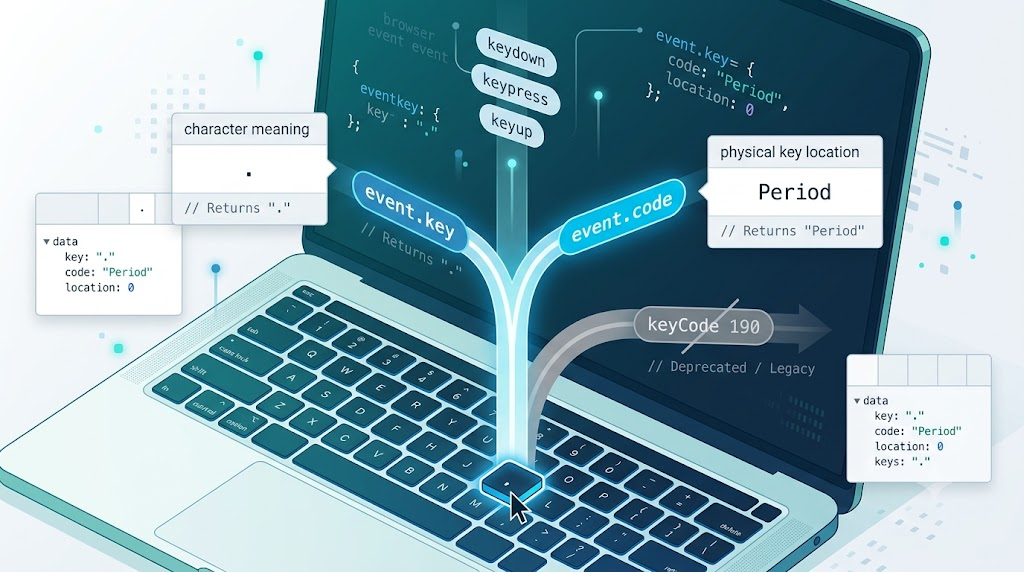
Modern browsers now recommend using event.key and event.code instead. The difference is simple but important:
event.keydescribes the meaning or character produced.event.codedescribes the physical keyboard key.event.keyCodeis legacy numeric behavior and should generally be avoided.
Why keyCode Became a Problem
The biggest issue with keyCode is that it does not consistently answer one clear question.
Sometimes it behaves like it represents a physical key. Sometimes it behaves like it represents the produced character. Sometimes, especially with input methods, it becomes too vague to be useful.
Different Characters Can Share the Same keyCode
On many keyboards, the period key produces two characters:
.when pressed normally>when pressed with Shift
However, both can report the same legacy keyCode: 190.
That means if your code only checks keyCode, you cannot tell which character was actually entered without also checking event.shiftKey.
Here is a concise version of the demo code that logs the important keyboard event properties:
const input = document.querySelector('#same-keycode-input');
const output = document.querySelector('#same-keycode-output');

function addRow(event) {
  const row = document.createElement('div');

  row.innerHTML =
    '<div><strong>key</strong><span>' + event.key + '</span></div>' +
    '<div><strong>code</strong><span>' + event.code + '</span></div>' +
    '<div><strong>keyCode</strong><span>' + event.keyCode + '</span></div>' +
    '<div><strong>shift</strong><span>' + event.shiftKey + '</span></div>';

  output.prepend(row);
}

input.addEventListener('keydown', addRow);
This snippet demonstrates the core problem directly: event.key changes from . to >, while event.keyCode may remain 190.
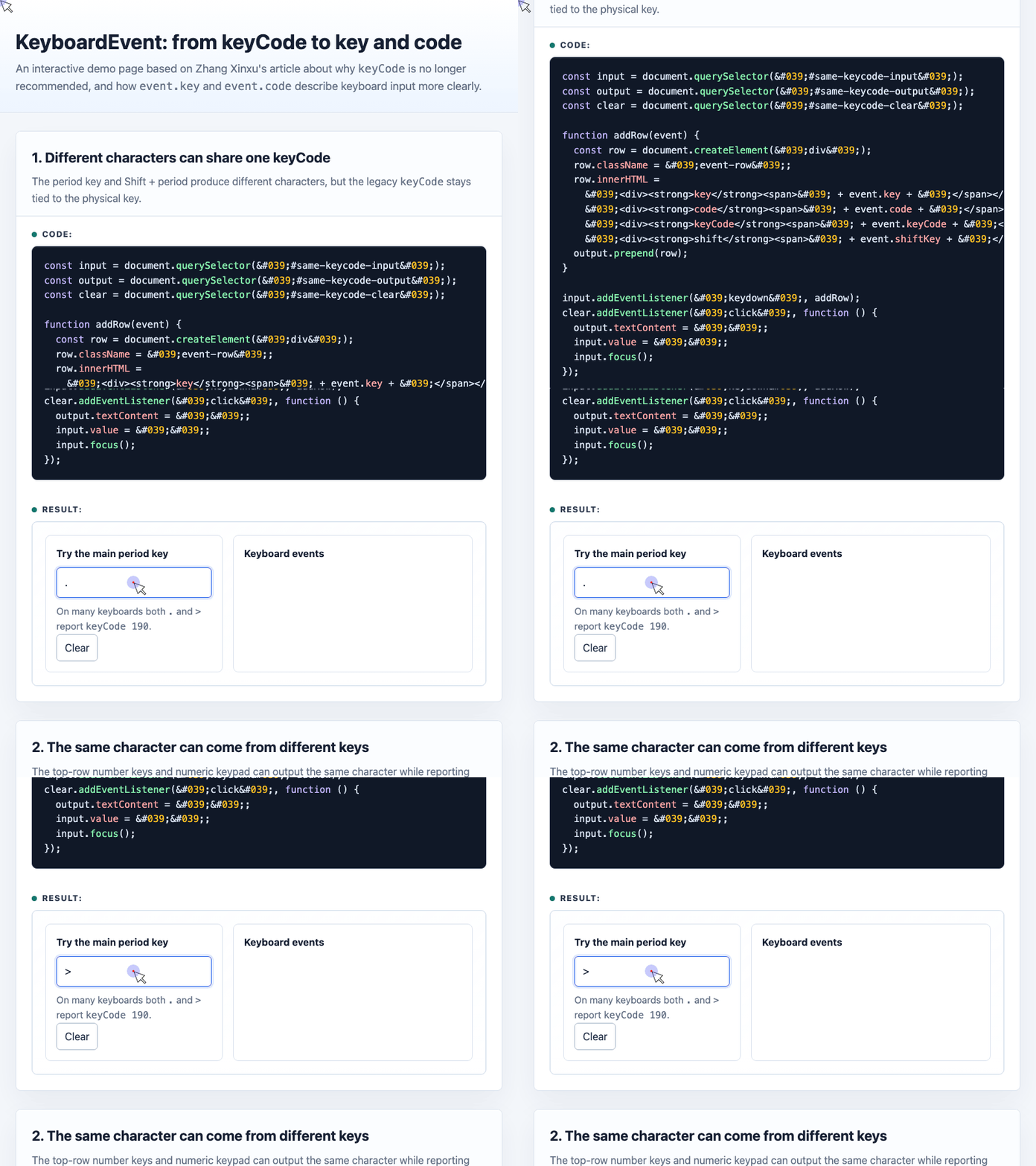
🎮 Try it live: Open the interactive demo to experience this yourself.
The lesson: if you care about the character the user intended to enter, event.key is usually more useful than keyCode.
The Same Character Can Come From Different Keys
The reverse problem also exists.
A user can type the same character from different physical keys. For example:
- Top-row
1and numeric keypad1both produce"1" - Top-row
-and numeric keypad minus both produce"-"
But their old keyCode values are different.
| Key | event.key | event.code | keyCode |
|---|---|---|---|
Top-row 1 | 1 | Digit1 | 49 |
Numpad 1 | 1 | Numpad1 | 97 |
Top-row - | - | Minus | 189 |
| Numpad minus | - | NumpadSubtract | 109 |
This is exactly where event.key and event.code become clearer:
- Use
event.keywhen you care about the resulting value. - Use
event.codewhen you care about the physical key location.
The demo simulates these representative keys so the behavior is easy to compare even on keyboards without a numeric keypad:
const samples = {
  digit1: {
    keyCode: 49,
    code: 'Digit1',
    key: '1',
    description: 'Top-row number key 1'
  },
  numpad1: {
    keyCode: 97,
    code: 'Numpad1',
    key: '1',
    description: 'Numeric keypad number key 1'
  },
  minus: {
    keyCode: 189,
    code: 'Minus',
    key: '-',
    description: 'Top-row hyphen/minus key'
  },
  numpadMinus: {
    keyCode: 109,
    code: 'NumpadSubtract',
    key: '-',
    description: 'Numeric keypad minus key'
  }
};

function renderSample(name) {
  const sample = samples[name];

  const row = document.createElement('tr');
  row.innerHTML =
    '<td>' + sample.keyCode + '</td>' +
    '<td>' + sample.code + '</td>' +
    '<td>' + sample.key + '</td>' +
    '<td>' + sample.description + '</td>';

  tableBody.prepend(row);
}
This example makes the distinction visible: key stays the same when the output character is the same, while code reveals where the key physically came from.
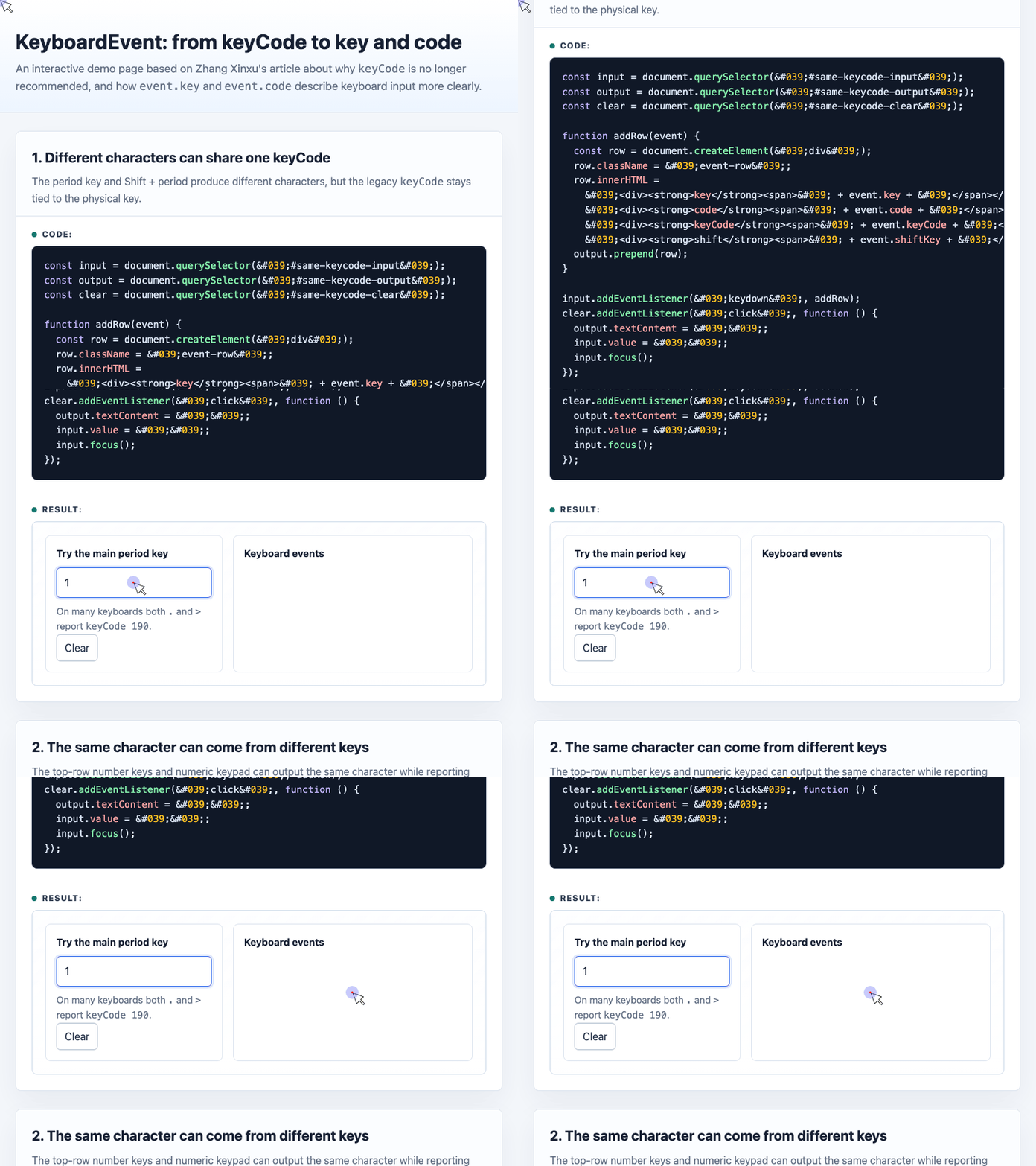
🎮 Try it live: Open the interactive demo to experience this yourself.
event.key vs. event.code
A practical way to remember the difference:
event.keyis about meaning.
event.codeis about position.
If the user presses the A key on a standard keyboard:
event.codemay beKeyAevent.keymay bea- With Shift,
event.keymay becomeA - On another keyboard layout, the same physical key could produce a different character
So event.code is best for physical controls, such as games or keyboard shortcuts based on key position.
event.key is best for text meaning, command keys, and semantic shortcuts.
For common function keys, event.key is especially readable:
| Key | Recommended event.key |
|---|---|
| Enter | Enter |
| Delete | Delete |
| Backspace | Backspace |
| Escape | Escape |
| Tab | Tab |
| Arrow Up | ArrowUp |
| Arrow Down | ArrowDown |
| Arrow Left | ArrowLeft |
| Arrow Right | ArrowRight |
| Home | Home |
| End | End |
| Page Up | PageUp |
| Page Down | PageDown |
That is much easier to read than remembering numbers like 13, 27, 37, or 38.
Input Methods Make Keyboard Detection Harder
Chinese input methods and other IMEs introduce another layer of complexity.
When a Chinese IME is active, punctuation keys may report:
keyCode:229event.key:Process
This happens because the key press is no longer directly producing the final character. The input method is processing the keystroke before committing text.
For example, pressing the period key may eventually produce the Chinese full stop 。, but the keydown event alone may not reliably tell you that.
A better approach is to listen to composition events when IME behavior matters:
const imeInput = document.querySelector('#ime-input');
const composingBadge = document.querySelector('#ime-composing');

imeInput.addEventListener('compositionstart', function () {
  composingBadge.textContent = 'composing';
});

imeInput.addEventListener('compositionend', function (event) {
  composingBadge.textContent = 'idle';
  console.log('Committed text:', event.data);
});

imeInput.addEventListener('keydown', function (event) {
  console.log({
    key: event.key,
    code: event.code,
    keyCode: event.keyCode
  });
});
This example separates keyboard activity from text composition. That distinction matters because, during composition, the final text may not be knowable from keydown alone.
🎮 Try it live: Open the interactive demo to experience this yourself.
A Practical Shortcut Pattern
For most application interfaces, you are not trying to inspect every printable character. You are usually checking for function keys like Enter, Escape, Delete, or the arrow keys.
In those cases, event.key is clean and readable:
const shortcutInput = document.querySelector('#shortcut-input');
const shortcutMessage = document.querySelector('#shortcut-message');

shortcutInput.addEventListener('keydown', function (event) {
  if (event.key === 'Enter' && !event.isComposing) {
    shortcutMessage.textContent = 'Submit shortcut detected';
  }

  if (event.key === 'Escape') {
    shortcutInput.value = '';
    shortcutMessage.textContent = 'Input cleared';
  }
});
The important detail is !event.isComposing.
Without it, pressing Enter while selecting text inside an IME could accidentally trigger submit behavior before the user has finished composing Chinese text.
When Should You Use Each Property?
Use event.key when you care about the user’s intended key meaning:
if (event.key === 'Escape') {
  closeDialog();
}
Use event.code when you care about the physical key location:
if (event.code === 'KeyW') {
  moveForward();
}
Avoid event.keyCode for new code unless you need to support older browsers or have a specific compatibility reason.
event.which is also legacy and no longer recommended. Browsers will probably keep supporting it for a very long time because too many existing websites depend on it, but new code should prefer the modern properties.
Final Takeaway
keyCode is not recommended because it mixes concerns and behaves inconsistently across printable characters, physical key locations, modifier combinations, numeric keypads, and input methods.
The modern model is clearer:
event.keytells you what the key means.event.codetells you which physical key was pressed.- Composition events help when input methods are involved.
For most day-to-day development, especially shortcuts and function keys, event.key is the best default.
Try It Yourself
Want to see these concepts in action? I’ve created an interactive demo where you can experiment with the code and see real-time results.
Explore more demos from my previous articles in the Demo Gallery.
Happy coding!