
Modern web apps are increasingly used in workspaces with more than one display: dashboards, trading terminals, presentation tools, support consoles, payment flows, and monitoring systems. Until recently, the browser had very limited awareness of that setup. You could open a new window with window.open(), but you could not reliably know where the user’s other screens were.
The Window Management API changes that. It gives web developers two useful tools:
screen.isExtended: a quick boolean check for whether multiple screens are available.window.getScreenDetails(): a permission-gated API for reading detailed information about all available screens.
The Fast Check: screen.isExtended
If all you need to know is whether the user has more than one display, use screen.isExtended.
It is simple, synchronous, and does not require the same detailed permission flow as getScreenDetails().
function detectWithIsExtended() {
  const output = document.querySelector("#isExtendedOutput");

  if ("isExtended" in screen) {
    output.textContent = `screen.isExtended: ${screen.isExtended}`;
    output.dataset.state = screen.isExtended ? "success" : "neutral";
  } else {
    output.textContent = "screen.isExtended is not supported in this browser.";
    output.dataset.state = "warning";
  }
}

document
  .querySelector("#isExtendedButton")
  .addEventListener("click", detectWithIsExtended);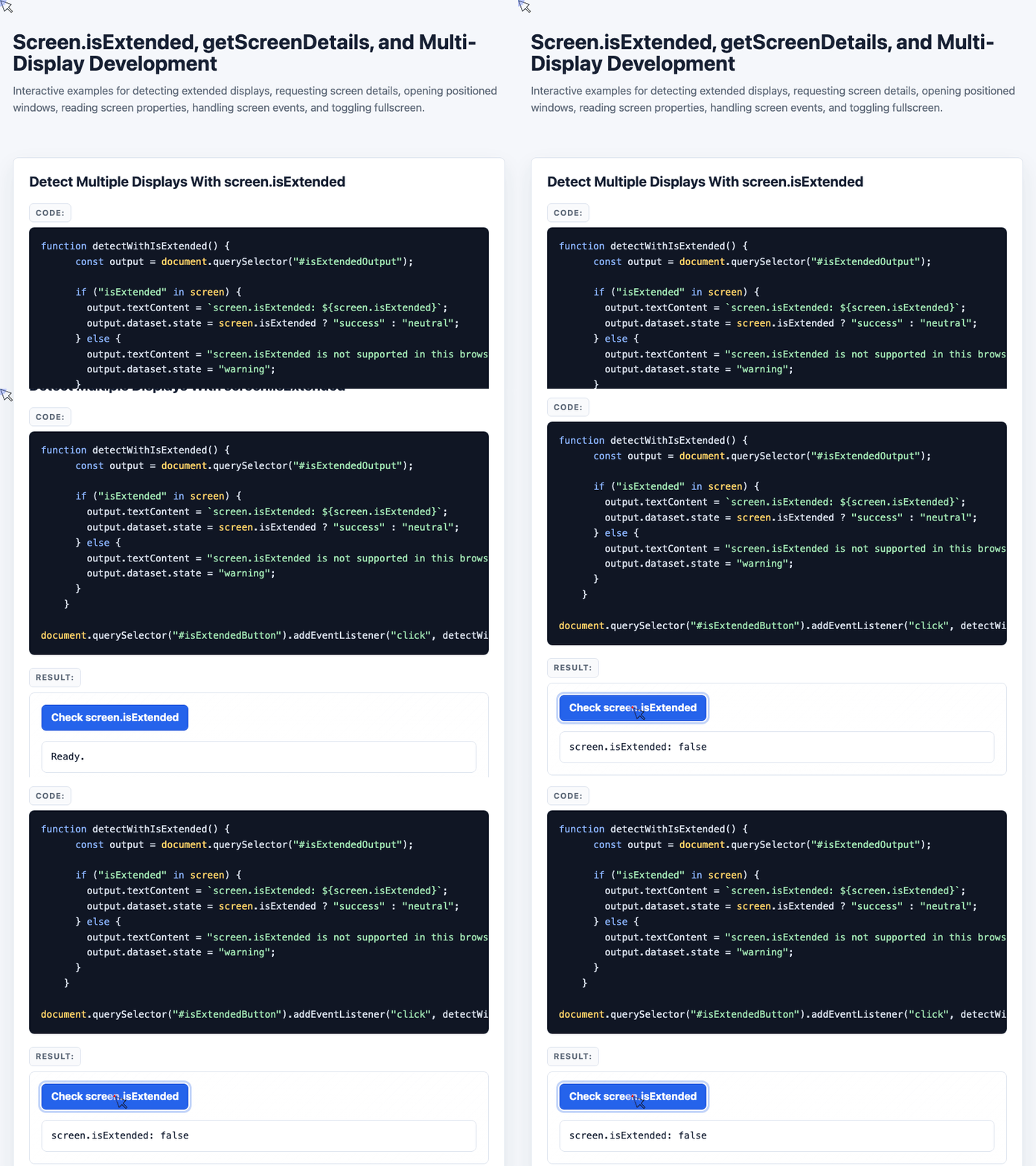
🎮 Try it live: Open the interactive demo to experience this yourself.
This is the right choice for lightweight feature branching. For example, you might show a “multi-screen mode” button only when screen.isExtended is true.
One important detail: if a window-management Permissions Policy blocks the API, screen.isExtended may return false even on a multi-display setup.
When You Need Details: getScreenDetails()
window.getScreenDetails() goes further. Instead of returning only true or false, it returns a ScreenDetails object containing the current screen and an array of available screens.
That extra power comes with extra friction: the method returns a Promise, must be called from a user interaction, and may trigger a browser permission prompt.
async function showScreenProperties() {
  const output = document.querySelector("#screenInfoOutput");
  const tableBody = document.querySelector("#screenInfoRows");

  tableBody.replaceChildren();

  if (!("getScreenDetails" in window)) {
    output.textContent = "getScreenDetails is not supported in this browser.";
    return;
  }

  try {
    const screenDetails = await window.getScreenDetails();

    screenDetails.screens.forEach((item, index) => {
      const row = document.createElement("tr");

      [
        index + 1,
        item.label || "No label",
        item.isPrimary,
        item.isInternal,
        `${item.availLeft}, ${item.availTop}`,
        `${item.availWidth} x ${item.availHeight}`,
        item.devicePixelRatio
      ].forEach((value) => {
        const cell = document.createElement("td");
        cell.textContent = value;
        row.append(cell);
      });

      tableBody.append(row);
    });

    output.textContent = `Screens returned: ${screenDetails.screens.length}`;
  } catch (err) {
    output.textContent = `Could not read screen properties: ${err.name}`;
  }
}

document
  .querySelector("#screenInfoButton")
  .addEventListener("click", showScreenProperties);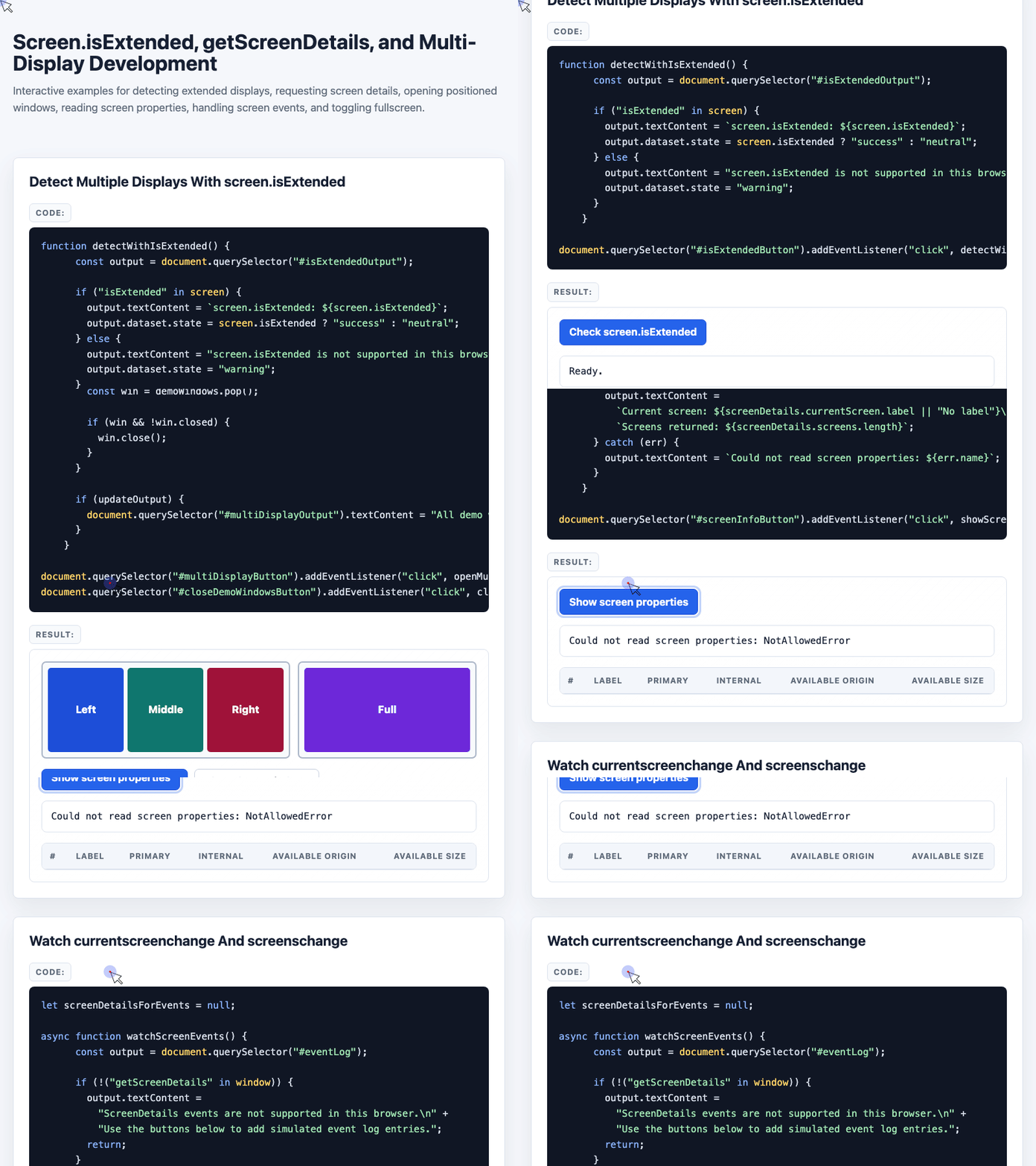
🎮 Try it live: Open the interactive demo to experience this yourself.
This is the API to use when you need the exact number of screens, their available dimensions, their positions, or whether a display is internal or primary.
If the user blocks permission, you should expect an error such as NotAllowedError and provide a graceful fallback.
From window.open() to Screen-Aware Window Placement
Traditional window.open() lets you specify left, top, width, and height.
window.open(
  "https://example.com",
  "myWindow",
  "left=50,top=50,width=800,height=600"
);
That works for the primary screen, but it becomes unreliable when you want to target a secondary display. Without detailed screen coordinates, you are guessing.
With getScreenDetails(), you can use each screen’s availLeft, availTop, availWidth, and availHeight to place windows deliberately.
const demoWindows = [];

function openWindowOnScreen(left, top, width, height, site) {
  const features = `left=${left},top=${top},width=${width},height=${height}`;
  const win = window.open(createDemoWindowUrl(site), "_blank", features);

  if (win) {
    demoWindows.push(win);
  }

  return win;
}

async function openMultiDisplayLayout() {
  const screenDetails = await window.getScreenDetails();

  if (screenDetails.screens.length <= 1) {
    return;
  }

  const screen1 = screenDetails.screens[0];
  const screen2 = screenDetails.screens[1];

  const windowWidth = Math.floor(screen1.availWidth / 3);
  const windowHeight = screen1.availHeight;

  openWindowOnScreen(
    screen1.availLeft,
    screen1.availTop,
    windowWidth,
    windowHeight,
    demoSites[1]
  );

  openWindowOnScreen(
    screen1.availLeft + windowWidth,
    screen1.availTop,
    windowWidth,
    windowHeight,
    demoSites[2]
  );

  openWindowOnScreen(
    screen1.availLeft + windowWidth * 2,
    screen1.availTop,
    windowWidth,
    windowHeight,
    demoSites[3]
  );

  openWindowOnScreen(
    screen2.availLeft,
    screen2.availTop,
    screen2.availWidth,
    screen2.availHeight,
    demoSites[0]
  );
}
🎮 Try it live: Open the interactive demo to experience this yourself.
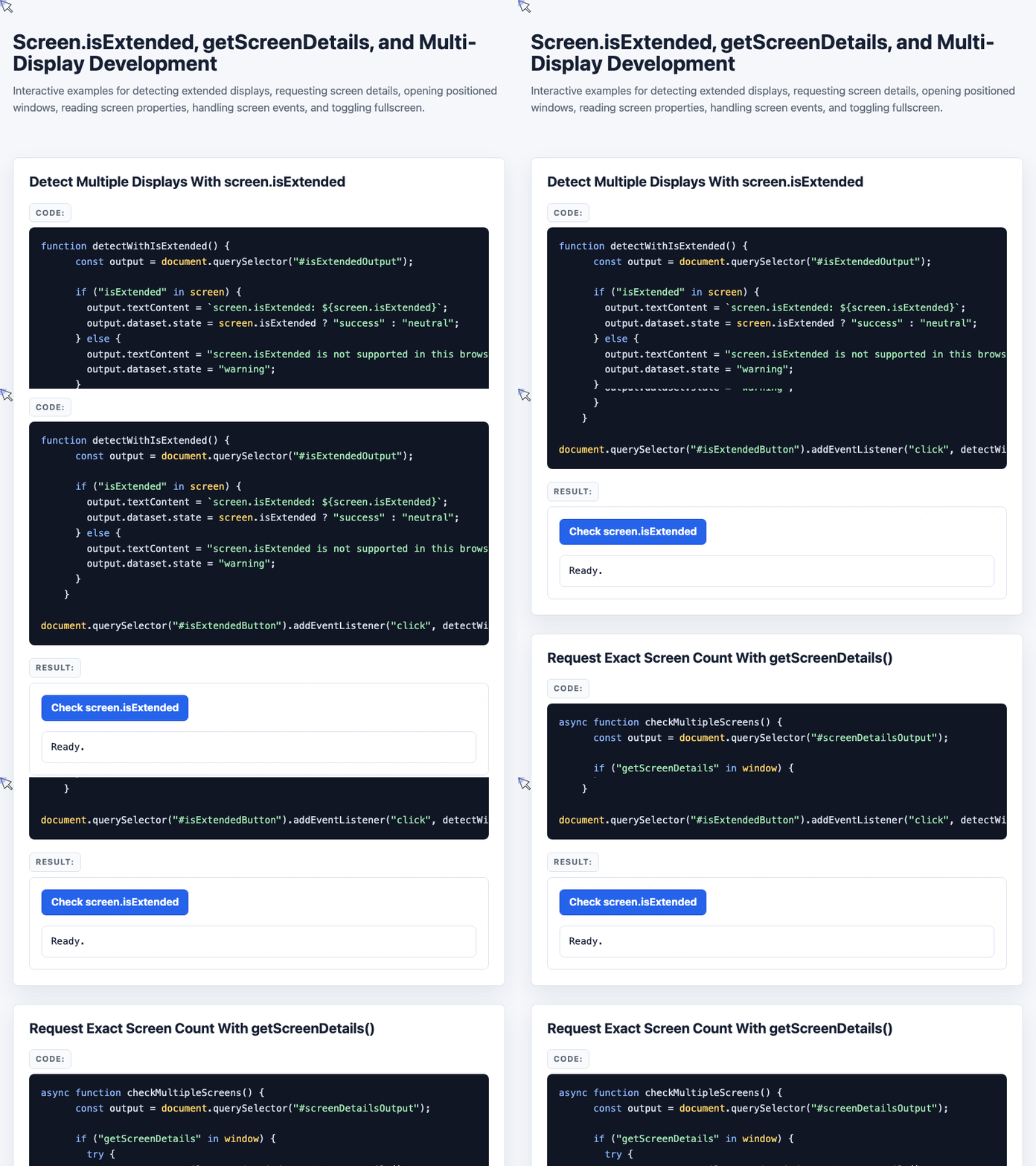
The idea is straightforward: split the first screen into three vertical windows, then open one full-size window on the second screen.
In real-world use, you also need to handle popup blockers. Even if the user grants window management permission, the browser may still block new windows unless the action is clearly tied to a user gesture.
The ScreenDetails Object
getScreenDetails() returns a ScreenDetails object with two key properties:
| Property | Description |
|---|---|
currentScreen | The ScreenDetailed object for the screen currently displaying the browser window |
screens | An array of ScreenDetailed objects for available screens, excluding mirrored displays |
It also exposes two useful events:
| Event | When it fires |
|---|---|
currentscreenchange | When the current screen changes, such as after moving the window |
screenschange | When a screen is connected or disconnected |
Each ScreenDetailed object contains the values you will usually build around:
| Property | Description |
|---|---|
availLeft | X coordinate of the available screen area |
availTop | Y coordinate of the available screen area |
availWidth | Available width of the screen |
availHeight | Available height of the screen |
left | X coordinate of the full screen area |
top | Y coordinate of the full screen area |
devicePixelRatio | Device pixel ratio for that screen |
isInternal | Whether the screen is built into the device |
isPrimary | Whether the OS marks this screen as primary |
label | Human-readable display label, when available |
Practical Constraints
The API is useful, but it is not frictionless.
As of July 2026, the Window Management API is still limited availability. Chromium-based browsers support it, while Firefox and Safari support remains absent or limited according to current compatibility data. You should feature-detect every API before using it.
You also need to design around permissions:
getScreenDetails()requires a secure context.- It should be called from a user gesture such as a button click.
- The user may deny permission.
- Popup blocking can still prevent new windows from opening.
- Mirrored screens are not included in the
screensarray.
That means this API is best suited for specialized workflows where the value is obvious to the user: monitoring dashboards, multi-window editors, presentation control surfaces, trading screens, classroom tools, or payment windows that close automatically after completion.
Final Thoughts
For simple detection, screen.isExtended is the practical winner. It is lightweight and answers the most common question: “Does this user have more than one display?”
Use getScreenDetails() only when you need precise screen data or controlled window placement. It is powerful, but the permission and popup-blocking experience means it should be reserved for workflows where multi-display behavior is central to the product.
Further reading:
- W3C Window Management specification: https://www.w3.org/TR/window-management/
- Chrome Window Management API docs: https://developer.chrome.com/docs/capabilities/web-apis/window-management
- MDN
getScreenDetails(): https://developer.mozilla.org/en-US/docs/Web/API/Window/getScreenDetails - MDN
screen.isExtended: https://developer.mozilla.org/en-US/docs/Web/API/Screen/isExtended
Try It Yourself
Want to see these concepts in action? I’ve created an interactive demo where you can experiment with the code and see real-time results.
Explore more demos from my previous articles in the Demo Gallery.
Happy coding!