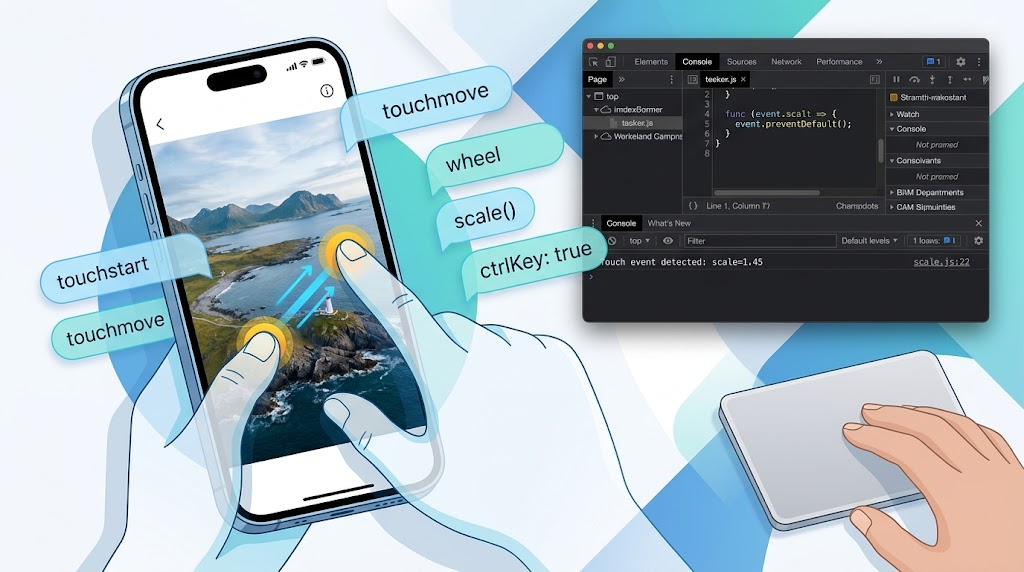
Implementing image zoom on mobile sounds simple until you try to debug real two-finger gestures in the browser.
The tricky part is not only applying transform: scale() to an image. The real challenge is understanding how touch events behave across devices, how browsers interpret gestures, and why detecting “two fingers” in touchstart often fails in practice.
This article walks through the practical details behind mobile pinch zoom: what can and cannot be simulated in Chrome, how to detect two-finger gestures reliably, and how to calculate a usable zoom ratio from touch coordinates.
Why Chrome DevTools Cannot Fully Simulate Two-Finger Touch
Chrome can simulate some mobile behaviors, but true two-finger touch is not one of them.
You can simulate page-level zoom behavior by holding Shift and dragging with the left mouse button. But that still produces a single pointer interaction. It does not create two actual touch points, so it cannot reproduce the behavior of a real pinch gesture.
To properly debug two-finger zoom, you generally need one of the following:
- A real touchscreen device
- A trackpad that supports pinch gestures
- A phone connected for remote debugging
Detecting Trackpad Pinch Zoom on Mac
On a Mac trackpad, a two-finger pinch can be detected through the wheel event. The key signal is that the event has ctrlKey enabled and a meaningful deltaY.
Here is the core event listener:
document.addEventListener('wheel', function (event) {
  if (!event.deltaY || !event.ctrlKey) {
    return;
  }

  event.preventDefault();

  if (event.deltaY < 0) {
    // Zoom in
  } else if (event.deltaY > 0) {
    // Zoom out
  }
}, {
  passive: false
});
The important detail is { passive: false }. Without it, some browsers may ignore event.preventDefault(), especially for scroll-related events.
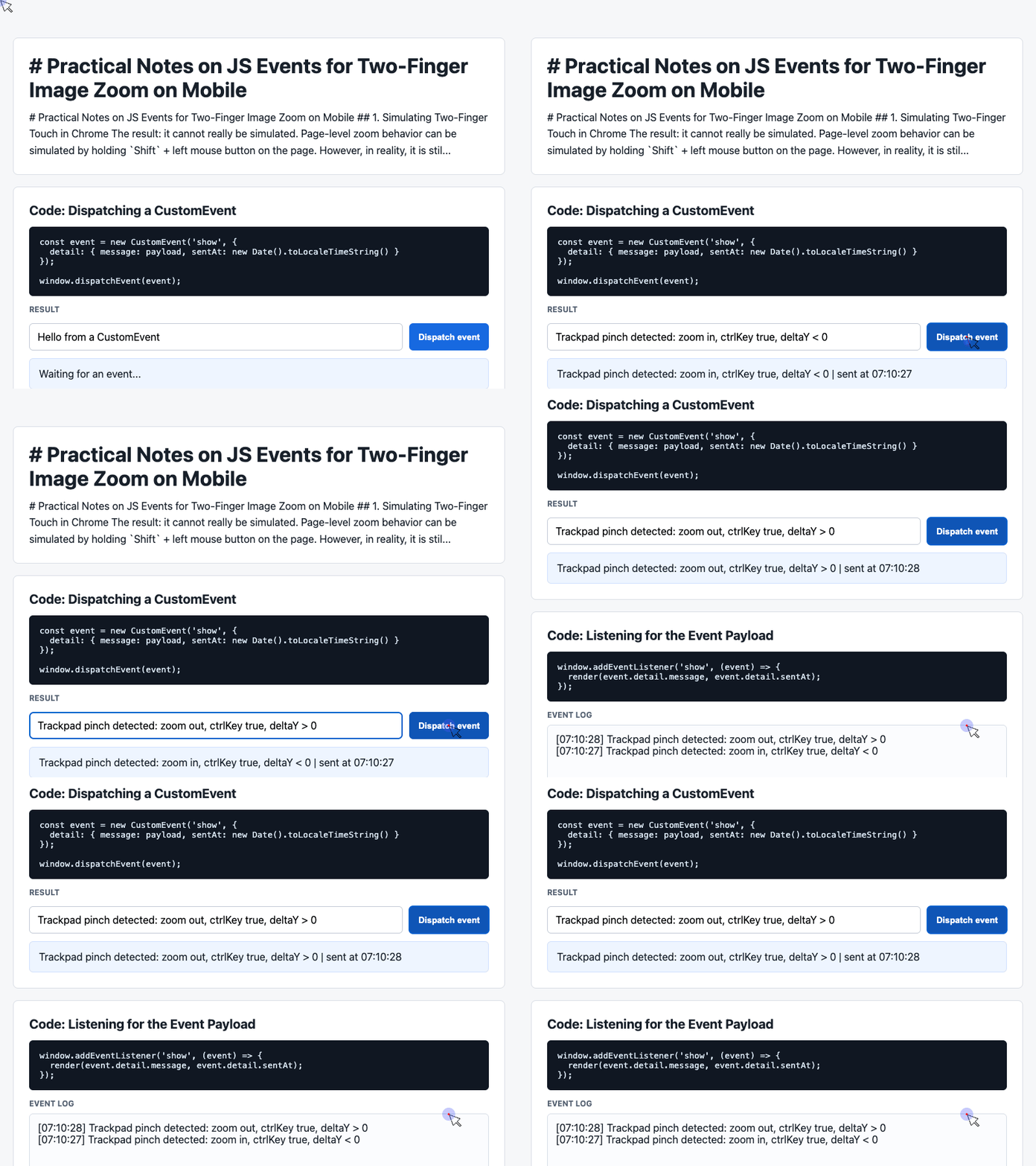
🎮 Try it live: Open the interactive demo to experience this yourself.
This approach is useful for desktop debugging, but it is not the same as handling real mobile touch input. For mobile image zoom, touchstart, touchmove, and touchend are still the key events.
Why touchstart Is Not Enough
At first glance, detecting two fingers looks straightforward. The browser gives us event.touches, an array-like object containing all active touch points.
A basic detector might look like this:
document.addEventListener('touchstart', function (event) {
  var touches = event.touches;

  if (touches.length === 1) {
    console.log('Single finger');
  } else if (touches.length >= 2) {
    console.log('Multiple fingers');
  }
});
This code is technically correct, but it is unreliable for real two-finger gestures.
The reason is subtle: touchstart only sees two fingers if both fingers touch the screen at almost exactly the same time. In practice, one finger usually lands slightly before the other. That means the first touchstart may report only one touch point, even though the user intends to perform a two-finger gesture.
The more reliable place to detect a pinch gesture is touchmove.
Detecting Two-Finger Movement Reliably
During touchmove, both fingers are usually already on the screen. That makes it a much better event for detecting whether the user is performing a pinch gesture.
document.addEventListener('touchmove', function (event) {
  if (event.touches && event.touches.length === 2) {
    console.log('Two fingers are moving');
  }
});
This small change makes gesture detection much more stable.
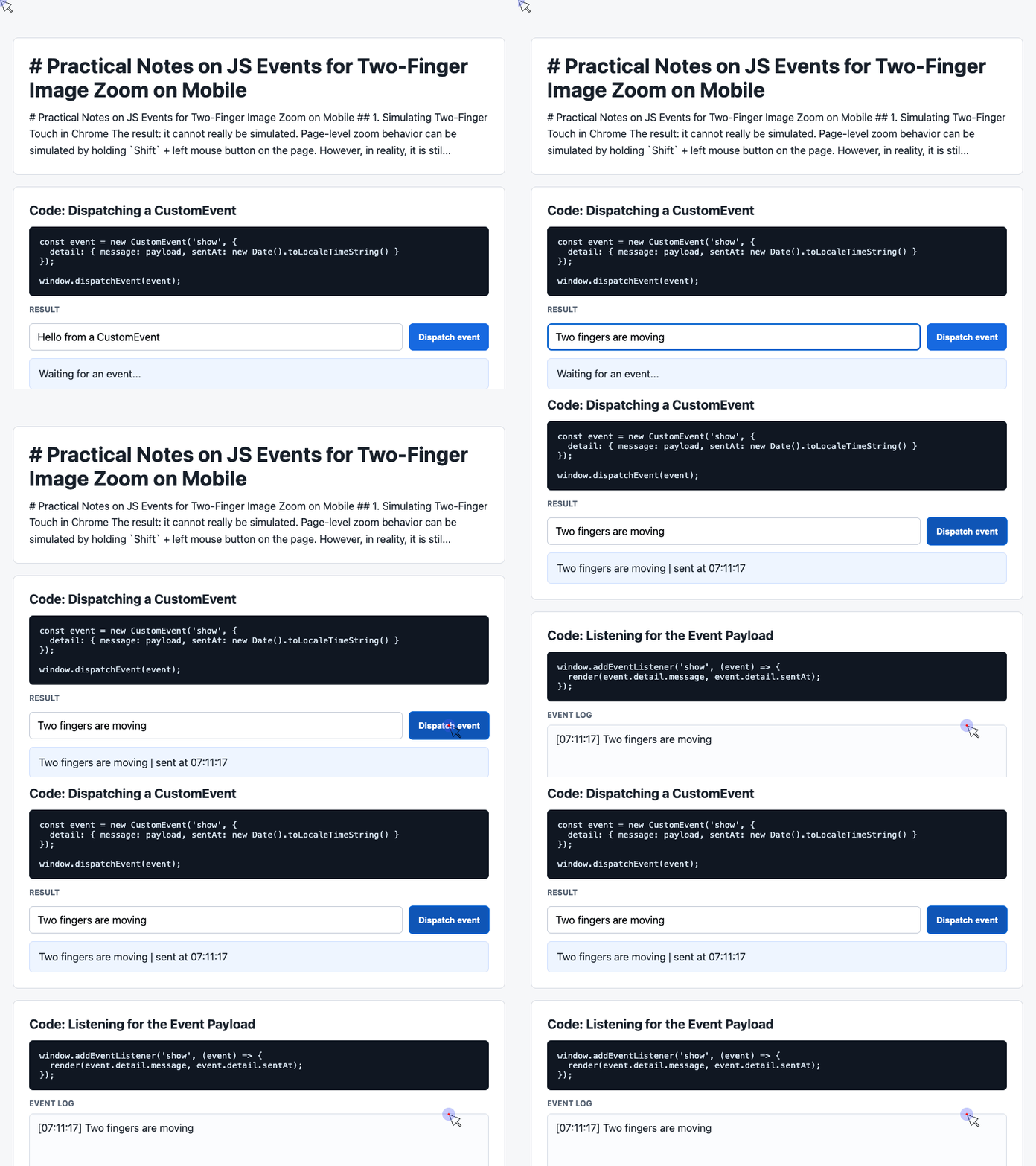
🎮 Try it live: Open the interactive demo to experience this yourself.
Once two touch points are detected, the next step is calculating how far apart they are.
Calculating the Pinch Zoom Ratio
Each touch point contains page coordinates such as pageX and pageY. With two points, we can calculate the distance between the fingers.
The zoom ratio comes from comparing the current distance with the original distance:
function getDistance(start, stop) {
  return Math.hypot(stop.x - start.x, stop.y - start.y);
}

var currentDistance = getDistance({
  x: events.pageX,
  y: events.pageY
}, {
  x: events2.pageX,
  y: events2.pageY
});

var startDistance = getDistance({
  x: store.pageX,
  y: store.pageY
}, {
  x: store.pageX2,
  y: store.pageY2
});

var zoom = currentDistance / startDistance;
var newScale = store.originScale * zoom;
If the fingers move farther apart, currentDistance becomes larger than startDistance, so the image scales up.
If the fingers move closer together, the ratio becomes smaller, so the image scales down.
Applying Pinch Zoom to an Image
Suppose the page contains a simple image:
<img id="image" src="1.png" alt="Preview image">The zoom behavior can be implemented by storing the initial touch coordinates, calculating the new scale during touchmove, and applying it with CSS transforms.
var eleImg = document.querySelector('#image');

var store = {
  scale: 1
};

eleImg.addEventListener('touchstart', function (event) {
  var touches = event.touches;
  var events = touches[0];
  var events2 = touches[1];

  event.preventDefault();

  store.pageX = events.pageX;
  store.pageY = events.pageY;
  store.moveable = true;

  if (events2) {
    store.pageX2 = events2.pageX;
    store.pageY2 = events2.pageY;
  }

  store.originScale = store.scale || 1;
});

document.addEventListener('touchmove', function (event) {
  if (!store.moveable) return;

  event.preventDefault();

  var touches = event.touches;
  var events = touches[0];
  var events2 = touches[1];

  if (!events2) return;

  if (!store.pageX2) store.pageX2 = events2.pageX;
  if (!store.pageY2) store.pageY2 = events2.pageY;

  var getDistance = function (start, stop) {
    return Math.hypot(stop.x - start.x, stop.y - start.y);
  };

  var zoom = getDistance(
    { x: events.pageX, y: events.pageY },
    { x: events2.pageX, y: events2.pageY }
  ) / getDistance(
    { x: store.pageX, y: store.pageY },
    { x: store.pageX2, y: store.pageY2 }
  );

  var newScale = store.originScale * zoom;

  if (newScale > 3) {
    newScale = 3;
  }

  store.scale = newScale;
  eleImg.style.transform = 'scale(' + newScale + ')';
});
This is the core of the implementation.
The code records the original two-finger distance, compares it with the live distance during movement, then applies the calculated scale to the image.
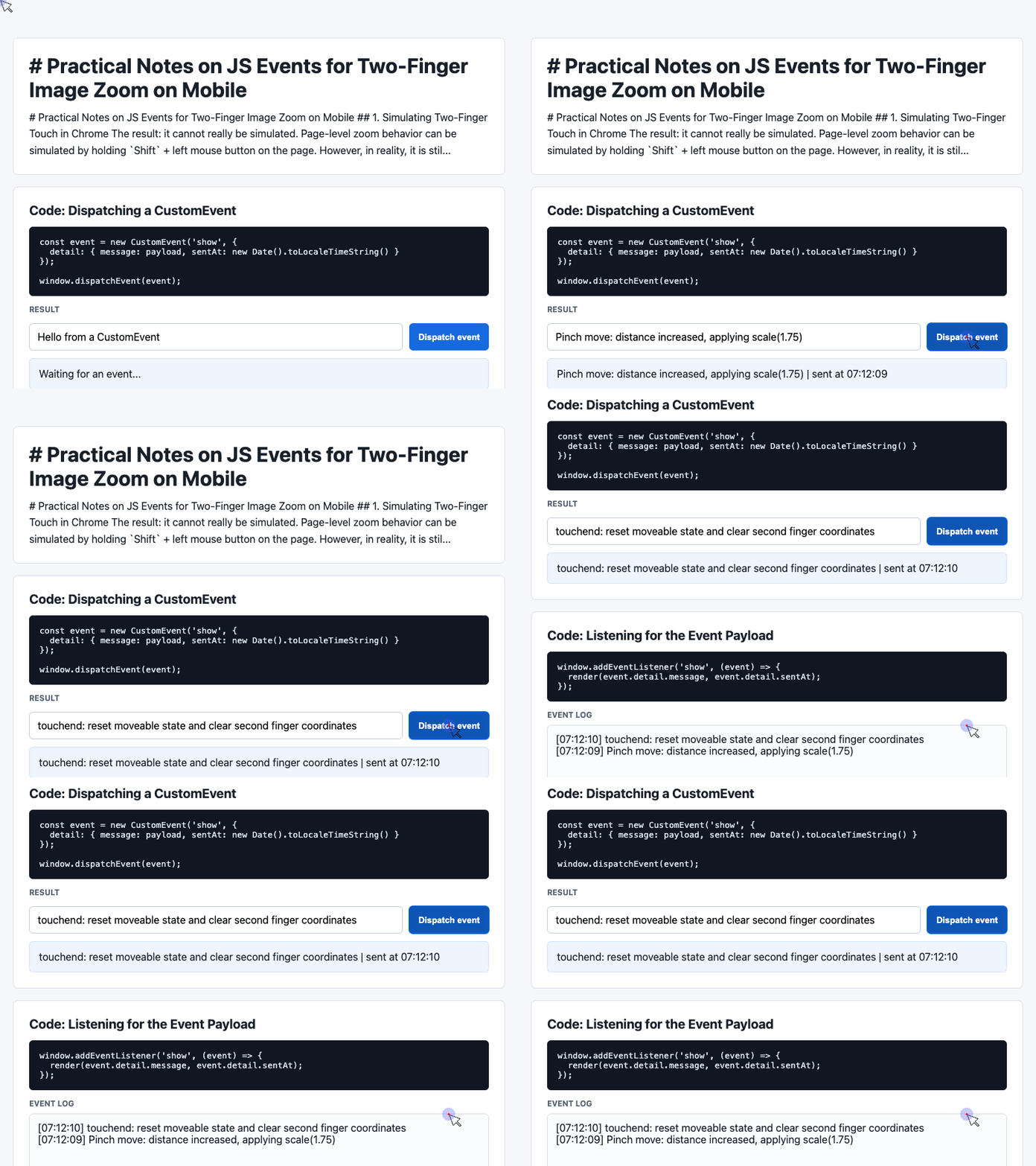
🎮 Try it live: Open the interactive demo to experience this yourself.
To clean up after the gesture ends, reset the movement state:
document.addEventListener('touchend', function () {
  store.moveable = false;
  delete store.pageX2;
  delete store.pageY2;
});

document.addEventListener('touchcancel', function () {
  store.moveable = false;
  delete store.pageX2;
  delete store.pageY2;
});
This prevents old touch coordinates from leaking into the next gesture.
Handling Browser Defaults with touch-action
In many cases, calling preventDefault() inside touch events can trigger browser warnings if the listener is treated as passive.
One practical way to control gesture behavior is to use CSS:
html {
  touch-action: none;
}
This tells the browser that the page will handle touch gestures itself. It can help avoid conflicts between custom image zoom and the browser’s built-in scrolling or zooming behavior.
Use this carefully. Disabling default touch behavior globally can affect scrolling, accessibility, and expected browser gestures. In production, it is often better to apply touch-action only to the specific zoomable area when possible.
Final Thoughts
The biggest lesson is that two-finger gestures should not be judged too early.
touchstart may only catch one finger because real users rarely touch the screen with both fingers at the exact same instant. For reliable pinch zoom, detect the two-finger state during touchmove, then calculate the distance between the two active touch points.
The essential flow is:
- Store the initial touch coordinates.
- Wait for two active touch points during movement.
- Compare the current finger distance with the original distance.
- Apply the resulting scale with
transform: scale(). - Reset temporary state when the gesture ends.
With that structure in place, mobile pinch zoom becomes much easier to reason about, test, and maintain.
Try It Yourself
Want to see these concepts in action? I’ve created an interactive demo where you can experiment with the code and see real-time results.
Explore more demos from my previous articles in the Demo Gallery.
Happy coding!