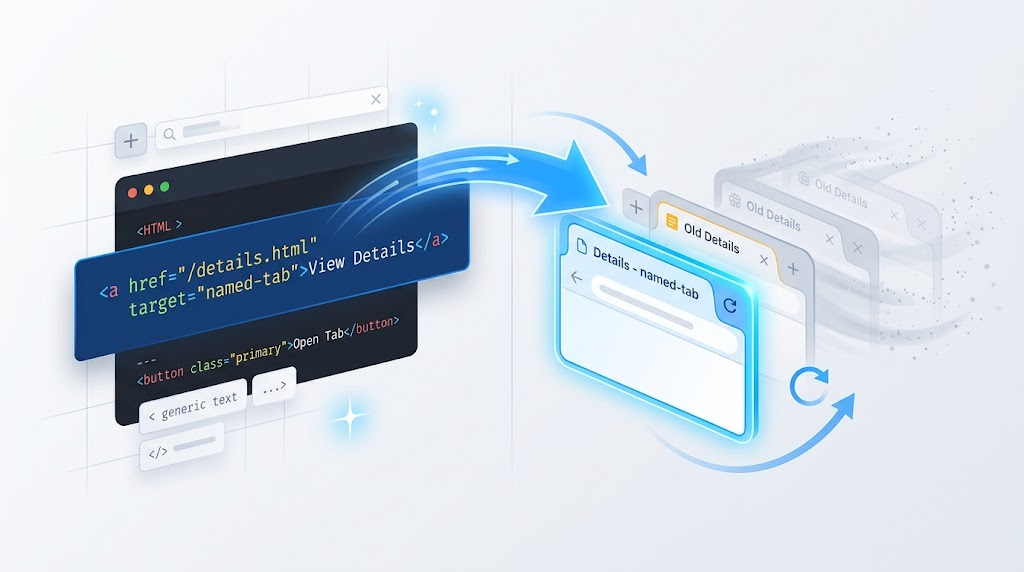
Opening the same page over and over again is a small UX problem that can quickly become annoying. A user clicks a link once, gets a new tab, then clicks the same link again and gets another duplicate tab. After a few repetitions, the browser is cluttered with identical pages.
Fortunately, HTML already has a built-in way to avoid this.
You can make a link open in a named browsing context. If that context already exists, the browser reuses it. If it does not exist yet, the browser creates it.
No JavaScript is required for the core behavior.
The Key Idea: target Is Not Only _blank
Most developers know these common target values:
_self: open in the current browsing context_blank: usually open in a new tab or window_parent: open in the parent frame_top: open in the top-level frame
But target can also be a custom name.
When multiple links or forms use the same custom target name, the browser treats them as pointing to the same reusable browsing context.
Example 1: Reuse One Tab for One Link
Here is the simplest version. The href points to blank.html, and the target uses the same value:
<a href="blank.html" target="blank.html">
  Blank page
</a>
The first click opens blank.html in a new browsing context. The next click targets that same context again, so the existing page is reused or refreshed instead of creating another duplicate tab.
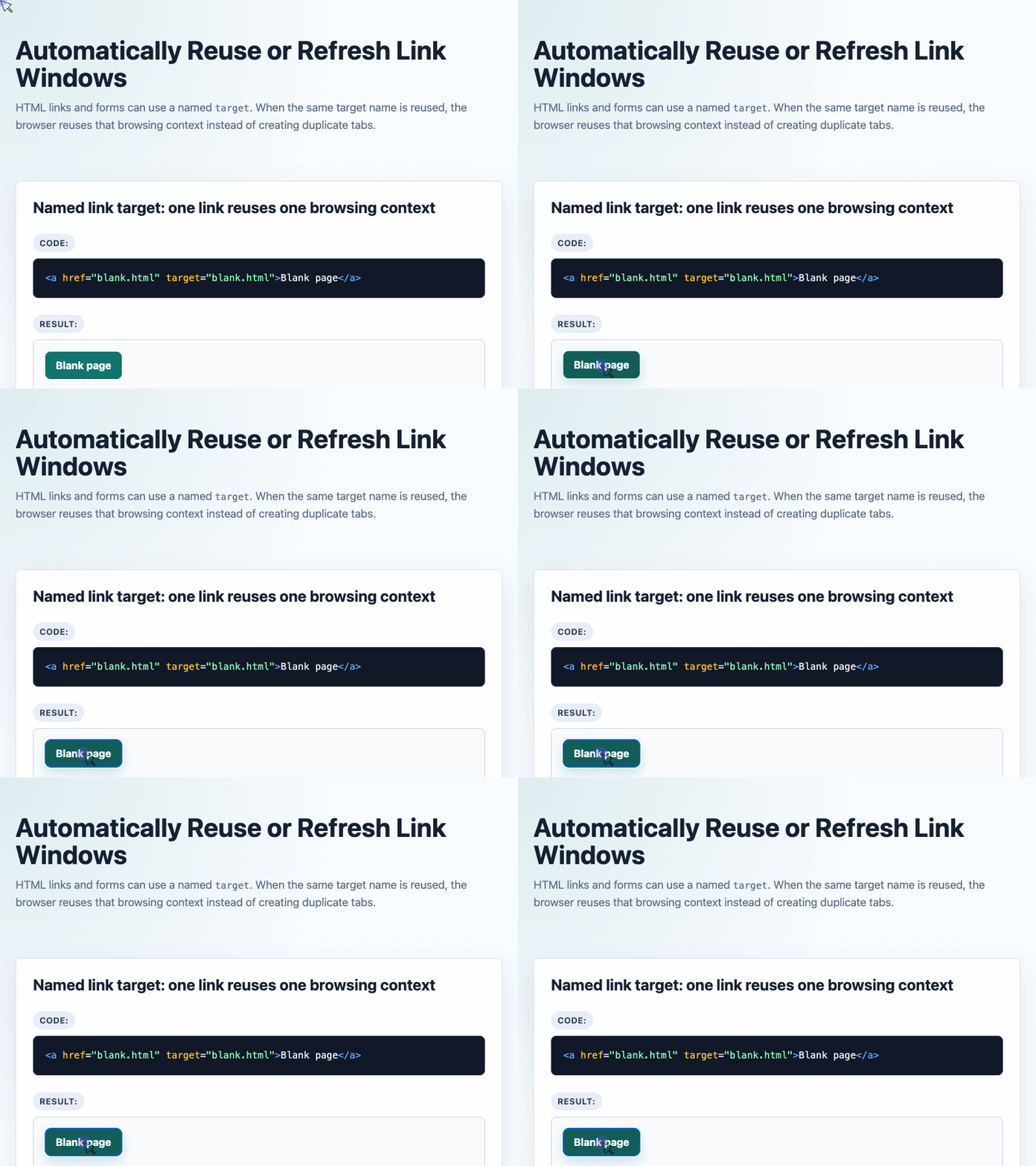
🎮 Try it live: Open the interactive demo to experience this yourself.
This works because target="blank.html" is interpreted as a browsing context name. It is not special because it is a URL; it works because the name is reused.
Different Target Names Create Different Tabs
If two links use different target values, the browser treats them as separate browsing contexts:
<a href="blank.html?s=1" target="blank.html?s=1">
  Blank page?s=1
</a>

<a href="blank.html?s=2" target="blank.html?s=2">
  Blank page?s=2
</a>
Even though both links load the same base page, their target names are different. That means each one gets its own reusable tab.
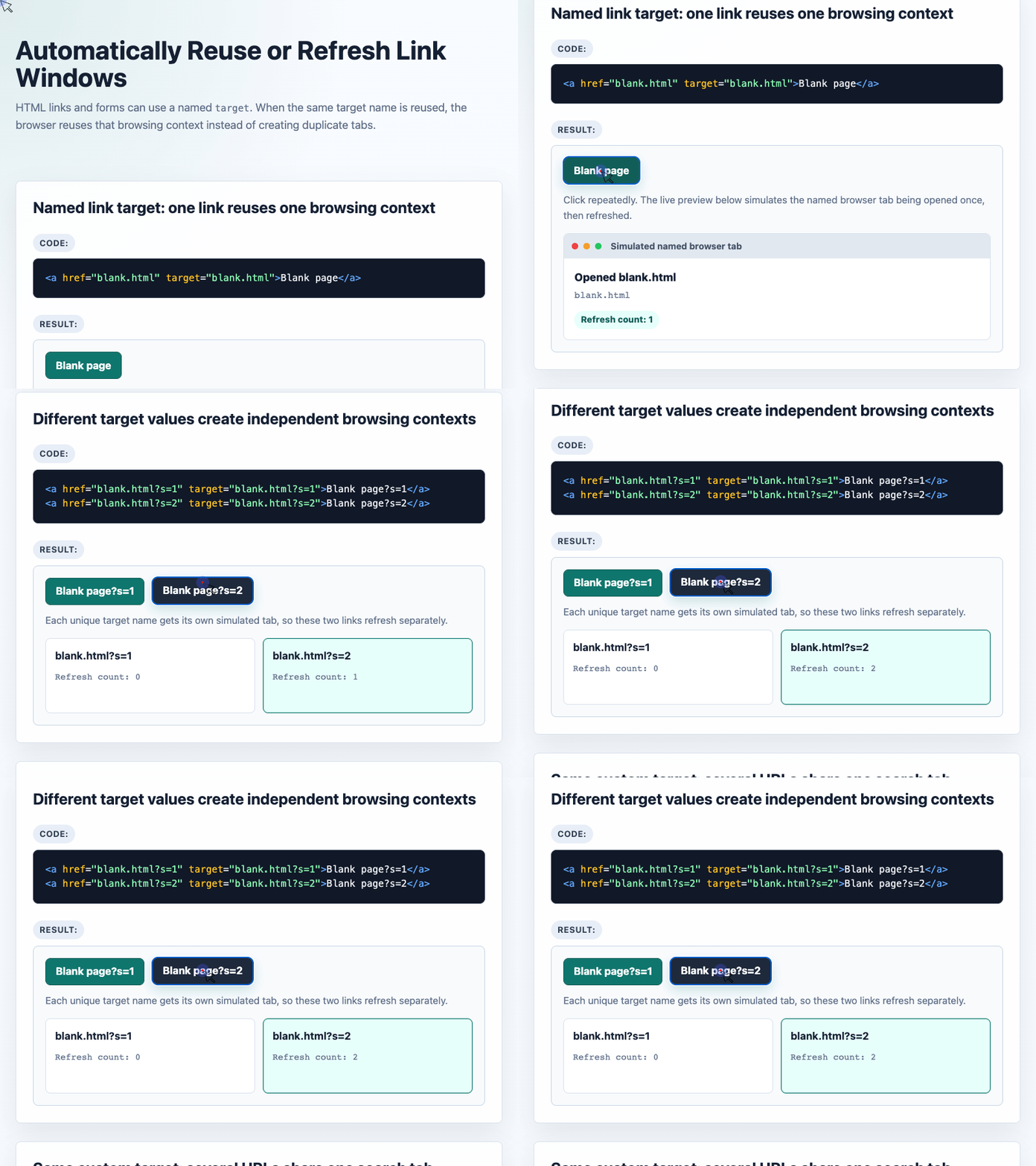
🎮 Try it live: Open the interactive demo to experience this yourself.
This is useful when each destination should keep its own dedicated tab.
Share One Tab Across Several URLs
Sometimes you want different URLs to load into the same tab. Search results are a common example: each query may have a different URL, but the user probably does not need a new tab for every search.
Use the same target value for every link:
<a href="blank.html?s=1" target="searchResults">
  Blank page?s=1
</a>

<a href="blank.html?s=2" target="searchResults">
  Blank page?s=2
</a>
Now both links share the same named browsing context: searchResults.
Clicking the first link opens the tab. Clicking the second link loads a different URL into that same tab.
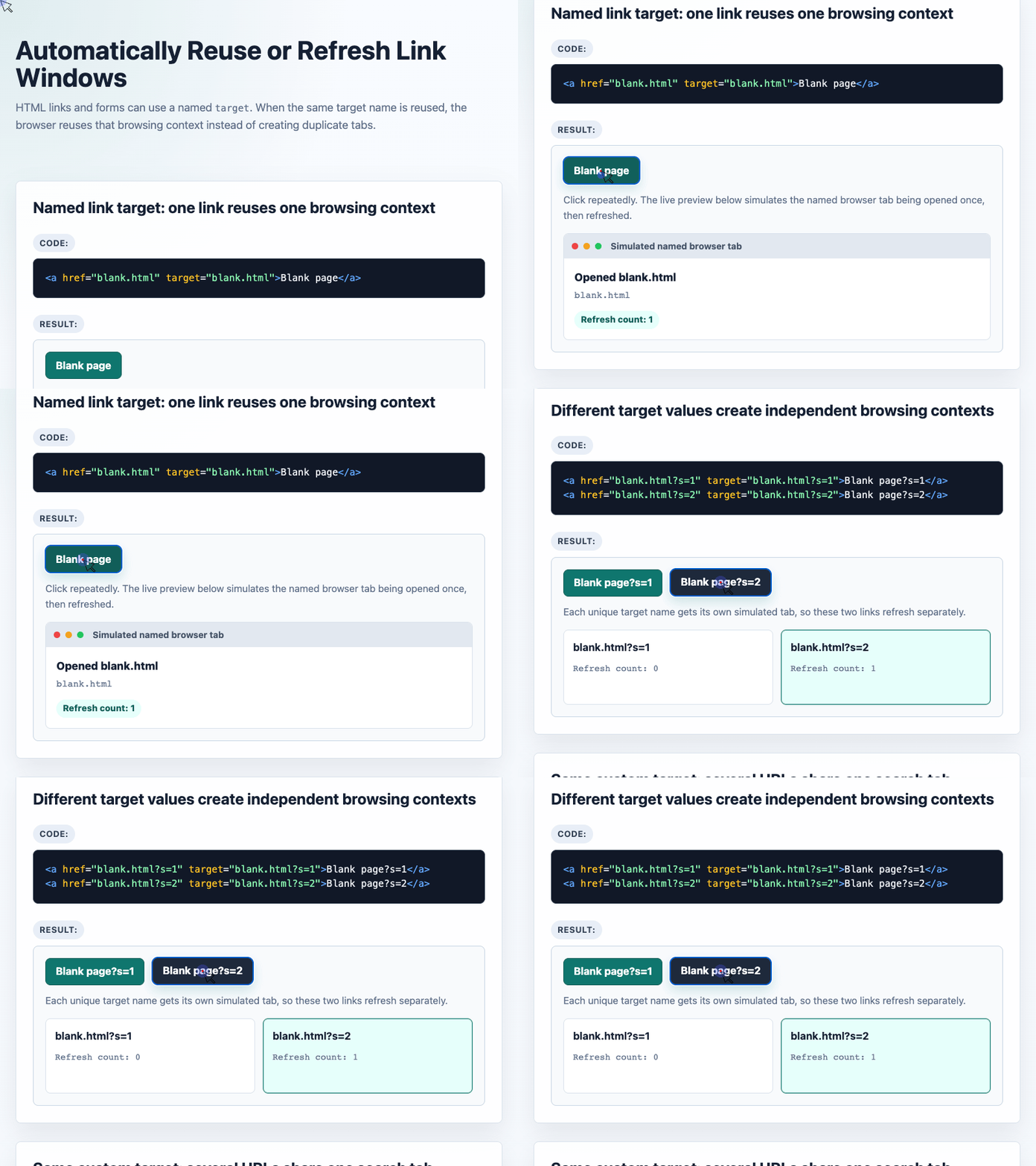
🎮 Try it live: Open the interactive demo to experience this yourself.
A practical note: custom names that do not start with _, such as searchResults, are preferable because underscore-prefixed names are reserved for special browser keywords like _blank and _self.
Forms Can Use the Same Technique
The same feature also works with forms. The target attribute is supported on <form> as well as <a>.
<form action="blank.html" target="searchResults">
  <input name="q" value="css target">
  <button>Search</button>
</form>
When the form is submitted, the result opens in the named searchResults browsing context. Submit the form again with a different query, and the browser reuses that same tab.
This is especially useful for admin dashboards, search tools, documentation portals, reports, or any workflow where users repeatedly open related results.
How the Demo Visualizes the Behavior
The real browser behavior does not require JavaScript, but the demo uses JavaScript to simulate and explain what is happening visually.
Here is the core state-tracking logic from the demo:
const simulatedTabs = new Map();

function recordTarget(targetName, href) {
  const current = simulatedTabs.get(targetName) || {
    count: 0,
    href: ""
  };

  const next = {
    count: current.count + 1,
    href
  };

  simulatedTabs.set(targetName, next);
  return next;
}
The demo stores each target name in a Map. When the same target name is clicked again, the counter increases, showing that the same simulated tab is being reused.
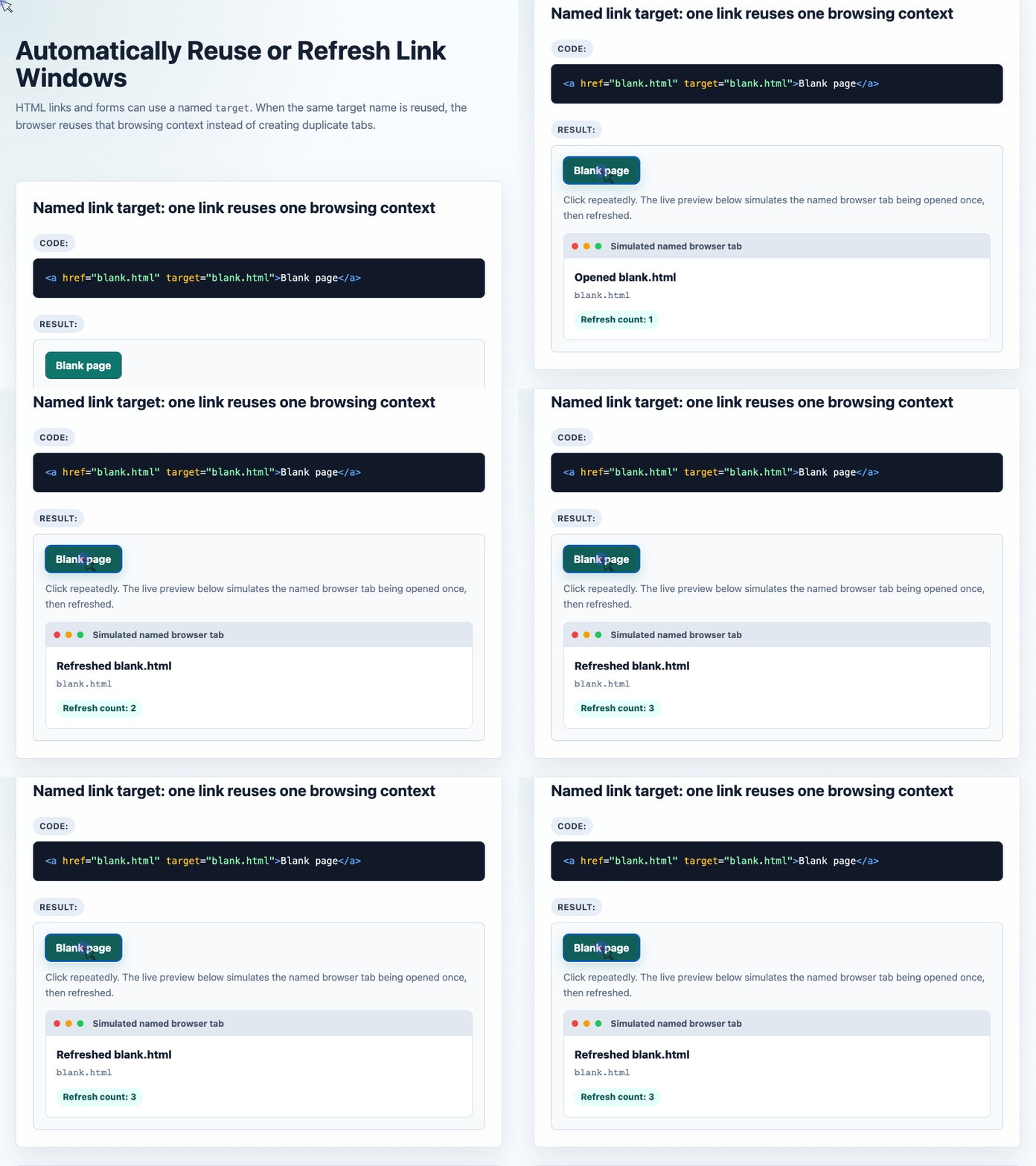
🎮 Try it live: Open the interactive demo to experience this yourself.
When Should You Use This?
Use named targets when repeated actions should reuse the same tab:
- Opening documentation pages from a dashboard
- Previewing generated reports
- Showing search results
- Opening admin detail pages
- Reusing a print or preview window
Avoid it when users expect every click to preserve a separate page state. In those cases, _blank may still be the better choice.
Conclusion
To reuse or refresh an already-opened link window, give the link a stable target name:
<a href="blank.html" target="blank.html">
  Blank page
</a>
Or, when multiple URLs should share one tab, use one shared custom name:
<a href="blank.html?s=1" target="searchResults">Result 1</a>
<a href="blank.html?s=2" target="searchResults">Result 2</a>
This small HTML feature can make repeated navigation feel cleaner and more intentional, without adding JavaScript or custom tab-management logic.
Try It Yourself
Want to see these concepts in action? I’ve created an interactive demo where you can experiment with the code and see real-time results.
Explore more demos from my previous articles in the Demo Gallery.
Happy coding!