By zhangxinxu
Original source: https://www.zhangxinxu.com/wordpress/?p=8972
Managing focus is one of those small frontend details that can quietly make or break the user experience. It matters especially in dialogs, drawers, popovers, menus, and other interactive UI patterns where keyboard accessibility and visual stability both need to work well.
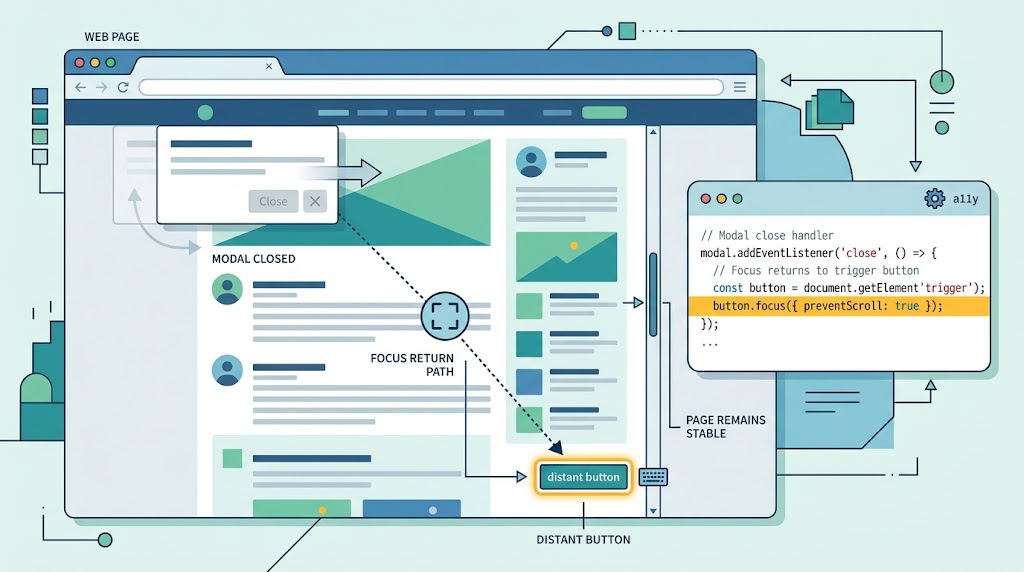
A common requirement is simple: after closing a dialog, return keyboard focus to the button that opened it.
button.focus();That looks harmless. But in some cases, it creates a frustrating page jump.
Where the Problem Comes From
Imagine this flow:
- A user clicks a button to open a dialog.
- While the dialog is open, the page scrolls.
- The user closes the dialog.
- JavaScript returns focus to the original button.
If the original button is now outside the visible viewport, the browser may automatically scroll it back into view. That means the page suddenly jumps.
This behavior is technically reasonable: browsers often try to make the focused element visible. But in UI flows like dialogs, it can feel disruptive.
The goal is:
Focus the element, but do not scroll or reposition the page.
The Modern Solution: preventScroll
The focus() method supports an options object. One of the most useful options is preventScroll.
button.focus({
  preventScroll: true
});
When preventScroll is set to true, the browser moves keyboard focus to the element without scrolling the page to reveal it.
By default, preventScroll is false, which means the browser is allowed to scroll the focused element into view.
A Small Demo Structure
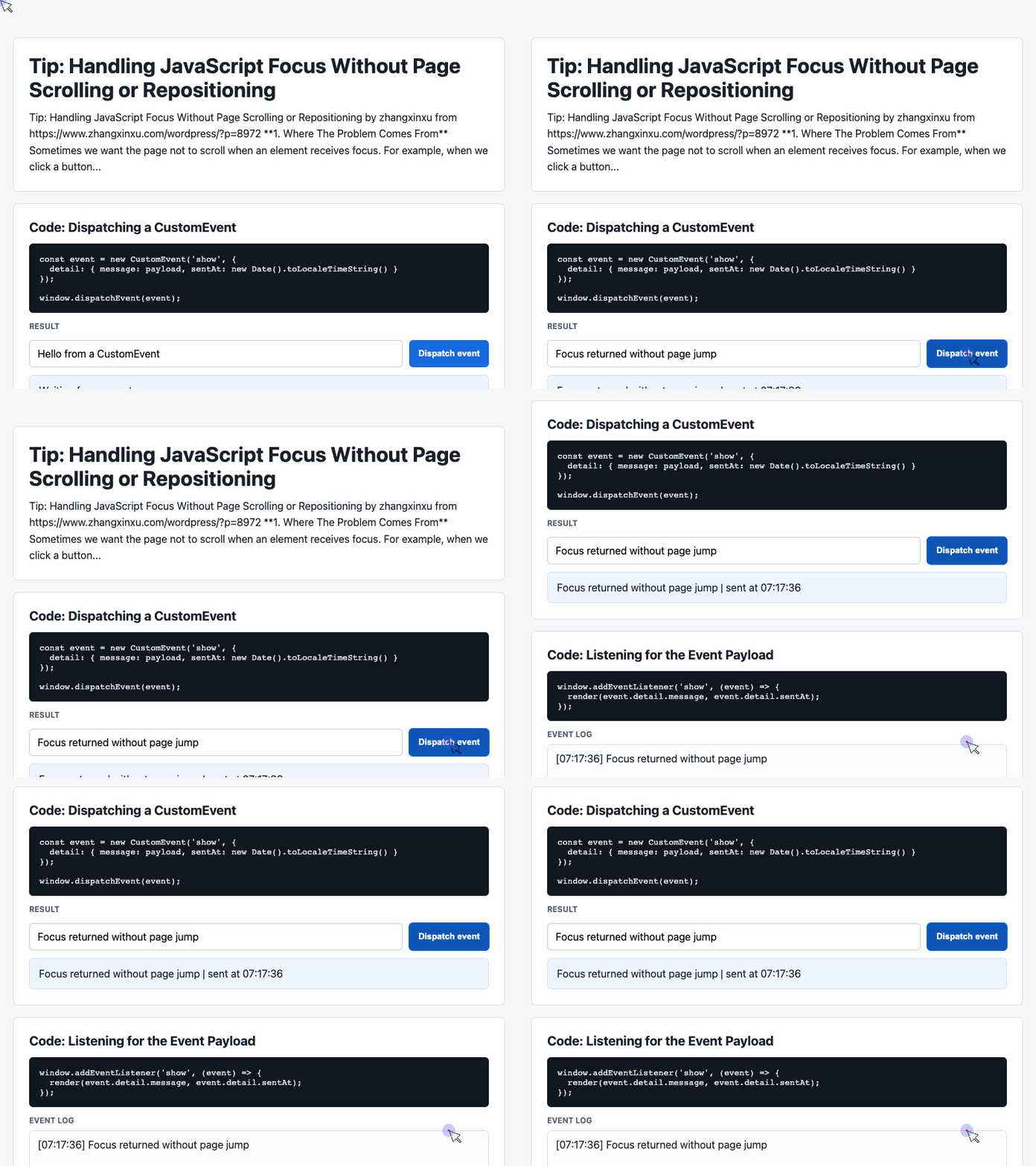
The provided demo uses a clean, focused HTML structure with controls and a result area. The same pattern works well for demonstrating focus behavior: one control triggers an action, and a visible panel shows the result.
<div class="showcase">
  <div class="controls">
    <input id="payload" value="Hello from a CustomEvent">
    <button id="dispatch">Dispatch event</button>
  </div>

  <div class="event-card" id="latest">
    Waiting for an event...
  </div>
</div>
This layout separates the interactive controls from the output area. In a focus demo, the button could represent the element that originally opened a dialog, while the result panel could show whether the page moved or stayed stable.
🎮 Try it live: Open the interactive demo to experience this yourself.
Styling the Interactive Area
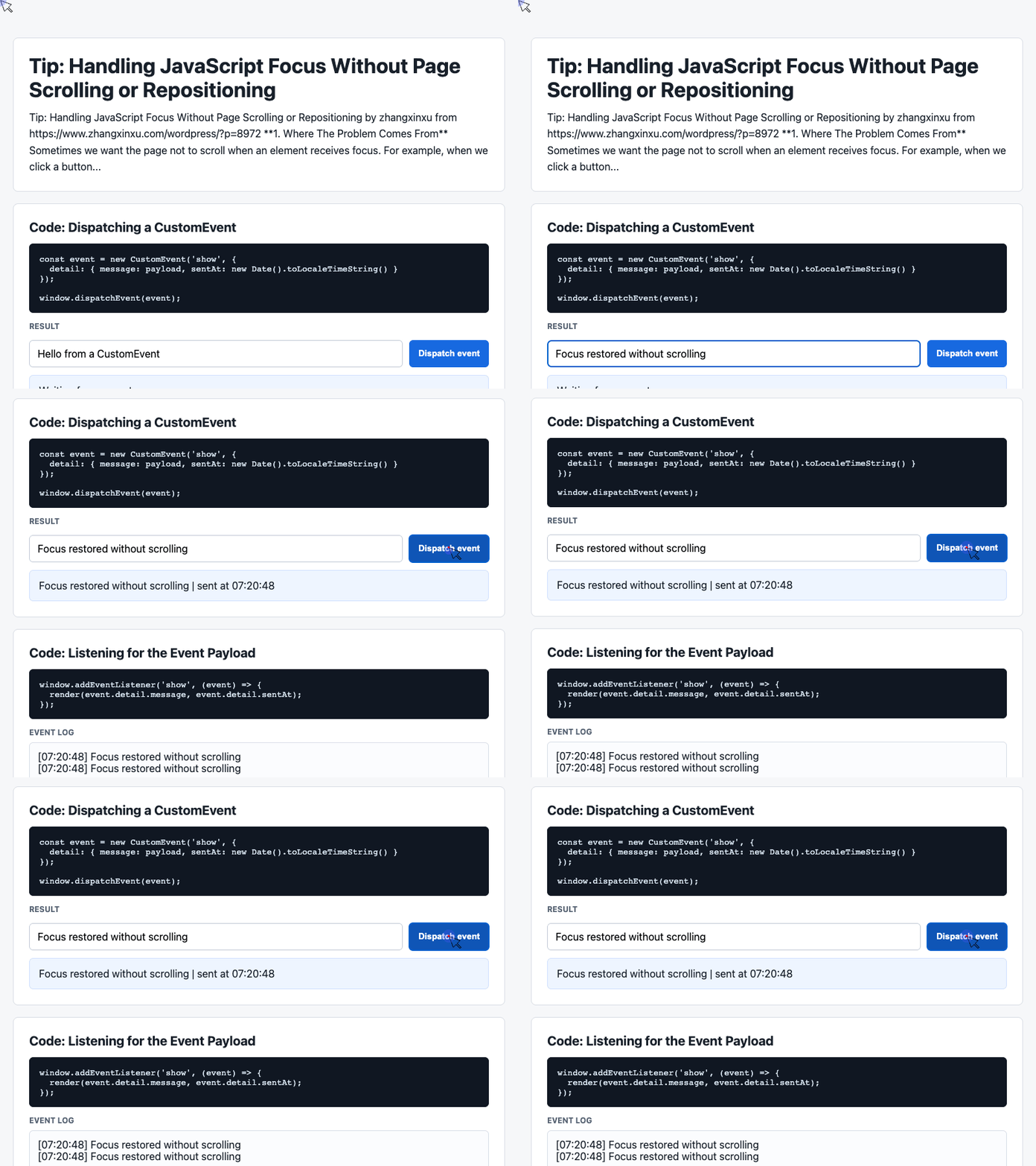
The demo also includes practical CSS for building a compact, readable interaction area. The controls are flexible, the button is visually clear, and the result card is distinct without being distracting.
.showcase {
  display: grid;
  gap: 12px;
  margin-top: 14px;
}

.controls {
  display: flex;
  flex-wrap: wrap;
  gap: 10px;
}

button {
  min-height: 40px;
  border: 0;
  border-radius: 6px;
  padding: 0 14px;
  background: #1769e0;
  color: #fff;
  font-weight: 650;
  cursor: pointer;
}

button:hover {
  background: #0f55b6;
}
This kind of styling is useful for accessibility-focused demos because it keeps the UI predictable. The button is easy to identify, the layout adapts to smaller screens, and the interactive area stays visually stable.
🎮 Try it live: Open the interactive demo to experience this yourself.
Applying the Focus Pattern
The core focus behavior is simple. When restoring focus after closing a dialog, use preventScroll.
const triggerButton = document.querySelector('#dispatch');

function closeDialog() {
  // Hide the dialog first.
  // Then restore keyboard focus without moving the page.
  triggerButton.focus({
    preventScroll: true
  });
}
This gives users the accessibility benefit of focus restoration without the visual penalty of sudden scrolling.
Logging Interaction State
The demo code also shows a useful pattern for recording UI activity. It listens for an event, extracts its payload, updates the latest result, and keeps a small history log.
window.addEventListener('show', (event) => {
  const detail = event.detail || {};

  latest.textContent = detail.message + ' | sent at ' + detail.sentAt;

  history.unshift('[' + detail.sentAt + '] ' + detail.message);
  log.textContent = history.slice(0, 6).join('\n');
});
For a focus demo, the same idea could be used to log whether focus was restored normally or restored with preventScroll.
For example, the log might show:
[10:42:12] Focus restored with preventScroll
[10:41:58] Dialog closed
[10:41:54] Dialog opened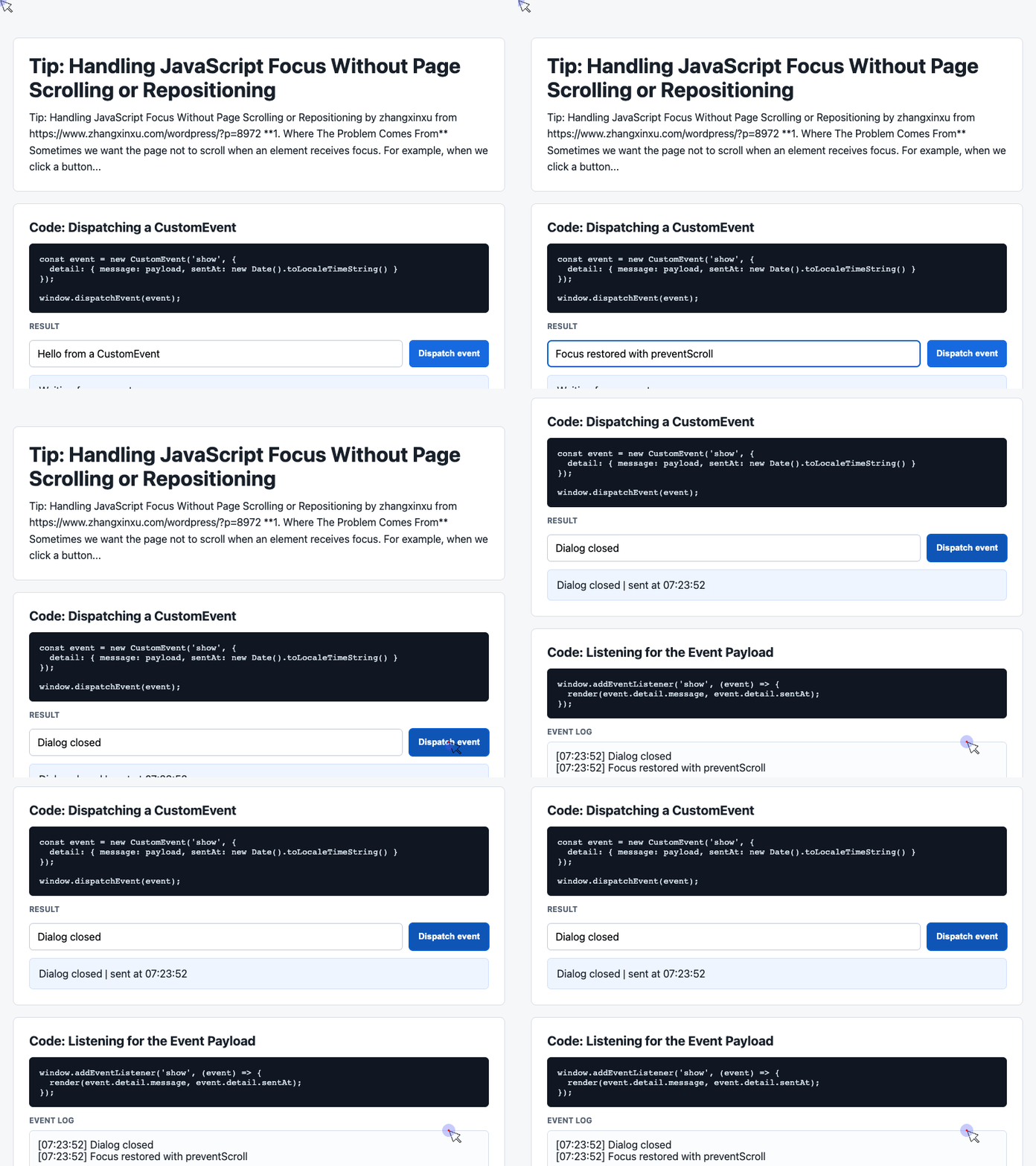
🎮 Try it live: Open the interactive demo to experience this yourself.
What About IE?
Internet Explorer does not support the modern preventScroll option.
One possible workaround is to save the current scroll position before calling focus(), then restore it afterward if the browser scrolls unexpectedly.
var y = window.pageYOffset;

button.focus({
  preventScroll: true
});

// Fallback handling for older browsers.
if (window.pageYOffset !== y) {
  setTimeout(function () {
    document.documentElement.scrollTop = y;
  }, 0);
}
This workaround is not perfect. It may still cause a visible flicker because the browser can scroll first, then JavaScript restores the previous position.
In many modern projects, the pragmatic choice is to treat this as a progressive enhancement and avoid supporting old IE behavior unless there is a hard business requirement.
A Note on focus() and HTML Elements
The method is usually documented as HTMLElement.focus(). That means HTML elements have a focus() method, even if they are not normally focusable by default.
For example, these calls do not throw an error:
document.body.focus();
document.createElement('div').focus();
However, ordinary elements usually cannot receive meaningful keyboard focus unless they are naturally focusable or given a suitable tabindex.
<div tabindex="-1" id="panel">
  This panel can be focused with JavaScript.
</div>
This is useful for custom dialogs, panels, and routed page transitions where focus needs to move to a specific region for accessibility.
Final Thoughts
focus({ preventScroll: true }) is a small API with a real UX impact. It lets you preserve keyboard accessibility while avoiding unexpected scroll jumps.
Use it when restoring focus after dialogs, popovers, drawers, menus, and other temporary UI layers. It keeps the user’s place on the page stable while still doing the right thing for keyboard and assistive technology users.
Try It Yourself
Want to see these concepts in action? I’ve created an interactive demo where you can experiment with the code and see real-time results.
Explore more demos from my previous articles in the Demo Gallery.
Happy coding!