Package SVG icons with JSZip, offer a browser download, and keep users informed along the way.
Adapted from zhangxinxu’s original article.
A tool that extracts individual icons from an SVG sprite solves a useful problem. But once users have dozens of extracted files, downloading each one becomes tedious.
The natural next feature is a Download ZIP option.
When the SVG content already exists in the browser, JavaScript can package those files locally. No upload or server endpoint is needed for the archive-generation step.
How Browser-Based ZIP Creation Works
The workflow has three parts:
- Collect each file’s name and content.
- Use JSZip to generate a ZIP archive as a
Blob. - Give the browser a download link pointing to that Blob.
JSZip handles the archive format. Its generateAsync() method returns a promise containing the generated output, including a Blob when requested. JSZip documentation
The supplied HTML demo demonstrates CustomEvent dispatching and a live event log; it does not create ZIP files. The examples below adapt its controls and status display, then connect them to the original article’s ZIP-generation logic.
1. Reuse the Demo’s Controls
Start with the demo’s input, button, status card, and log. Change their labels to fit the export workflow, add a download link, and load a local copy of jszip.min.js.
This excerpt retains the demo’s CSS classes, so its existing styling can still be used.
<script src="./jszip.min.js"></script>

<div class="controls">
  <input id="payload" value="icons" aria-label="ZIP filename without extension">
  <button id="dispatch" type="button">Create ZIP</button>
</div>

<div class="event-card" id="latest" role="status">
  Ready to package SVG files.
</div>
<pre class="log" id="event-log">No events yet.</pre>
<a id="download" hidden>Download ZIP</a>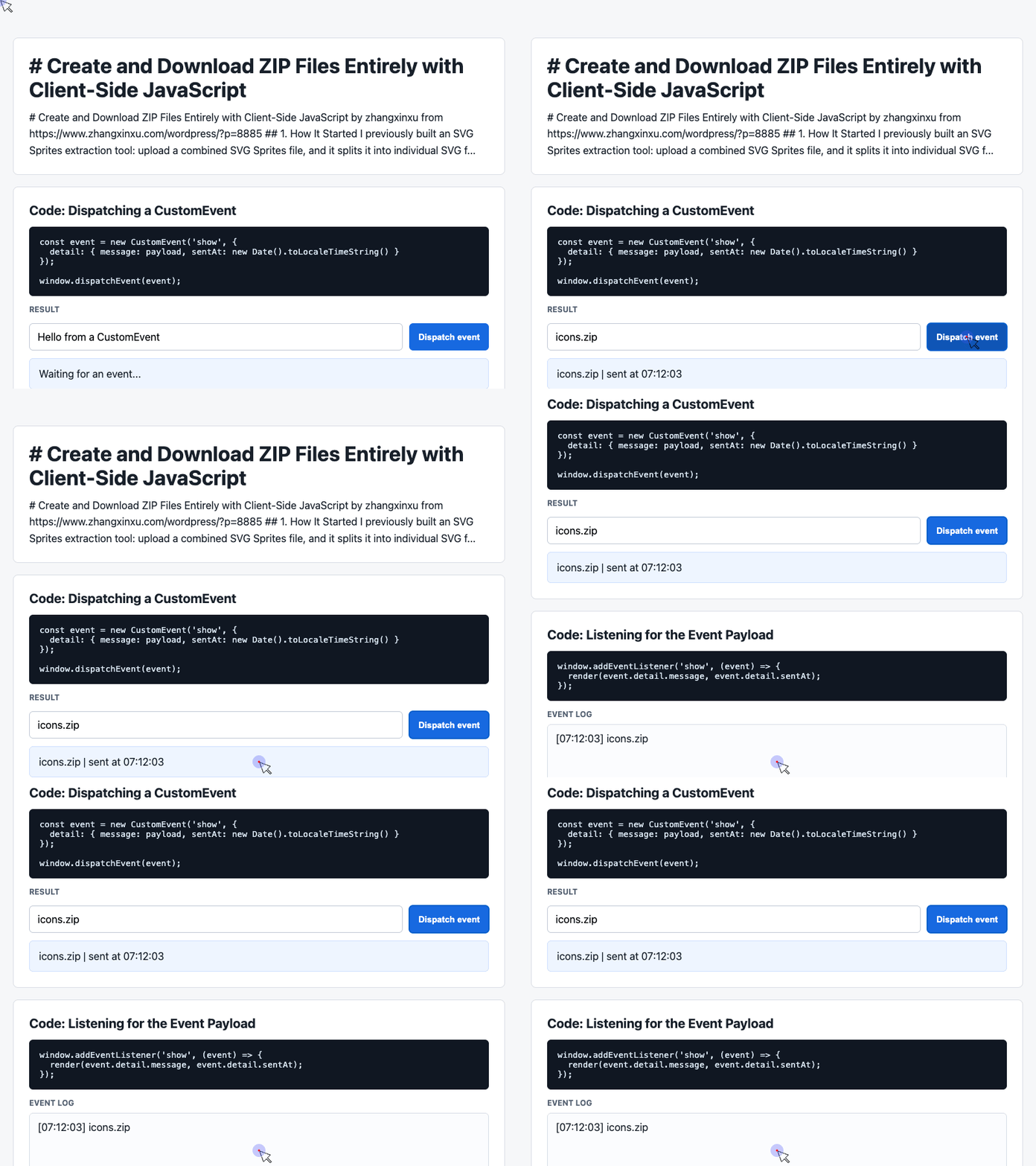
🎮 Try it live: Open the interactive demo to experience this yourself.
The download link starts hidden. Once generation finishes, it becomes available for an explicit user click.
This separates the two actions clearly: create the archive, then download it. Put the following JavaScript snippets after this markup, in the same script.
2. Turn Custom Events Into Export Status Updates
The demo already contains a useful pattern: dispatch an event with a message and timestamp, then let a listener update the interface.
Here, that pattern becomes a small report() function. The listener preserves the demo’s newest-first log and six-entry display.
const latest = document.querySelector('#latest');
const log = document.querySelector('#event-log');
const history = [];

function report(message) {
  window.dispatchEvent(new CustomEvent('show', {
    detail: { message, sentAt: new Date().toLocaleTimeString() }
  }));
}

window.addEventListener('show', (event) => {
  const { message, sentAt } = event.detail;
  latest.textContent = `${message} | sent at ${sentAt}`;
  history.unshift(`[${sentAt}] ${message}`);
  log.textContent = history.slice(0, 6).join('\n');
});

report('Ready to package SVG files.');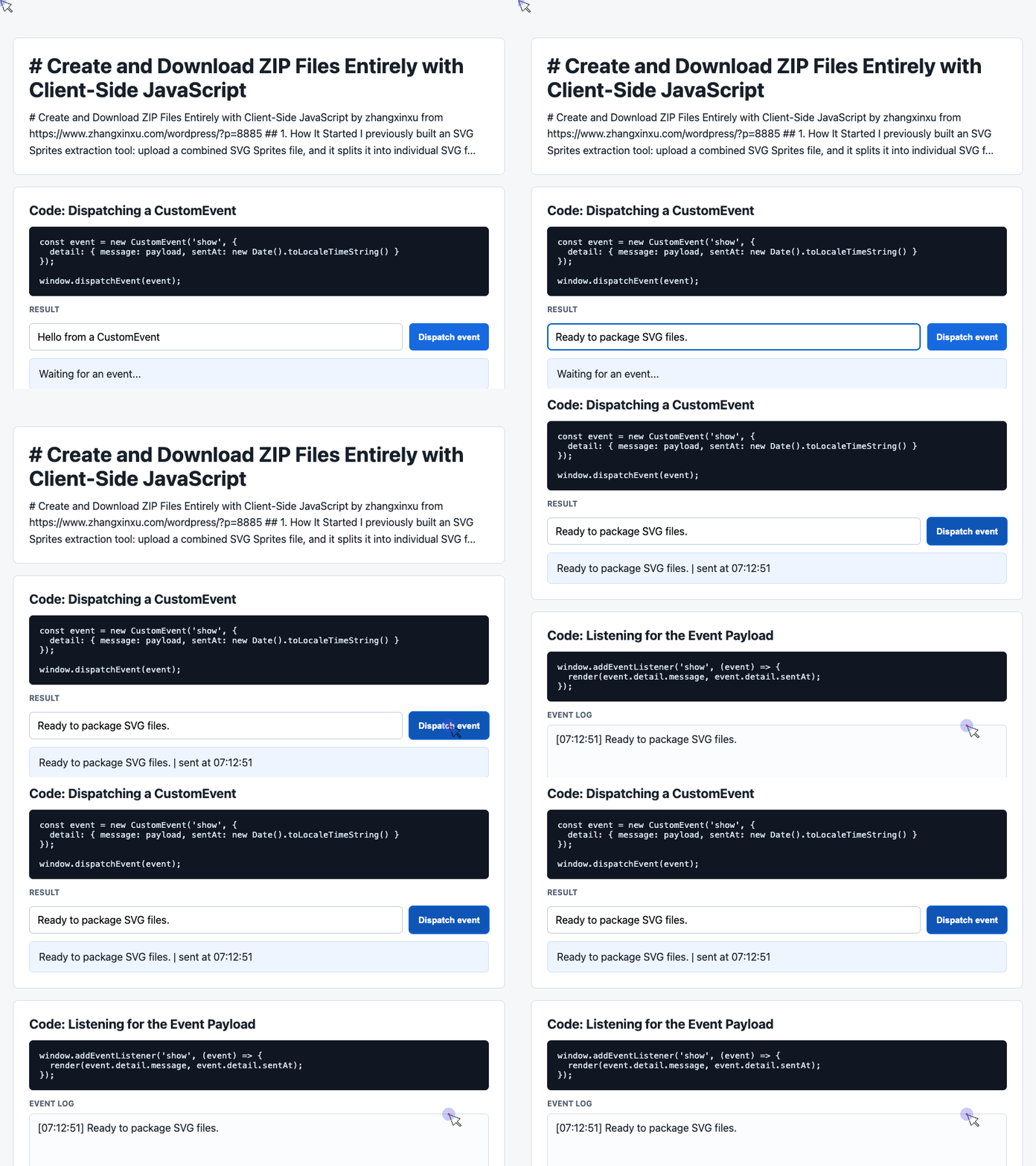
🎮 Try it live: Open the interactive demo to experience this yourself.
Now the export code can call report('Creating ZIP...') without repeating DOM updates.
Custom events are optional for ZIP creation. Their value here is organizational: the archive code announces what happened, while the listener decides how to display it.
Using textContent also keeps status messages as plain text rather than interpreting them as HTML.
3. Package the SVG Files and Offer a Download
Assume the SVG extraction step has already produced a data array. Each item contains an id, such as icon-search, and an svgHTML string containing a complete SVG document.
Each ID becomes a filename, and each SVG string becomes that file’s contents.
The next example combines the demo’s button-click pattern with the original article’s JSZip approach. It also handles generation errors and disables the button while work is in progress.
const button = document.querySelector('#dispatch');
const download = document.querySelector('#download');
let archiveURL;

button.addEventListener('click', async () => {
  button.disabled = true;
  download.hidden = true;

  if (archiveURL) URL.revokeObjectURL(archiveURL);

  try {
    const name = document.querySelector('#payload').value.trim();
    const filename = (name.replace(/[^a-zA-Z0-9_-]/g, '_') || 'icons') + '.zip';
    const zip = new JSZip();

    data.forEach(({ id, svgHTML }) => {
      zip.file(`${id}.svg`, svgHTML);
    });

    report(`Creating ZIP with ${data.length} SVG files...`);
    const blob = await zip.generateAsync({
      type: 'blob',
      compression: 'DEFLATE'
    });

    archiveURL = URL.createObjectURL(blob);
    download.href = archiveURL;
    download.download = filename;
    download.textContent = `Download ${filename}`;
    download.hidden = false;
    report(`${filename} is ready to download.`);
  } catch (error) {
    report(`Export failed: ${error.message}`);
  } finally {
    button.disabled = false;
  }
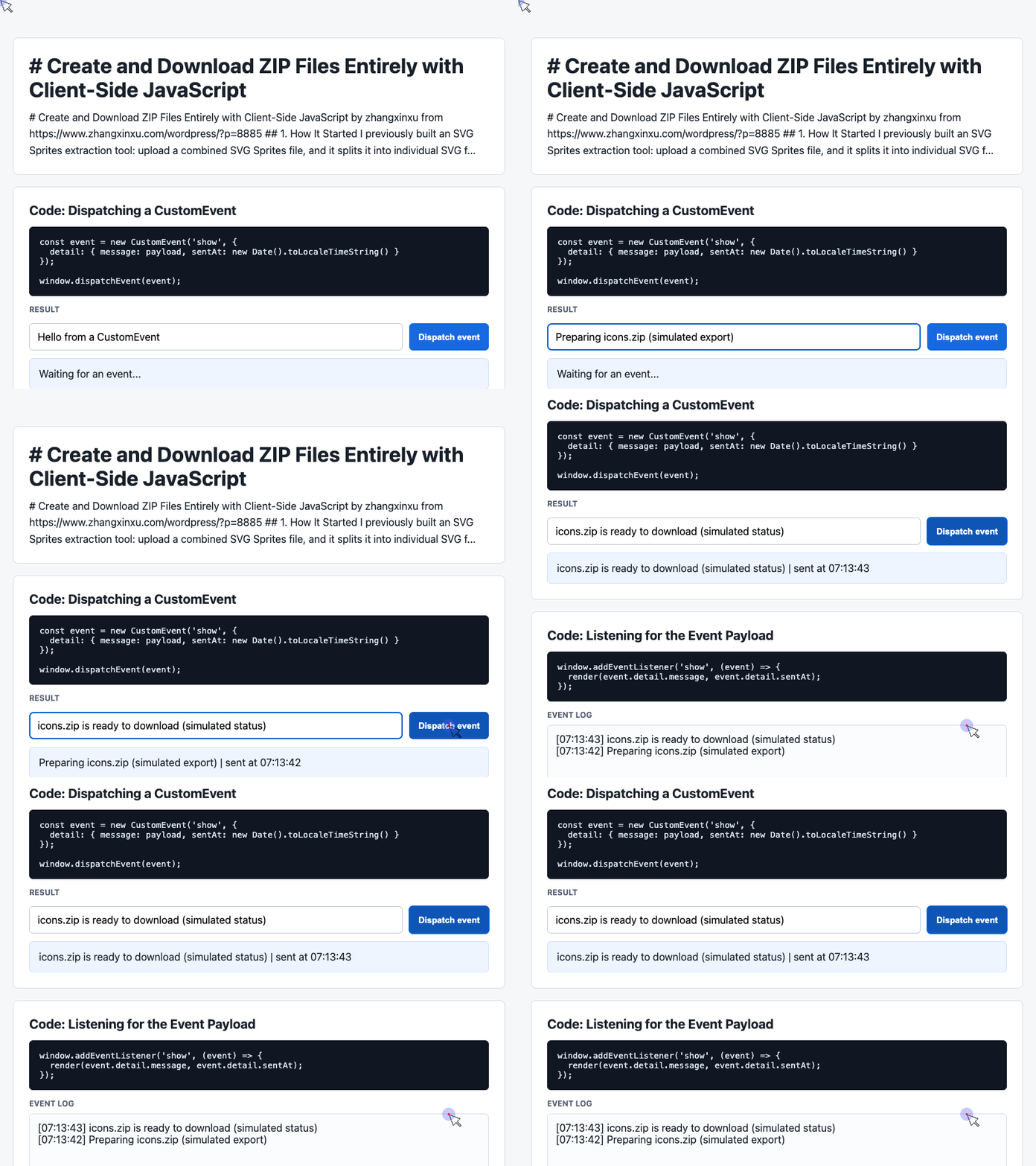
});
🎮 Try it live: Open the interactive demo to experience this yourself.
zip.file() adds the SVG entries. generateAsync() produces the archive, and DEFLATE explicitly enables compression; JSZip’s default is STORE, which packages entries without compressing them. JSZip generation options
The object URL makes the generated Blob accessible through a normal link. The download attribute suggests the filename, although the browser and user settings determine the exact download behavior. MDN anchor documentation
Notice the status says ready to download. Generating the archive does not establish that the user has saved it.
Where FileSaver.js Fits
The original example uses FileSaver.js to save the generated Blob through saveAs(content, "example.zip").
That gives you another download interface: JSZip creates the archive, and FileSaver.js handles the save request. FileSaver.js also accepts other generated content, such as a Blob produced by canvas.toBlob(). FileSaver.js documentation
For this example, an anchor element keeps the implementation small and gives users a visible download action.
Details That Matter in a Real Export Tool
Preserve complete SVG documents. Each svgHTML value should contain a standalone <svg> element, its namespace, an appropriate viewBox, and any definitions the icon needs. A fragment that depends on the original sprite may not render correctly after extraction.
Use unique, safe entry names. The example assumes IDs are suitable filenames. Validate them before adding entries, and handle duplicate IDs so two icons do not target the same archive path.
Release object URLs when they are no longer needed. This example revokes the previous URL when replacing its download link. Keep the current URL alive while users can still access that link; revoking it immediately would make the link unusable. MDN Blob URL lifecycle
Size exports for the devices you support. generateAsync() holds the full result in memory. Large archives therefore need realistic testing on target devices; asynchronous generation does not remove memory constraints. JSZip limitations
For an SVG extraction tool, this feature removes a repetitive step from the user’s workflow. They can extract their icons, create one archive, and download the collection together—all within the browser.
Try It Yourself
Want to see these concepts in action? I’ve created an interactive demo where you can experiment with the code and see real-time results.
Explore more demos from my previous articles in the Demo Gallery.
Happy coding!