Two native APIs can save you a surprising amount of DOM traversal code.
Adapted from zhangxinxu’s original article, with technical clarifications and examples from the supplied companion demo.
1. The Question and What It Tests
Given several images nested inside a container, how do you determine whether a clicked image comes before or after a reference image?
The original quiz tests a few closely related skills: recognizing an image, checking containment, and comparing nodes in document order.
In the original write-up, zhangxinxu noted that nearly 90% of the submitted answers took a surprisingly verbose approach. It is easy to see why: walking through parents and siblings feels like a natural way to solve a DOM problem.
But the browser already provides two useful tools:
contains()checks whether one node contains another.compareDocumentPosition()describes the relationship between two nodes.
Document order follows the DOM tree. CSS can rearrange how elements appear on screen without changing that order.
2. Checking DOM Containment with contains()
The syntax is straightforward: node.contains(otherNode).
The result is true when otherNode is a descendant of node or is the node itself. That second detail is easy to overlook. MDN’s containment reference.
Try these expressions in your browser console:
document.documentElement.contains(document.body)→truedocument.body.contains(document.body)→truedocument.body.contains(document.documentElement)→false
The first checks a descendant, the second checks the same node, and the third checks an ancestor in the wrong direction.
For a strict descendant check, combine containment with an identity check: node !== otherNode && node.contains(otherNode).
What happens across an iframe boundary?
An iframe element belongs to the parent document, while the document loaded inside it has its own DOM tree. Creating that document from a Blob does not change this distinction.
Assuming access is allowed, checking whether the parent page’s body contains an image inside the iframe returns false.
compareDocumentPosition() can identify that the nodes are disconnected, but it cannot establish meaningful document order between those separate trees. Any accompanying before-or-after flags are implementation-specific. MDN’s document-position reference.
3. Comparing Nodes with compareDocumentPosition()
The expression img.compareDocumentPosition(compareImg) describes the reference image’s position relative to img.
That direction matters. A preceding result means the reference image comes before the clicked image.
The return value is a bitmask: one number can encode several relationships at once.
| Constant | Value | Meaning of the argument node |
|---|---|---|
DOCUMENT_POSITION_DISCONNECTED | 1 | Belongs to a different tree |
DOCUMENT_POSITION_PRECEDING | 2 | Comes before the calling node |
DOCUMENT_POSITION_FOLLOWING | 4 | Comes after the calling node |
DOCUMENT_POSITION_CONTAINS | 8 | Is an ancestor of the calling node |
DOCUMENT_POSITION_CONTAINED_BY | 16 | Is a descendant of the calling node |
DOCUMENT_POSITION_IMPLEMENTATION_SPECIFIC | 32 | Involves implementation-specific behavior |
Each constant is available on Node. A result of 0 means both references identify the same node. These relationships are defined in the DOM standard.
Why equality checks can miss a match
Consider document.body.compareDocumentPosition(document.documentElement). It returns 10: the <html> element both precedes the body (2) and contains it (8).
Reverse the comparison and the result is 20: the body follows <html> (4) and is contained by it (16).
An equality check against 2 would miss the preceding relationship in 10. Use bitwise AND, &, to check whether a particular flag is present. This applies to every node type.
Here is the article’s comparison example updated to use named flags. Assume img holds the clicked image and compareImg holds the reference image.
const position = img.compareDocumentPosition(compareImg);
let message = 'The same image.';

if (position & Node.DOCUMENT_POSITION_DISCONNECTED) {
  message = 'The images belong to different DOM trees.';
} else if (position & Node.DOCUMENT_POSITION_PRECEDING) {
  message = 'The reference image comes before the clicked image.';
} else if (position & Node.DOCUMENT_POSITION_FOLLOWING) {
  message = 'The reference image comes after the clicked image.';
}

console.log(message);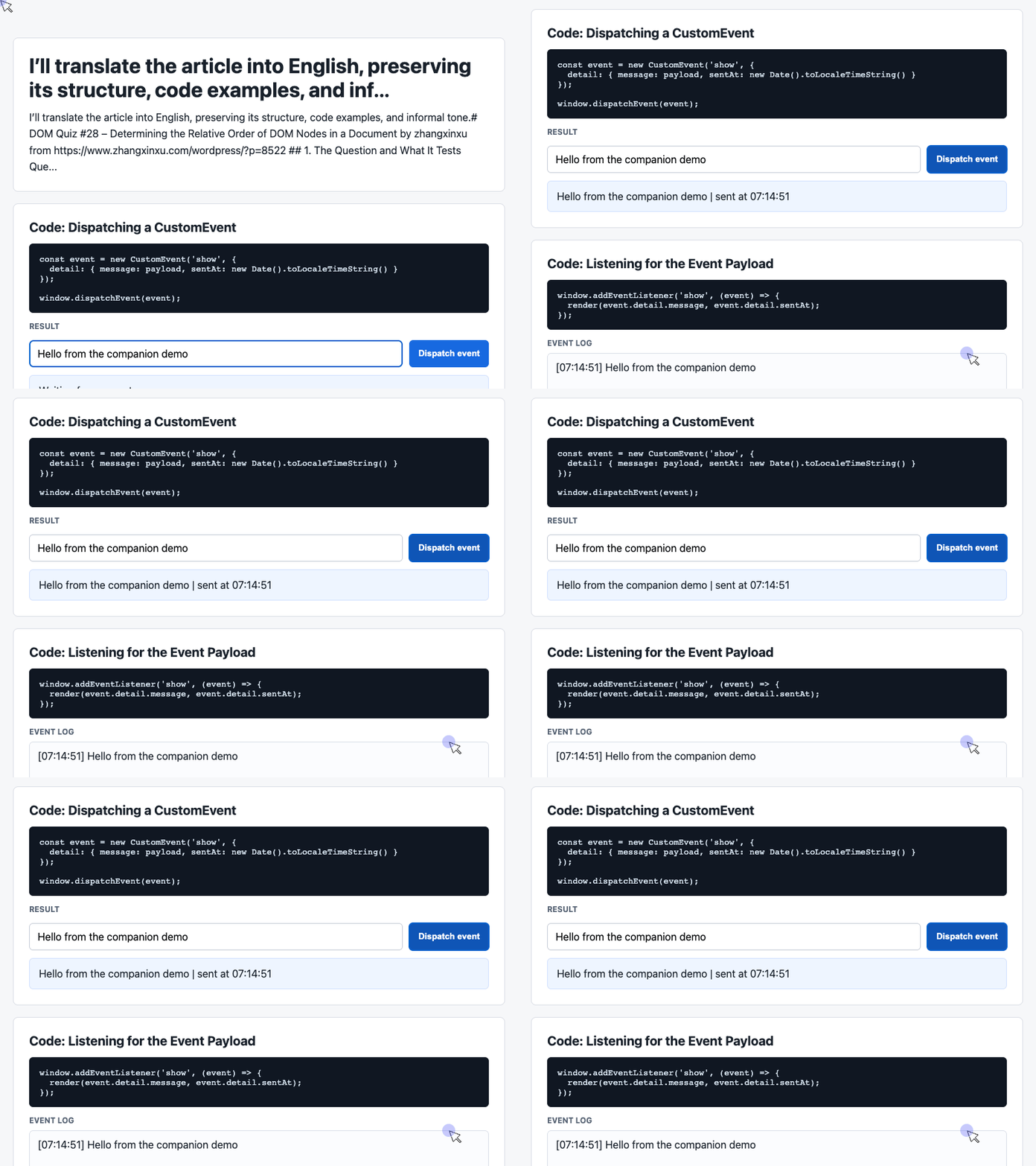
🎮 Try it live: Open the interactive demo to experience this yourself.
Checking disconnection first prevents an arbitrary ordering flag from being mistaken for document order. For connected images, the remaining branches distinguish before, after, and the same node.
No manual traversal required.
4. Recognizing a Clicked Image
With a click listener attached to a container, event.target identifies the clicked element.
For HTML images in an HTML document, event.target.tagName === 'IMG' is a straightforward check. HTML tag names are returned in uppercase; XML documents have different casing rules. MDN’s tagName reference.
The original article also lists these alternatives:
event.target.nodeName === 'IMG'/^img$/i.test(event.target.tagName)event.target.tagName.toLowerCase() === 'img'event.target instanceof Image
The first three inspect the element’s name. The last checks its type.
For readability, event.target instanceof HTMLImageElement expresses the type check more explicitly. Be aware that instanceof depends on the JavaScript realm: an image created in an iframe may fail a check against the parent window’s constructor. MDN’s explanation of instanceof across realms.
Once the target passes the image check, it can become the img reference used in the comparison above.
A Companion Demo: Displaying Results with Custom Events
Computing a relationship is one step. Presenting the result is another.
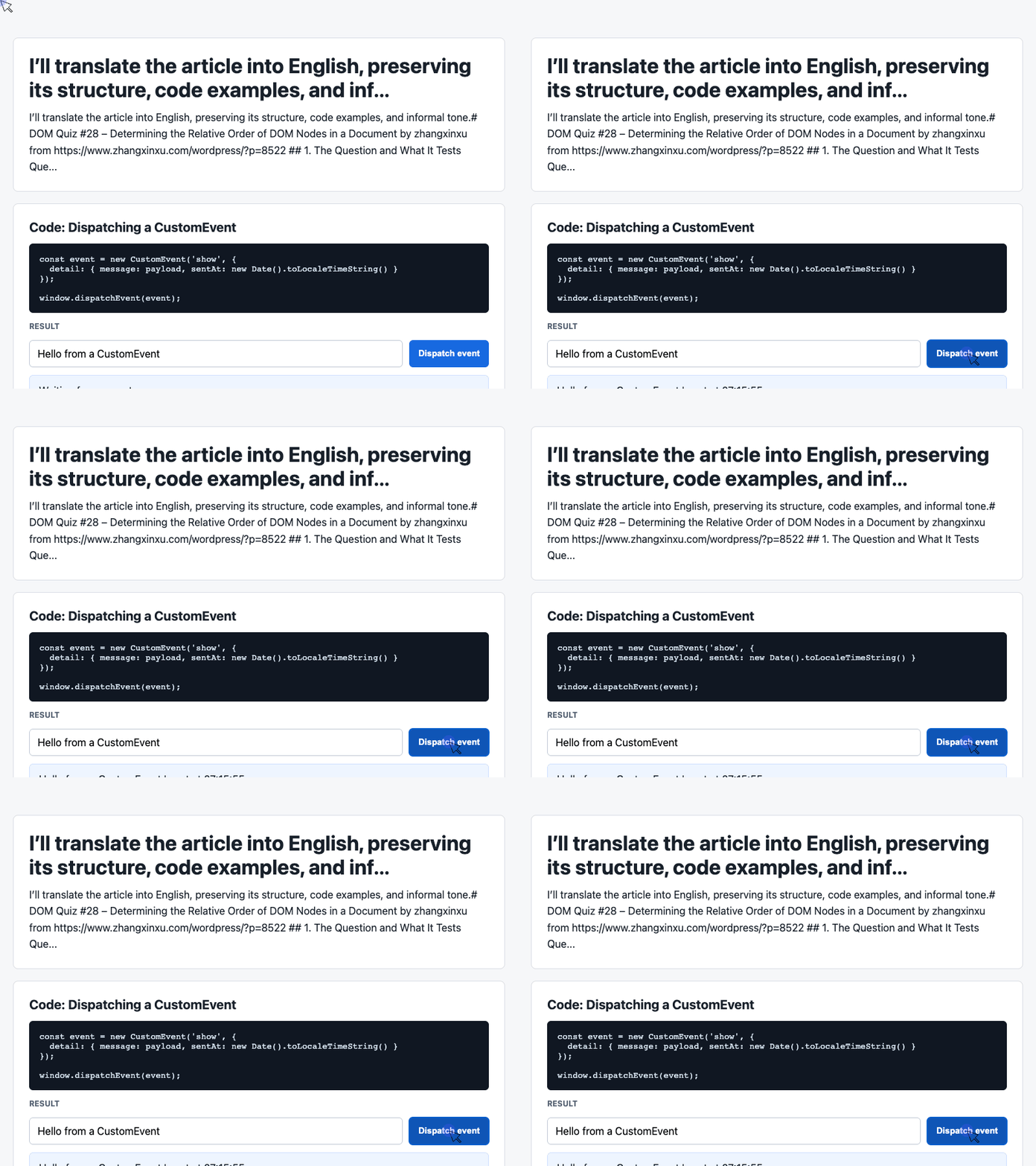
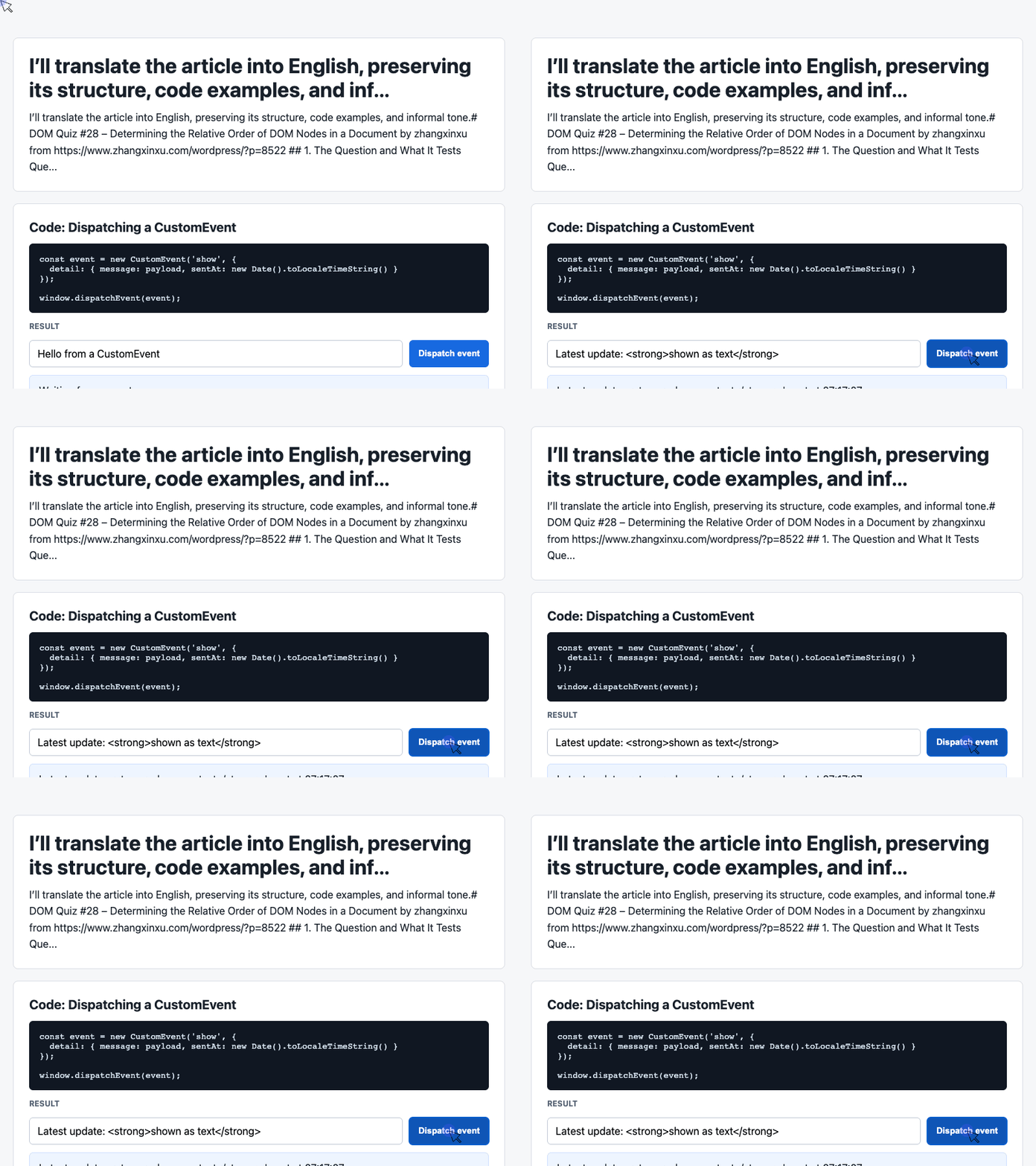
The supplied working demo demonstrates that presentation pattern through CustomEvent: a button sends a message and timestamp, and a listener updates a result card and event log.
The following two excerpts come directly from that demo. Its current payload is a typed message; you could adapt it to carry the comparison message calculated earlier.
Send a payload when the button is clicked
The dispatch handler reads the input, substitutes a default message when needed, and places the data in detail. Custom events expose this application data to their listeners. DOM standard’s CustomEvent definition.
In the complete demo, the rendering listener shown next is registered before the user clicks the button.
const input = document.querySelector('#payload');

document.querySelector('#dispatch').addEventListener('click', () => {
  const message = input.value.trim() || 'Default CustomEvent payload';
  const event = new CustomEvent('show', {
    detail: { message, sentAt: new Date().toLocaleTimeString() }
  });
  window.dispatchEvent(event);
});
🎮 Try it live: Open the interactive demo to experience this yourself.
Dispatching the event delivers the payload to the listener. The listener performs the visible update.
dispatchEvent() invokes listeners synchronously, so this rendering happens during the dispatch call. MDN’s dispatchEvent() reference.
Render the latest result and recent history
The listener reads event.detail, updates the result card, and adds an entry to the log. These selectors refer to the supplied demo’s existing HTML elements.
const latest = document.querySelector('#latest');
const log = document.querySelector('#event-log');
const history = [];

window.addEventListener('show', (event) => {
  const detail = event.detail || {};
  latest.textContent = detail.message + ' | sent at ' + detail.sentAt;
  history.unshift('[' + detail.sentAt + '] ' + detail.message);
  log.textContent = history.slice(0, 6).join('\n');
});
🎮 Try it live: Open the interactive demo to experience this yourself.
unshift() puts each new entry first. slice(0, 6) limits the displayed log to six entries, although the underlying array continues to grow.
Using textContent displays the message as text. The demo’s white-space: pre-wrap styling preserves the line breaks between log entries.
For an interactive DOM quiz, this same display pattern could show messages such as “The reference image comes before the clicked image.”
5. What to Remember
The quiz becomes much simpler once you recognize the native APIs available:
- Use
contains()for containment, remembering that a node contains itself. - Check the clicked element before treating it as an image.
- Use
compareDocumentPosition()for relative order. - Read its result with named flags and bitwise
&. - Check for disconnected trees before interpreting ordering flags.
The companion demo shows how a custom event can carry a computed result into a visible card and log.
About the Original Live Q&A
The original article accompanied a Bilibili Q&A that began at 10:34 a.m. and lasted roughly 30 minutes.
At the time, the project posted a quiz every Wednesday, rotating through CSS, JavaScript, and DOM topics, with Saturday morning discussions between 10:00 and 11:00.
You can explore the questions in the quiz repository. Before reaching for another traversal loop, give the native DOM APIs a look.
That’s all~
Try It Yourself
Want to see these concepts in action? I’ve created an interactive demo where you can experiment with the code and see real-time results.
Explore more demos from my previous articles in the Demo Gallery.
Happy coding!